Sooooooooooooooooooooooooooooooooo
The command line is basically where you'll make money, hehe jk, or not...🤨 When you work with files and projects, it can be cool to just use a couple clicks and drags, but when you get more into it you'll notice It's NOT the (cool) way.
The command line is a text interface for our computer's OS (Operating System), We can use it to traverse and edit our filesystem; through the command line you can create new files, edit the contents of those files, delete them aaaand lots of pro things we'll learn together.
On Mac and Linux we access the command line with Bash; Windows comes with a different buil-in command line, but Windows users can also download Bash.
Navigate through a computer filesystem: View the content of the filesystem, move through the different directories (folders), and make new files and directories.
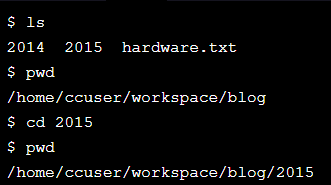
🔽 (ls) When you type ls, the command line looks at the directory you are in, and then “lists” all the files and directories inside of it.

🔽 (pwd) It stands for “print working directory.” It outputs the name of the directory you are currently in, called the working directory. Together with ls, the pwd command is useful to show where you are in the filesystem.

🔽 (cd) It stands for “change directory.” Just as you would click on a folder in Windows Explorer or Finder, cd switches you into the directory you specify. In other words, cd changes the working directory. As you can see when we use ls the list it displays [2014 2015 hardware.txt] so if we use cd 2015 it will take us to "2015" directory
🔽aaaaaaaaaaaaaaaa
Manipulate the contents of the fylesystem; move files, delete files and directories and mooooore.
Redirect
- Standart Imput
- Standtart Output
- Standart Error messages
Configure your local enviroment, settings, preferences, shortcuts, nano and mooooooooooooore.