1. Log into Smithsonian DAMS and search for an asset. Searching by filename is a useful method.

2. Your search results will appear. Searches recognize * as wildcards.

3. Tick the checkbox next to the asset you want to link another asset to - in this case the video file. Then click the three dots next to "Copy/Move to folder"
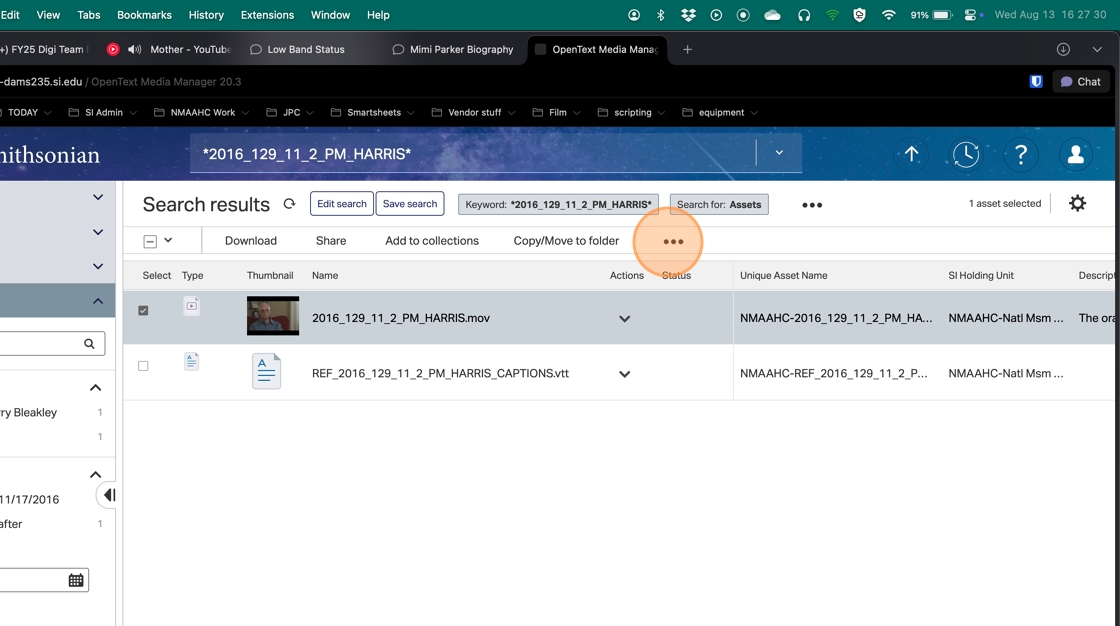
4. From the dropdown menu choose "Link to assets"

5. In the "Link assets" window that comes up, you will see the asset you chose from your search in the "SOURCE ASSETS" section.
Click on the "LINK TYPE" dropdown menu and choose "For Package Delivery"
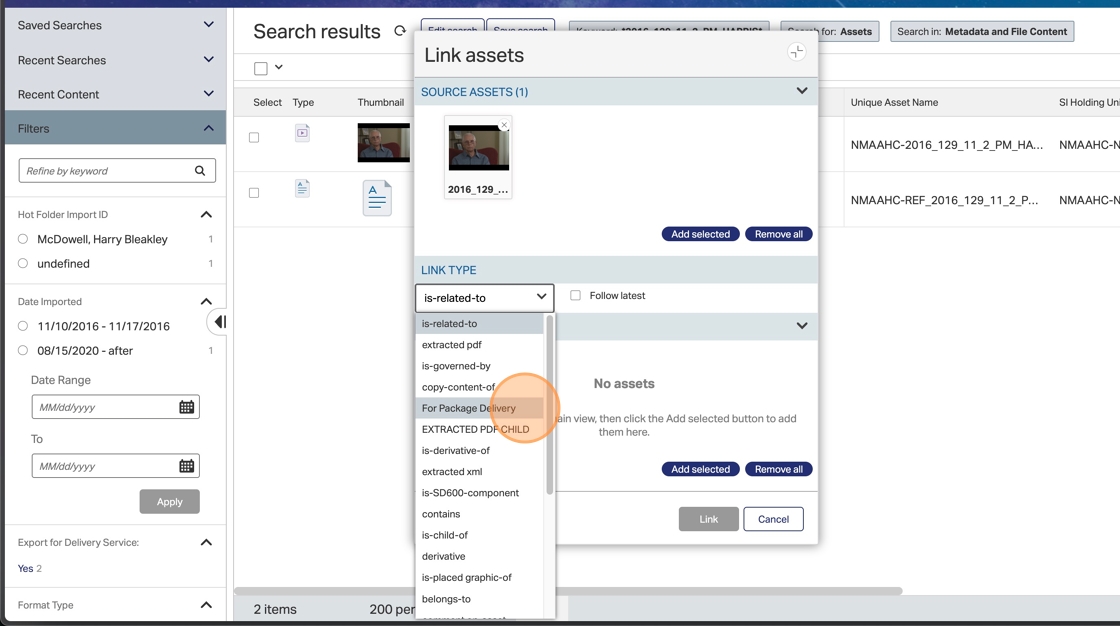
6. In the main DAMS search window (which you can still see behind the inconveniently placed "Link assets" window) tick the checkbox next to the asset you want to be linked - in this case the .vtt captions file.

7. Near the bottom of the "Link assets" window in the "LINKED ASSETS" section, click the "Add selected" button.

8. The file you chose to link - the .vtt captions file - will now appear in the "LINKED ASSETS" section. Click the "Link" button at the bottom of the "Link assets" window.

9. Your assets are now linked! The "Link assets" window will disappear and you will only see the main DAMS search results window. To check that the assets linked correctly you can click on the video file in the search results.

10. Then click on the "Relationships" menu.

11. It will show all the files linked to the that video asset. The .vtt file you just linked appears. If there are multiple files linked to an asset you can narrow it by clicking on the "Show" menu.
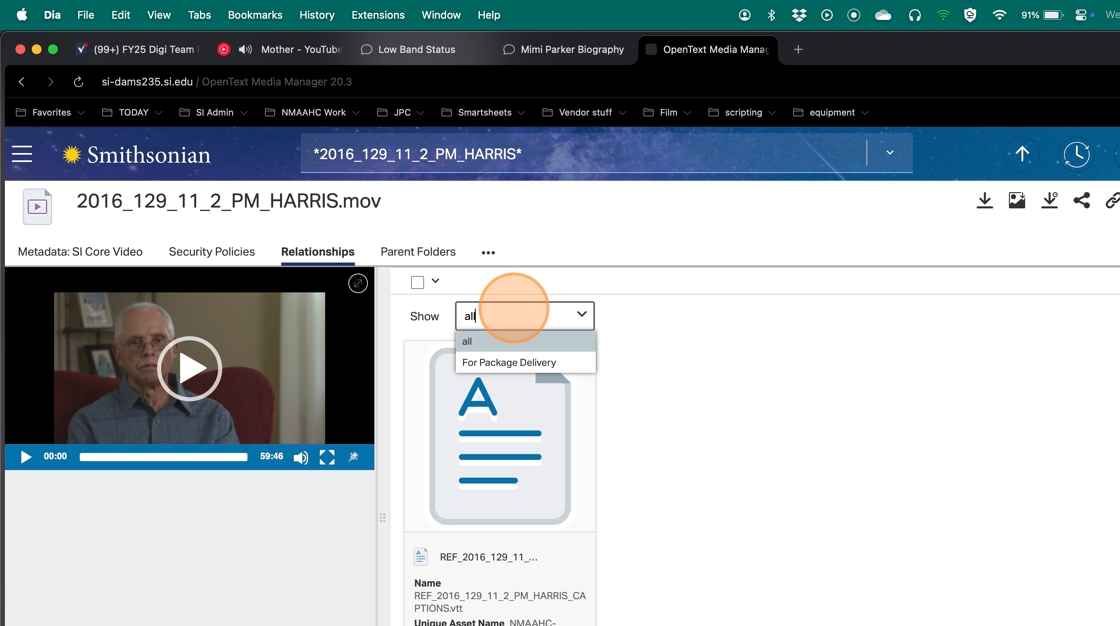
12. A list of all the linked asset relations will show. Choose "For Package Delivery" and only the assets linked by that relation will show.

13. Since there is only one asset linked to this video there is not change in what we see.

14. We should also check that the language fields on the .vtt captions metadata are set correctly. (This can - and should - be set in a hotfolder DAMS template)
Click on the three dots menu.

15. Choose "Edit" from the dropdown menu.

16. Find the "Audio Languages" field. Choose English.
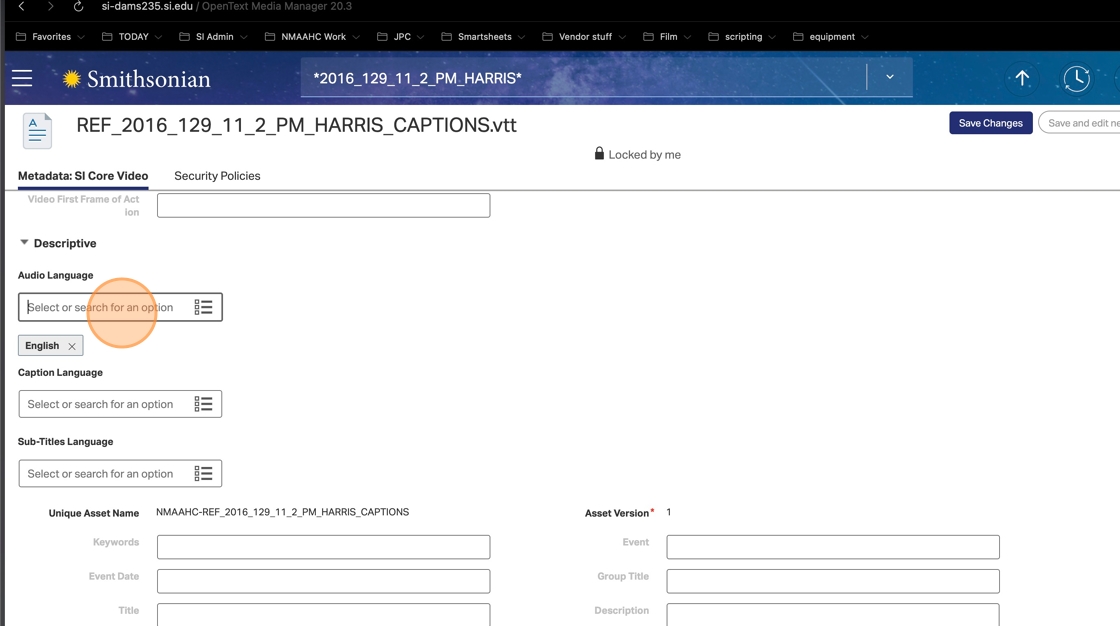
17. Below, in the "Caption Language" field choose English.
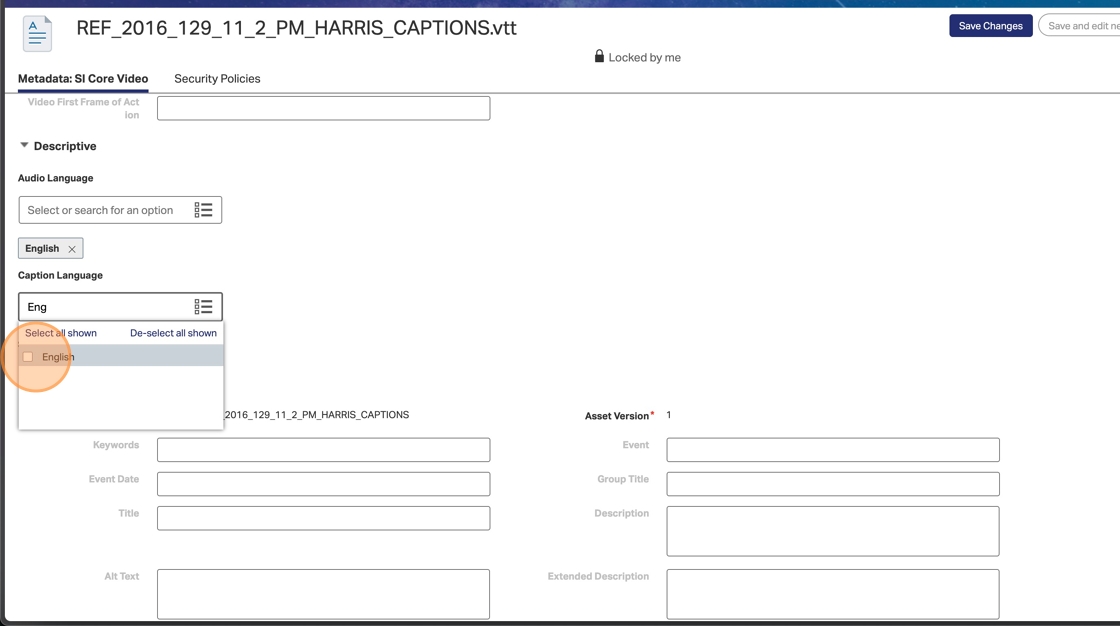
18. Save your changes.

19. To set an asset for MADS delivery, while in the videos metadata page click on the three dots in the upper right corner.
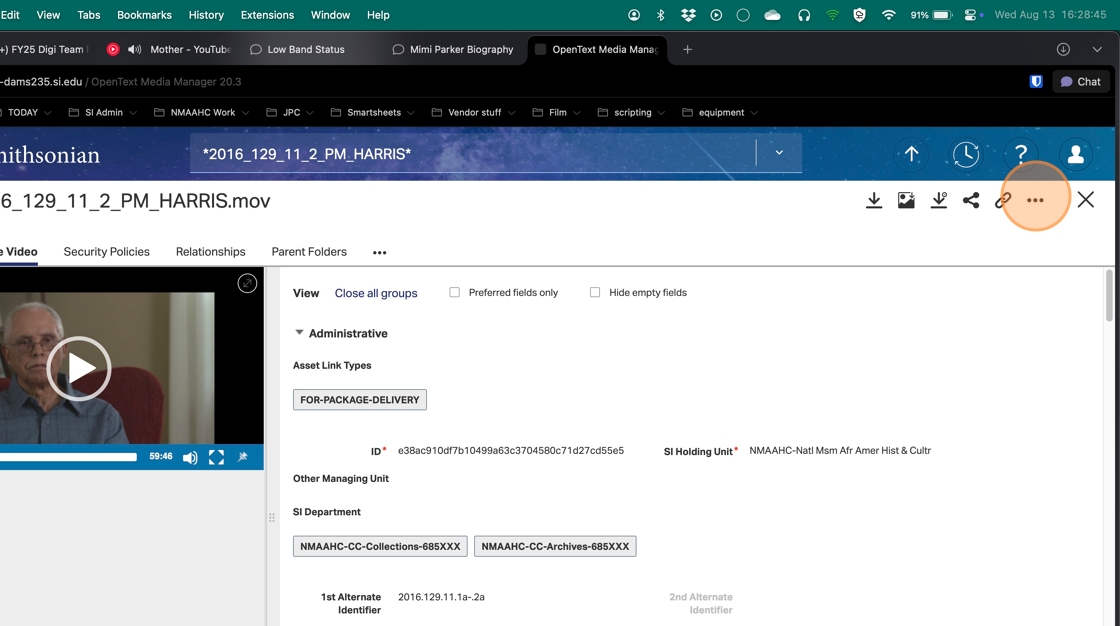
20. Choose edit.
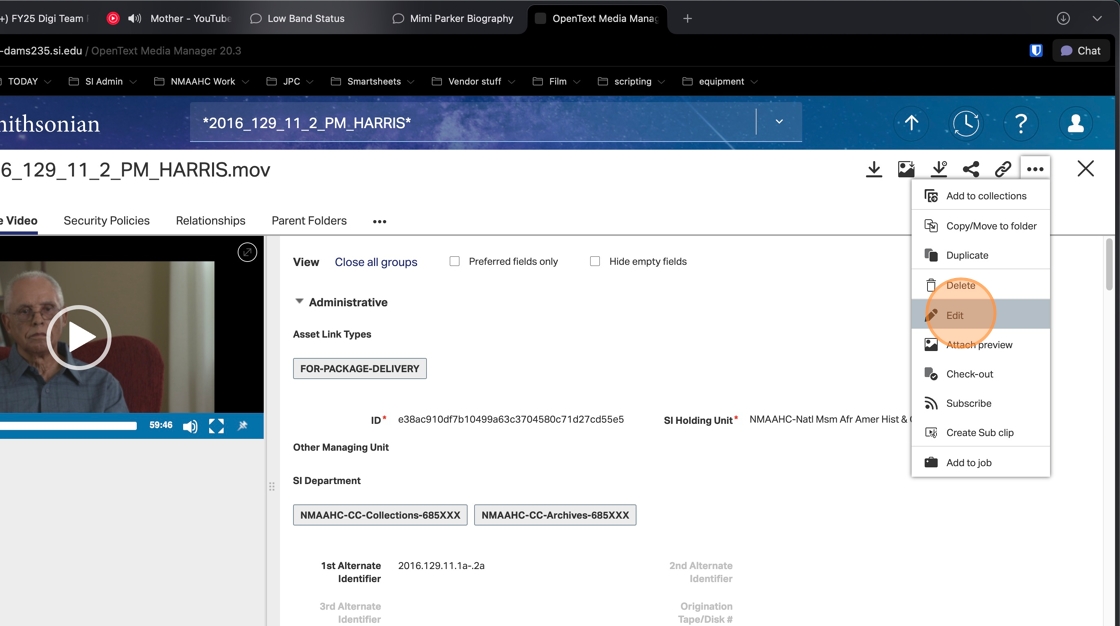
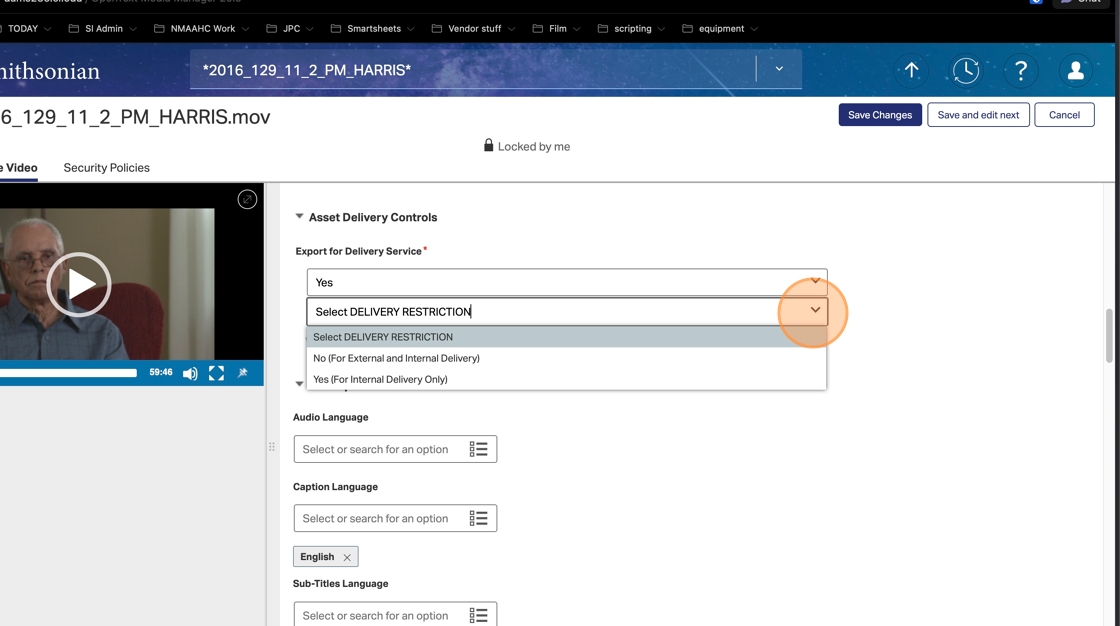
21. To create the MADS URL, in the video asset find the "Export for Delivery Service" fields.
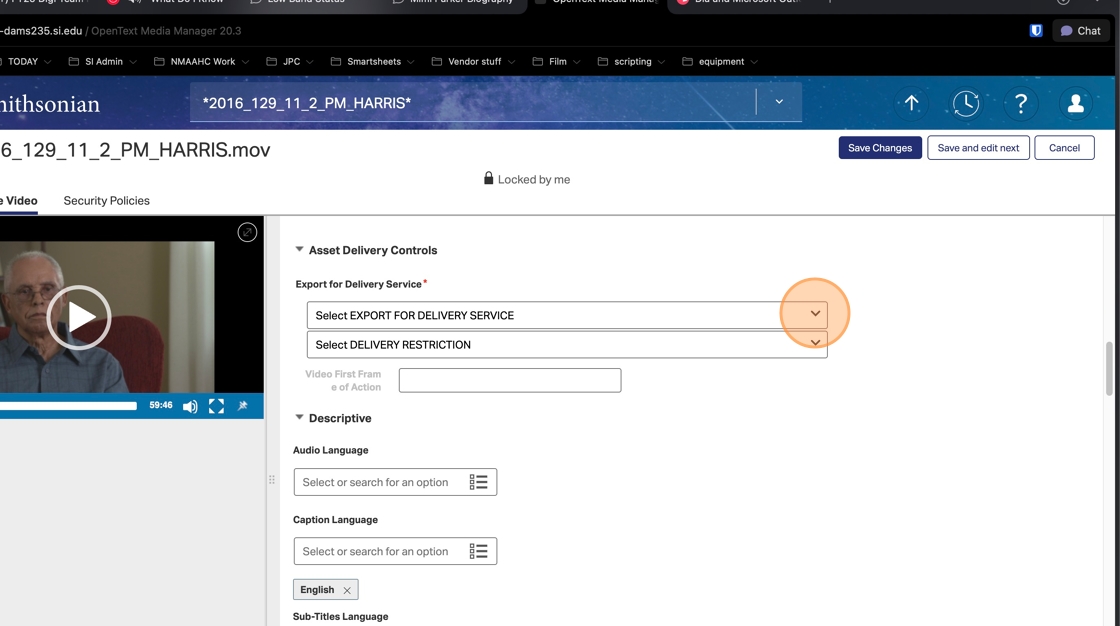
22. In the "Select EXPORT FOR DELIVERY SERVICE" menu choose "Yes" if you want a MADS URL created.

23. In the "Select DELIVERY RESTRICTION" field choose "No" if you want the URL to be a public URL and "Yes" if you want the URL to be an internal SI URL
24. Save your changes.
