Warning
This guide is intended for developers ONLY. If you are not a developer or packager, you are unlikely to receive support.
This is a full-fledged guide to build Eden on all supported platforms.
First, you must install some dependencies.
Next, you will want to clone Eden via the terminal:
git clone https://git.eden-emu.dev/eden-emu/eden.git
cd eden
Or use Qt Creator (Create Project -> Import Project -> Git Clone).
Android has a completely different build process than other platforms. See its dedicated page.
If the configure phase fails, see the Troubleshooting section below. Usually, as long as you followed the dependencies guide, the defaults should successfully configure and build.
This is the recommended GUI method for Linux, macOS, and Windows.
Click to Open
[!WARNING] On MSYS2, to use Qt Creator you are recommended to also install Qt from the online installer, ensuring to select the "MinGW" version.
Open the CMakeLists.txt file in your cloned directory via File -> Open File or Project (Ctrl+O), if you didn't clone Eden via the project import tool.
Select your desired "kit" (usually, the default is okay). RelWithDebInfo or Release is recommended:

Hit "Configure Project", then wait for CMake to finish configuring (may take a while on Windows).
Click to Open
[!WARNING] For all systems:
- CMake MUST be in your PATH (and also ninja, if you are using it as
<GENERATOR>)- You MUST be in the cloned Eden directory
On Windows:
- It's recommended to install Ninja
- You must load Visual C++ development environment, this can be done by running our convenience script:
tools/windows/load-msvc-env.ps1(for PowerShell 5+)tools/windows/load-msvc-env.sh(for MSYS2, Git Bash, etc)
Available <GENERATOR>:
- MSYS2:
MSYS Makefiles - MSVC:
Ninja(preferred) orVisual Studio 17 2022 - macOS:
Ninja(preferred) orXcode - Others:
Ninja(preferred) orUNIX Makefiles
Available <BUILD_TYPE>:
Release(default)RelWithDebInfo(debug symbols--compiled executable will be large)Debug(if you are using a debugger and annoyed with stuff getting optimized out)
Caveat for Debug Builds:
- If you're building with CCache, you will need to add the environment variable
CLwith the/FSflag (Reference)
Also see the root CMakeLists.txt for more build options. Usually the default will provide the best experience, however.
cmake -S . -B build -G "<GENERATOR>" -DCMAKE_BUILD_TYPE=<BUILD_TYPE> -DYUZU_TESTS=OFFIf you are on Windows and prefer to use Clang:
cmake -S . -B build -G "<GENERATOR>" -DCMAKE_C_COMPILER=clang-cl -DCMAKE_CXX_COMPILER=clang-clOption C: CLion
Click to Open
- Clone the Repository:
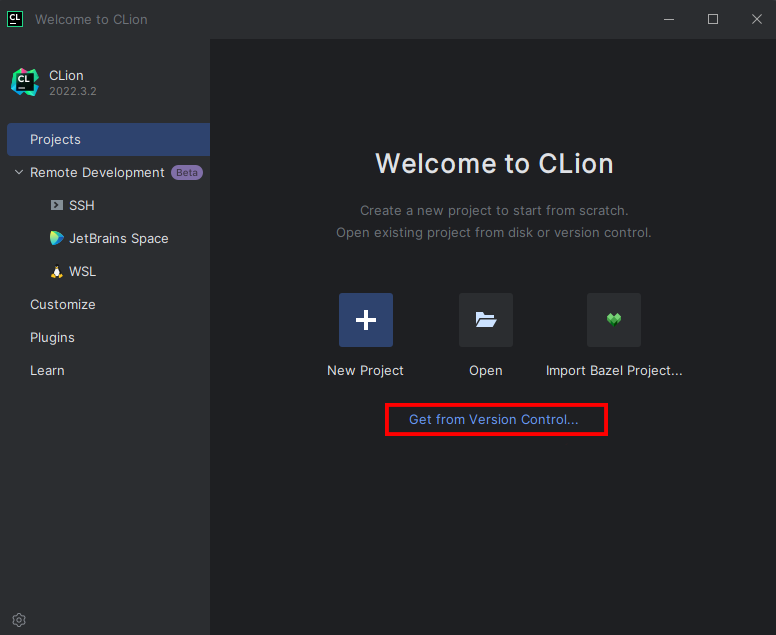
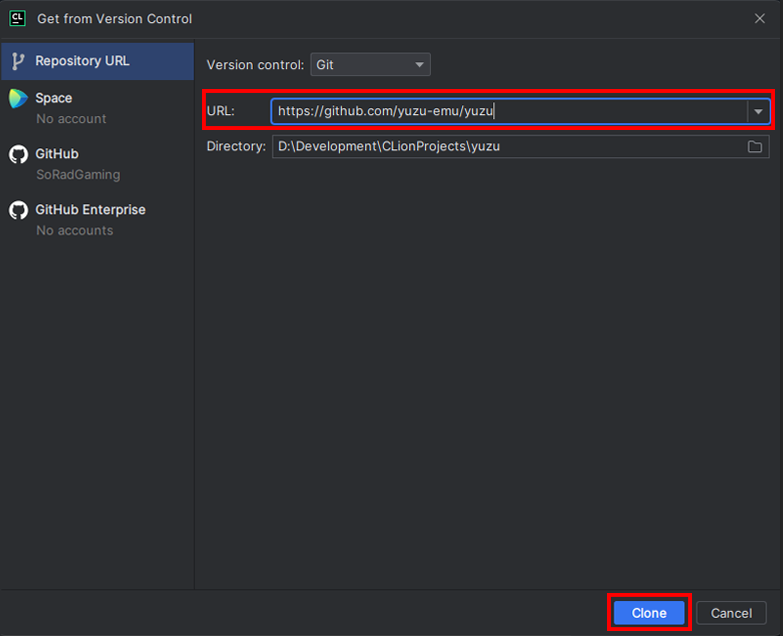
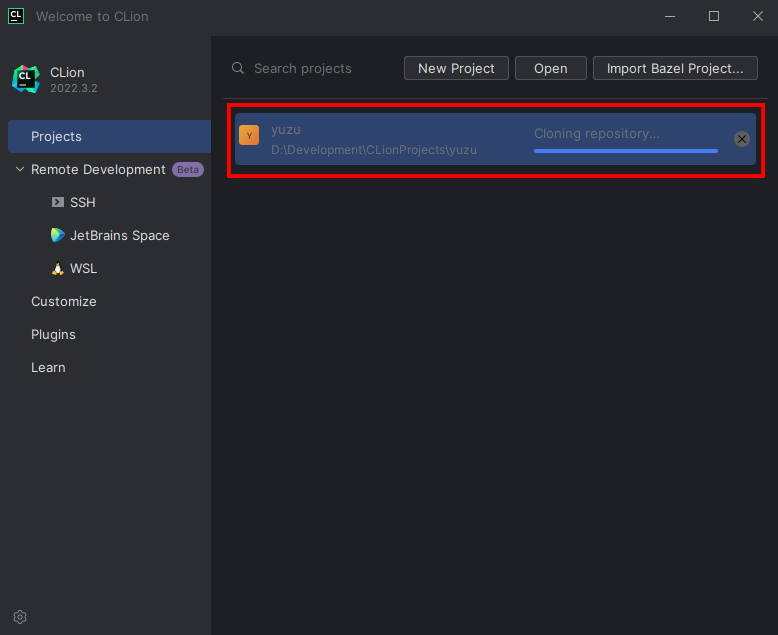
- Once Cloned, You will be taken to a prompt like the image below:
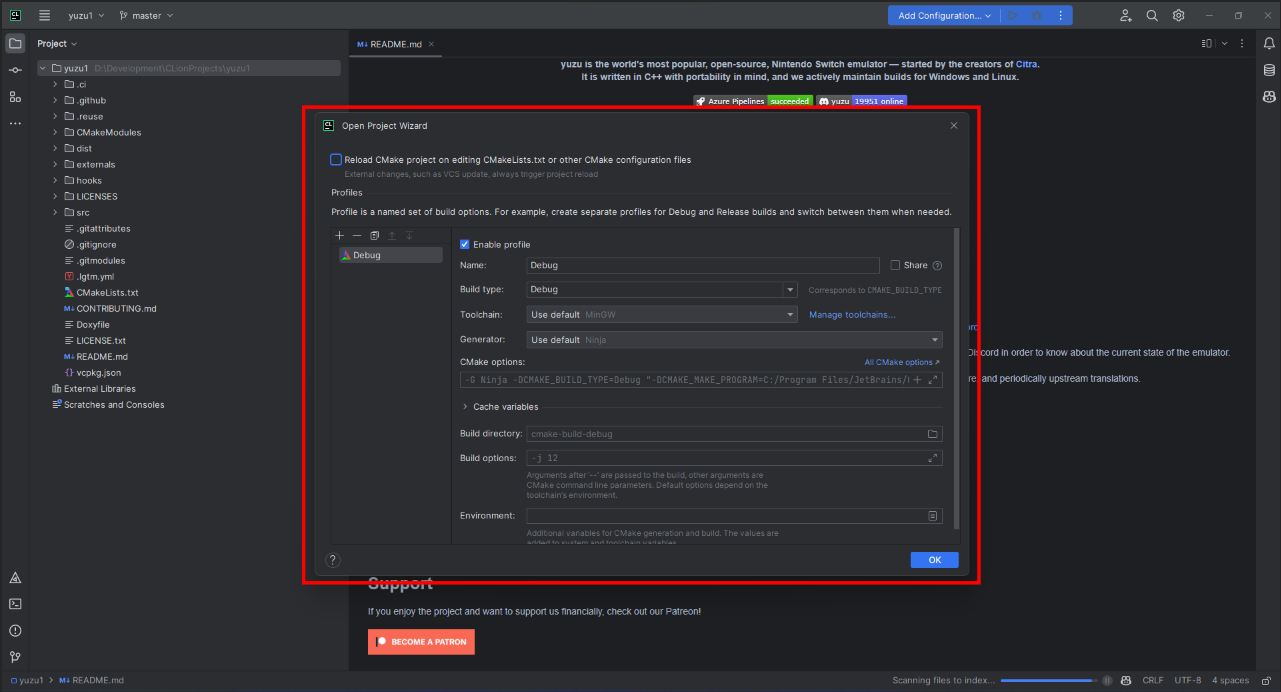
- Set the settings to the image below:
- Change
Build type: Release - Change
Name: Release - Change
Toolchain Visual Studio - Change
Generator: Let CMake decide - Change
Build directory: build
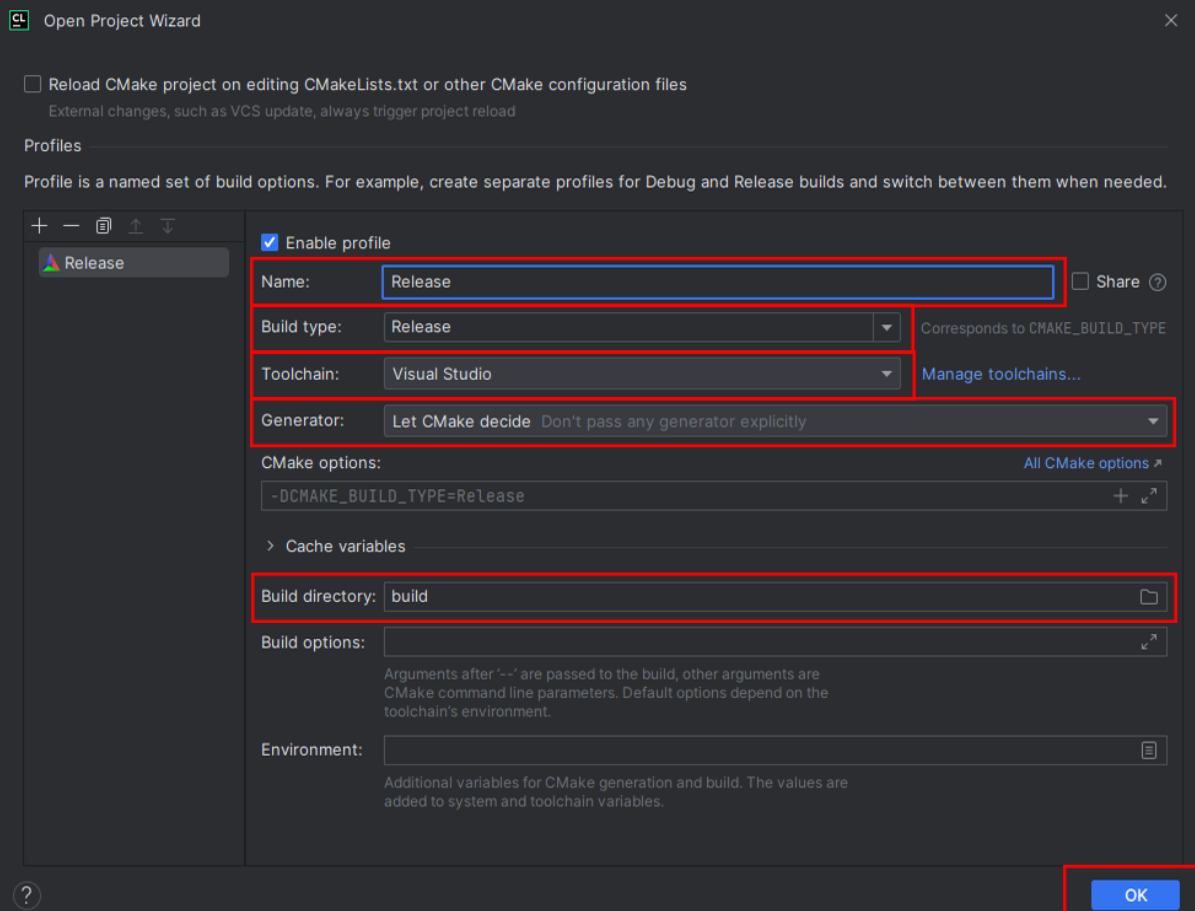
- Click OK; now Clion will build a directory and index your code to allow for IntelliSense. Please be patient.
- Once this process has been completed (No loading bar bottom right), you can now build eden
- In the top right, click on the drop-down menu, select all configurations, then select eden
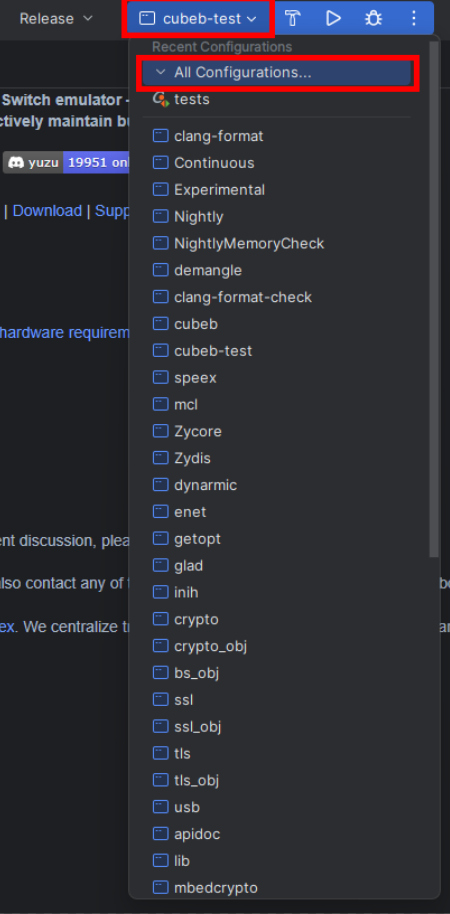
- Now run by clicking the play button or pressing Shift+F10, and eden will auto-launch once built.

Details
1. Install `"x64 Native Tools Command Prompt"` for VS from the installer and also install `cmake-gui`. 2. Open `"x64 Native Tools Command Prompt"` and type `cmake-gui`. 3. Click configure choose ninja generator > specify native compilers. 4. Put `"C:/Program Files/Microsoft Visual Studio/18/Community/VC/Tools/Llvm/x64/bin/clang-cl.exe"` as your C/C++ compiler path. 5. Open `Visual studio > Open project` or Solution > Change to search for the CMake project file (`CMakeList.txt`) file on the cloned directory, and then build.If your initial configure failed:
- Carefully re-read the dependencies guide
- Clear the CPM cache (
.cache/cpm) and CMake cache (<build directory>/CMakeCache.txt) - Evaluate the error and find any related settings
- See the CPM docs to see if you may need to forcefully bundle any packages
Otherwise, feel free to ask for help in Stoat or Discord.
Many platforms have quirks, bugs, and other fun stuff that may cause issues when building OR running. See the Caveats page before continuing.
Simply hit Ctrl+B, or the "hammer" icon in the bottom left. To run, hit the "play" icon, or Ctrl+R.
If you are using the UNIX Makefiles or Visual Studio 17 2022 as <GENERATOR>, you should also add --parallel for faster build times.
cmake --build buildYour compiled executable will be in:
build/bin/eden.exefor Windows,build/bin/eden.app/Contents/MacOS/edenfor macOS,- and
build/bin/edenfor others.
Take a look at our CI scripts. You can use .ci/common/configure.sh on any POSIX-compliant shell, but you are heavily encouraged to instead write your own based. It's not really that hard, provided you can read CMake.