
- What is Database ?
- SQL (Sequel)
- NoSQL
- What is MySQL ?
- What is Xampp ?
- Installing MySQL. (Two Options, XAMPP or Straight thru MySQL Website)
- Creating our first Database
- Creating our first Table
- What is CRUD ?
- CRUD Example in other application
- CRUD in SQL
- Inserting Data to our Table
- SELECT(Reading Data) in our Table
- Adding parameters to or SELECT args
- WHERE parameter
- AND, or, NOT parameter
- IN parameter
- BETWEEN parameter
- LIKE parameter
- REGEXP parameter
- IS NULL parameter
- ORDER BY parameter
- LIMIT parameter
- Updating Data in our table
- Deleting Data in our Table
- Joining Table
- INNER JOIN
- Joining Across Databases
- SELF JOIN
- Joining Multiple Tables
- COMPOUND JOIN – Implicit Join
- OUTER JOIN
- Between Multiple Table
- SELF OUTER JOIN
- USING Clause
- NATURAL JOIN
- CROSS JOIN
- UNION
- Column Attributes
- Inserting Single Row
- Inserting Multiple Rows
- Inserting Hierarchical Rows
- Copying table
- Updating Single Row
- Updating Multiple Rows
- Using Subqueries in Updates
- Deleting Rows
There are two ways to install MySQL Database, first is to use XAMPP Installer, or Second is to use the Official MySQL Community Server Installer from MySQL Page
First you need to download XAMPP installation files from the official XAMPP Download Page, then run the Installer.
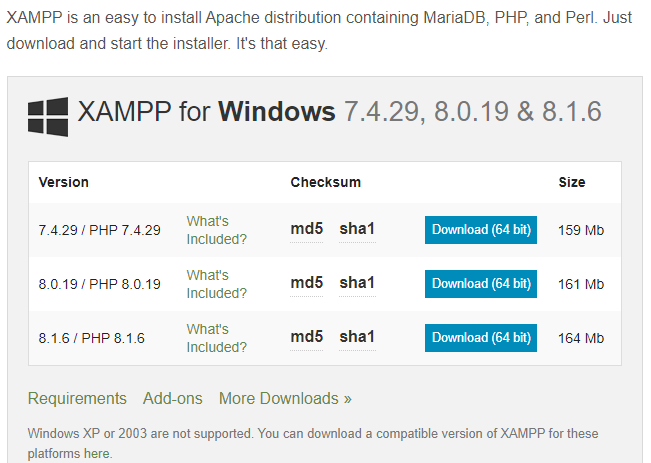
Do note that XAMPP needs write permission if you want to use XAMPP MySQL, the installer SHOULD prompt you that it's better to not put XAMPP files in the C: Directory so install it elsewhere to avoid unecessary problems.
After it's done, you should be prompted if you wanna open XAMPP Control Panel, Check the box and click finish
in the Control Panel, Start the apache and MySQL module
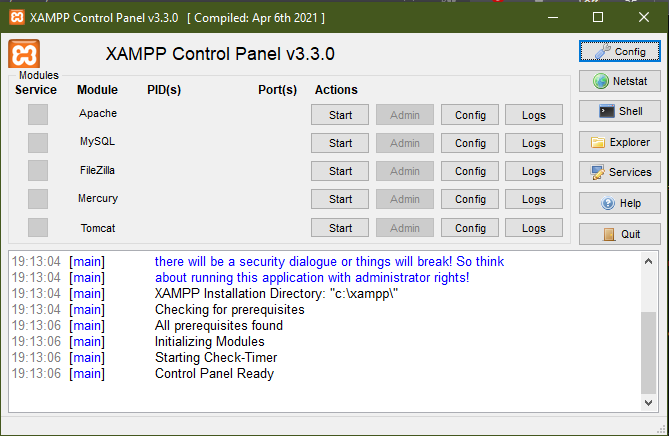
Then open PHPMyAdmin or type localhost/phpmyadmin in your browser.
Installation is Done!
First you need to download MySQL Community Server Edition from MySQL Download Page
The Installer should guide you through the installation, choose all default option. When it's done, you can access it using MySQL Workbench