


The Voxel to Blueprint Converter is a handy tool that converts .vox files from MagicaVoxel into .blueprint files for Scrap Mechanic. This tool allows you to directly convert voxel models into in-game blueprints, with customizable options like scale and UUID. It is developed using Python with a user-friendly GUI provided by CustomTkinter.
With this tool, you can:
- Select and convert multiple
.voxfiles to.blueprintfiles compatible with Scrap Mechanic. - Set a custom scale and shape UUID for your voxel creations.
- Customize the conversion with easy-to-use interface options, including appearance mode.
- Multi-file Selection: Convert multiple
.voxfiles at once to Scrap Mechanic blueprints. - Customizable Scale: Set the conversion scale for voxel models, allowing resizing during the conversion process.
- UUID Management: Assign custom UUIDs to voxel creations.
- User-Friendly GUI: The app features a straightforward GUI with CustomTkinter, making it easy to select files, set options, and run conversions.
- Appearance Modes: Switch between
Light,Dark, andSystemappearance modes.
To run this tool, you need Python 3.9+ installed on your system. Additionally, you'll need the required libraries, which can be installed via pip:
pip install customtkinter midvoxio- Clone the Repository
git clone https://github.com/21Suspect/Voxel2BlueprintConverter.git
- Install Dependencies
pip install customtkinter midvoxio
- Run the Application
python main.py
- The graphical user interface (GUI) will open, allowing you to select
.voxfiles, set the conversion scale, and specify the custom UUID.
You can download the compiled executable version of Voxel2BlueprintGenerator if you prefer not to run the Python script. This version does not require Python to be installed and can be run directly on your Windows system.
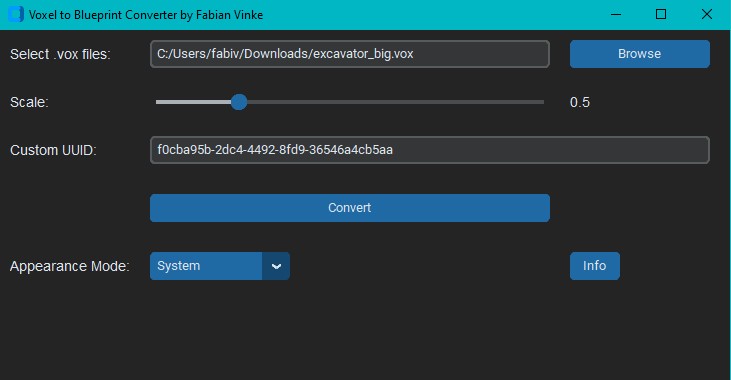
- Launch the Application: Run the Python script or executable.
- Select .vox Files: Click Browse to select
.voxfiles that you wish to convert. - Set Scale and UUID: Use the slider to set a scale between 0.1 and 2.0 and enter a custom UUID for your creations.
- Convert: Click on Convert to start the conversion. The
.blueprintfiles will be saved inC:\Program Files (x86)\Steam\steamapps\common\Scrap Mechanic\Survival\LocalBlueprints. - Appearance Settings: Change the appearance mode to
Light,Dark, orSystemusing the drop-down option.
The application has several configurable parameters:
- Scale: Adjust the scale of voxel models during conversion (from
0.1to2.0). - Custom UUID: Enter a custom UUID to use for the blueprint creations. This is helpful when creating custom parts for Scrap Mechanic.
- Converted blueprints are saved as
.blueprintfiles in the directory:C:\Program Files (x86)\Steam\steamapps\common\Scrap Mechanic\Survival\LocalBlueprints
- To spawn
.voxfiles in Scrap Mechanic:- Add the
-devflag or activate developer mode. - Use the command
"/import voxfilename"in Survival mode (replacevoxfilenamewith the name of your original voxel file). - Add and delete a block to make the creation unfreeze in-game.
- Add the
Contributions are welcome! If you encounter any bugs, have feature requests, or wish to contribute to the project, please create an issue or submit a pull request.
This project is licensed under the MIT License. See the LICENSE file for details.
For any questions or feedback, feel free to reach out to Fabian Vinke at fabivinke@gmail.com.
Thank you for using Voxel to Blueprint Converter! Feel free to leave a star on the repository if you found it useful. 😊