DataGate Studio (DGS) provides database management utilities for DataGate databases. It snaps inside Visual Studio and its features include:
- Create database names
- Create local DG databases
- Create and change physical, logical, and print files
- Perform simple database queries
- Make minor changes to database data
DGS installs by default with ASNA Visual RPG for .NET and it is available as a stand-alone install (generally intended for server installations). DGS is intended to be a developer feature and is not intended for end-users. It would be very easy for an end-user to use DGS to do potentially damaging things to a database. This is especially true for local DG Windows-hosted databases which have very limited security.
Check the code for comments about differences needed for AVR 15.x and lower and AVR 16.x and higher.Search for "VERSION DIFFERENCE" to see the code/comments.
DGS also includes a database archive feature. Database archives provide a way to distribute copies of databases (or parts of a database) to other developers. This feature is intended almost exclusively for Windows-hosted (server or desktop) DataGate databases (sometimes called a "local" DG database). While DGS would theoretically work with IBM i and SQL Server databases, using DGS with these databases is discouraged.
Please note that DG database archives are not intended, and should not be used, as an alternative to database backup. For local DG databases we recommend using a high-quality Windows backup like Acronis, Genie, NovaBackup, Paragon, or other that you deem worthy. For IBM i and SQL Server databases we recommend platform-specific backup best practices.
This video provides a quick introduction to DataGate Studio's import/export facility.
DGS archive import and export is not intended to be a batch-driven process. Exporting and important database archives is a point-and-click process and assumes DataGate Studio is available to do so.
We have had a few customers using local DG databases ask for a way to import DGS archives from outside Visual Studio. The general problem these customers have is trying to import database objects into a DataGate database hosted on a Windows server on which the DataGate Studio isn't installed.
In this case, we strongly recommend installing Visual Studio and ASNA DataGate Studio on that server. You'll surely need database management tools to maintain and repair that production database at some point anyway.
That said, you may be able resolve similar issues without installing Visual Studio/DataGate Studio on your server by using the program Import DataGate Archive discussed below. Please understand this program isn't formally supported software and is provided as-is.
As written this project equires at least AVR for .NET version 15.x and at least DataGate 15x. Its source will probably work down to AVR for .NET 12.x.
This DataGate Archive program is experimental and is provided as-is. We're not able to provide any tech support for it. The API this program uses is deprecated and won't receive any more updates or fixes. However, as of DataGate 14x and 15x, our tests show the program works so it may help some. But, once again, we recommend using Visual Studio and DataGate Studio's point and click import/export capabilities.
The Import DataGate Archive program, show below in Figure 1, has a single Windows form.
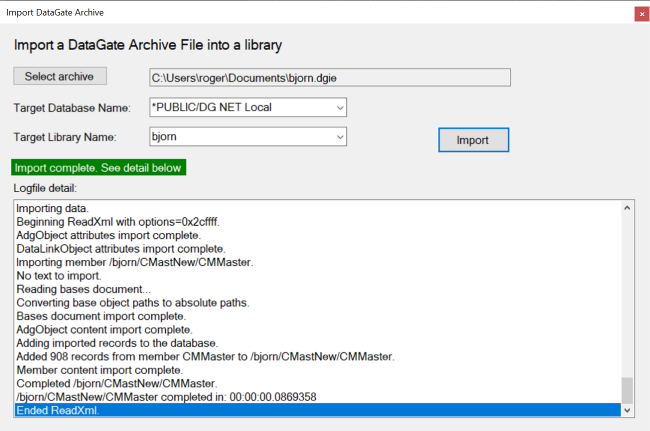

Figure 1. The Import DataGate Archive UI/small>
This program will not import objects archived from more than one library.
Its inputs are:
- A
.dgiearchive file. This needs to be created manually with DataGate Studio. When you create an archive file for use with this import program. As mentioned above this program will only restore DGIE file with objects from a single library. - The target Database Name. A list of available Database Names is provided.
- The target library name. A list of available library names is provided--fetched from the database name selected.
The results of the attempted import are shown in the log file detail window. If import fails, you'll need to read the log file to determine what went wrong. A likely point of failure is to attempt to import an object that already exists in a target library. For your protection, the import process won't overwrite that object; you'll need to manually delete the object first (which could be done programmatically with the DeleteFile method in AVR's DclDB object.