
FACER-AS is an Android Studio plugin designed to provide an interface for FACER, which is a an API usage-based code-recommender for Java. Please follow the steps below for detailed setup guidelines. In order to do a quick setup and install FACER-AS plugin in Android Studio, refer to FACER-AS Quick Setup. To setup the IntelliJ IDEA project of FACER-AS, please review FACER-AS IntelliJ IDEA Project Setup.
The setup and installation demo can be viewed on YouTube here.
To plug and play FACER-AS, download and install the following dependencies:
- Android Studio 4.1.2 (https://developer.android.com/studio/archive)
In order to do a quick setup, download the following:
- FACER-AS Plugin Installer Package (https://github.com/AymanAbaid/FacerPlugin/blob/master/build/distributions/FACER-AS-1.03.zip)
- FACER-AS Resources - If you have already downloaded Resources from Zenodo then you don't need to download this again. Otherwise download from https://bit.ly/3zltzSE
Extract the contents of the FACER-AS Resources RAR file to a folder in local file system. The path to this folder will be configured in FACER-AS (see Plugin Configuration) for input and output resources location.
In order to install this plugin snapshot in Android Studio, launch Android Studio and go to File > Settings > Plugins > Settings Icon > Install Plugin from Disk..., and choose the FACER-AS Plugin Installer Package zip file downloaded earlier. Restart Android Studio to show the FACER option in top Menu bar. See Usage for functional details.
To setup FACER-AS IntelliJ IDEA project, download and install the following dependencies:
- Android Studio 4.1.2 (https://developer.android.com/studio/archive)
- IntelliJ IDEA CE 2020.1.4 (https://www.jetbrains.com/idea/download/other.html)
In order to execute the project, download the following:
- FACER-AS Resources (https://bit.ly/3zltzSE)
Extract FACER-AS Resources to a folder in local file system. The path to this folder will be configured in FACER-AS (see Plugin Configuration) for input and output resources location.
Clone the repository and import into IntelliJ IDEA CE as an existing project. To setup the correct IDE path for running the project on Android Studio, go to the build.gradle file in the root folder of the project and set the ideDirectory variable for MacOS as:
runIde {
    ideDirectory 'C:/Program Files/Android/Android Studio/'
}
For Windows, give the path to the Android Studio installation folder e.g.:
runIde {
    ideDirectory '/Applications/Android Studio.app/Contents/'
}To test the project in a test instance of Android Studio using the "runIde" Gradle task, enable Gradle Tool Window in IntelliJ IDEA CE. Go to View > Tool Windows > Gradle option if it is not already visible in the IntelliJ IDEA, and run the task under > Tasks > intellij > runIde. See Usage for functional details. Note: This is a separate test instance and the regular Android Studio will not have the plugin installed in this manner.
To test the project in the system installed instance of Android Studio, run the "buildPlugin" Gradle task at <Project> > Tasks > intellij > buildPlugin in the Gradle Tool Window. The task assembles plugin and prepares zip archive for deployment. The archive should be available in /build/distributions/ folder of the project.
In order to install this plugin snapshot in Android Studio, launch Android Studio and go to File > Settings > Plugins > Settings Icon > Install Plugin from Disk..., and choose the FACER-AS Plugin Package zip file. Restart Android Studio to show the FACER option in top Menu bar. See Usage for functional details.
On first launch of FACER-AS, the Configuration Setup dialog will appears (or use FACER on menu bar and select Configuration option). Add the path to the resources root folder that we extracted earlier. This root folder must contain the Dataset folder, LuceneIndex folder and the stopwords.txt file provided in the FACER-AS Resources. This folder will also be used as a destination for the User Interaction logs. After the setup is complete, click Ok option to update the plugin configuration settings.
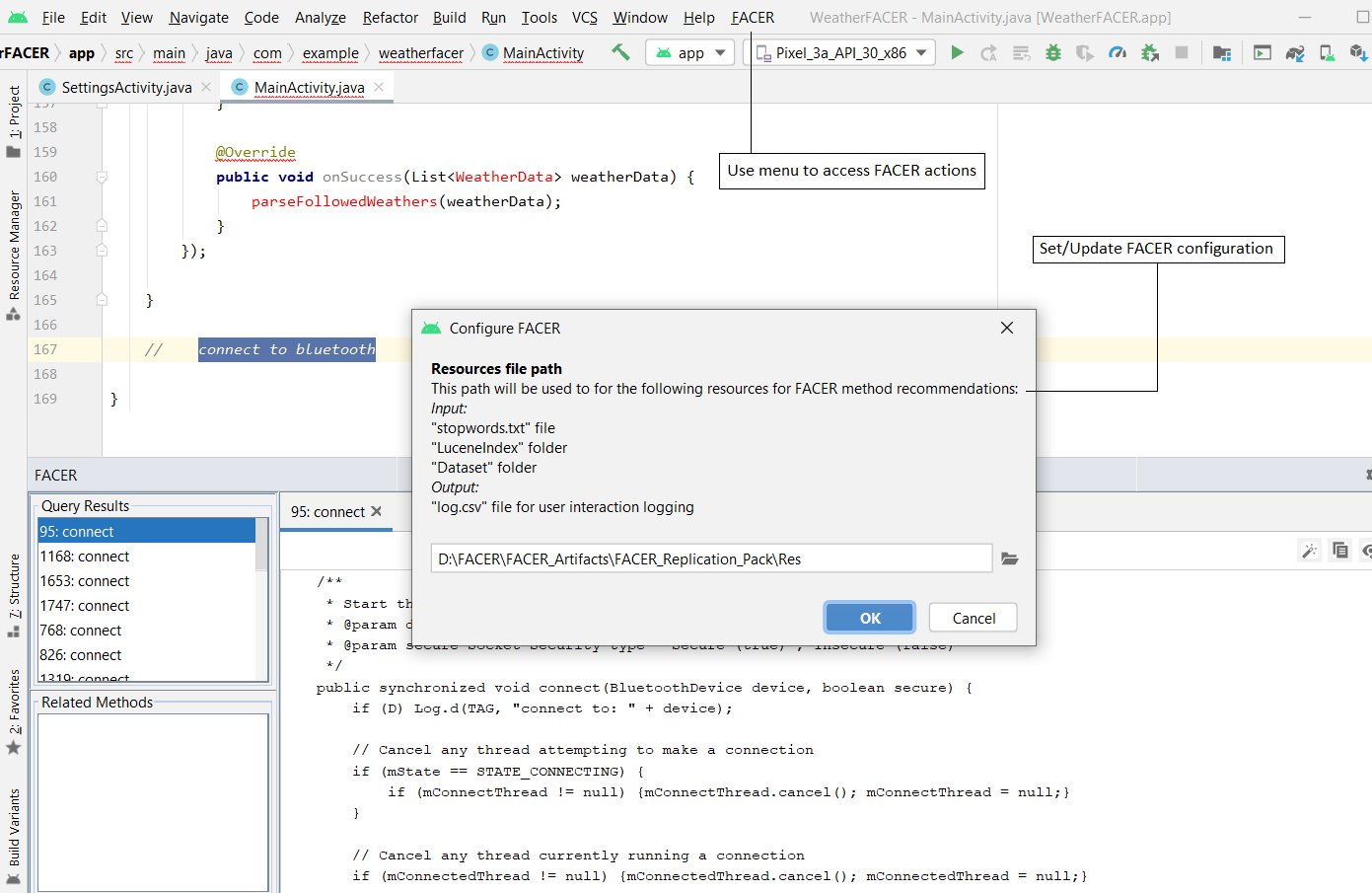
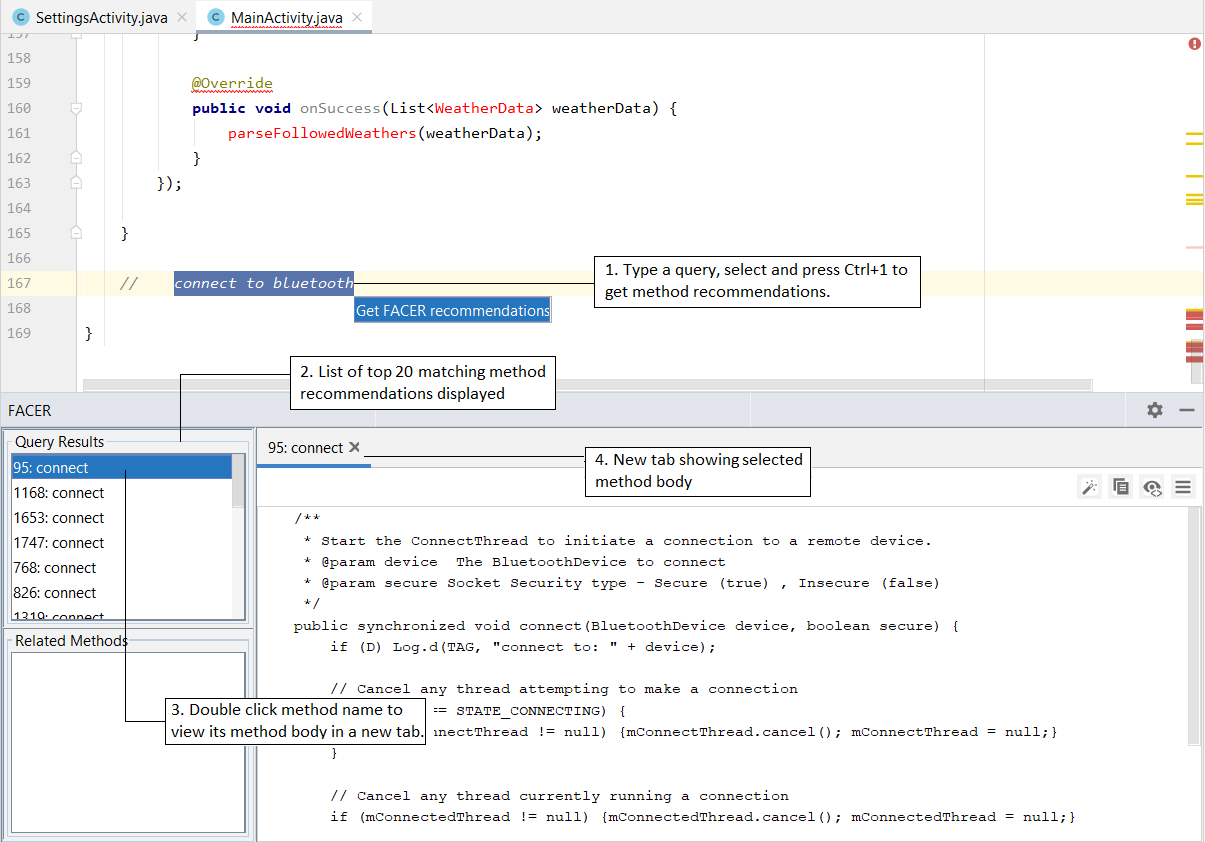
Select any text in the editor and select FACER > Enable FACER option or use Ctrl + 1 to engage the plugin. This will launch a configuration window to setup the database URL, Lucene Index folder path (see FACER for details), a stopwords.txt file path containing stopwords for dataset, and the destination path for the user interaction logs file. After completing the configuration step, a popup will appear with the option Get FACER recommendations will appear. Select the option to view recommendation results. From the "Query Results" list, double click any method name to view method body in a new tab.
In the selected method tab in Code View pane, click on the Magic Wand icon to get related method recommendations for the selected method. The list of related methods is show in the "Related Methods" list. Double click any method name from the list to view method body in new tab.
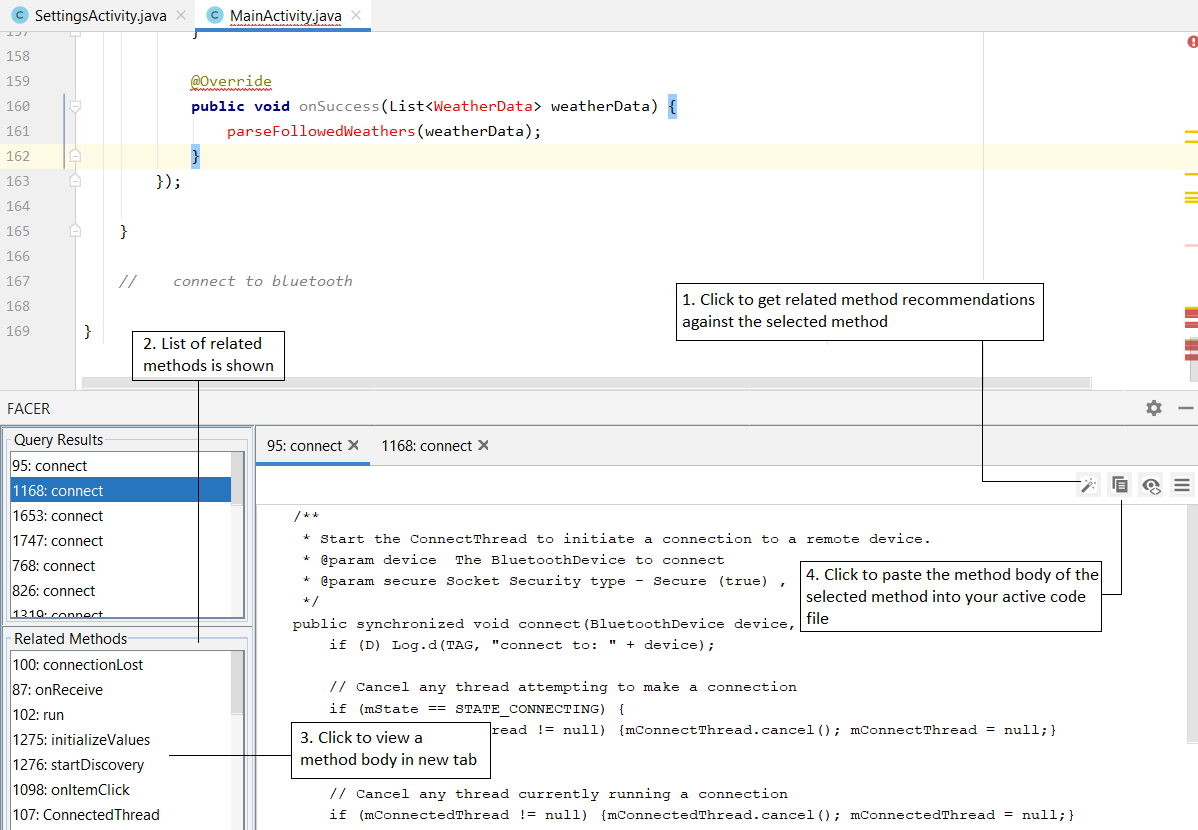
To integrate a method body into the user project, click the Clipboard icon from selected method tab to copy and paste the method directly into the active code file of the editor. See the image above in Stage 2: Related Methods Search.
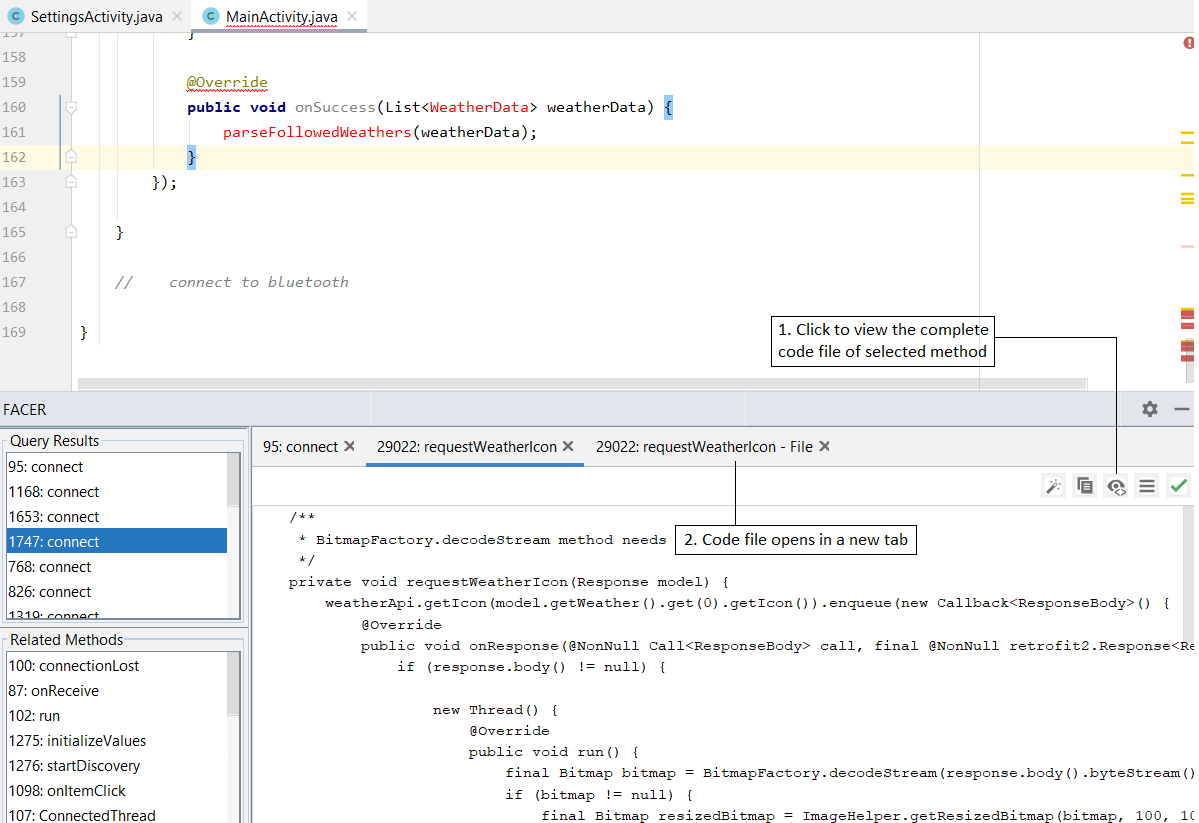
In the selected method tab in Code View pane, click on the View Code icon to open the complete code file of the selected method in a new tab.
In the selected method tab in Code View pane, click on the Show Called Methods icon to get a list of all the methods called from within the selected methods. The results are displayed in the "Related Methods" list. Double click any method name to open the method body in a new tab.
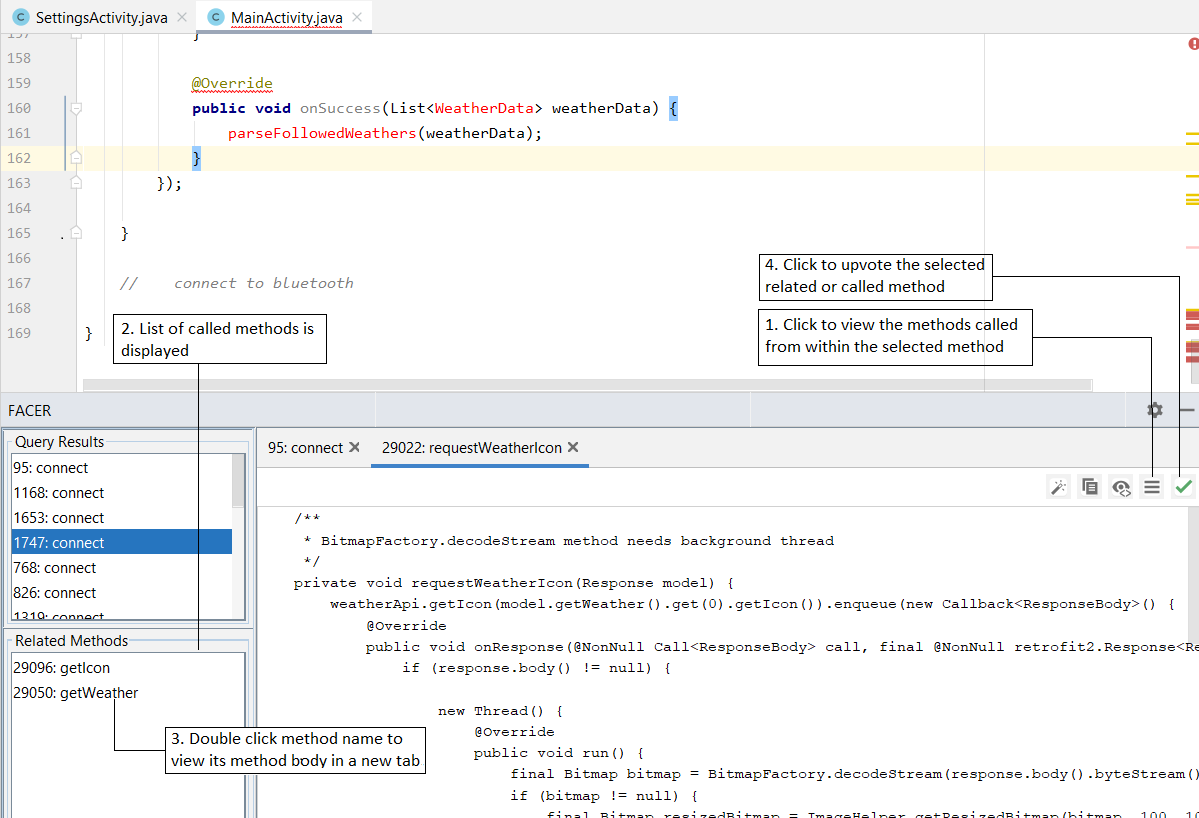
In the selected method tab in Code View pane, click on the Upvote Method icon to upvote the selected method. This feature is available for Related and Called methods. See the image above in Called Methods.
In order to evaluate the performance of FACER-AS, we conduct a user study involving one professional developer working on a live commercial application. The developer uses FACER-AS for searching method recommendations and we collect the plugin usage logs to infer results based on predefined performance metrics. The repository subfolder named Evaluation Artifacts contains resources related to the evlaluation study for FACER-AS described below.
- DeveloperSystemSpecifications.txt - contains information about the system specifications of developer's workstation. We report these specifications to account for any performance deviations that may occur while replicating the results on a different system.
- MusicPlayerFeatureList.txt - outlines the list of features the developer worked on while using FACER-AS as part of the evaluation study.
- plugin_usage_log.csv - contains user interaction logs recorded as various features of FACER-AS are activated and return results.
- FACER-AS Feedback.pdf - contains the results of the feedback provided by the developer at the end of the study.
Details of the FACER system can be found in the following research papers:
-
Shamsa Abid, Shafay Shamail, Hamid Abdul Basit et al. FACER: An API Usage-based Code-example Recommender for Opportunistic Reuse, 04 March 2021, PREPRINT (Version 1) available at Research Square [https://doi.org/10.21203/rs.3.rs-260432/v1]
-
Abid, S. (2019, August). Recommending related functions from API usage-based function clone structures. In Proceedings of the 2019 27th ACM Joint Meeting on European Software Engineering Conference and Symposium on the Foundations of Software Engineering (pp. 1193-1195).
If you use FACER-AS plugin for your research, please cite these articles.
To cite the FACER-AS plugin, code, or artifacts use:
