
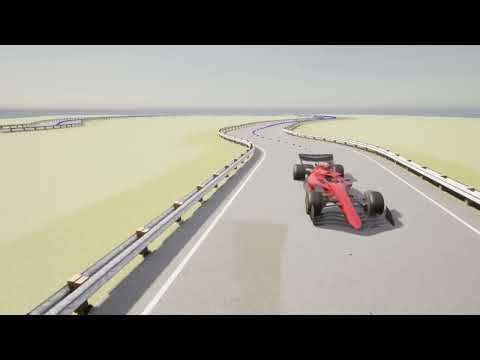

This repository contains the setup and instructions to run the CARLA simulator with ROS 2 integration using Docker. Follow the steps below to get your environment up and running.
Before you begin, ensure you have the following installed on your machine:
- Python 3.8+
- Docker
- Docker Compose
- ROS 2 (Ensure compatibility with your setup)
-
Clone the Repository
git clone https://github.com/CanoniCarLTD/Canonicar.git
cd Canonicar
Build the Docker image using Docker Compose. This step will set up the necessary environment for the CARLA client.
If you are using a simulator as carla server which means the simulator is not running on your local machine, you have to activate the carla_server at the docker compose.
docker compose up --buildOnce the Docker image is built, run the container from a second terminal in interactive mode to access the shell.
docker exec -it carla_client /bin/bashInside the Docker container, perform the following steps:
Initialize the ROS 2 environment by sourcing.
source install/setup.bashLaunch the CARLA pipeline using ROS 2.
ros2 launch ros_bridge_launch system_launch.py host:=your_host_ip_addresReplace your_host_ip_address with the actual IP address of your host machine.
tensorboard --logdir=/ros_bridge/src/ppo_node/ppo_node/ML/preTrained_PPO_models --bind_all-
Cannot Connect to CARLA Host:
- Verify that the CARLA server is running and accessible from the Docker container.
-
Docker Compose Issues:
- Make sure Docker and Docker Compose are properly installed and running.
- Check for any errors during the
docker compose up --buildprocess and resolve them accordingly.
-
ROS 2 Errors:
- Ensure that ROS 2 is correctly sourced and all dependencies are installed.
- Refer to the ROS 2 Documentation for detailed troubleshooting steps.
-
Adding nodes:
- In case you want to add new node, you have to create new pacgkge with the following ROS commands:
ros2 pkg create --build-type ament_python --license Apache-2.0 <package_name>
- if you are making changes at the nodes, and the containers are up and running, you have to do
colcon buildinside the container itself before launching the nodes.
To control how PPO resumes training or starts fresh:
First of all, make sure the checkpoint dir is set:
PPO_CHECKPOINT_DIR = "/ros_bridge/src/ppo_node/ppo_node/ML/preTrained_PPO_models"MODEL_LOAD = False
CHECKPOINT_FILE = None
LOAD_STATE_DICT_FROM_RUN = None
VERSION = "vX.Y.Z" # Simply choose the version this run belongs toMODEL_LOAD = True
CHECKPOINT_FILE = "/path/to/exact/run_folder" # (e.g. "/ros_bridge/src/ppo_node/ppo_node/ML/preTrained_PPO_models/v1.1.1/run_20250325_0001")
VERSION = "same as the run's version" # (e.g. "v1.1.1")
LOAD_STATE_DICT_FROM_RUN = None- start a fresh run with a previous run model state dict For example if we did trained for a long time and we want to do changes to the code and level up the version - we can load the state dict into a new model.
MODEL_LOAD = True
CHECKPOINT_FILE = None
LOAD_STATE_DICT_FROM_RUN = "/path/to/older/run_folder" # (e.g. load from "/ros_bridge/src/ppo_node/ppo_node/ML/preTrained_PPO_models/v1.1.1/run_20250325_0001")
VERSION = "new_version_for_this_run" # (e.g. "v2.0.0")watch -n 1 nvidia-smiThis project is licensed under the MIT License.