




Note: For best viewing experience, read this documentation on GitHub.
Home Assistant custom integration for CyberPower UPS devices connected via PowerPanel Cloud.
Monitor battery status, power consumption, load, voltage, temperature and more — directly from your Home Assistant dashboard. Get instant notifications on power outages through dedicated events.
- A CyberPower UPS registered in PowerPanel Cloud
- Two-factor authentication must be DISABLED on the PowerPanel Cloud account:
- Open the PowerPanel Cloud mobile app
- Go to Account → Security
- Turn off Two-Factor Authentication
- The integration uses the mobile app's login flow, which does not support 2FA — login will fail otherwise
- Temperature unit must be set to Celsius in the PowerPanel Cloud app:
- Open the PowerPanel Cloud mobile app
- Go to Account → Settings
- Set Temperature Unit to °C (Celsius)
- The API returns raw values without unit indicators — this integration assumes Celsius
Works with any CyberPower UPS registered in PowerPanel Cloud, including models with:
- RWCCARD100 cloud network card
- RWCCARD200 cloud network card
- Built-in cloud connectivity
Tested with:
| Model | Cloud Card | Status |
|---|---|---|
| OLS2000EA | RWCCARD100 | Fully working |
If you have a different model working, please open an issue so we can add it to the list.
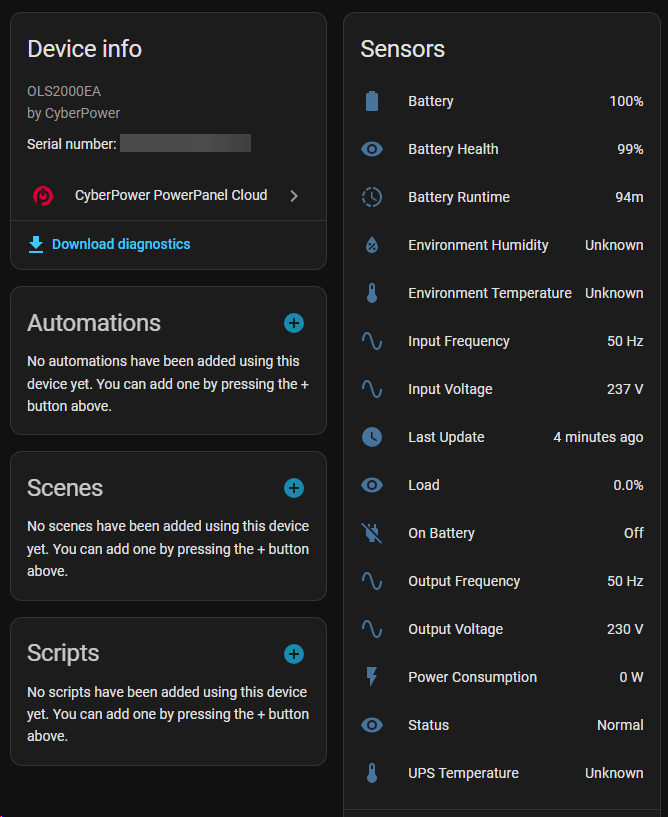
| Sensor | Unit | Description |
|---|---|---|
| Battery | % | Battery charge level |
| Battery Runtime | min | Estimated remaining runtime on battery |
| Battery Health (BHI) | % | Battery health indicator |
| Power Consumption | W | Real-time power draw (Energy Dashboard compatible) |
| Load | % | Load percentage (calculated from watts / rated power) |
| Input Voltage | V | Utility input voltage |
| Output Voltage | V | UPS output voltage |
| Input Frequency | Hz | Utility input frequency |
| Output Frequency | Hz | UPS output frequency |
| UPS Temperature | °C | Internal UPS temperature |
| Environment Temperature | °C | External sensor temperature |
| Environment Humidity | % | External sensor humidity |
| Status | — | Device status (Normal / Warning / Critical / Offline) |
| Last Update | timestamp | Last successful API data update |
Temperature and humidity sensors require a compatible environmental sensor connected to the UPS. They will show as "Unknown" if not available.
| Sensor | Description |
|---|---|
| On Battery | on when UPS is running on battery (power outage) |
| Entity | Type | Description |
|---|---|---|
| UPS Rated Power | number | Per-device rated power in watts — used to calculate Load % |
Set the rated power to your UPS model's watt rating (not VA). For example, OLS2000EA = 1800W. If not configured, Load % will show as "Unknown" until you set it.
The integration fires Home Assistant events when the power state changes — faster than polling the binary sensor:
| Event | Fired when |
|---|---|
cyberpower_cloud_power_outage_started |
UPS switches to battery (power outage detected) |
cyberpower_cloud_power_outage_ended |
UPS returns to mains power |
Event data:
{
  "device_sn": "...",
  "device_name": "...",
  "device_model": "..."
}- Multiple UPS support — one account can monitor multiple devices
- Energy Dashboard — Power Consumption sensor is compatible with HA Energy Dashboard
- Auto re-authentication — automatic token refresh on expiry
- Configurable polling — update interval from 60 to 3600 seconds (default: 300)
- Error resilience — stops polling after 3 consecutive failures to avoid account lockout, creates repair issues
- Diagnostics — built-in diagnostics export for troubleshooting (sensitive data redacted)
- Firmware version — displayed in device info when reported by the API
- Open HACS in Home Assistant
- Go to Integrations > click the three-dot menu (top right) > Custom repositories
- Add repository URL:
https://github.com/Csontikka/ha-cyberpower-cloud - Select category: Integration
- Click Add
- Search for "CyberPower PowerPanel Cloud" and click Download
- Restart Home Assistant
- Download the latest release from GitHub
- Copy the
custom_components/cyberpower_cloudfolder to your Home Assistantconfig/custom_components/directory - Restart Home Assistant
- Go to Settings > Devices & Services > Add Integration
- Search for "CyberPower PowerPanel Cloud"
- Enter your PowerPanel Cloud email and password
- The integration will discover all UPS devices on your account
After setup:
- Open the device page for your UPS
- Set the UPS Rated Power (watts) in the Configuration section — this is required for the Load % sensor to work correctly
Click Configure on the integration card to adjust:
| Option | Range | Default | Description |
|---|---|---|---|
| Update interval | 60–3600 s | 300 s | How often to poll the CyberPower Cloud API |
How often does the UPS upload to the cloud? The CyberPower cloud card (RWCCARD100/200) pushes data to the PowerPanel Cloud approximately every 60 seconds during normal operation. Polling the API more often than that is wasteful — you will just get the same values back. For most users, the default 300 s is a good balance between freshness and API load. If you need near-real-time data (e.g. during a power event), the
cyberpower_cloud_power_outage_started/_endedevents fire on state changes regardless of the poll interval. You can verify actual data freshness via the Last Update sensor — it shows the timestamp reported by the API for each device.
Each UPS device has its own configurable UPS Rated Power (watts) on the device page. This value is used to calculate the Load % sensor.
Common rated power values:
| Model | VA | Watts |
|---|---|---|
| OLS1000EA | 1000 | 900 |
| OLS1500EA | 1500 | 1350 |
| OLS2000EA | 2000 | 1800 |
| OLS3000EA | 3000 | 2700 |
Check your UPS model's datasheet for the exact watt rating. VA and watts are not the same.
The Power Consumption sensor can be added to the Home Assistant Energy Dashboard:
- Go to Settings > Dashboards > Energy
- Under Individual devices, click Add device
- Select your UPS Power Consumption sensor
automation:
  - alias: "Power outage alert"
    trigger:
      - platform: event
        event_type: cyberpower_cloud_power_outage_started
    action:
      - service: notify.mobile_app
        data:
          title: "Power Outage!"
message: "UPS {{ trigger.event.data.device_name }} is running on battery"automation:
- alias: "Power restored"
trigger:
- platform: event
event_type: cyberpower_cloud_power_outage_ended
action:
- service: notify.mobile_app
data:
title: "Power Restored"
message: "UPS {{ trigger.event.data.device_name }} is back on mains power"automation:
- alias: "UPS low battery warning"
trigger:
- platform: numeric_state
entity_id: sensor.my_ups_battery
below: 30
action:
- service: notify.mobile_app
data:
title: "UPS Battery Low"
message: "Battery at {{ states('sensor.my_ups_battery') }}% — {{ states('sensor.my_ups_battery_runtime') }} minutes remaining"| Situation | Behavior |
|---|---|
| No internet at startup | Integration retries automatically (ConfigEntryNotReady) |
| Invalid credentials | Stops polling, creates a repair issue, prompts for re-authentication |
| API errors (3 consecutive) | Stops polling, creates a repair issue |
| Token expiry | Automatic re-login and retry |
Download the integration diagnostics file for bug reports — it includes the integration state and configuration (with sensitive data redacted).
- Go to Settings → Devices & Services
- Find CyberPower PowerPanel Cloud → click the integration
- Click the three-dot menu → Download diagnostics
- Attach the
.jsonfile to your GitHub issue
To see detailed logs in the HA log viewer, add to configuration.yaml:
logger:
  default: info
  logs:
    custom_components.cyberpower_cloud: debug
This enables per-request API traces, coordinator update summaries, login/token refresh events, and event-firing logs. After restarting Home Assistant, check Settings → System → Logs.
- Go to Settings → Devices & Services → CyberPower PowerPanel Cloud
- Click the three-dot menu → Delete
- Optionally remove
custom_components/cyberpower_cloud/and restart Home Assistant
This integration uses the internal CyberPower PowerPanel Cloud API (iotapi.cyberpower.com) — the same API used by the official PowerPanel Cloud mobile app. There is no official public API; this integration was built through reverse engineering.
Data is polled at a configurable interval (default: 5 minutes). Two API endpoints are used per update cycle:
/device/read/status— battery status, load (watts), BHI/status/log— voltage, frequency, temperature readings
Available in 30 languages:


Translations were machine-generated — if you spot any issues, please open an issue or submit a PR!
- Cloud-only — requires an active internet connection; does not work with local/USB-connected UPS
- Polling-based — not real-time; the minimum interval is 60 seconds
- No UPS control — read-only monitoring; cannot shutdown, test, or configure the UPS
- Temperature sensors — only available with compatible environmental sensors (e.g., EMHD1)
Found a bug or have an idea? Open an issue — feedback and feature requests are welcome!
If you find this integration useful, consider buying me a coffee ☕ or sponsoring me on GitHub.

