
Because rawdogging a CLI agent inside a janky CMD prompt in 2026 is a cry for help.


Let’s be real for a second: Oh My Pi (omp) is great, but running it in a stock Windows terminal with broken image rendering, scuffed key chords, zero tab organization, and an input box that feels like typing into a toaster isn't it.
PiShift wraps the real omp.exe engine inside a sleek, GPU-accelerated ConPTY desktop shell that actually respects your time, your eyes, and your RAM.
No fake web-view wrappers pretending to be terminals. Just a genuine hardware-accelerated terminal with a native control dock that does what you actually want it to do.
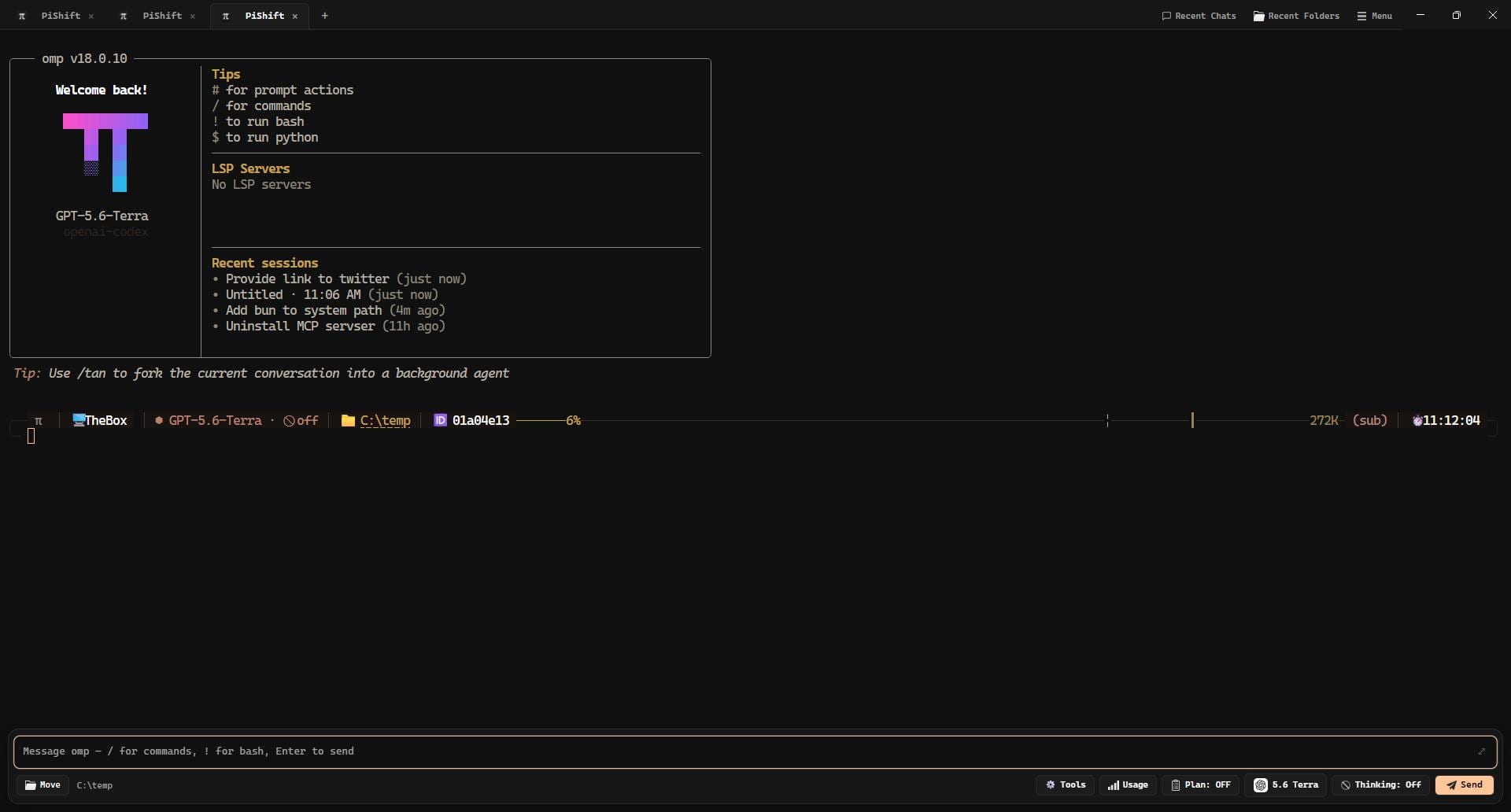
- WebGL xterm.js under the hood: You type, it appears. Sub-millisecond. Groundbreaking concept, we know.
- Safe Image Attachments: OMP presents images through its durable text attachment fallback, instead of feeding raw graphics frames into an xterm parser that can freeze your live session. Actual prompts and footers stay usable.
- Kitty Keyboard Protocol: Your chords and modifier keys actually work instead of getting swallowed by Windows console legacy ghosts.
- Watermarked PTY Flow Control: Output streams free until the renderer is genuinely megabytes behind, instead of stopping the agent dead after every single chunk. No more sessions frozen at "Thinking · 5s" because a repaint took one frame too long.
- Interactive Slash Autocomplete: Stop memorizing 60+ slash commands. Type
/and let the UI do the thinking. - Multi-Line Expanded Sheet: Hit
Ctrl+Shift+Enteragain once the composer is focused (or click⤢) when you need to write a thesis prompt instead of squinting at a single-line input. - Long-Paste Attachments: Anything past 10 lines or 1,000 characters collapses into a readable marker and can be attached as a wrapped block, a local file, or inline content—without turning the composer into a scrollback buffer.
- Paste Markers, Your Way: Five marker styles (Content Tag, Footnote, Brackets, Local File, Dot) times five paints (Accent Pill, Document Fold + Glow, Highlighter Knockout, Underline Rail, Plain Accent Text), plus an optional flash when a paste lands. Yes, that is 25 combinations for pasting text. No, we will not apologize.
- Terminal & Tools Popover: Copy, Paste, Clear, Find, Zoom In/Out/Reset, Expand Composer, Restart Session — one click each, no chord archaeology.
- Ask Sheets Answered In-App: When omp asks you a question, it renders as a real modal and gets answered with synthesized keystrokes, instead of you counting arrow-downs in a TUI list.
- Drag-and-Drop Image Chips + Lightbox: Drag an image in, get a nice thumbnail chip. Click it to zoom in full resolution. Shocking, right?
- Real-Time Markdown Highlighting: Code blocks, bolding, URLs, and paths highlight as you type.
- Clickable Workspace Path: Click the current folder path in the dock to open it in File Explorer. Because copying paths into Explorer like it's 2008 was always a bad plan.
- Model Switcher: Grid view, list view, drag-and-drop reordering to put your most-used models at the top.
- Thinking Effort Popover: Stop typing
/m highlike a caveman. Click the thinking button to open a quick selector:Off → Min → Low → Medium → High → XHigh → Max. - Honest Plan Mode: One click always drives toward ON or OFF, but the button shows what omp is actually in — emerald
Plan: ON, orPlan: OFF— amber-colored when omp is actually paused — and follows a/plantyped straight into the terminal. No optimistic lying.
- Right-Click Power Context Menu:
- Open in File Explorer (because searching folders in terminal navigation gets old fast).
- Copy Directory Path (one click, in your clipboard).
- Duplicate Tab in Directory (spawn identical workspace instantly).
- Project Color Badges (tag your tabs with colors so you stop mixing up repos).
- Inline Rename, Close Other Tabs, and Close Tabs to the Right.
- Split Screen Dual View: Two sessions, one window, a drag-to-resize divider. Toggle from the top bar, the burger menu, a tab's right-click menu, or
Ctrl+\. Double-click the divider when you want 50/50 without thinking. The split ratio survives restarts because of course it does. - Drag-to-Reorder: Because the tab you opened 5 hours ago shouldn't be trapped on the left forever.
- Drag the chrome, not the 8px caption lie: The whole top bar is a window drag handle. Grab the tab strip, the usage gauges, whatever — it moves. Buttons stay clickable because we are not animals.
- Uses an asynchronous UDP bridge (
127.0.0.1:37991) to stream live agent activity (idle,working,thinking), token usage, and model states with zero polling. A file-watch backstop covers dropped datagrams, so the UI never gets stuck claiming the agent is busy. - Auto-installs
control-bridge.tsinto your~/.omp/agent/extensions/on launch. You don't have to touch a config file. You're welcome.
- Every background subagent gets a row with live runtime, so you know which one has been "almost done" for nine minutes.
- Artifact / Report and Raw Logs tabs per job, plus a thinking-process view when the model bothered to show its work.
- Copy Markdown lifts a finished job's report straight to your clipboard.
- Kill a runaway job from the same panel instead of hunting PIDs in Task Manager.
- Installed models, grouped by provider, pulled from omp's model database — not a hardcoded list that rots in a week.
- Provider quota usage with live limit gauges, optionally pinned in the header so you always know where you stand.
- Recent folders and recent chats sourced from real session history, not a guess.
- Transcript backfill on resume: reopen a past session and your earlier messages come back, instead of an empty scrollback pretending nothing happened.
- Chat View: Toggle each tab between raw xterm and a structured conversation view with live reasoning/text, transcript backfill, and per-view expansion controls. Because terminal scrollback is a terrible chat client.
- Tool Density: Two modes, one design. Compact (default) keeps every activity section, tool call, and thought folded; Detailed opens them all on arrival. Nothing else changes — expanded work looks identical either way, because shipping two different expanded layouts would be an admission of indecision. Compact also offers Show Raw Text on Expand for people who want the literal payload instead of the polished card.
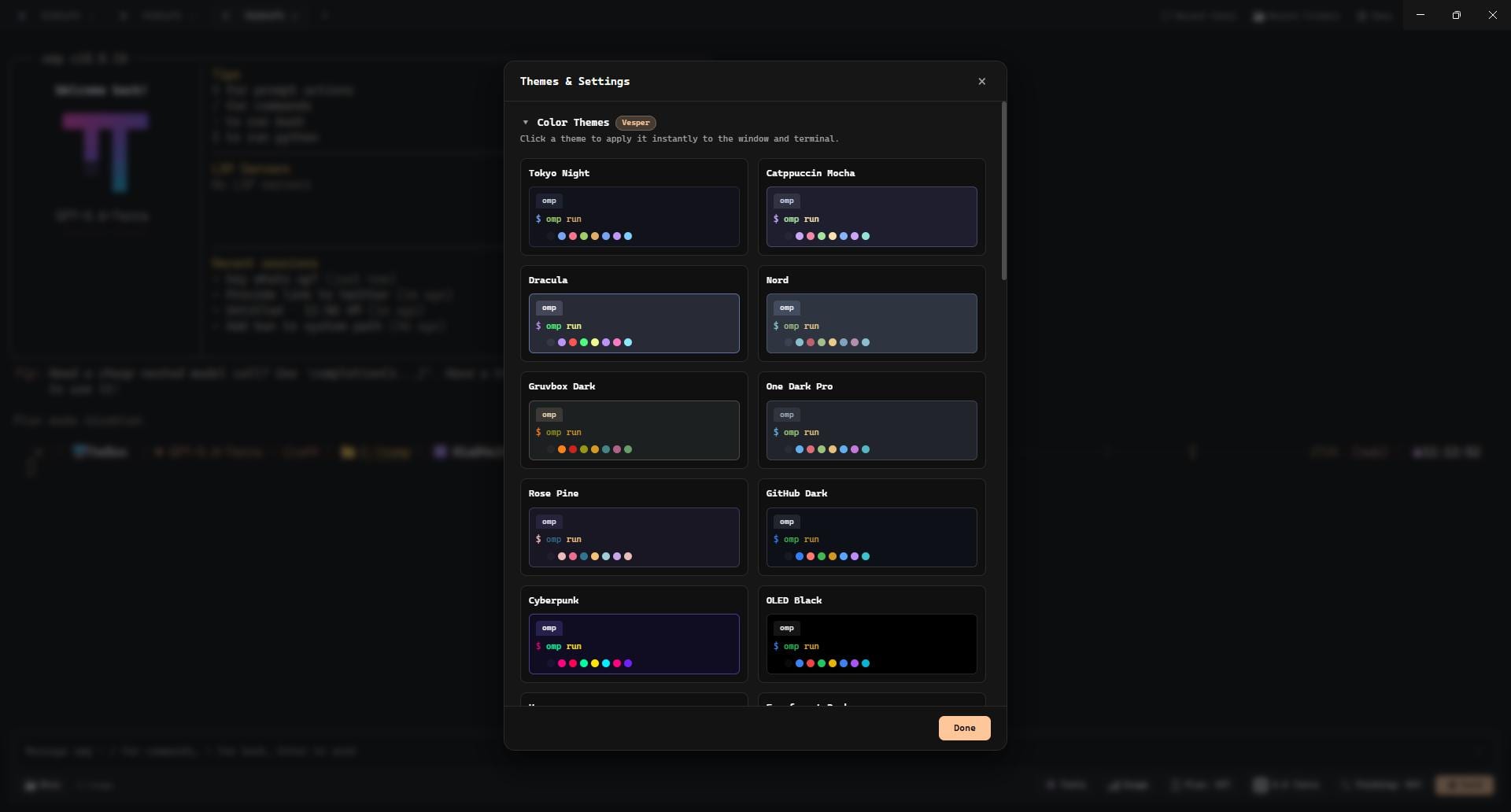
- 28 built-in palettes (Tokyo Night, Catppuccin, Gruvbox, Nord, Cyberpunk, Rose Pine, Synthwave...).
- Syncs the window background and frame color to your active theme so your dark mode doesn't get ruined by a blinding white caption bar.
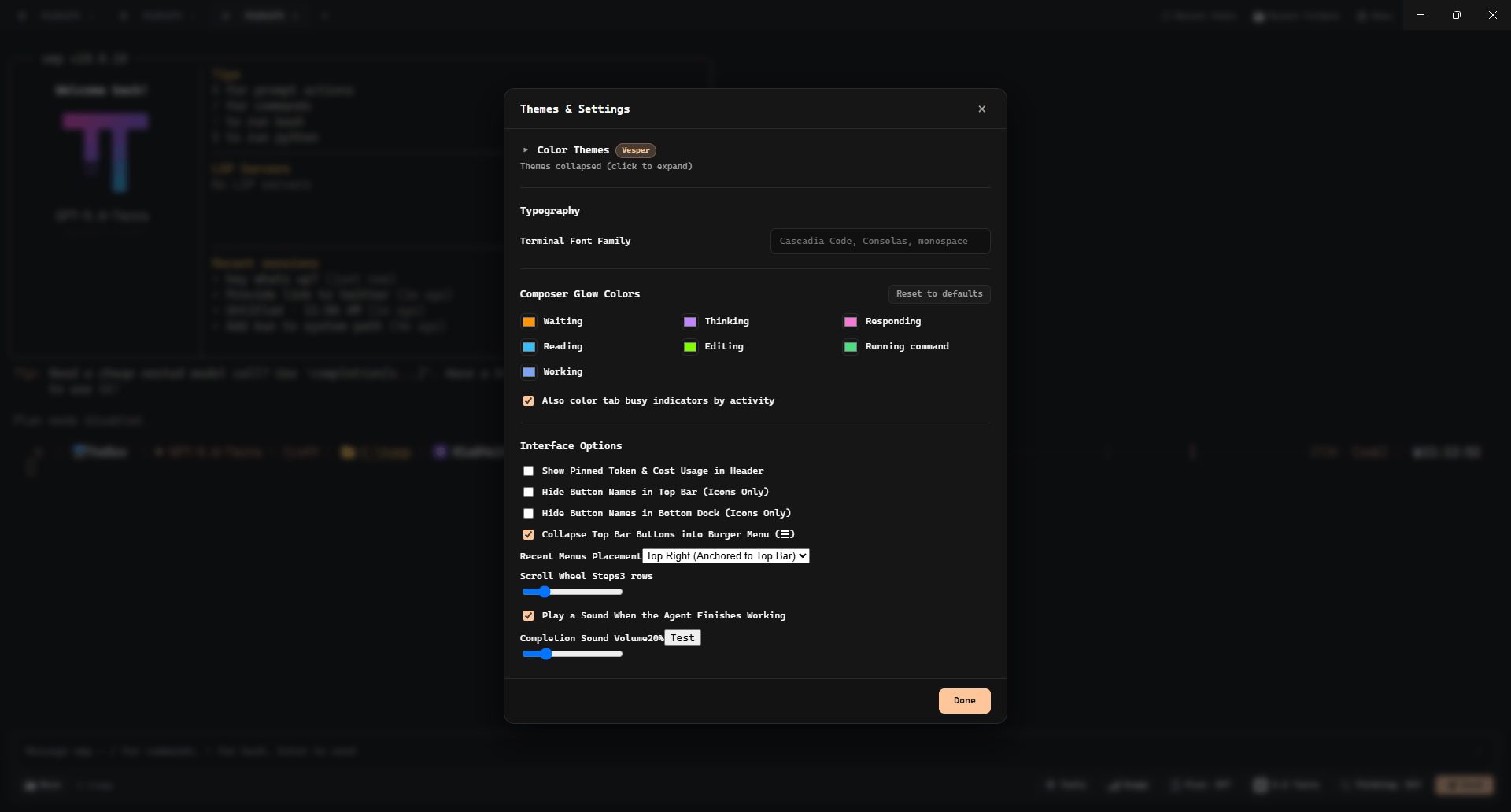
- Themes & Settings in one modal: palette picker, Terminal Font Family override, and interface toggles that persist.
- Composer Glow Colors: pick a glow per agent activity, optionally color the tab busy indicators to match, and Reset to defaults when your palette experiment goes badly.
- Live Provider Quotas & Usage Tracker: Pin live provider limits directly in the top bar with customizable gauge styles (Bar, Battery, Circle), tier-colored percentages (green/yellow/red), clickable order swapping (◀/▶ and ▲/▼ buttons), and custom refresh intervals.
- Interface Options: pin token/cost usage in the header, go icons-only in the top bar or the dock, collapse the top bar into a burger menu (☰), set Recent Menus Placement (Top Right, Center Screen, Top Center, Bottom Center), live Hover Tab Previews to peek at inactive session buffers, and tune Scroll Wheel Steps.
- Tab Layout: pick how sessions live — Vertical Rail (Docked Icons) (48px left strip of glyphs that expands titles on hover, with glowing busy sweeps on background tabs), Vertical Rail (Floating / Auto-hide) (edge pill that blooms into the full rail), or Horizontal (Compact) (tiny top-bar tabs with wheel/nudge overflow).
- Long Paste behavior: Ask Each Time by default, or lock it to always attach as a wrapped block, always attach as a local file, or always paste inline.
- Completion chime: play a sound when the agent finishes working, with a volume slider and a Test button so you can pick something that won't make you hate your job.
- Recent Chats Popover: Search and resume any past session by working directory without leaving the keyboard.
- Recent Folders Popover: Jump straight to any workspace you've opened before.
- App Menu Popover: The old "Usage" window is now a fast vertical popover (Todo, Settings, Split Screen, Relaunch, Quit) instead of a separate window — matches the Model/Thinking menu feel.
- Native-Feeling Ask & Confirm Dialogs: In-app modals replace blocking OS prompts for destructive actions and quick input.
- Live Activity Sync: Tab titles and status reflect the agent's actual state (
idle,working,thinking) in real time instead of the generic "Temp" default. - Stall Recovery That Doesn’t Lie: A frozen terminal output stream gets an explicit Resume or Kill action; long-running tools show elapsed time instead of pretending they vanished into the void.
- Automated OMP Update Prompts: Glowing amber update button in the top chrome row whenever a new OMP release is detected.
- One-Click Update & Auto-Restart: Click to download and install the latest
omprelease directly inside PiShift and automatically restart your active session. - Auto-Update on Open Toggle: Configure PiShift in Settings to automatically update OMP upon opening the app.
- Header Version Badge: Monospace version badge in the top far left of the header bar.
Grab the latest release from the Releases tab:
PiShift Setup 1.9.32.exe— Standard installer (Windows).PiShift-1.9.32-win.zip— Portable zip if you have installer commitment issues (Windows).PiShift-1.9.32.AppImage— Portable, no install needed (Linux, x64).pishift_1.9.32_amd64.deb— Debian/Ubuntu package (Linux, x64).
# Clone the repo
git clone https://github.com/Dazaike/pishift.git
cd pishift

# Install dependencies (fast)
bun install

# Run the dev app
bun run dev

# Package production installer & portable zip
bun run dist| Shortcut | What it does |
|---|---|
Ctrl+Shift+Enter |
Focus the composer — press again to expand the big prompt sheet |
Ctrl+Shift+T |
New tab in the current working directory |
Ctrl+Shift+W |
Close the active tab |
Ctrl+Tab / Ctrl+Shift+Tab |
Cycle tabs forward / back |
Ctrl+\ |
Toggle split screen (two sessions, one window) |
Ctrl+Shift+F |
Find text in terminal output |
Ctrl+Shift+U |
Toggle Chat View / terminal for the active tab |
Ctrl+= / Ctrl+- / Ctrl+0 |
Zoom in / Zoom out / Reset font size |
Ctrl+C |
Copy the selection when there is one, otherwise send ^C |
Alt+↑ ↓ ← → |
Forward arrows straight to the agent without leaving the composer |
Esc |
Cancel / dismiss overlay / stop the "working" chrome |
Clear Terminal, Find, Expand Composer, and Restart Session also live as click actions in the dock's Terminal & Tools popover.
MIT © Dazaike. Do whatever you want with it, just don't make slow software.