A legal management application for lawyers with several other hands on features that may help make their work easier. Note: This application is best viewed on screens of 15 inches and compatible with WINDOWS OS only.
Download the lawflow-win32-x64.zip folder from git main:

unzip the file lawflow-win32-x64.zip, you will find a lawflow.exe file

For the purpose of testing, we have already set up an account that you may wish to use:
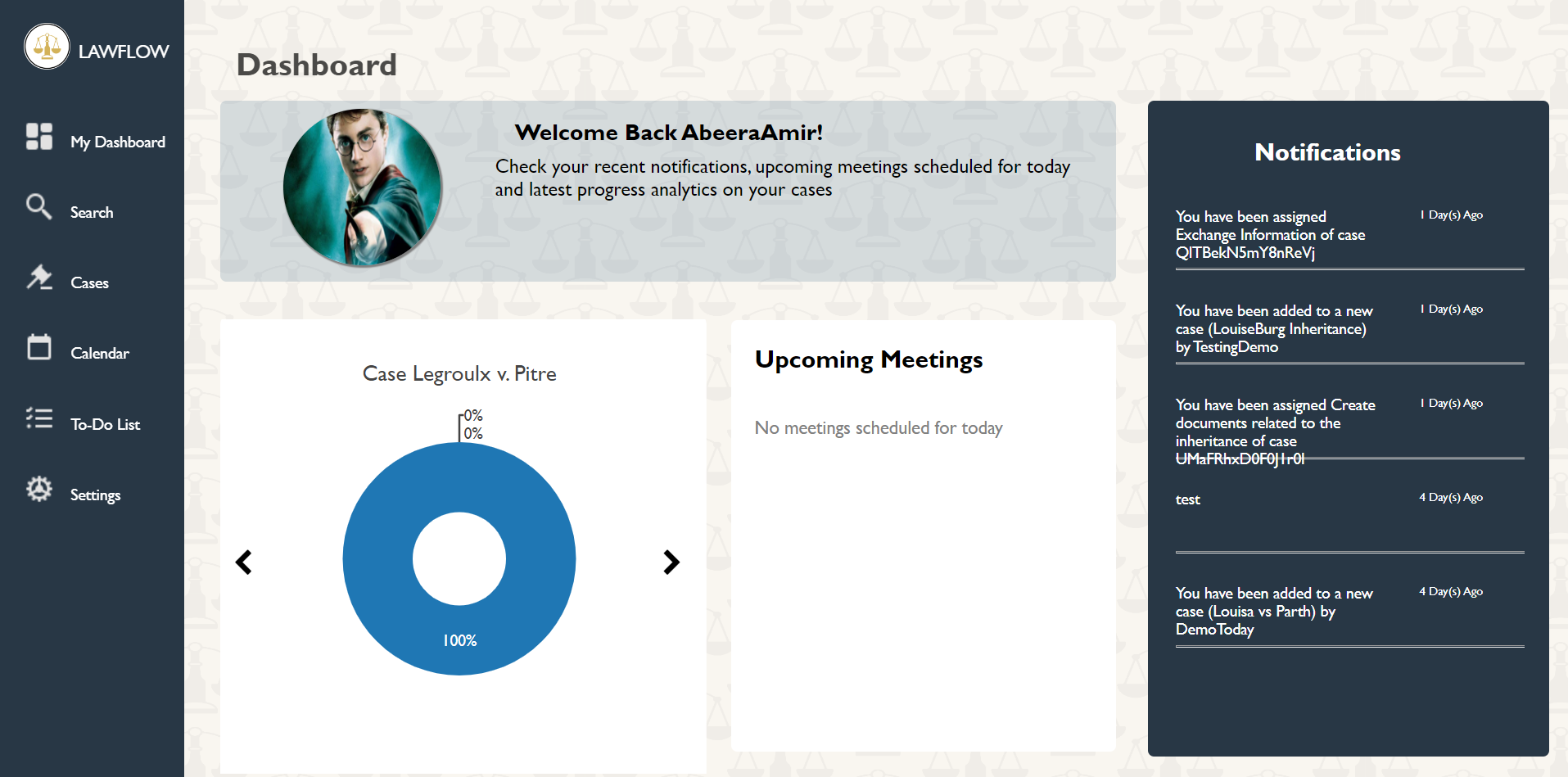
On opening/ logging in you will notice the dashboard:
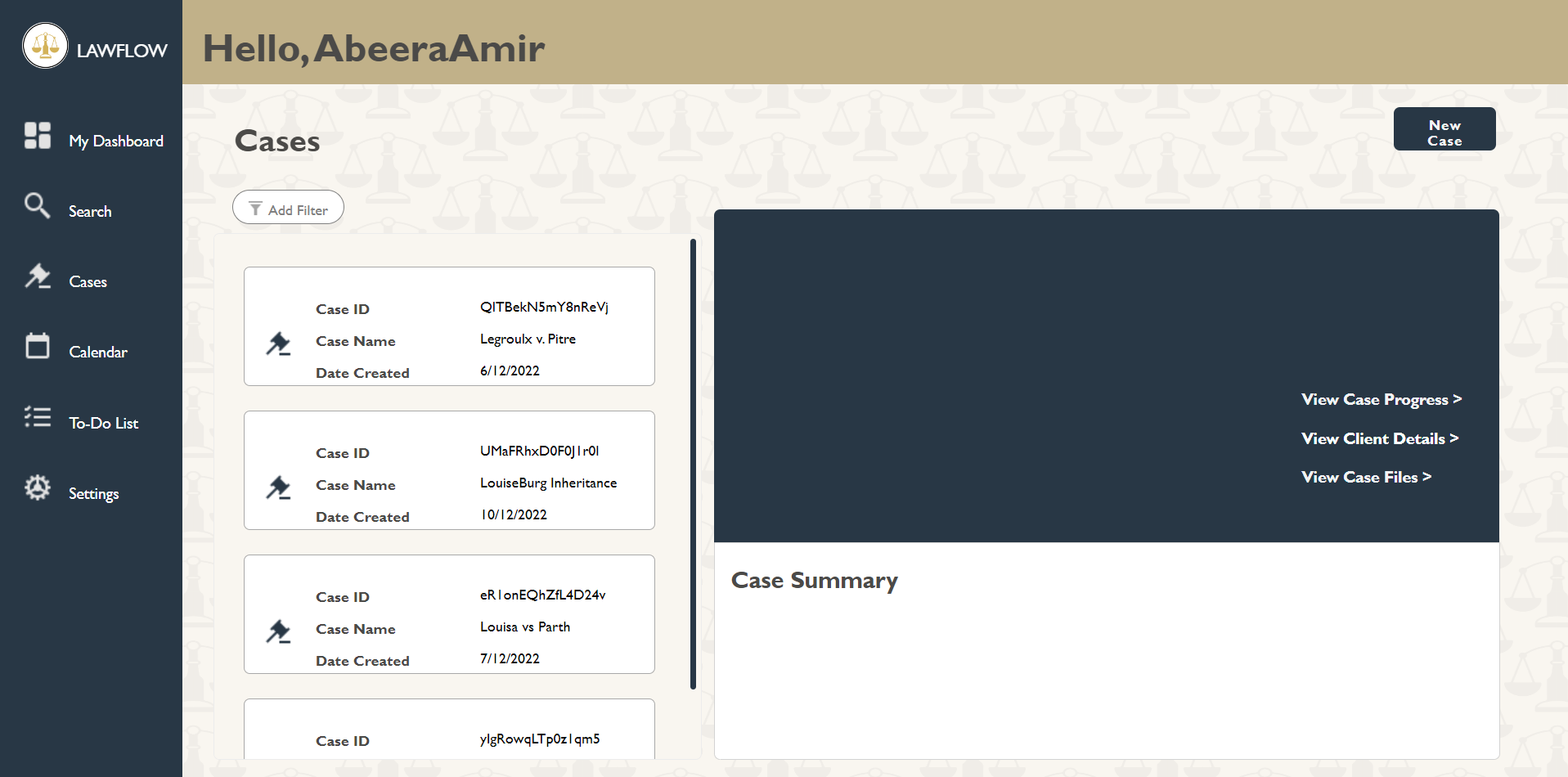
On clicking cases, the below page will open up:
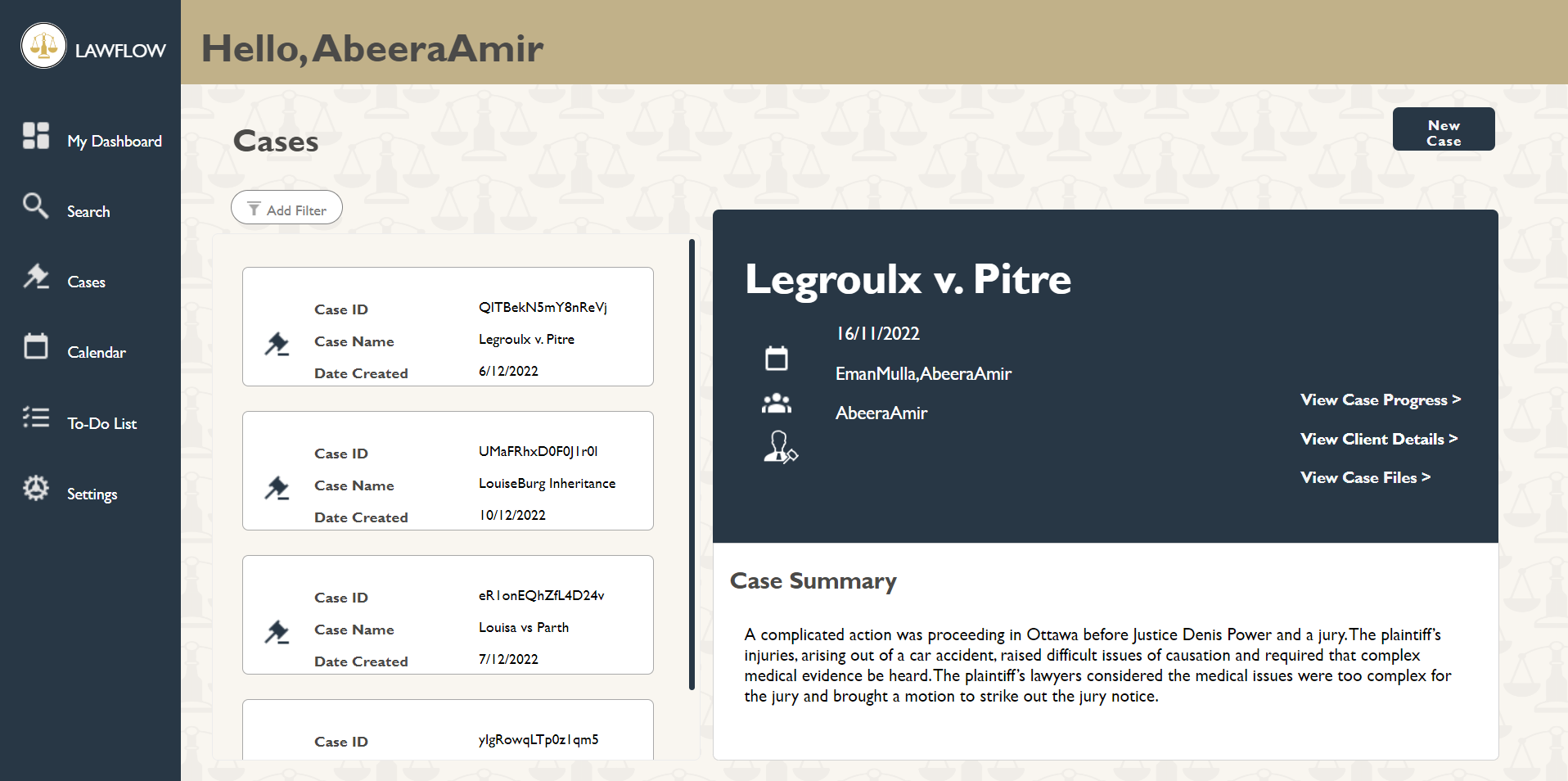
To view the case progress, case files or the client details you have to click on one of the cases on the left side first:
-
Create basic case details
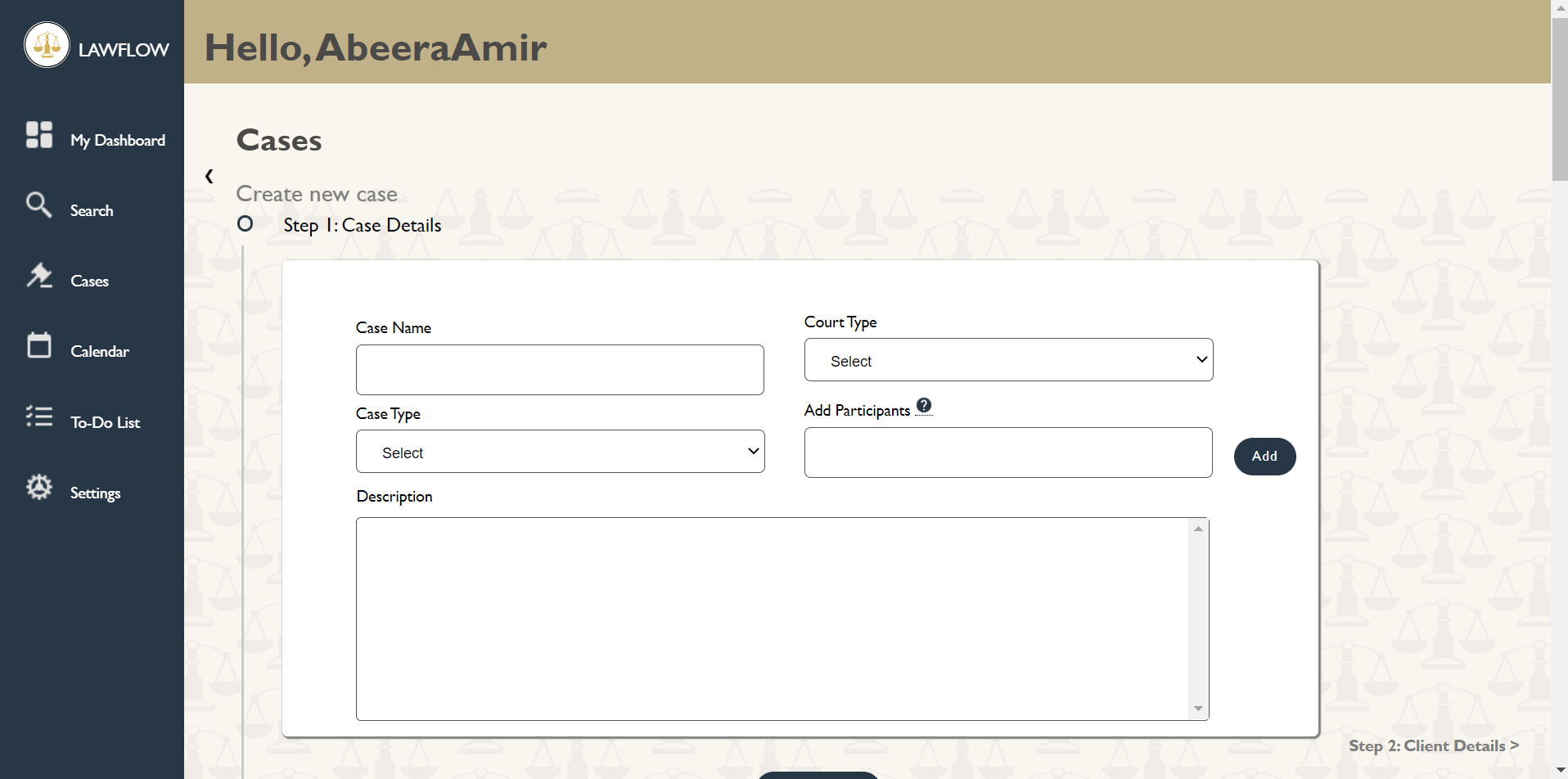 In add participants you can only add existing lawyers, some of the accounts that already exist on our app our: EmanMulla and TestingDemo
 -
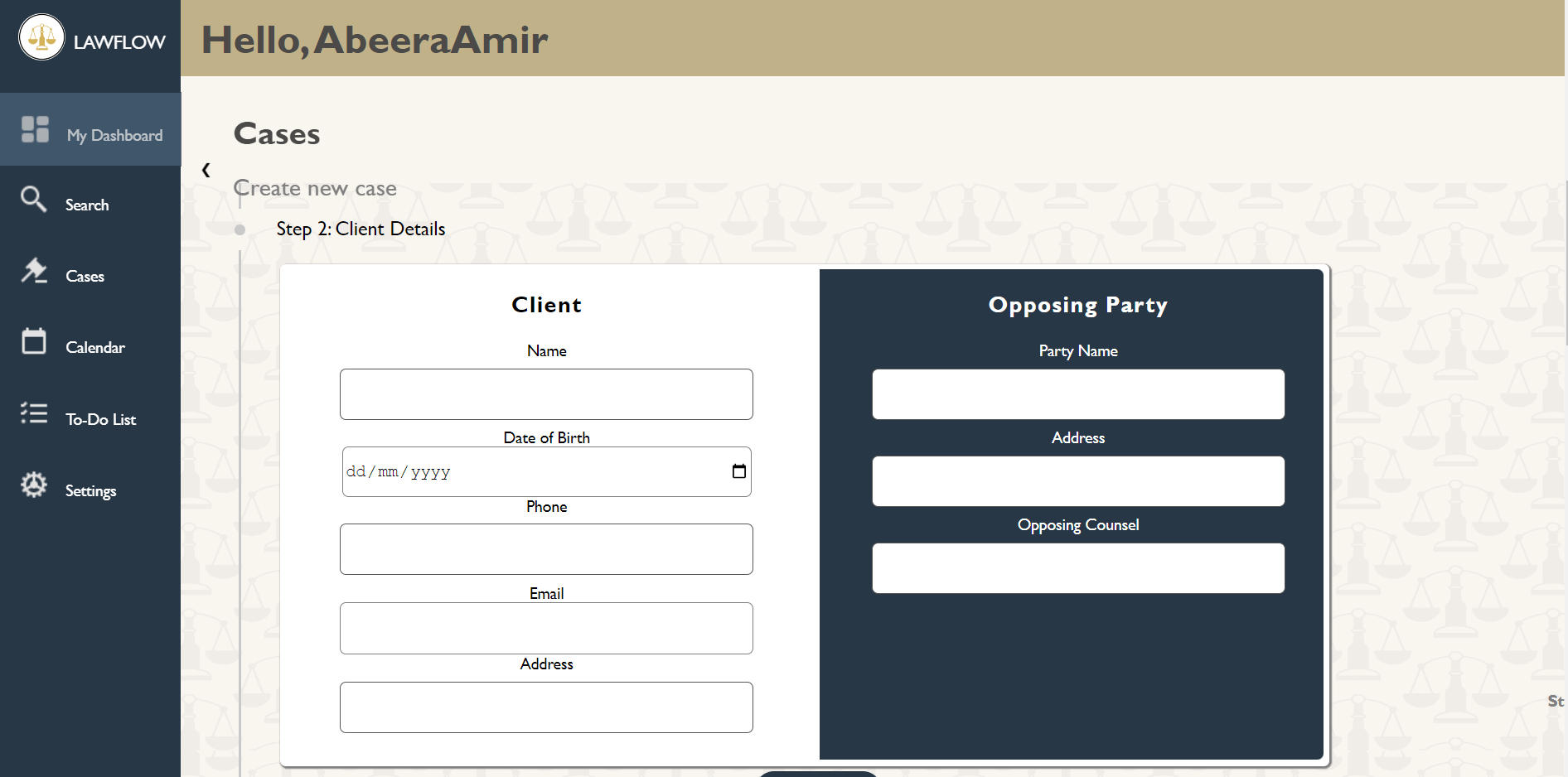
Entering the client and opposing council details: [Enter a uae phone number starting with 050.. and an email in the proper format]
-
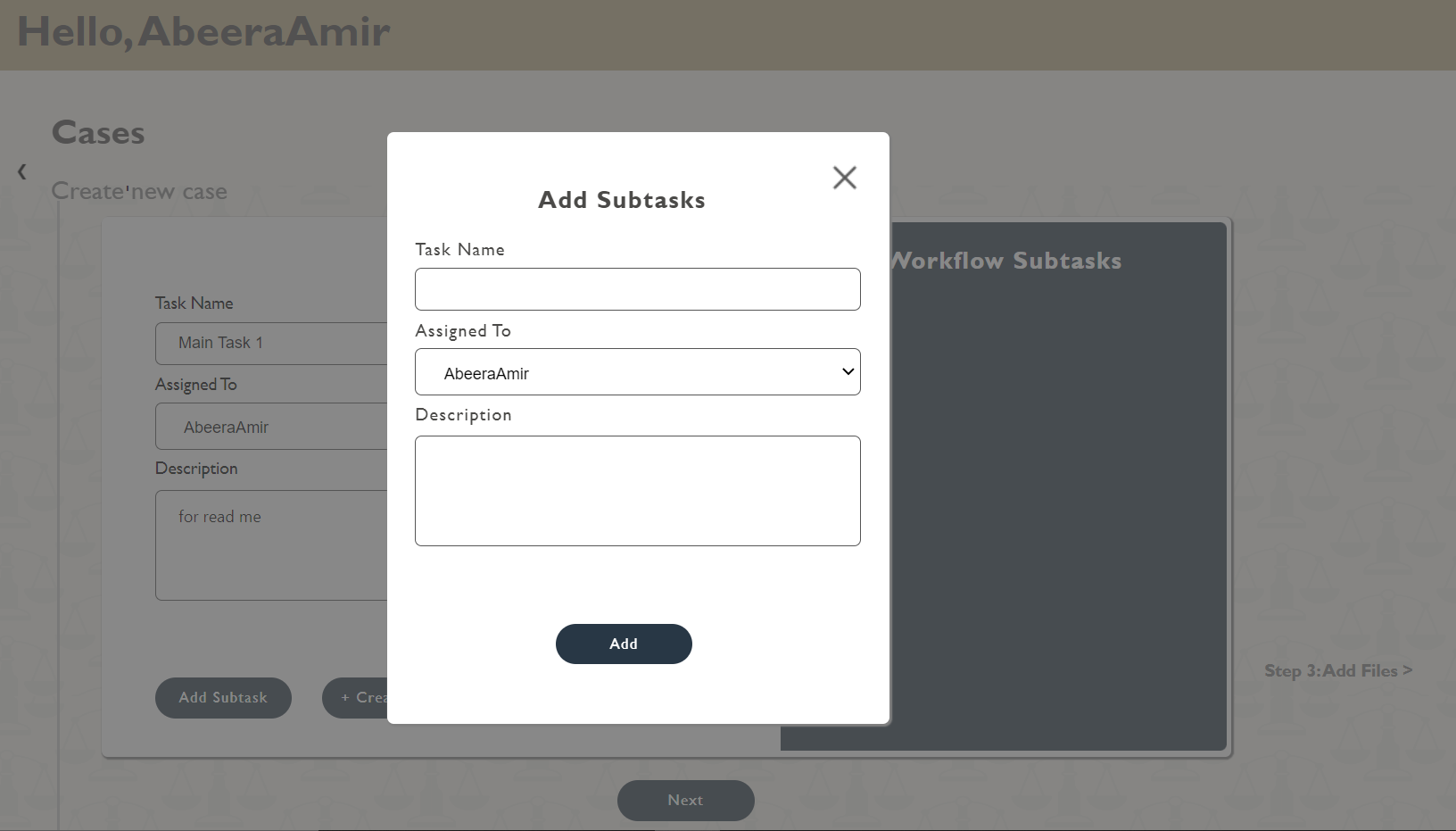
Creating a dynamic workflow for the application: Clicking on add subtasks will you give an option to create a sub task within the current main task:
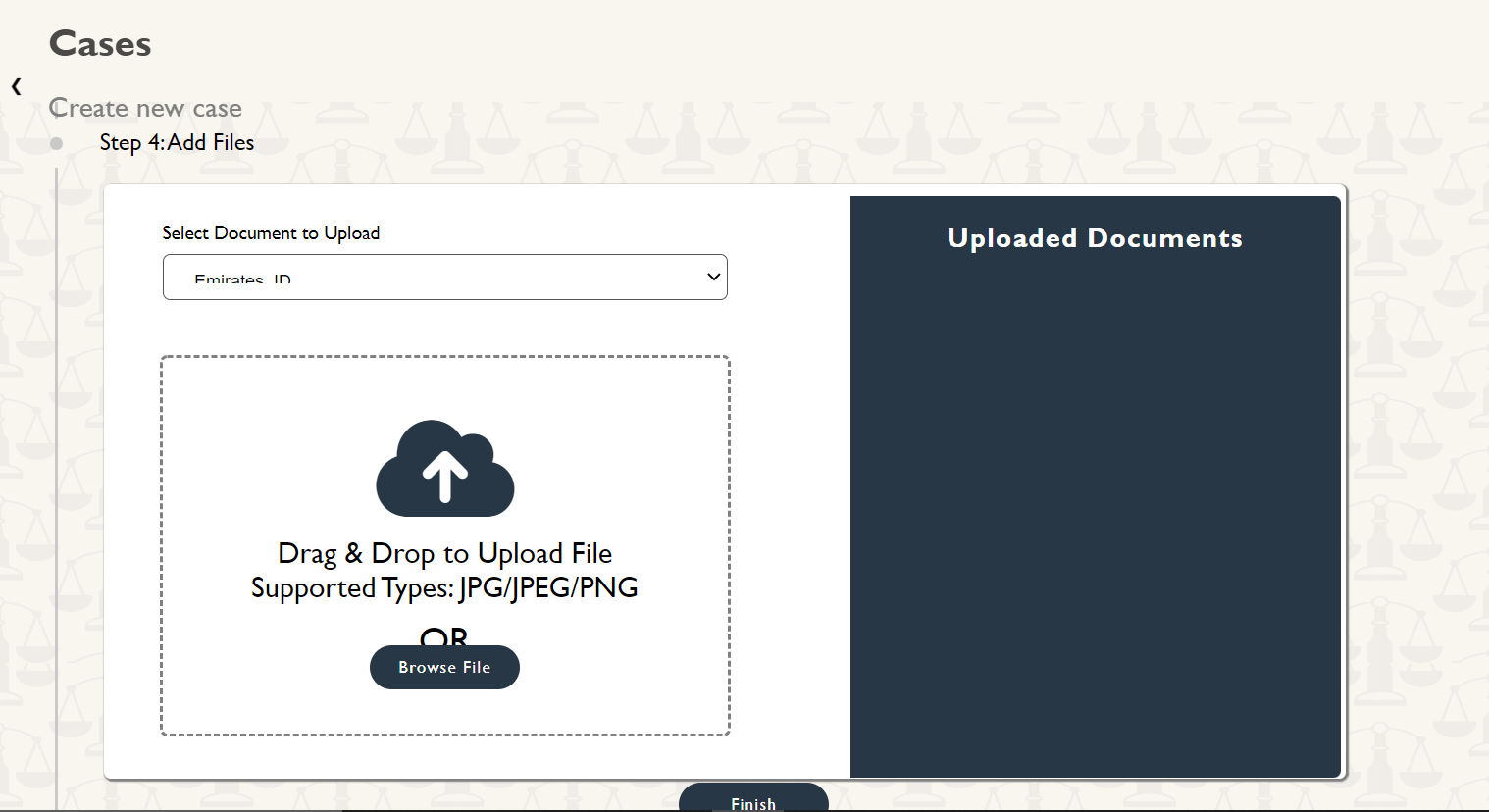
- Finally add all the compulsory files required in a case:
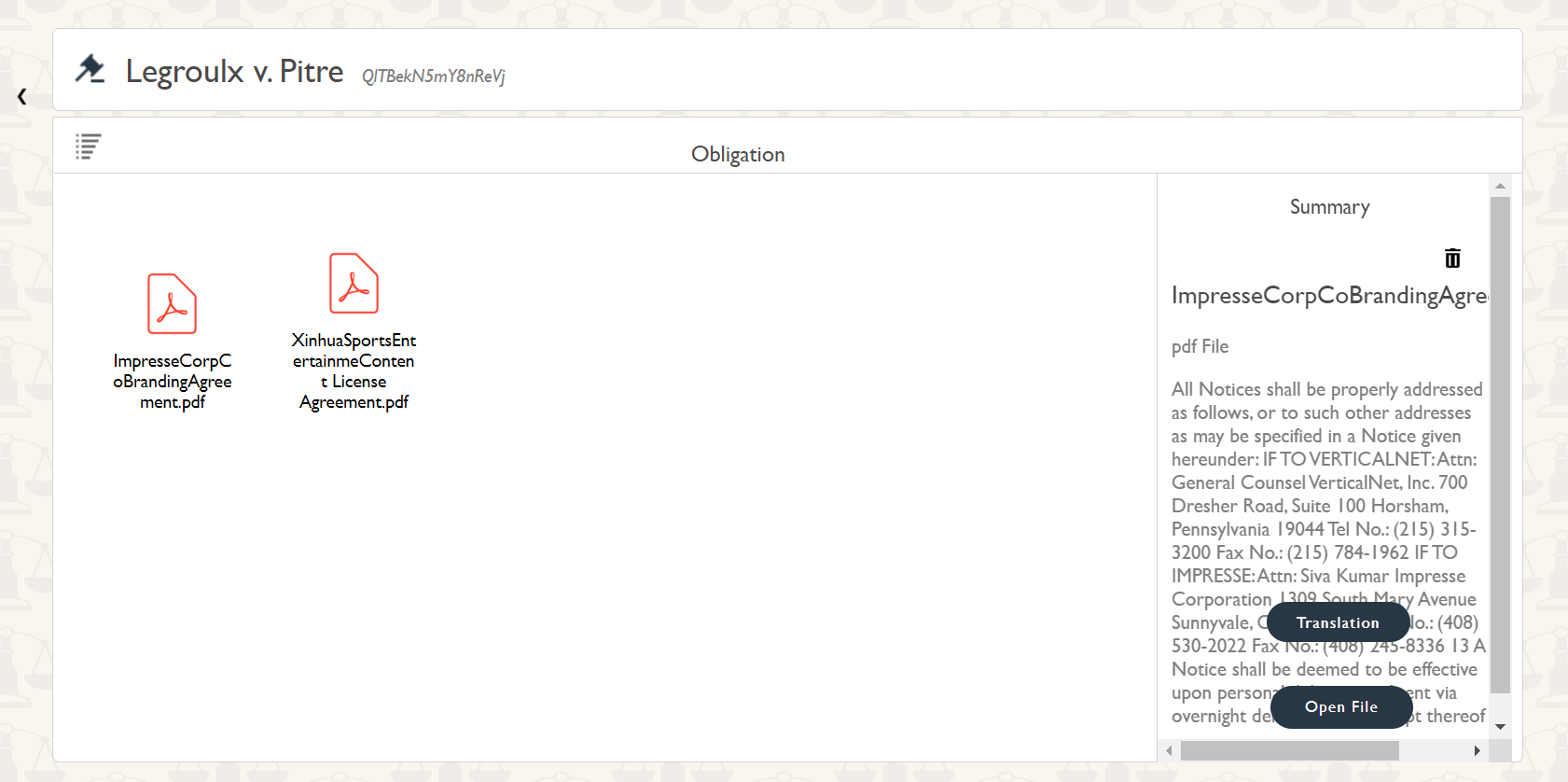
For viewing case files, click on the view case files option on the cases page after selecting a case:
-
Go to one of the categories and select the case file, here you can view a summary on the side
-
Translation: Current translation takes place from english to arabic to ensure no crashes. Translation only takes place for the .pdf files. If a file has already been translated earlier it will show up the translation in a few seconds. Like here:
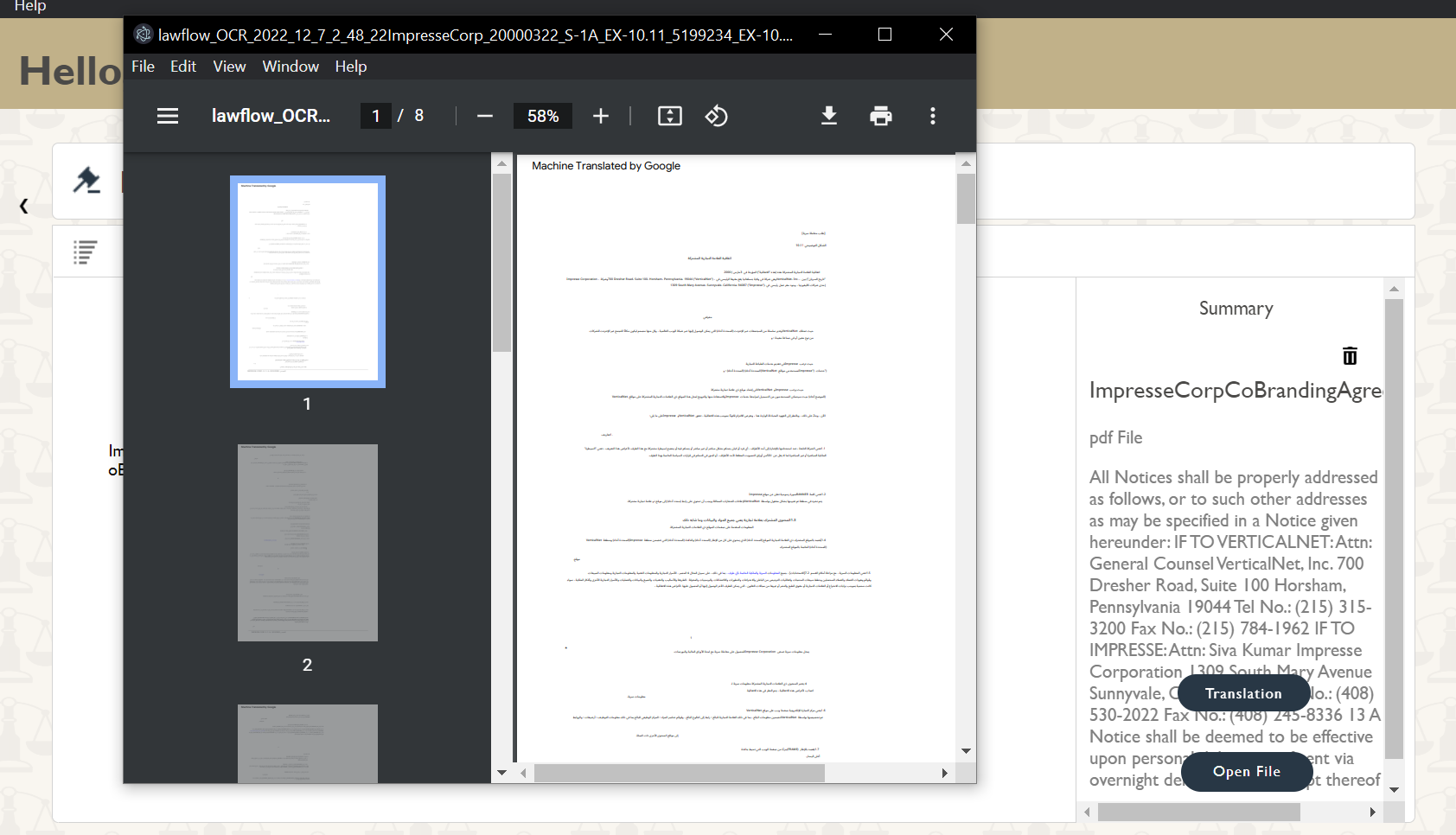 However if a file is not translated, you will be met with a warning, and will have to remain on the same page for a few minutes:

NOTE : Translation is a slow process and can take up to 10+ minutes for a pdf to be translated depending upon the size of the file and number of pages.
-
There is a basic search option in the search by files to help you find any file you require:

-
To add files, click on the add files option and browse the file:
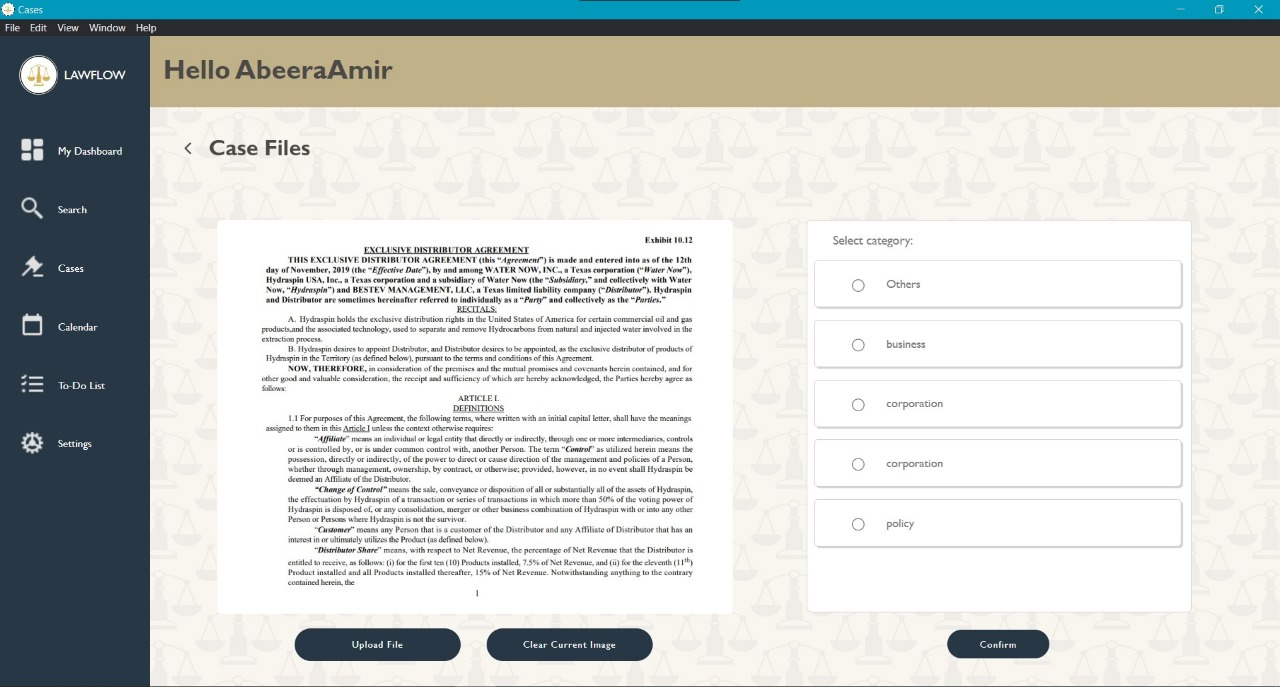
NOTE: The server this api is being hosted on MIGHT go on an overload as it is a free service, as a result the categories may sometimes not show a response.
To view the case progress simply click on view case progress after selecting the case on the main cases page
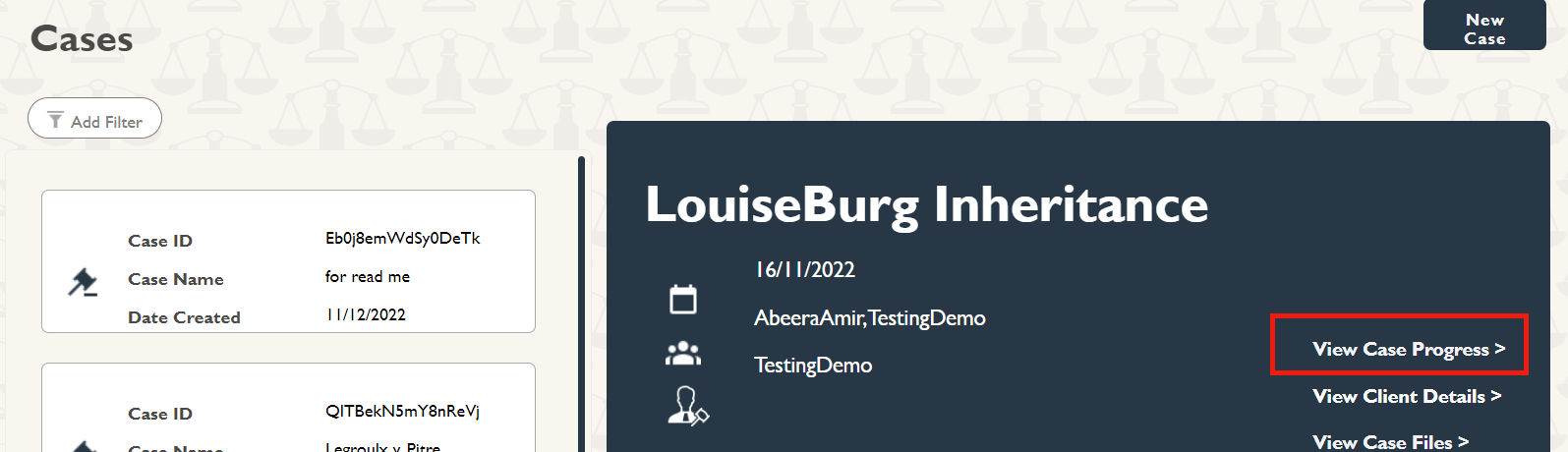
Here you can see all of the case progresses based on the tasks you have created in the main dynamic workflow while setting up:
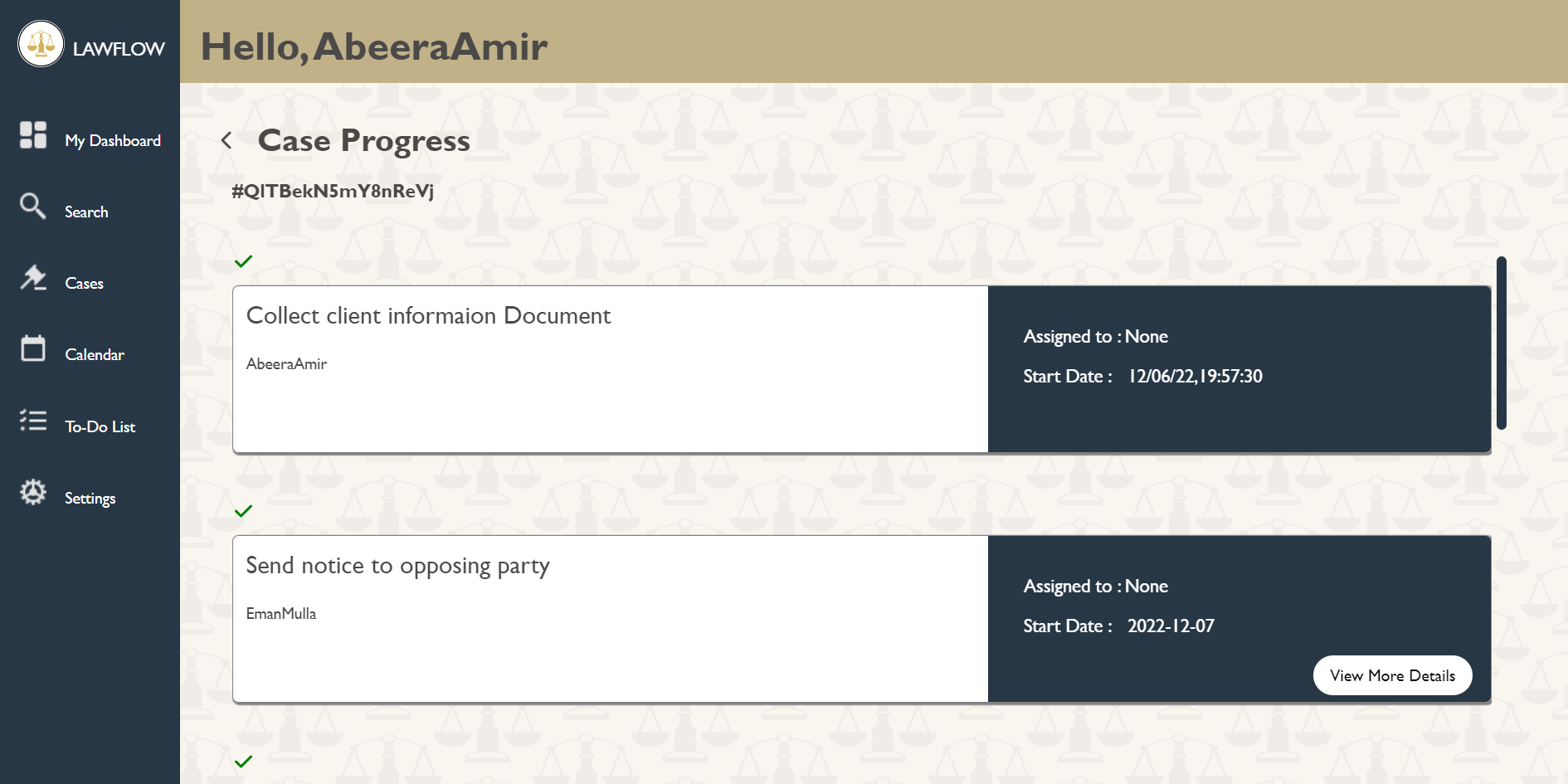
Tasks with subtask have a field called: view more details
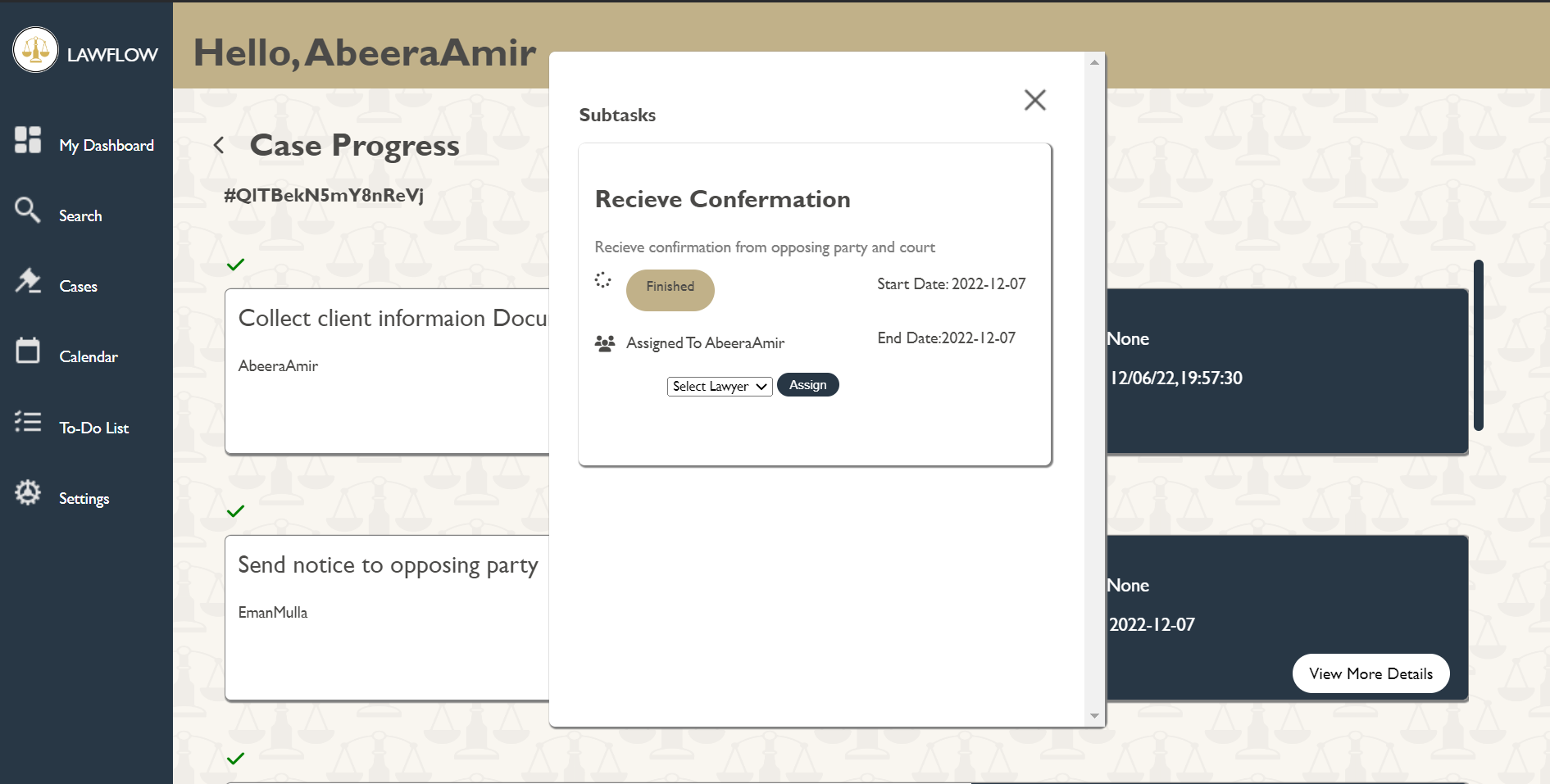
Here you can see the upcoming meetings by clicking on any date:
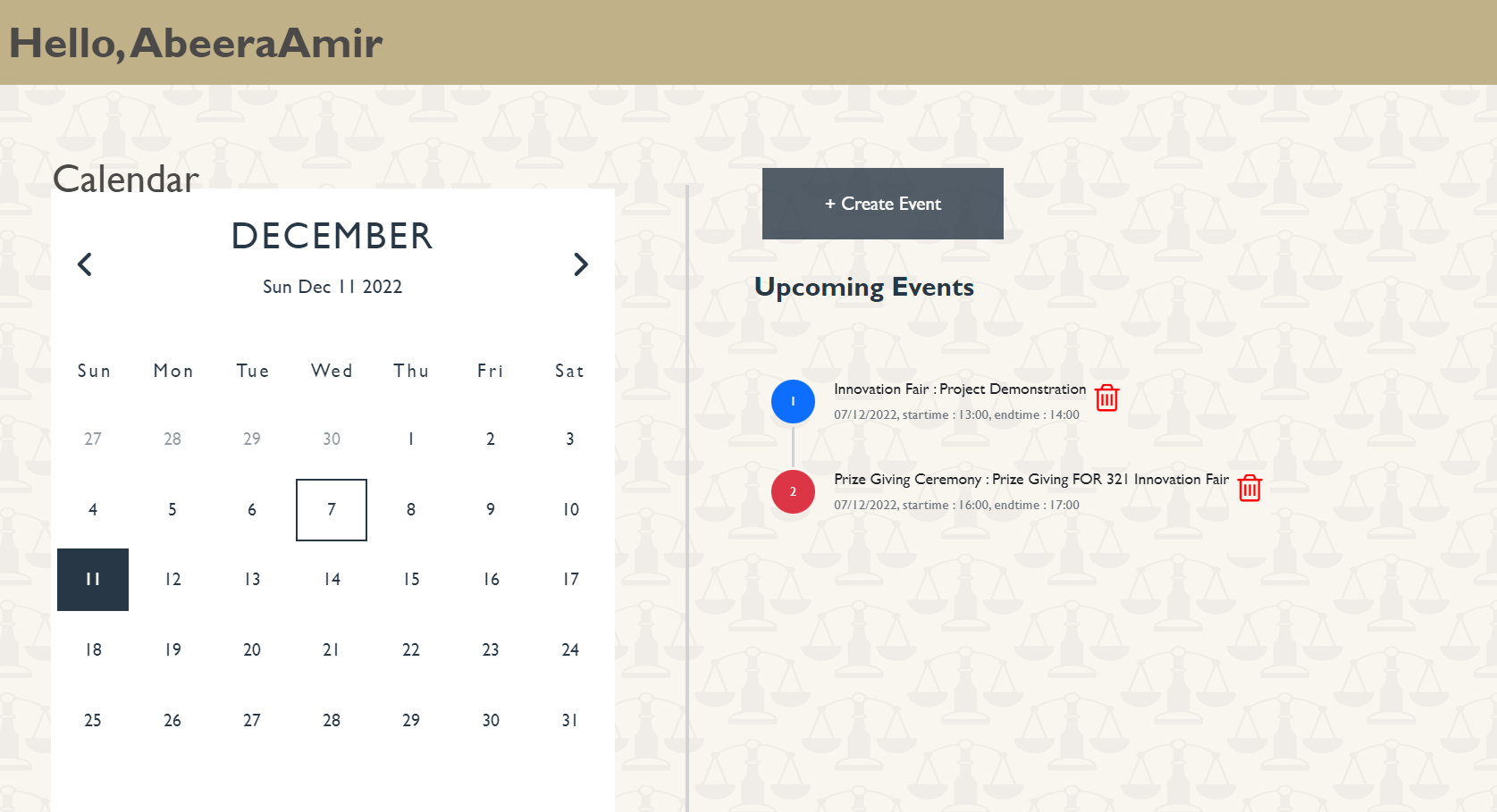
To create an event, click on add event:

The tasks from todo list are assigned based on the workflow assignment
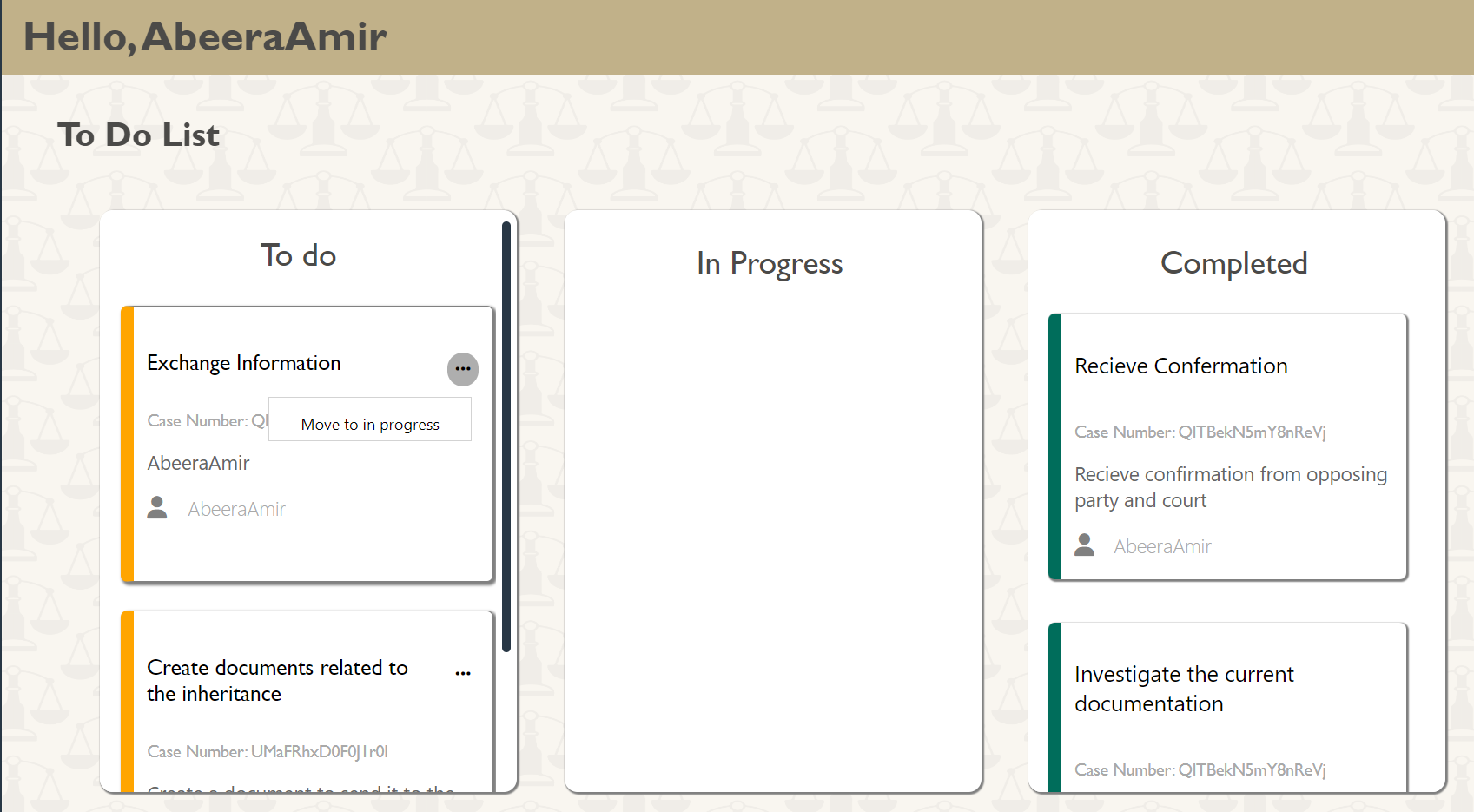 Clicking on the three dots above, moves a task from one state to another, all the members assigned on the case also get notified of this change
-
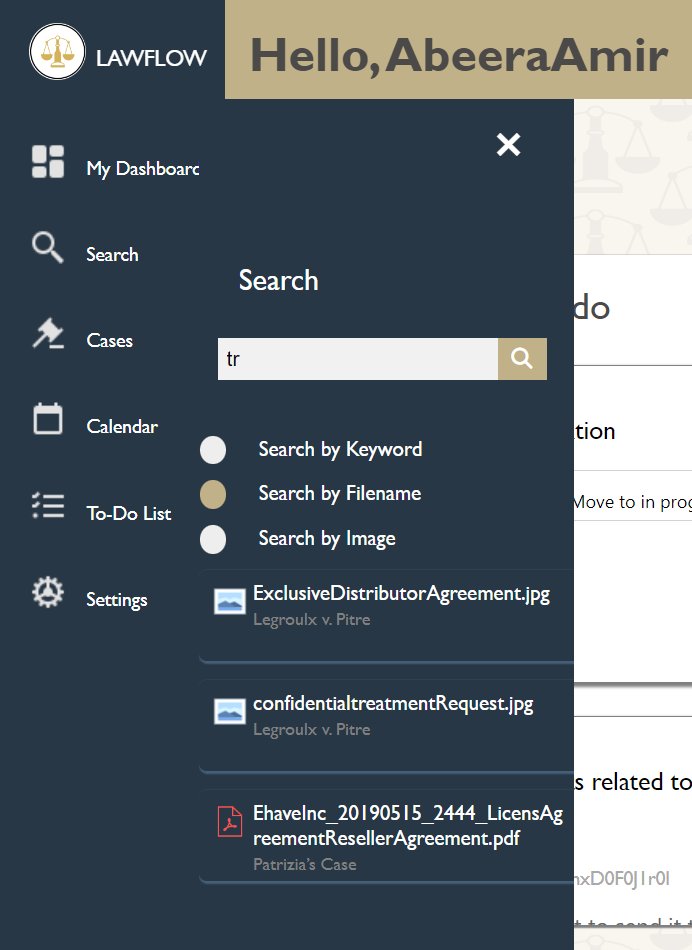
Search by keyword/ filename: Click on the required search option and add text in the search field:
-
Search By Image:

To run the code directly without the use of the installer, use command npm start under - folder after downloading all the necessary npm packages.