

English · Deutsch
A local dashboard for your 3D printers. 3D-PrintDash runs as an app (formerly "add-on") in Home Assistant or as a Docker container and talks to your printers directly on your network – no cloud and no Home Assistant integrations required.
3D-PrintDash is an independent open-source project and is not affiliated with Bambu Lab, Snapmaker, Klipper or Home Assistant. Product names are only used to describe which devices are supported.
If you run more than one printer, you probably know this: one app for the Bambu printer, a web interface for the Klipper printer, a spreadsheet or notes for your filament, and Home Assistant for the smart plugs.
3D-PrintDash brings this together in one local dashboard for your whole print farm:
- Bambu Lab and Klipper printers side by side – different brands, one interface
- Filament manager built in – know which spool is where and how much is left, without an extra tool
- Made for Home Assistant – runs as an app, opens in the sidebar, uses HA for notifications and smart plugs
- Fully local – no cloud account, no data leaves your network
- Overview: one card per printer with camera, status, progress, time left and estimated finish, layer, temperatures and loaded filaments
- Detail view (click a card): all cameras large, plus all details, controls and recent prints, optionally full screen
- Cameras: printer cameras and any external RTSP/MJPEG cameras, which you can assign to a printer
- Control: pause, resume, stop, light (for Bambu printers see Control)
- Printing: upload and start files, for Bambu printers with plate selection and AMS mapping
- History of all prints with final image, duration, filament usage and cost
- Filament management: inventory by storage location, brands, detection of loaded spools, optional usage tracking, low-stock warning, dryer timers
- Maintenance reminders for cleaning and lubrication per printer
- Statistics per month, printer and material, CSV export
- Backup and restore, import from another installation
- Notifications with camera image via the Home Assistant app
- Smart plugs from Home Assistant, with automatic switch-off after a print
- Timelapse (optional): one image per layer, a video in the history, stored internally or on a NAS
- Design: light or dark, accent colour of your choice
- Room climate (optional): temperature, humidity, air quality and sensor battery of your print room
- System load of the Home Assistant machine (CPU, RAM, storage, temperatures) at the bottom of the overview
- English and German, any currency
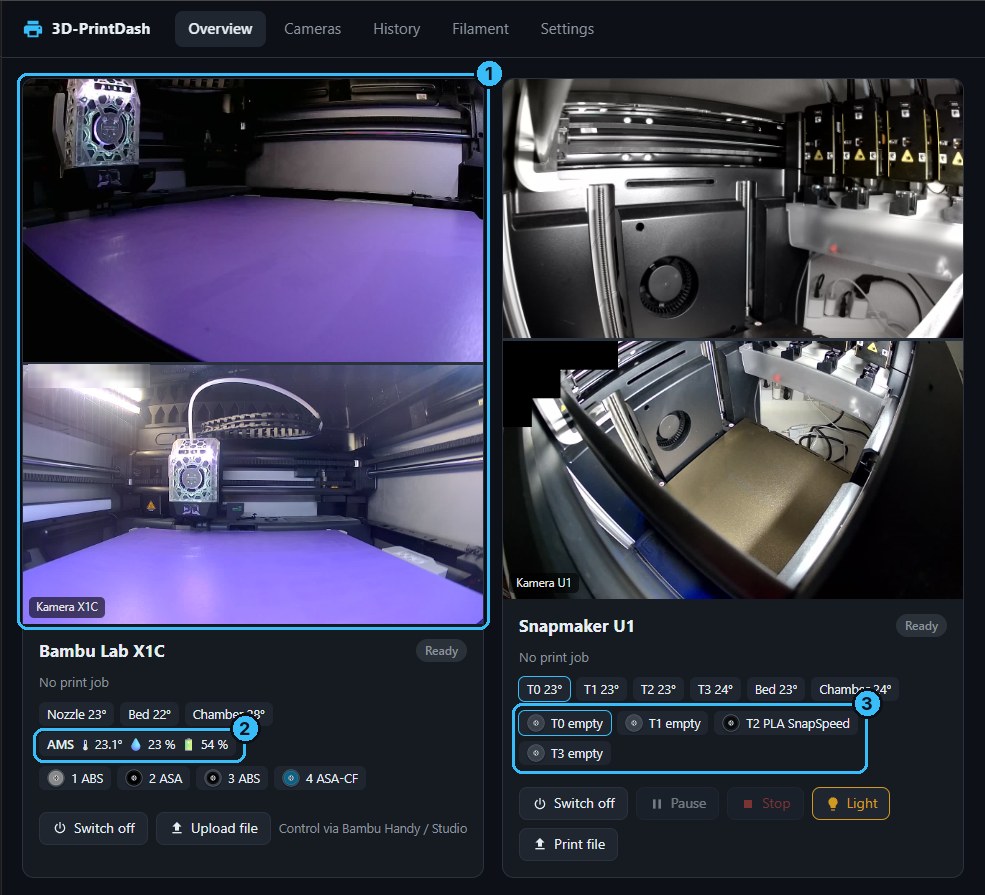
Overview with a Bambu Lab and a Klipper printer side by side. ① Several cameras per printer (built-in and external) ② AMS temperature, humidity and sensor battery from Home Assistant ③ Loaded filament per toolhead
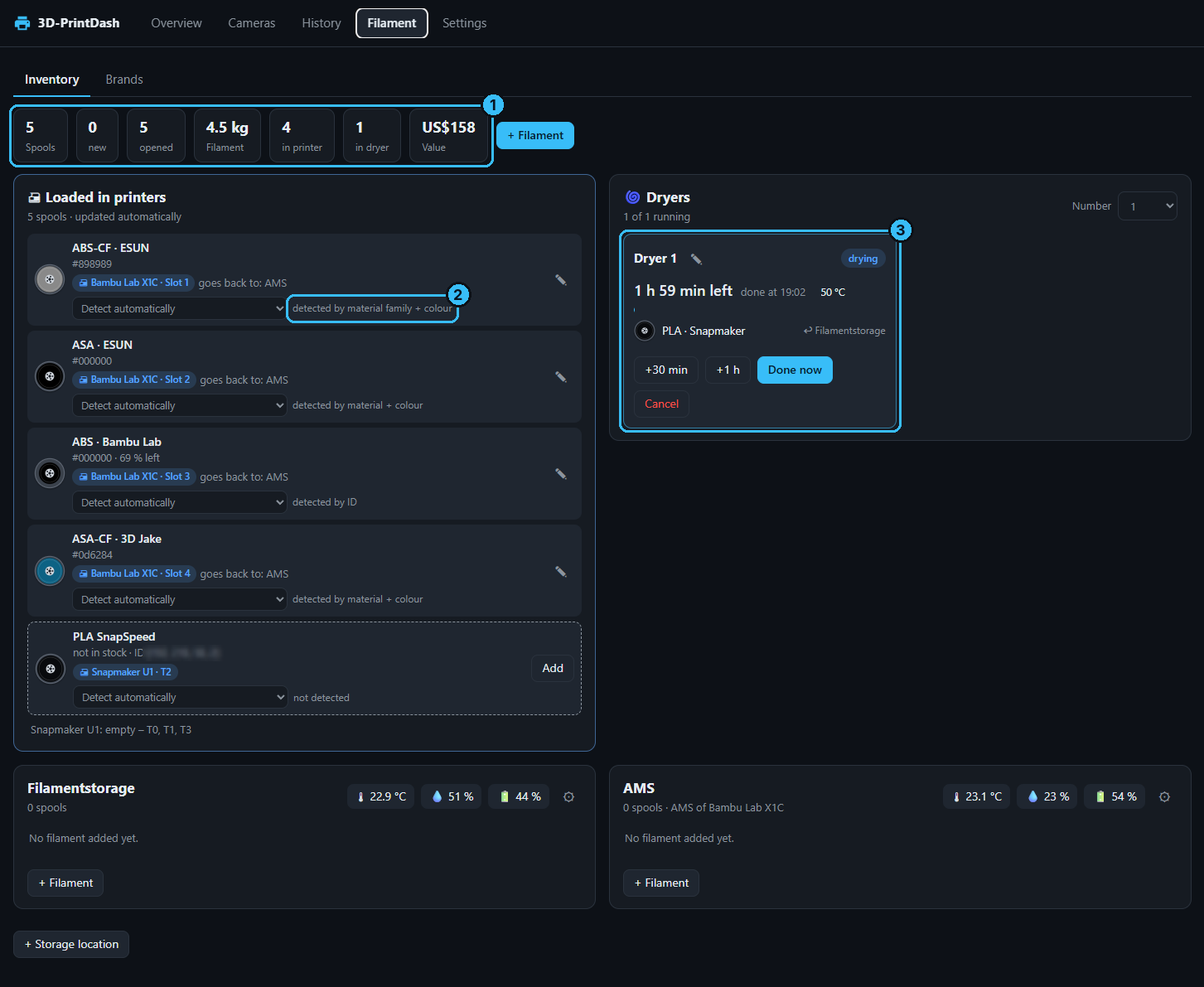
Filament: ① inventory at a glance ② spools in the printer are detected automatically ③ dryer timer
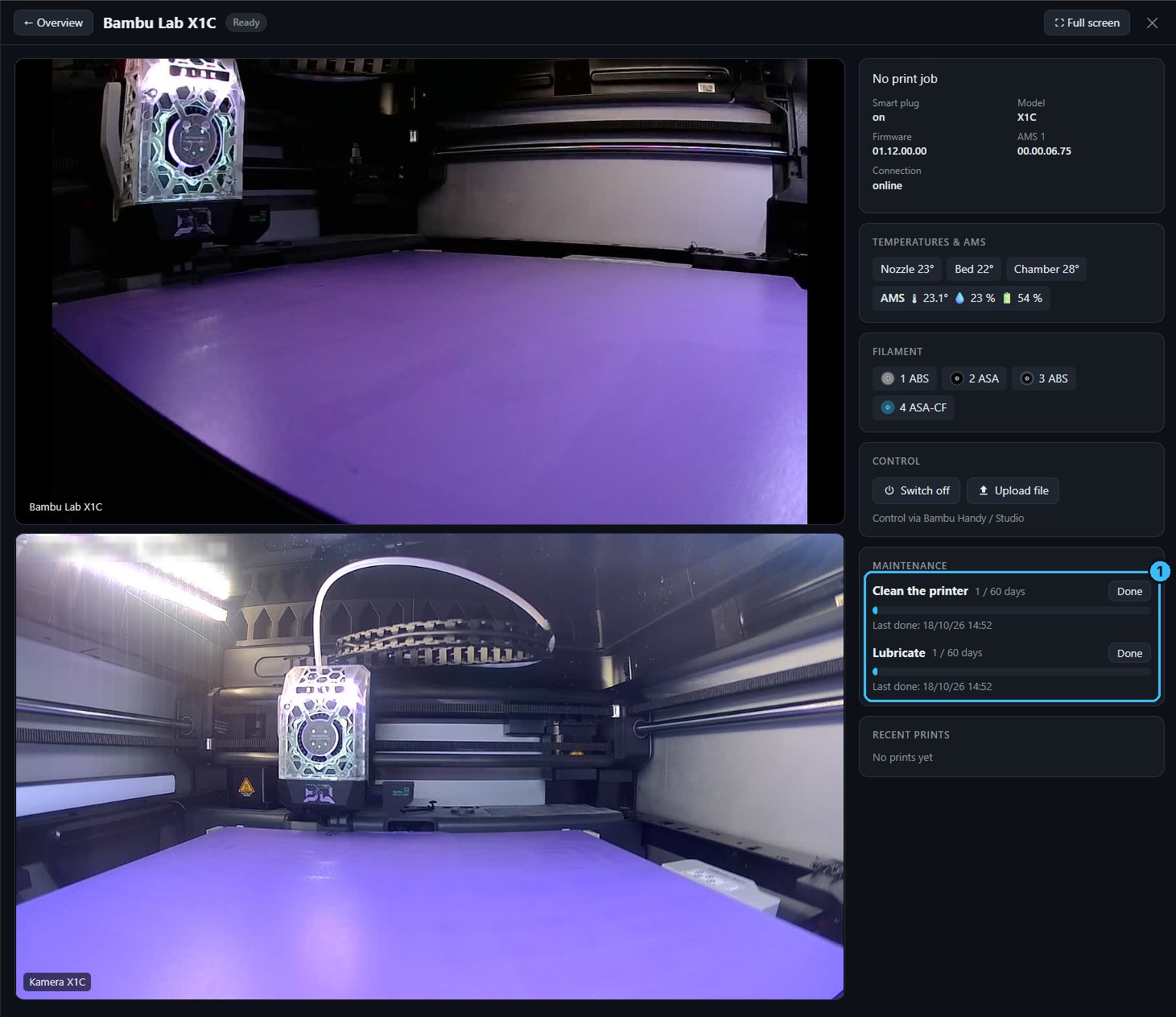
Detail view with all cameras, status and controls. ① Maintenance reminders for cleaning and lubrication
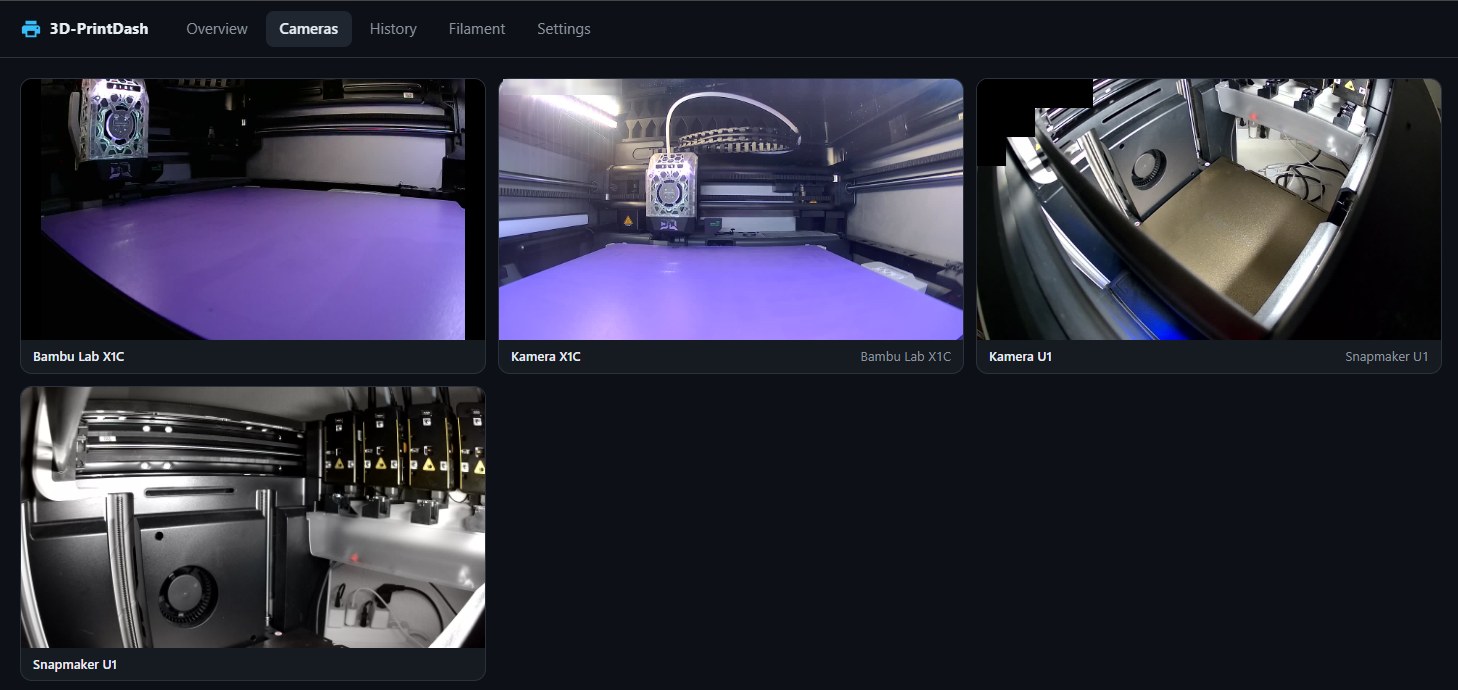
Cameras: all printer cameras and external cameras on one page.
| Printer | Connection | Notes |
|---|---|---|
| Bambu Lab printers | LAN (MQTT, FTPS) | Camera: video stream on the X1 and H2 series, still images on P1 and A1 (new, not yet tested on a real P1/A1). For control see below. |
| Klipper printers with Moonraker | HTTP API | e.g. Voron, Sovol, Snapmaker U1. Multiple toolheads are supported. |
So far 3D-PrintDash has been tested with a Bambu Lab printer of the X1 series and a Snapmaker U1. Feedback about other models is welcome.

Or by hand:
- In Home Assistant open Settings → Apps → App store (older versions: "Add-ons" instead of "Apps").
- Top right ⋮ → Repositories, add
https://github.com/Freaky-Jay-22/3d-printdash. - Find 3D-PrintDash in the list, click Install and then Start.
- Switch on Show in sidebar.
Open 3D-PrintDash from the Home Assistant sidebar.
Direct access in a browser (without Home Assistant) is off by default. To switch it on:
- In Home Assistant open Settings → Apps → 3D-PrintDash → Configuration.
- Under Network, enter a port (e.g.
8090), save and restart the app. - Open
http://<your-home-assistant-ip>:8090and set a password right away under Settings → General. As long as there is no password, 3D-PrintDash shows a warning. See Security.
Updates appear in Home Assistant like for any other app. Your settings and data are kept. Do not uninstall the app to update it – that deletes all data.
docker compose up -d3D-PrintDash is then available at http://<computer-ip>:8090. Data is stored in the ./data folder.
For smart plugs, sensors and notifications from Home Assistant, set HA_URL (without /api) and
HA_TOKEN (long-lived access token) in docker-compose.yml.
To store timelapse videos on a NAS or another drive, mount it to /media in docker-compose.yml
(e.g. - /mnt/nas/3d-printing:/media) and choose "Media folder" in the timelapse settings.
If your Home Assistant installation has no apps (e.g. Home Assistant Container or Core), run 3D-PrintDash with Docker Compose as described above. You can still get it into the Home Assistant sidebar with the HACS integration hass_ingress:
- Install hass_ingress via HACS and restart Home Assistant.
- Add this to your
configuration.yamland restart Home Assistant again:
ingress:
  printdash:
    title: 3D-PrintDash
    icon: mdi:printer-3d
    require_admin: true
    url: http://127.0.0.1:8090
    index: '#overview'
Use the address where 3D-PrintDash is reachable from Home Assistant. 127.0.0.1 works when both run
on the same machine and Home Assistant uses the host network.
3. 3D-PrintDash now appears in the sidebar (for admins only, because of require_admin: true).
If you only use it through the sidebar, make the port reachable from the same machine only by changing
the port line in docker-compose.yml to - "127.0.0.1:8090:8090". Otherwise set a password in
3D-PrintDash (Settings → General), because the port is open to your whole network.
With the port bound to 127.0.0.1, you can hide the "no password" warning bar by adding
PRINTDASH_NO_PASSWORD_WARNING=1 under environment: in docker-compose.yml. Only do this if the port
is really not reachable from other devices.
Thanks to Reddit user geo38 for this tip.
- In the Home Assistant sidebar, 3D-PrintDash is protected by your Home Assistant login.
- For direct access via port 8090, set a password under Settings → General (at least 6 characters). Without a password, any device on your network can stop prints, watch cameras and switch smart plugs.
- After 5 wrong passwords within 15 minutes, the device is locked out for 15 minutes.
- Do not forward the port on your router. For access on the go, use the Home Assistant app or a VPN (e.g. WireGuard, Tailscale).
- Access codes, passwords, serial numbers and IP addresses stay on your device and are only shown masked
in the browser (e.g.
192.xx.xx.xx). To change one, simply type the new value.
Everything is under Settings in 3D-PrintDash; click Save afterwards.
| Field | Where do I find it? |
|---|---|
| IP address | In the printer's network settings or in your router. Best give the printer a fixed IP in the router. |
| Serial number | In the printer's device information or in Bambu Studio under "Device". |
| LAN access code | In the printer's network settings ("Access Code"). |
Camera: switch on "LAN Only Liveview" in the printer's network settings, otherwise the image stays black. X1/H2 deliver a video stream, P1/A1 still images (about 1 per second). The model is detected from the serial number; if needed, choose it under "Camera type".
Files to print: in Bambu Studio or OrcaSlicer choose "Export plate sliced file" after slicing. A normal project file without G-code cannot be printed.
AMS climate: choose the source in the printer settings under "AMS climate":
- Values from the AMS itself: temperature and humidity straight from the printer (depending on the firmware, humidity only as a level 1–5).
- Own sensor (Home Assistant): e.g. a separate thermometer inside the AMS. Only its values are shown then. Humidity above the limit and battery below 20 % turn red.
Each Bambu printer has a camera connection setting (Settings → Printers → Camera):
| Setting | When to use |
|---|---|
| Default | Works for most printers. |
| Compatibility mode | The camera starts slowly or lags behind (e.g. P2S, or a weak computer/VM). Ignores broken timestamps from the printer, starts faster, keeps the connection open for 60 s instead of reconnecting, keeps the delay low and needs less CPU (max. 960 px, 5 images per second). |
The log (Settings → Apps → 3D-PrintDash → Log) shows how long each camera took to show its first image.
For video cameras it also writes a measurement line about 30 s after the start, e.g.
measurement: 1920x1080 h264, received 15.0 images/s, full image every 10.0 s, timestamp jumps: 0, stream ready after 0.6 s, first image after 7.6 s.
A picture can only be shown once the printer sends a full image, so if full images are rare, the camera
takes that long to start. "Timestamp jumps" means the printer sends broken timing information,
which makes the picture stall or start late; compatibility mode ignores it. Please add this line when reporting camera problems (it contains nothing personal).
Current Bambu firmware only accepts control commands (pause, stop, light, starting a print) from other programs in Developer Mode. 3D-PrintDash therefore offers three modes (Settings → Printers → "Control"):
| Mode | What works |
|---|---|
| Monitor only (default) | Status, camera, preview, history, notifications, smart plug, chamber light and file upload. Control via Bambu Handy or Bambu Studio. |
| Direct | Full control. Requires LAN Only mode and Developer Mode on the printer. The Bambu Handy app and cloud printing no longer work then. |
| Via Home Assistant | Uses the buttons of the Bambu Lab integration for Home Assistant (if installed). Only works as far as the firmware allows. |
3D-PrintDash deliberately does not bypass the firmware restriction, e.g. with keys extracted from Bambu software, and will not do so in the future.
- Moonraker URL:
http://<printer-ip>:7125, if that does not workhttp://<printer-ip>. - Click "Test connection". The light objects, temperature sensors and cameras found are offered afterwards.
- Camera: taken from Moonraker's webcam settings. You can enter another address under "Camera URL".
- Light: detected automatically. If your light is switched by a macro, enter the macro name under "Light on/off: custom G-code".
- Chamber temperature: detected automatically if a sensor is called "chamber" or similar, otherwise choose it.
- Snapmaker U1: the stock firmware has no video stream. 3D-PrintDash detects this and shows the built-in camera at about 2 frames per second. Leave "Camera URL" empty for this. Filaments per toolhead (material, colour, vendor) are shown if the printer knows them.
Under External cameras, enter an address such as rtsp://user:password@192.168.1.50:554/stream1.
If you assign the camera to a printer, it also appears on that printer's card and is used for
notifications. Cameras only run while someone is watching.
Cameras that are mounted upside down or turned can be fixed under Settings → Rotate and mirror camera image. This works for every camera, built-in or external: rotate by 90°, 180° or 270° (clockwise) and/or mirror horizontally or vertically. It also applies to notification images and timelapses. "Automatic" uses the printer's own setting: for Klipper printers that is the webcam setting from Fluidd/Mainsail, so the picture is right without doing anything.
If a printer is connected to a switchable plug in Home Assistant, you can switch it on and off in 3D-PrintDash:
- Settings → Printers → choose "Smart plug (Home Assistant)" (all
switch.,light.andinput_boolean.entities). - Optionally "Switch off after the print (min.)": the plug is only switched off once the time has passed and nozzle and bed are below 50 °C. This only happens after a print.
- During a print, 3D-PrintDash asks before switching off.
- Create storage locations freely (e.g. shelf, AMS, cabinet, basement): + Storage location, rename, reorder or delete via ⚙. When deleting, you choose where the spools go.
- Optionally per location: Home Assistant sensors for temperature, humidity and battery, with a humidity limit.
- AMS as a location: tick "AMS installed" for a Bambu printer (Settings → Printers). The location "AMS – " is created automatically. When the printer is switched off (offline or smart plug off), the spools detected in the AMS move there – of several identical spools only the loaded number. Each parked spool remembers where it came from ("↩ from shelf"); if you take it out while the printer is running, it goes back there automatically.
- Spools with brand, material, colour, count and condition (new / opened, optionally remaining weight). The top row shows count, total amount and value. With "→ …" you move spools to another location; if an entry has several spools, you choose how many go.
- Brands (sub-tab): spool weight, materials and colours per brand. They are offered when you add filament.
At the top, 3D-PrintDash shows which spools are currently loaded in the printers. These spools are "moved" there from their storage location and return automatically when unloaded. Your saved inventory does not change.
This is how 3D-PrintDash finds the matching spool in your inventory:
- Assigned by hand: always wins and applies until another spool is loaded.
- ID: if printer and inventory report the same ID (e.g. the spool's RFID chip), the match is unique.
- Material and colour: otherwise the spool with a matching material and the most similar colour is used. Variants count as the same base material (e.g. PLA and PLA Matte, PETG and PETG-CF), because many printers only report the base material.
Each spool is assigned at most as often as it is in stock. Unknown spools can be added to the inventory with "Add".
- Subtract usage (Settings → Filament, off by default): after each print, the grams according to the slicer are subtracted from the spools that were active during the print (proportionally if cancelled). A new spool becomes "opened"; of several identical spools one is split off. The history shows what was subtracted from which spool.
- Low stock: opened spools below a set weight (default 100 g) are marked "low" and you get a notification (can be switched off).
Up to 4 dryers with a timer: load spools from the inventory, choose duration and optionally temperature (3D-PrintDash suggests guide values per material; the manufacturer's data takes priority). When the time is up, you get a notification and the spools return to their location, marked as "dried". The timer keeps running even when the browser is closed.
- Preview image of the part on the card and in the history. It comes from the print file; for Bambu printers 3D-PrintDash fetches the file from the printer.
- Filament usage according to the slicer, per print in grams and metres, proportionally for cancelled prints.
- Cost: under Settings → Filament prices, set a price per kg for each material. Variants such as "PLA Basic" count as the base material, anything unknown uses the default price. A material you add under Filament → Brands appears there automatically (starting with the price used so far); "Add from brands" adds the ones of older brands.
- Firmware versions in the detail view, as far as the printer reports them.
Per printer (Settings → Printers → "Maintenance"): cleaning and lubrication after a number of print hours and/or days (0 = off; default 100 h / 300 h). The print hours come from the history. The detail view shows the progress with a "Done" button; when a task is due, the card shows a hint and you get a notification.
The history lists every print. 📊 Statistics shows the print time per month (last 12 months) and tables per printer and material; ⬇ CSV downloads all prints for Excel or similar. The printer filter applies to both.
Under Settings → Backup:
- Download backup: settings, filament inventory, maintenance and history including images as a zip file. It contains access codes, so keep it safe.
- Restore backup: replaces all data; the current state is saved automatically before
(in
/data/backups). - Import from another installation: enter the address (e.g.
http://192.168.1.10:8090) and password of a running installation – for example an older version – to fetch all data over the network. Access codes are not transferred; you will be told which ones to enter again.
3D-PrintDash can record a timelapse of every print: one camera image per layer (every 30 s for printers that don't report layers), turned into an MP4 video when the print ends. Watch or download it in the History with 🎞 (the video window also has buttons to download or delete it). Under Settings → Timelapse → "Manage videos" you see all videos with their size and can play, download or delete them.
- Turn it on per printer under Settings → Printers → "Record timelapse". Optionally choose which camera to use, e.g. an external camera with a better view. It works in every control mode, also when the print was started in Bambu Studio or the Bambu Handy app. Without the tick, you can still record single prints: while printing, press "🎞 Start timelapse" on the printer card (and stop it the same way).
- Under Settings → Timelapse, choose where the videos are saved:
- Internal – inside 3D-PrintDash
- Media folder (/media) – e.g. a NAS or USB drive. In Home Assistant go to Settings → System →
Storage → "Add network storage", add the share with usage "Media" and enter its name as
sub folder (e.g.
NAS/3d-printing). The videos then also show up in the Home Assistant media browser. - Share folder (/share) – same, with usage "Share"
- Videos older than the set number of days are deleted automatically (0 = keep forever). The settings show where videos go and how much space is left.
If the chosen folder is not available (e.g. the NAS is offline), the video is saved internally instead. Videos inside 3D-PrintDash are not part of the backup.
Saving to a USB drive: Home Assistant OS cannot use a USB drive directly as a media folder, only
network storage. Connect the USB drive to your router or NAS instead (most routers and NAS systems share
it on the network), add that share in Home Assistant as network storage with usage "Media" and choose
"Media folder" in 3D-PrintDash. With Docker, simply mount the USB drive to /media.
Under Settings → General → Design you can choose light, dark or automatic (like your device) and an accent colour for buttons and progress bars. The change is previewed right away.
Optionally, 3D-PrintDash shows the climate of the room your printers are in at the top of the overview – e.g. from an air quality sensor that is already in Home Assistant. Set it up under Settings → Room climate → + Room and pick the sensors you have. Every sensor is optional:
| Sensor | Yellow | Red |
|---|---|---|
| Temperature | – | above your limit (off by default) |
| Humidity | – | above 60 % |
| Air quality: VOC | from 250 ppb | from 2000 ppb |
| Air quality: CO₂ | from 1000 ppm | from 1500 ppm |
| Air quality: fine dust PM2.5 | from 15 µg/m³ | from 35 µg/m³ |
| Air pressure | – | – |
| Battery | – | below 20 % |
You can change all limits under Limits. Several rooms are possible.
Under Settings → Notifications, choose a Home Assistant notify service (e.g. the companion app on your phone) and check it with "Save & send test". The camera image is attached.
Available: errors and warnings, print finished, cancelled, paused, dryer done, filament running low, maintenance due.
- Language: English or German under Settings → General. "Automatic" uses the browser language. Also applies to notifications.
- Currency: under Settings → Filament prices. "Automatic" picks it from your browser's country (e.g. United States → USD, Germany → EUR).
Everything is stored in the app's data folder (/data): config.json (settings), filament.json
(inventory), maintenance.json (maintenance), history.db (history), snapshots/ (images) and
backups/ (automatic copies before a restore).
Bugs and ideas are welcome as an issue. More
languages can be added in printdash/app/static/lang/ and printdash/app/i18n.py. How to develop without
real printers is described in dev/README.md.