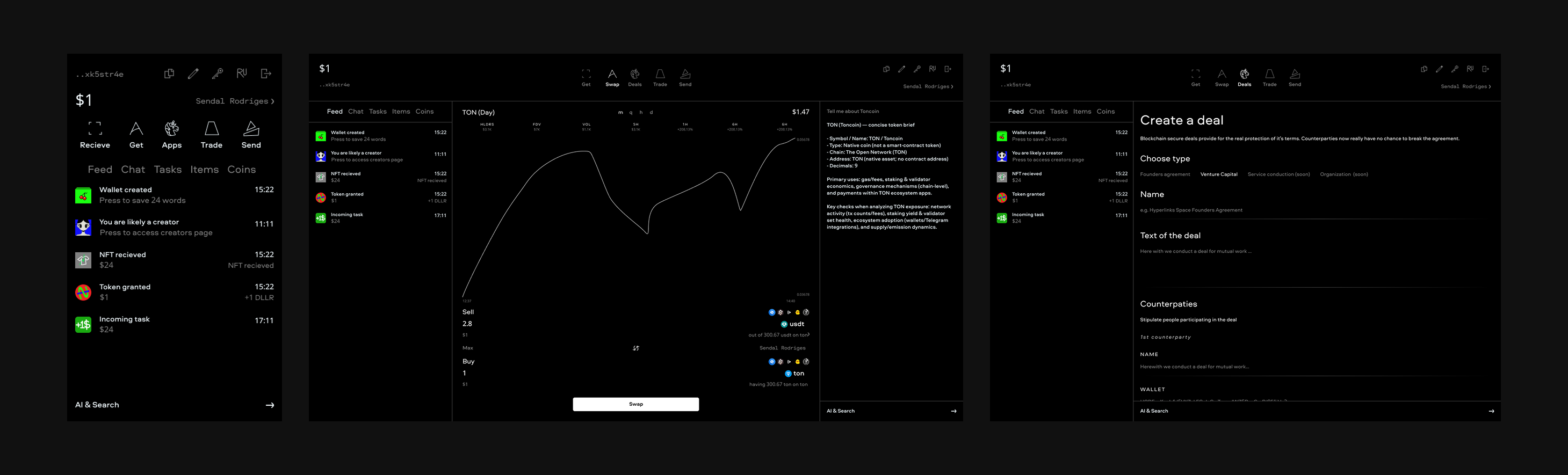
In progress, contribute!
This program is built upon React Native by Meta and Expo multiplatform technologies, Windows build and executable creation achieved with Electron Builder and Electron Forge, working in Telegram with help of Telegram Mini Apps React SDK, Bot API and Grammy. AI is backed by OpenAI API, blockchain info is processed from Swap.Coffee API. DB for the best user's experience we host on Neon.
Access Figma in real time for contributing. Contact Seva in Telegram to discuss and implement.
All core materials are available publicly for сгккуте hyperlinks.space team members' instant and easy access worldwide and our project's availability for newcomers' research only.
app- Expo/React Telegram Mini App client (web/mobile screens, navigation, UI logic).ui- shared UI layer (components, theme tokens, and font configuration used by the app).bot- TypeScript Telegram bot service and runtime entrypoints.database- database startup/migration/service scripts.ai- AI assistant service logic and model integration points.api- backend API handlers and server-side endpoints.blockchain- TON/blockchain interaction logic and related helpers.telegram- Telegram-specific integration utilities and adapters.windows- Electron desktop shell, NSIS installer config, and auto-update flow.scripts- developer/ops scripts (local run, migration, release helpers).docs- project and operational documentation (architecture, releases, security reference, tooling).research- exploratory notes, investigations, and proposals not yet promoted todocs/.backlogs- short-term planning notes and prioritized work items.assets- static assets used by app, installer, and branding.dist- generated web build output (export artifacts).
- Install GitHub CLI and authorize to GitHub from CLI for instant work
winget install --id GitHub.cli
gh auth login
- Fork the repo, clone it and create a new branch and switch to it
gh repo fork https://github.com/HyperlinksSpace/HyperlinksSpaceBot.git --clone
git checkout -b new-branch-for-an-update
git switch -c new-branch-for-an-update
- Make a commit (address unassigned issue or think yourself)
git add . # Stage changes on this branch
git commit -m "Describe your change" # Commit on this branch
- After making a commit, make a pull request, gh tool will already know the upstream remote
gh pr create --title "My new PR" --body "It is my best PR"
- For subsequent commits (sync
main, create a fresh branch, and commit there)
git checkout main # Return to main
git fetch upstream # Fully sync with upstream main
git reset --hard upstream/main # Reset local main to upstream/main
git push origin main # Keep your fork main in sync too
git switch -c new-branch-for-next-update # Create and switch to a new feature branch
Move in loops starting from the step 3.
npm package note: .env.example is included in the published package so you can use it as a reference for establishing your testing environment with .env file.
Before local deploy / cloud deploy, prepare these env-backed services:
- Neon PostgreSQL (
DATABASE_URL)- Create an account/project at Neon.
- Create a database and copy the connection string.
- Put it into
.envasDATABASE_URL=....
- OpenAI API (
OPENAI_API_KEY)- Create an account at OpenAI Platform.
- Create an API key in the API Keys page.
- Put it into
.envasOPENAI_API_KEY=....
- Telegram bot token (
BOT_TOKEN)- In Telegram, open @BotFather, create a test bot with
/newbot. - Copy the bot token and put it into
.envasBOT_TOKEN=....
- In Telegram, open @BotFather, create a test bot with
- Vercel project envs (for comfortable deploy/testing)
- Create a Vercel account and import this repository as a project.
- In Project Settings -> Environment Variables, set at least:
DATABASE_URLOPENAI_API_KEYBOT_TOKEN(orTELEGRAM_BOT_TOKEN)
- Pull envs locally when needed with
vercel env pull .env.local.
Copy env template locally:
cp .env.example .envTo start the full local stack, run:
npm run startThis runs Expo dev server, the Telegram bot (polling mode), and local Vercel API (vercel dev).
After npm run start, you can test the app on real phones with Expo Go:
- Install Expo Go from Google Play (Android) or App Store (iOS).
- Make sure your phone and development machine are on the same network.
- Open Expo Go and scan the QR code shown in the terminal/Expo UI.
- The app will launch on the device and hot-reload on code changes.
Isolated/local run options:
- Expo only (no bot, no Vercel):
npm run start:expo - Bot only (polling mode):
npm run bot:local - Vercel API only:
npm run dev:vercel
Current Actions workflows include:
Vercel Deploy Test- manual web deploy to Vercel.Electron Forge EXE Release- manual Windows release pipeline.Electron EXE Release- manual Windows release pipeline.Lint errors check- manual lint check.EXPO Publish- manual OTA publish with EAS CLI.NPM Package Release- npm/GitHub Packages release workflow.
From the repository root, deploy the static web build to Vercel production:
vercel --prodDeploying from repository root makes this folder the project root, so api/bot is deployed and no Root Directory setting is needed. The project is configured so Vercel runs npx expo export -p web and serves the dist/ output. Link the project first with vercel if needed.
The bot is extended beyond a basic "Hello" and "Start program" responder and now supports AI streaming and threads.
Vercel (webhook)
- Runtime path: Telegram sends updates to
POST /api/bot. This route proxies to the shared bot webhook handler inbot/webhook. - Webhook setup:
scripts/set-webhook.tssetshttps://<base>/api/botusingVERCEL_PROJECT_PRODUCTION_URL(preferred) orVERCEL_URL. - Required env: set
BOT_TOKEN(orTELEGRAM_BOT_TOKEN) in Vercel project envs for production deploys. - Deploy flow: webhook mode is intended for Vercel deploys (CLI
vercel --prodor the manual GitHub ActionVercel Deploy (Test Envs)).
Bot works locally but not on Vercel
- Confirm Vercel env has
BOT_TOKENand redeploy. - Ensure the deployed URL is stable and matches the webhook target (
/api/bot). - Check deploy/runtime logs for
[set-webhook]and[webhook]errors. - Do not run local polling with the same token while validating webhook mode.
Local (getUpdates, no webhook)
- Only
BOT_TOKENis required (env or.env). - Run bot only:
npm run bot:local - Run full local stack (Expo + bot + Vercel):
npm run start - Keep production and local bot tokens separate when possible to avoid webhook/polling conflicts.
- Give pull requests and commits a proper name and description
- Dedicate each pull request to an understandable area or field, each commit to a focused logical change
- Check file changes in every commit pulled, no arbitrary files modifications should persist such as LF/CRLF line-ending conversion, broken/garbled text diffs, BOM added or removed, accidental "invisible" corruption from text filters
- Add dependecies and packages step by step for security
- An issue creation or following an existing before a pull request would be a good practice
EAS Workflows are here for Expo update/build/deploy flows (triggered via npm scripts from package.json).
Run npm run draft to publish a preview update of your project, which can be viewed in Expo Go or in a development build.
Run npm run development-builds to create a development build. Note - you'll need to follow the Prerequisites to ensure you have the correct emulator setup on your machine.
Expo app – npx expo start reads env from the environment; for app-only env vars you can also put them in .env and use an Expo-compatible loader if you add one, or set them in the shell before running:
export BOT_TOKEN=your_token
npx expo startGitHub and GitLab repositories are identical. If you want to contribute through GitLab, get access from @staindart.
If you can push to both GitHub and GitLab directly, we ask you to configure Git so pushes keep both hosts in sync: the repositories are the same; avoid updating only one side.
-
Keep
originon GitHub for fetch and the first push URL. If you cloned from GitHub, this is already true:originis wheregit pull/git fetch originget updates. We standardize on GitHub for incoming history fromoriginso your localmaintracksorigin/mainon GitHub. -
Register GitLab as a second push URL on
origin. Git allows multiple push URLs per remote name, but only one fetch URL. Adding GitLab here means a singlegit push origin <branch>(or the IDE Sync push step) sends the same commits to both GitHub and GitLab without a second command.git remote set-url --add --push origin https://gitlab.com/hyperlinks.space/HyperlinksSpaceProgram.git
Run this once per clone; it does not change where you fetch from.
-
Add a separate remote named
gitlab. Becauseorigin’s fetch URL stays on GitHub,git fetch originnever downloads refs from GitLab. The extra remote lets you rungit fetch gitlabwhen you need to compare or merge with the GitLab copy (for example if CI or another contributor updated GitLab only).git remote add gitlab https://gitlab.com/hyperlinks.space/HyperlinksSpaceProgram.git
Note, that GitHub and GitLab URL's are a little different :)
If
gitlabalready exists with a wrong URL, usegit remote set-url gitlab https://gitlab.com/hyperlinks.space/HyperlinksSpaceProgram.gitinstead. -
Verify with
git remote -v. You should see GitHub on fetch/push fororigin, GitLab as the secondoriginpush line, andgitlabfor fetch/push to GitLab:gitlab https://gitlab.com/hyperlinks.space/HyperlinksSpaceProgram.git (fetch) gitlab https://gitlab.com/hyperlinks.space/HyperlinksSpaceProgram.git (push) origin https://github.com/HyperlinksSpace/HyperlinksSpaceProgram.git (fetch) origin https://github.com/HyperlinksSpace/HyperlinksSpaceProgram.git (push) origin https://gitlab.com/hyperlinks.space/HyperlinksSpaceProgram.git (push)
GitLab HTTPS access: GitLab.com does not use fine-grained personal access tokens for Git-over-HTTPS (git push / git fetch). Create a legacy personal access token under GitLab → Edit profile → Access tokens with scopes read_repository and write_repository, as described in the official guide: Personal access tokens. Use your GitLab username and the token as the password when Git prompts. GitHub authentication stays separate (for example gh auth login or your existing GitHub credential).
To make it easier for developers to create multiplatform programs with us, we decided to launch an npm package that provides a ready starter for creating such a program basis in one command.
npx @www.hyperlinks.space/program-kit ./new-programLink to the package: https://www.npmjs.com/package/@www.hyperlinks.space/program-kit
The npm registry page shows a separate package-oriented description: npmReadMe.md in the repo root. At publish time the NPM Package Release workflow copies the main README.md to fullREADME.md, then replaces README.md with the contents of npmReadMe.md so npm pack / npm publish ship the shorter readme as the package readme (npm always surfaces README.md from the tarball). Snapshot channels, tags, and local npm pack checks are in docs/npm-release.md.
This repository has GitHub Discussions opened, as well you can join our Telegram Chat and Channel.