

AI was used for the entire app - this is a personal project just for me and not meant for wide distribution.
An Android home-screen launcher for retro gaming. Shows a customisable wallpaper with a dock of system icons that each launch an assigned emulator app.
It's a very simple launcher - no artwork scraping, no games lists, none of that. You have your emulators, they'll show your most recently played up to 20, you launch and play. Quick, easy, simple.
This was created for my personal use, and while it may work for a lot of people's setups, it likely will break or be broken. I don't really have plans to make this a whole thing, but if you want to use it as I update it, feel free!
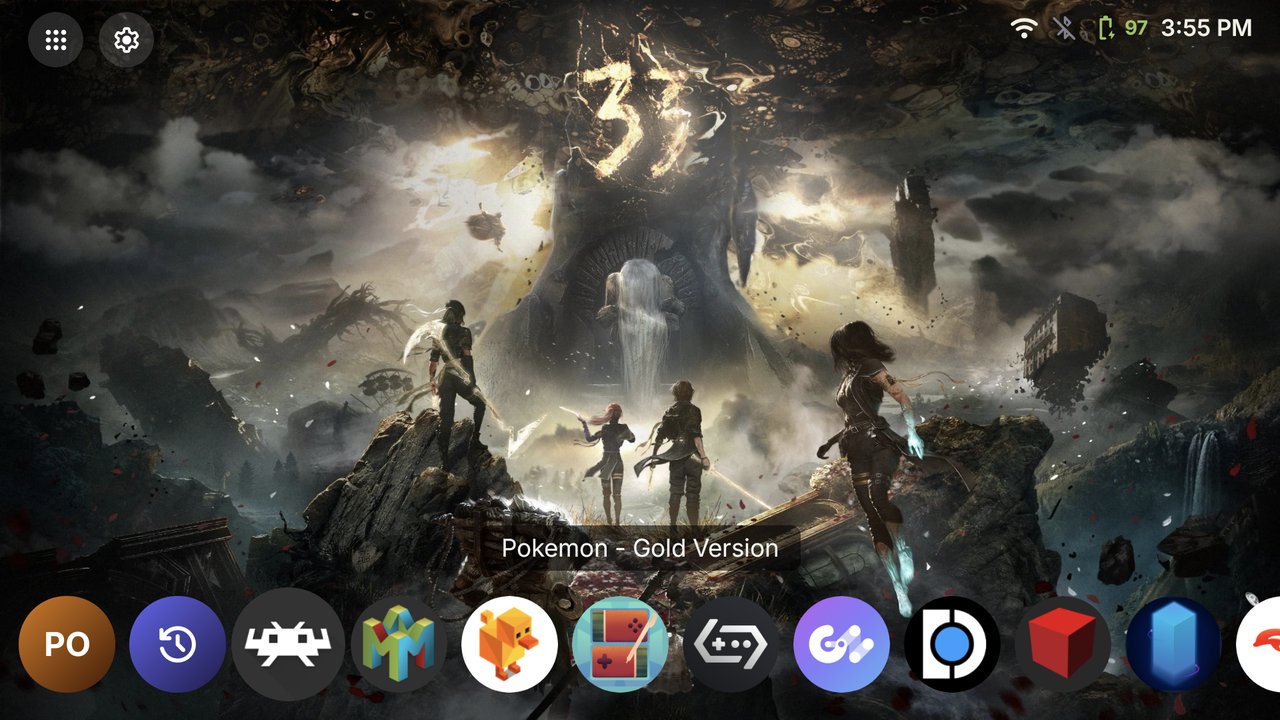
The home screen with your own wallpaper and the dock along the bottom: your favourite game first, then Recently Played, then your emulators and apps. Above the dock is the selected icon's most recently played game (here, Pokémon Gold in RetroArch).
Second screen (on dual-screen handhelds like the AYN Thor):
Apps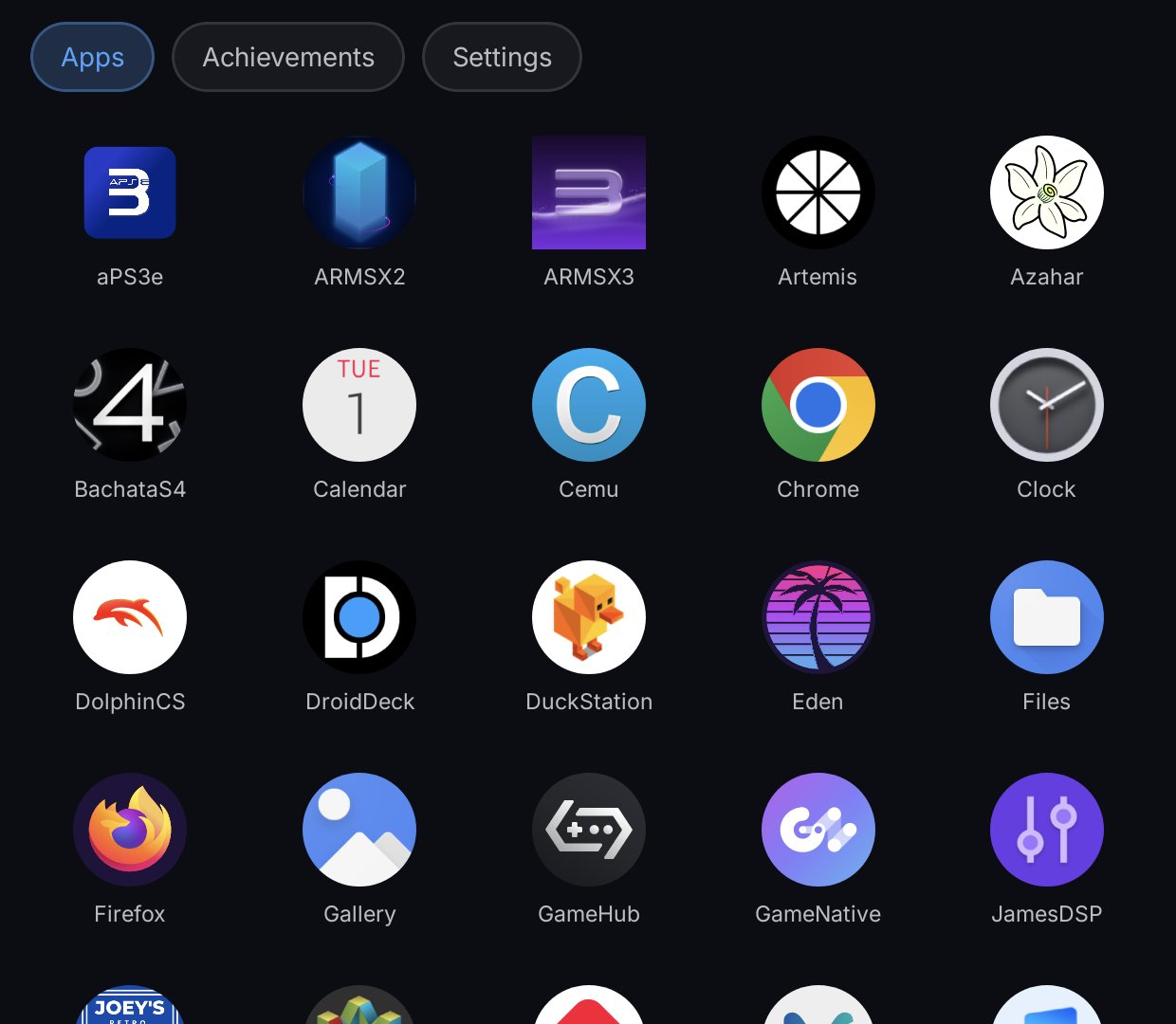 |
Achievements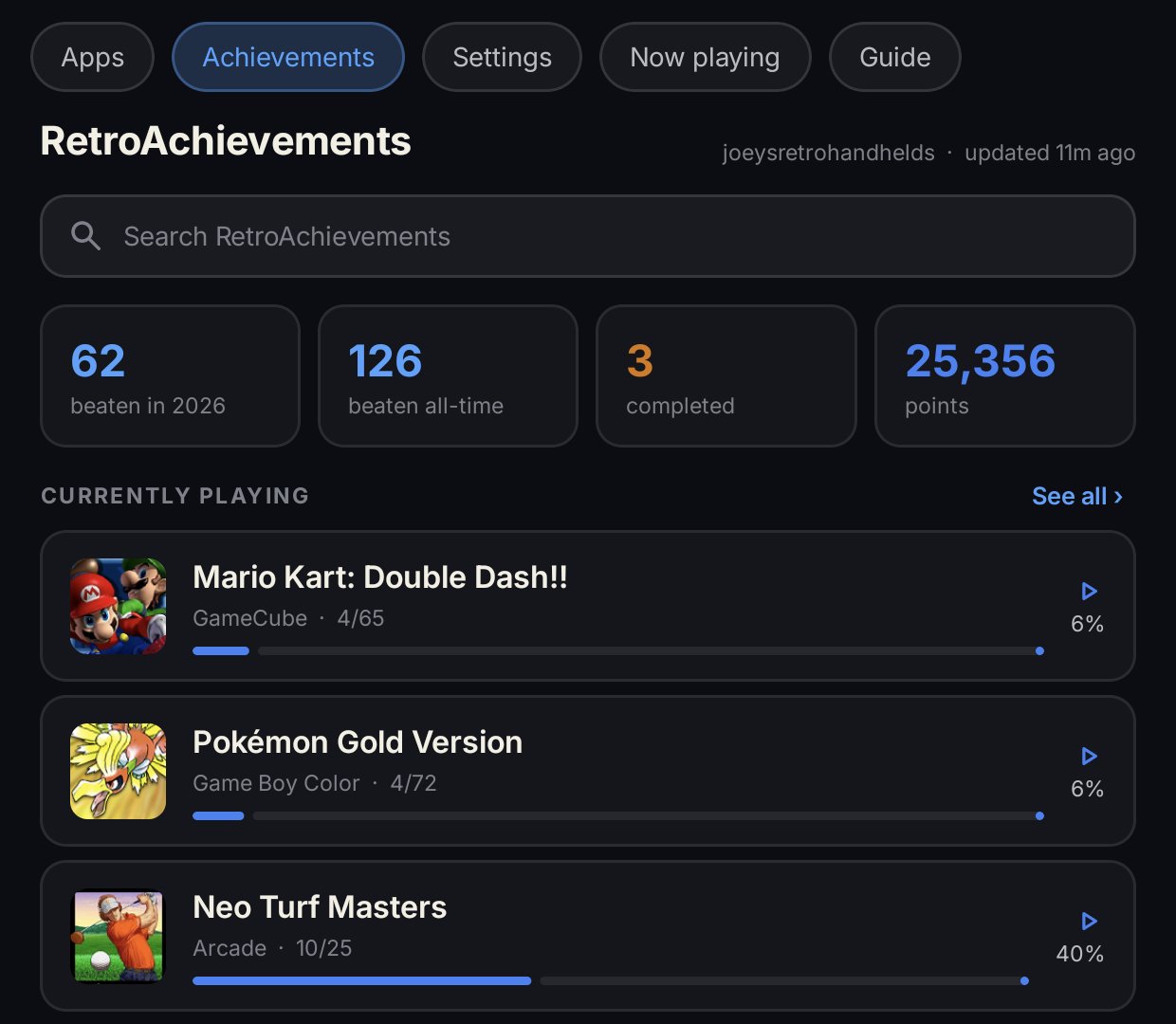 |
Now playing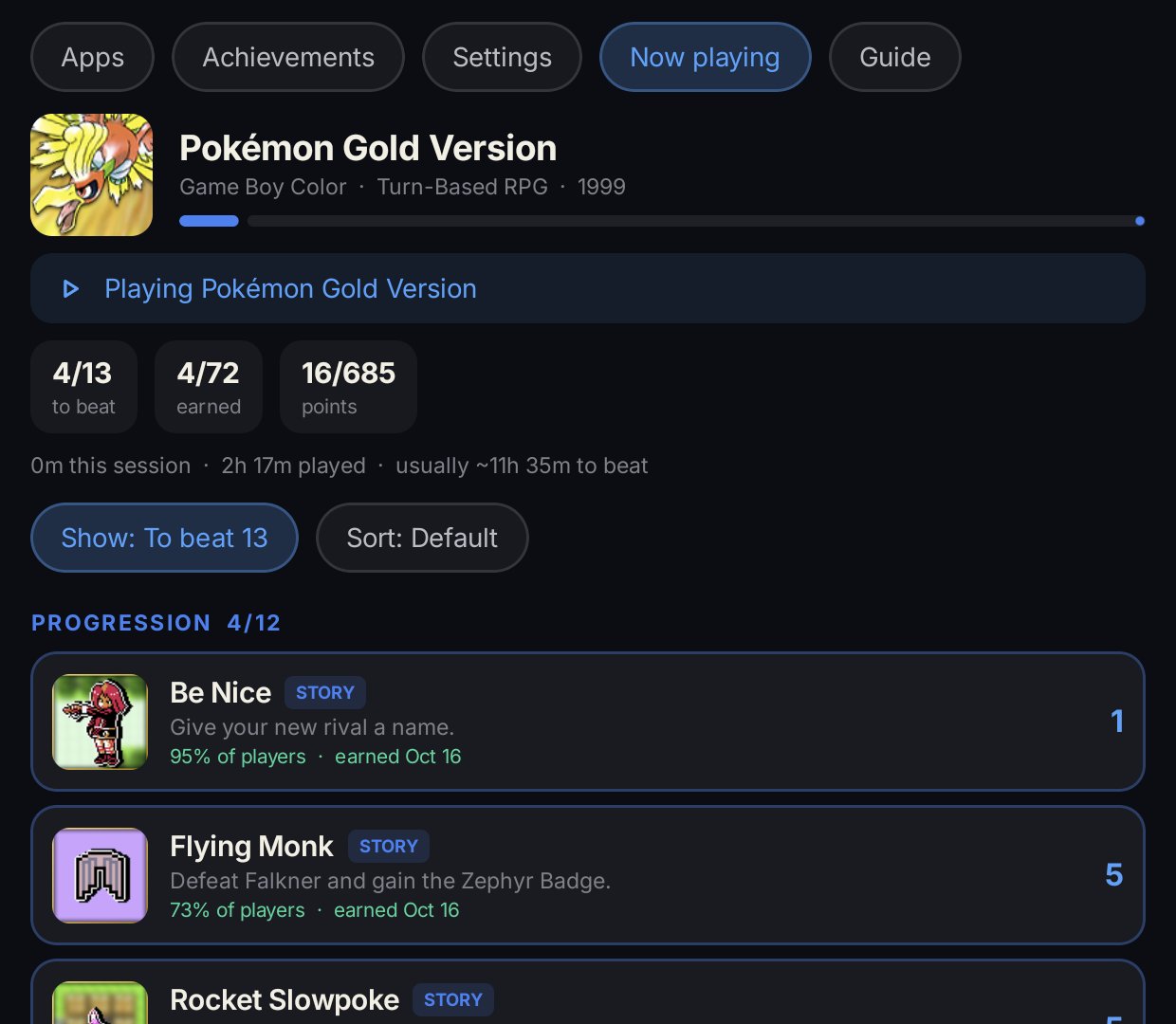 |
Guide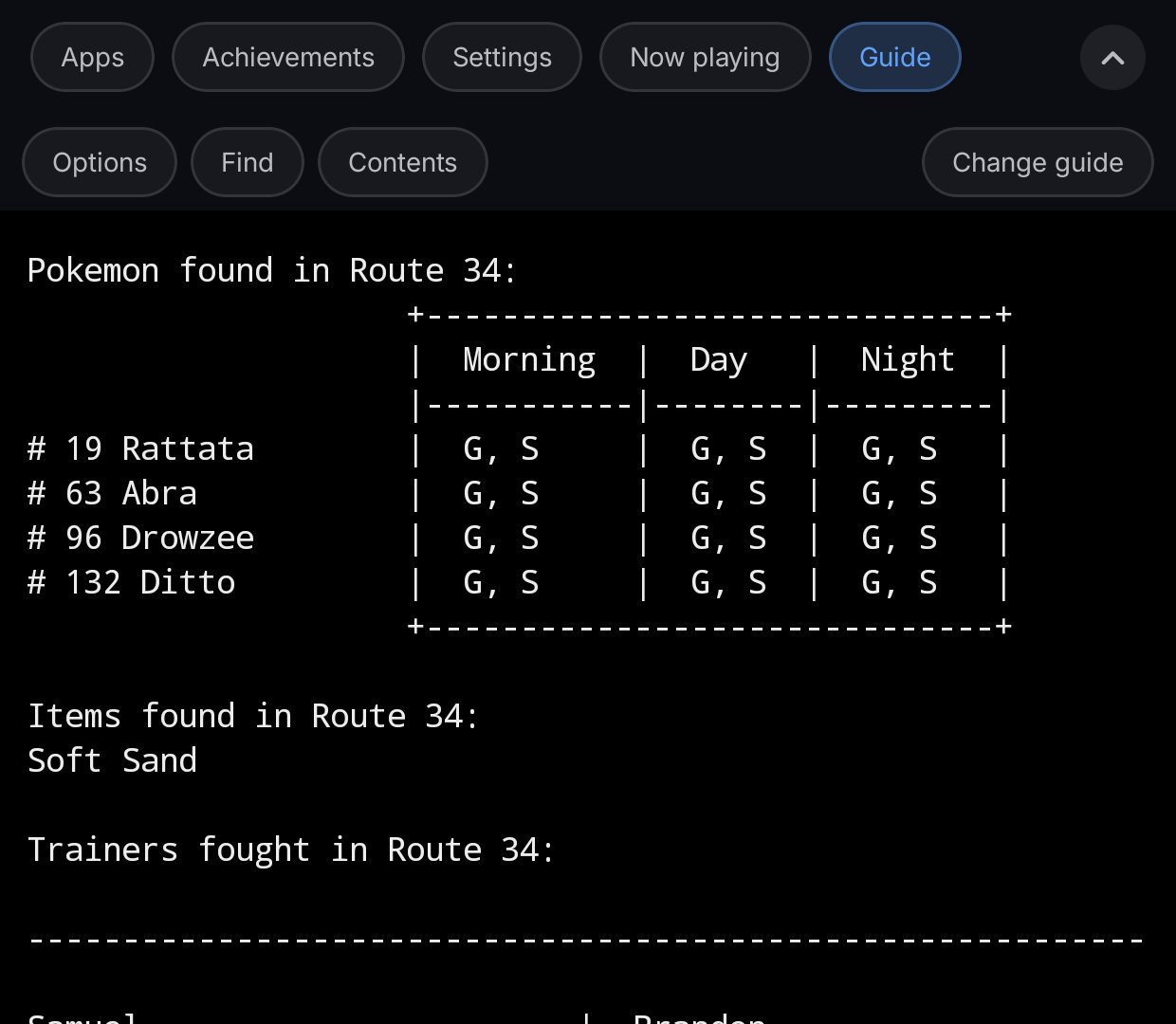 |
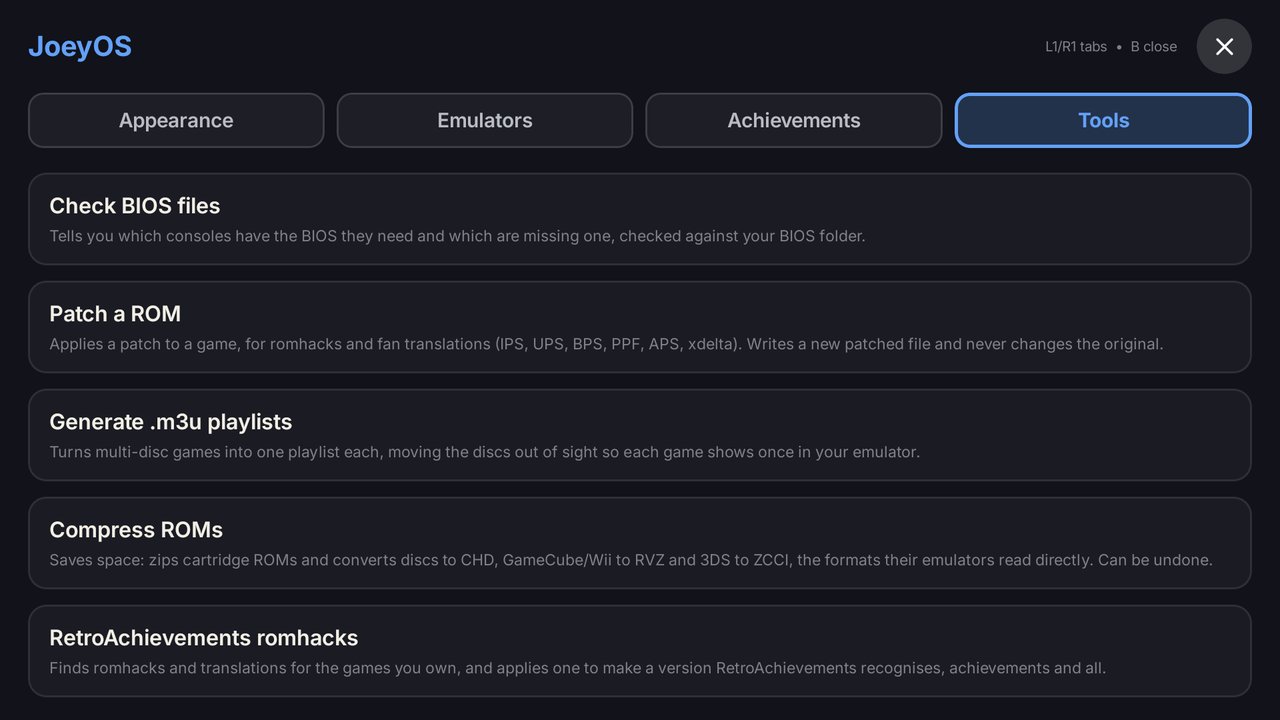
Settings › Tools:
- This assumes you are using ES-DE (EmulationStations) ROM folders naming - folder named ROMs on your internal storage or SD card, with the ES-DE system folders inside (see here: https://github.com/JoeysRetroHandhelds/joeys-rom-folders)
- For RetroArch to work, you must have a RetroArch folder on your internal storage, and saves/states inside
- For PPSSPP to work, you must have a folder called PPSSPP exactly on your internal storage or SD card
- For MelonDualDS to work, you must have a folder called MelonDS or MelonDualDS exactly on your internal storage or SD card
- For Dolphin to work, your device must be able to access Android/data storage
- For NetherSX2 to work, you must be using NetherSX2 with the root storage patch and you must have a folder called NetherSX2 exactly on your internal storage
- For Azahar to work, you must have a folder called Azahar exactly on your internal storage or SD card
- For CEMU to work, you must have a folder called CEMU exactly on your internal storage or SD card
- For Eden to work, your device must be able to access Android/data storage
- For Vita3K to work, you must have a folder called Vita3K exactly on your internal storage or SD card
- For DuckStation (the official app, including the new beta), your device must be able to access Android/data storage, where DuckStation keeps its play history. Recently Played shows every game you've played in it, saved or not. Duckstation-Patch (https://github.com/JoeysRetroHandhelds/duckstation-patch) also works, with a folder called DuckStation on your internal storage or SD card
- For APS3E to work, your device must be able to access Android/data storage
- For M64Plus FZ to work, you must have a folder called M64Plus exactly on your internal storage or SD card
- For ARMSX3 to work, you must have a folder called ARMSX3 exactly on your internal storage or SD card (with its recent_games.json inside), or your device must be able to access Android/data storage
- For Flycast to work, you must have a folder called Flycast on your internal storage or SD card (or whichever home folder you picked in Flycast), or your device must be able to access Android/data storage
- For DroidDeck to list its installed games, in DroidDeck go to Games > Frontend files > Sync all game files to folder and pick a folder (ROMs/steam is easiest). JoeyOS finds the folder on its own
- For GameNative to list its installed games, in GameNative go to Settings > Interface > Frontend Sync and pick a folder for each store you use (Steam, Epic, GOG, Amazon, custom games). JoeyOS finds the folders on its own
- DroidDeck and GameNative don't keep a play history JoeyOS can read, so their Recently Played shows the games you started from JoeyOS first, then the rest of your installed games
- Bachata S4 (PS4) shows on the dock and opens the emulator, but doesn't have Recently Played yet
- HakuX (original Xbox) shows on the dock and opens the emulator. It keeps its play history private, so it doesn't have Recently Played. Put your games in ROMs/xbox
- No other emulators outside of these have been configured to work
After installing the APK, press the Home button. Android will ask which launcher to use. Choose JoeyOS and tap Always.
JoeyOS runs full screen. Swipe in from an edge to see the status and navigation bars.
- D-pad or L1 / R1 → move along the dock; L2 / R2 → jump five at a time
- Press A → opens the emulator
- Long-press the wallpaper, tap the Settings cog (top-left), or press Start → opens Settings
- Tap the grid icon (top-left) or press B → opens the App Drawer
- Long-press an app or press Y → opens the Recently Played menu
- Dock icons: in the App Drawer, press Start on a dock app (or long-press it) and choose Dock icon to show a system icon instead of the app's own. Pick the system, then the style and colour you like; you can then use that style for every dock app in one go. Recently Played and Favorites follow the style your dock apps use, or you can set their own in Settings › Appearance. Icons download the first time you pick them
- Press X → launches your most recently played game directly
- In the App Drawer, press Start on an app (or long-press it) → App Info, or add/remove it from the dock
- In Settings or the App Drawer, tap the ✕ (top-right) or press B → back to the home screen
- In any popup, A selects and B goes back
JoeyOS checks GitHub for a new version when it starts and every 15 minutes after that, and offers to install it. You can also check any time from Settings → Tools → Check for updates.
- Adjust dock icon size
- Reorder the dock
- Show/hide the recent title
- Show/hide the clock
- Set how many recently played games to show
- Set a dock background
- Set the dock title size
- Choose a default wallpaper or upload your own
- Panel over games (single-screen handhelds): see below
- For RetroArch, choose which cores you have installed
- Default cores are pre-selected based on recommendation, but games won't load unless the chosen core is actually installed
- Log in with your RetroAchievements account: enter your username and API key, then press Connect
- Once you're in, it's the same Achievements page as the second screen's (see below): your points, what you're playing, recent awards, "Almost there", awards by year, your fastest beats and a search of every game. Press A on any game for its achievements
- Account (top right): Count achievements (Both, Hardcore or Casual), Hide achievement spoilers, refresh and log out
- Count achievements decides which unlocks count everywhere: on both screens, in the panel, in Currently playing, awards, points and each game's list. With Hardcore, casual unlocks show as locked (you can still earn them in hardcore), and the other way round with Casual. Changing it in one place changes it everywhere
- If you're offline, you still see your achievements from last time
The tools never change your original games, and only remove them if you choose to when compressing.
- Check BIOS files: shows which consoles have the BIOS they need and which are missing one
- Patch a ROM: applies a romhack or translation patch (IPS, UPS, BPS, PPF, APS, xdelta). You name the new file and choose to save it next to the original or in Downloads. Tick Save compressed to get a zip (or CHD/RVZ/ZCCI) instead of the raw file
- Generate .m3u playlists: turns multi-disc games into one playlist each, so each game shows once. Can be undone
- Compress ROMs: zips cartridge games and converts discs to CHD, GameCube/Wii to RVZ, 3DS to ZCCI and full Xbox disc images to XISO (games already in XISO are left alone). Can be undone
- RetroAchievements romhacks: finds hacks and translations with achievements for the games you own, and creates the patched game for you. For a game with a patch per disk, Patch all disks does them in one go
- ScreenScraper account (optional): game manuals download from ScreenScraper without an account. Sign in with your own (free at screenscraper.fr) for a higher daily limit, and for when ScreenScraper is only open to its members. It's checked with ScreenScraper before it's saved, kept encrypted, and never backed up
- Android ports: finds Android ports of games, with Search and a Games I own filter. Installs one in a click, or opens its release page if it has no APK. List based on the Quiver Launcher catalog
- Check for updates and Share log (send this to me if something goes wrong). The log is also saved in Internal storage › JoeyOS
In Settings › Tools › Google backup, sign in with Google and JoeyOS keeps your whole setup in your own Google Drive, in a hidden area only JoeyOS can see (it can't see your other Drive files, and they can't see it).
- What's kept: every setting and choice, your dock and emulator assignments, dock icons, custom wallpapers, second screen settings, downloaded guides and where you are in them, saved videos, hunted achievements, and your RetroAchievements login
- What isn't: emulators' own settings, saves and games, caches that download again, and a few things that belong to one device (like which game is your favourite)
- Backups: each device keeps its own. Changes go up within about a minute, and a copy of each day's settings is kept for a week. Restore… lists every device's backup, to restore onto this device or copy one device's setup to another; Earlier days… undoes a settings change
- Sync with my other devices: devices with it on share one setup, and a change on one reaches the others within a minute or two. Devices with it off keep their own setup
- Game paths on an SD card are matched to each device's own card, or to the same place in internal storage
- Delete my backups… removes everything JoeyOS keeps in your Drive. Backup needs Google sign-in, which some handhelds don't have
On a handheld with one screen, JoeyOS can show the second screen's pages over the game you're playing: your achievements, the game's guide and its info, without leaving the game. During a game started from JoeyOS, swipe in from the left edge to open it, and press B (or tap beside it) to close it. Your controller works in it, and in a guide the D-pad, L2 / R2 and the sticks scroll.
It's off until you choose it. JoeyOS offers it during first-time setup (or once on the home screen if you already had JoeyOS), and it's in Settings → Appearance → Panel over games. It needs JoeyOS screens switched on in Android's Accessibility settings: JoeyOS takes you there. Android will warn that it can see and control the screen. JoeyOS uses it only to draw the panel and notice a keyboard opening: it reads nothing on screen, types nothing and never sees your buttons.
Android says "App was denied access"? On Android 13 and newer, an app installed from a downloaded APK has to be allowed first. Open JoeyOS's App info (JoeyOS offers a button), tap ⋮ in the top right, then Allow restricted settings, and switch on JoeyOS screens again.
The panel only works in games started from JoeyOS, so other apps keep their left edge. If you leave a game with Home and go back to it from Recents, start it from JoeyOS again to get the panel back.
On a device with two screens, JoeyOS puts its own app on the other screen. Turn it on or off in Settings → Appearance → Second screen, where you can also choose which screen games open on. Below that you can give it its own wallpaper: Plain (the default), any of the top screen's wallpapers, or your own image.
It's touch first, and it takes the controller only when your device sends it there (on the Thor, use its setting to lock controls to the top screen, the bottom screen, or whichever one you tap). The bottom screen's back arrow steps back inside it.
Tabs:
- Apps: every app on your device, to open on that screen
- Achievements (when logged in to RetroAchievements): your points, what you're playing, recent awards, "Almost there", awards by year, your Want to Play list, your fastest beats (your time to beat each game next to how long most players take), and a search of every game on RetroAchievements. Tap any game for its achievements, or a total (beaten this year, beaten all-time, completed) for its list
- Now playing (while a game runs): the achievements of the game RetroAchievements sees you playing, with its live status, session and play time, how long most players take to beat it (and your own time once you have), a Show button (all, locked, earned, missable, to beat, leaderboards) and a Sort button (including Rarest), an "Unlocked!" banner, and tips from each achievement's comments. Under the live status are your last few status lines. Leaderboards shows your rank and score beside the top score. Hunt this on an achievement pins it to the top of the list with a tip (up to 3), and it unpins once you earn it. Each achievement shows how far into the game it's usually earned, and a RARE tag when fewer than 5% of players have it. Tap the game's icon for its box art, title screen and a screenshot, and how many players have beaten it
- Guide (while a game runs): see below
- Settings: which tab shows while you're browsing JoeyOS (Apps or Achievements), whether a game opens on Now playing or the Guide, Count achievements and hiding achievement spoilers (both shared with the main screen), dimming the screen after a set idle time while a game is running (off by choice), and how long the session summary stays up after a game (Off, 10, 20 or 30 seconds)
Keyboard over the second screen: if your handheld shows the keyboard on the bottom screen, typing in another app (a browser, say) would hide it under the second screen. Switch on JoeyOS screens in Android's Accessibility settings (JoeyOS offers to take you there on first launch, and it's in Settings › Appearance › Second screen) and the second screen steps aside whenever a keyboard opens. It only notices the keyboard opening and closing.
Session summary: when you finish a game (after at least a minute), a card shows your time played, achievements and points earned, leaderboard scores, and whether you beat or mastered it. Tap it to close it sooner.
The Achievements and Now playing tabs only appear when you're logged in to RetroAchievements. "Completed" is for games finished in casual (softcore) mode, "Mastered" for hardcore.
Nothing downloads until you choose it. Guides are saved in Internal storage › JoeyOS › guides, manuals in Internal storage › JoeyOS › manuals, and JoeyOS remembers which guide you picked for each game and where you were in it.
- Your video: while playing, open a video in YouTube, tap Share and choose JoeyOS. It becomes that game's guide, and the Guide opens on it (Watch, Change guide, Remove). Share another video to change it. Switch on Open the game's video straight away in the second screen's Settings to have the Guide open the video in YouTube directly
- RetroAchievements guide: when the game has one, it's first in the list. Save it to read offline
- GameFAQs archive: download the text walkthrough for the game and read it offline, with text size, wrap, reflow, light/dark/sepia, Find and Contents
- Which game? Games started from Recently Played are known straight away. For a game started inside ARMSX3, Eden, Vita3K, XenDroid or GameHub, the Guide finds it from the emulator's own records; with RetroAchievements it uses what RetroAchievements reports; otherwise type the name or pick it from the emulator's recent games
- Manual: the game's printed manual, scanned, as a PDF. Download the manual gets it from ScreenScraper (no account needed). Manuals ES-DE has already downloaded, and a PDF next to the ROM, show up on their own. Search the web finds one anywhere else: tap its PDF to keep it. In a manual: pinch or double-tap to zoom, or use − / +, and tap Page X of N to jump to a page. With a controller, L3 / R3 zoom out and in, and the sticks' left / right move across a zoomed page
- Search the web: a built-in browser with ad blocking (DuckDuckGo). Save any page to read offline later
- YouTube: opens your YouTube app (including ReVanced) on search results for the game's walkthrough
- With a controller: the D-pad scrolls when there's nothing to move to, L2 / R2 go a page and the sticks scroll smoothly
- The tabs always stay at the top. In Guide, the arrow at the end of the tab row hides or shows the guide's own bar (Options, Find, Contents, Change guide) for more room
- Game manuals: ScreenScraper
- Dock system icons: RetroArch's menu themes (libretro/retroarch-assets), CC BY 4.0