Updating your git repository
When you are working on exercises, you should follow a typical software development workflow, which I detail here.
Your main branch should be kept clean, which means you should only merge code into it that works. When doing development you should work in a new branch.
In the terminal, make sure you have the virtual environment activated and are in the base directory of your repository. You may need to cd TopicsInSciComp to get into it.
Now create a new branch by doing:
git branch <newbranchname>
e.g.
git branch week1_exercises
But you are not yet in the new branch, so now check it out:
git checkout week1_exercises
Now go and open the week 1 jupyter notebook and change something - add another code block for example, or change some values. Check you changes using
git status
Having made some changes, add them all (or just specific files) so they are ready to be committed:
git add --all

git add <specificfilenameorfolder>
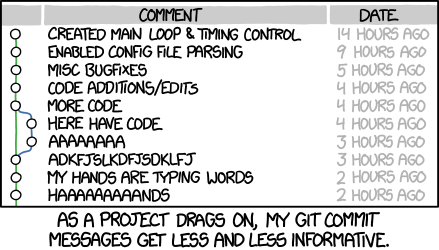
Now you actually need to commit them too, adding isn't enough, and it is good to label them with a useful message for future you (e.g. "Code currently broken, was trying to fix integration but it did not work"):
git commit -m "<Some useful commit message>"
Push to the origin so that the changes are now saved forever:
git push origin week1_exercises
At this point you may be asked to authenticate yourself - see the instructions in Downloading your git repository for more details on this. Note in particular that your GitHub login password will not work for this.
You can see the changes you made by viewing the commit in the internet browser (go to the page for your fork, and it should show a highlighted bar telling you that recent changes were made to your branch that you can click on to view the changes in more detail).
Once you have completed the week's exercises, you want to pull the finished notebooks into the main repository.
My recommendation is to do this via the web interface of GitHub, by making a pull request on the equivalent page to this one for your own fork. Click on the big green new pull request button.
The base branch should be main (where you want the changes to go) and the compare branch should be the one you want to merge changes from, e.g. week1_exercises. Once selected, you can view all the changes to be merged and approve it - the process is mostly self explanatory.
Don't worry if you do it wrong, you can't lose code in GitHub (unless you really try hard), and this course is all about learning, which is often best done by making mistakes.
Back on your local computer terminal, you can type git pull to update for these changes in the remote cloud version in your local copy of the repository.
When I add more course material to the repository in future weeks, you will need to pull this into your own fork - it will not happen automatically (GitHub assumes you wanted to stick with the version you originally copied, unless you tell it otherwise).
The method is the same as the method for merging your branch into main, but the compare branch will be the main branch from the parent repo, and to access this you will need to click on the blue wording compare across forks.
I usually use the web interface to do merging between branches or other more complicated things, because it shows you the changes in a nice readable interface. But you really need to know how to add and push commits to branches on the command line as described above - don't be tempted to rely too much on the GUI (graphical user interface), as if you start to use remote systems you won't always be able to get it working.