Contents
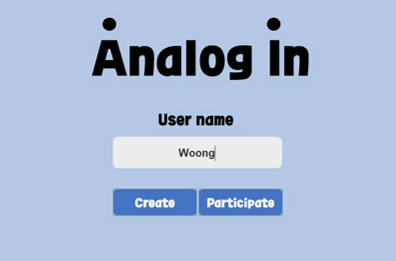
👍 Login Page & Waiting Room
1. You can type your ID and Select modes between "Create Mode" and "Participation Mode"
2. If you want to make your own map, then click 'Create' Button
3.If you want to participate in game with other users, click 'Participation' Button
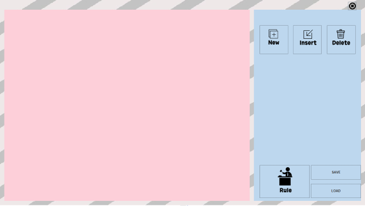
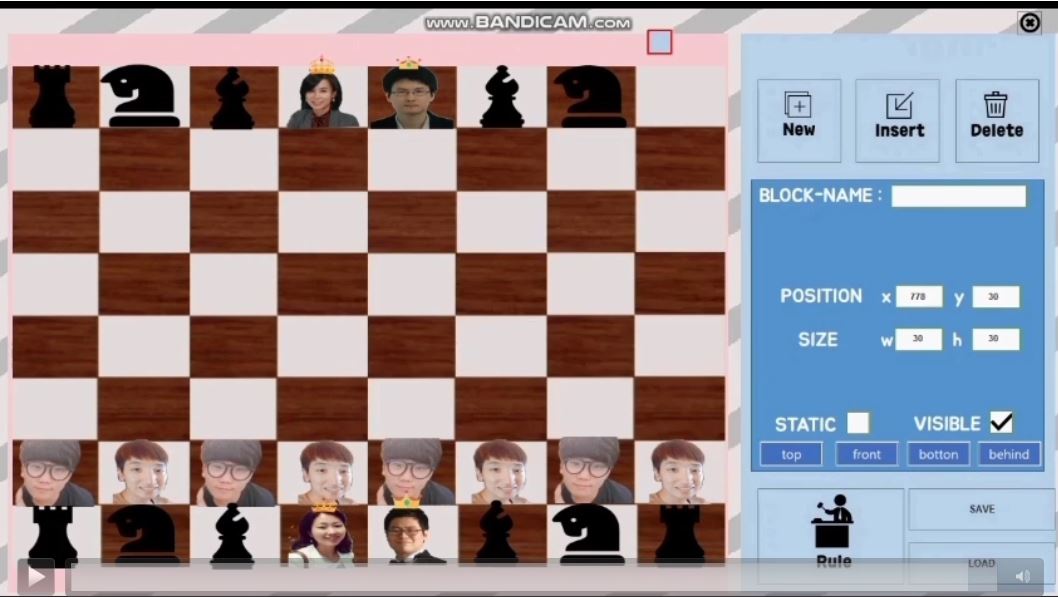
👍 If you click the "Create" Button, then the window is changed to creating tools.
 * There is 'New' Button. Using this button, we can create block and
 move the block anywhere we want.
 * Click the block that we want to insert the image. We can insert
 "PNG / JPEG / GIF" image using 'Insert' Button
 * Static Button : We can the board make unmovable when playing the game.
 * Visible Button : We can make the block invisible or visible.
 * Rule Button : We can make the rule of game. When we play the game,
 the rule is noticed to every players
 * Save Button : We can save the map using save button. The map is saved in '.ain' file.
 * Load Button : We can load the saved map using load button.
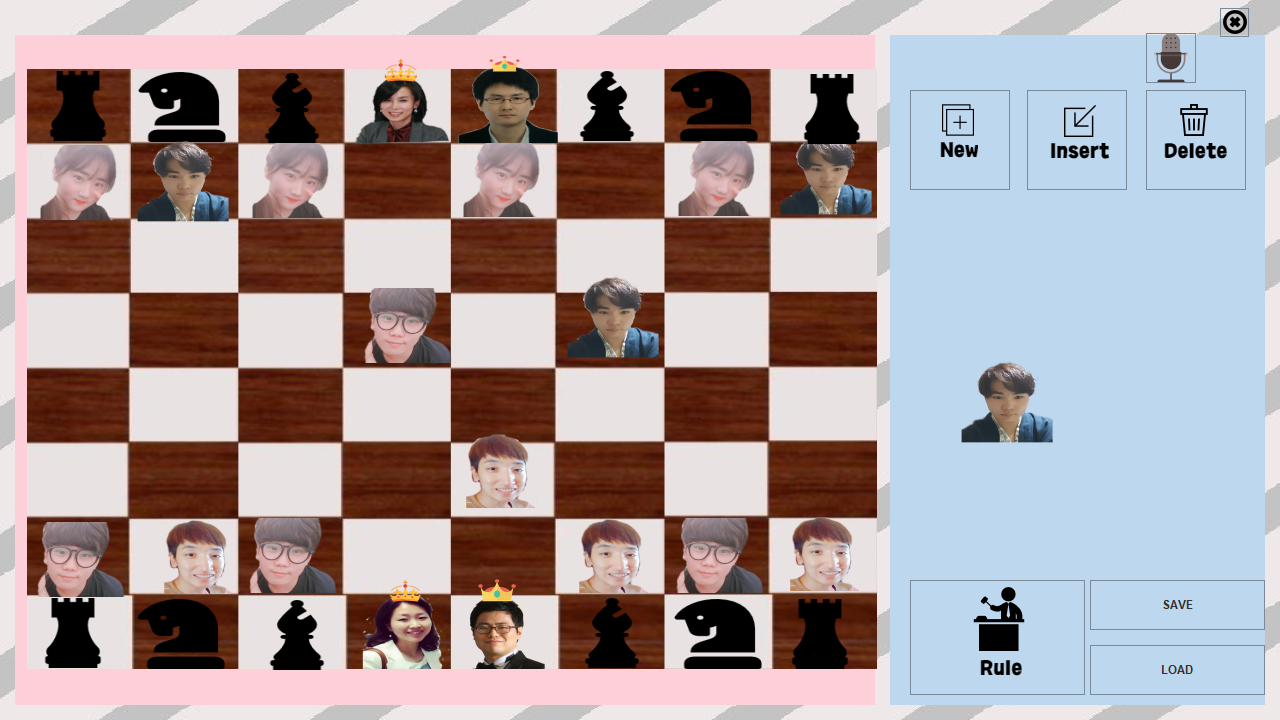
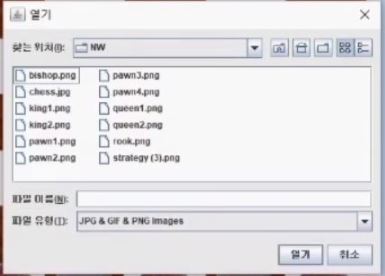
👍 This Screenshot is about image uploading to block that we create.
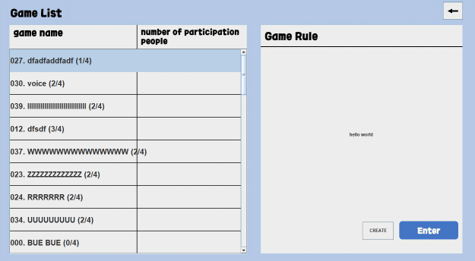
👍 If you click the 'participation' Button, You can enter the waiting room
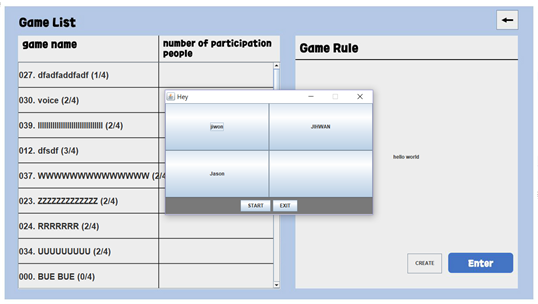
 * There are Lots of Room that other people creates.
 * We can create the room using 'Create' Button. We select the map
 which was saved when we create room.
 * Or, We enter the room that other players made.
 * The screenshot is the window that when we double-click the room,
 then we can see the users that can play with.
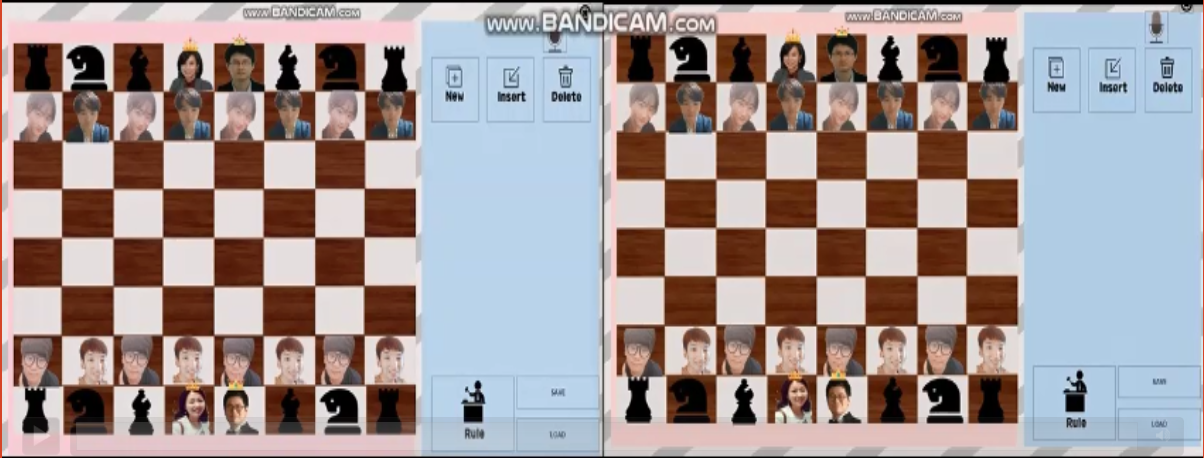
👍 We can play the chess or Baduk using P2P Network. We can use voice chatting when we want to chat each other.