
Powershell script to allow Vulkan and OpenGL applications in a Hyper-V vm with GPU-PV and virtual displays.
Hyper-V virtual machines (VM) can recieve a partitioned GPU or a passthrough GPU. In the passthrough (i.e., Direct Device Assignment, DDA) scenario, the GPU is disconnected from the host and attached to guest as a PCI device. In this scenario, the guest owns the GPU and should function as if accessing the baremetal device (i.e., GPU drivers can be installed on the guest). In the partitioning (i.e., GPU Paravirtualization) scenario, the host retains ownership of the GPU and shares it with guests as a virtual device. This is an amazing feature, but because the device does not exist in the guest, the guest is wholely dependent on the host for GPU capabilities. Some of these capabilities are mixed up with the Hyper-V display devices (adapter and monitor) and are only available when these devices are enabled and active in the guest. For example, Retroarch emulators which use a variety of graphics APIs work well (caveat: I have only tested a few emulators) when the Hyper-V Video display adapter is enabled and the HyperVMonitor is active. This is problemmatic because many who would be interested in sharing a GPU across VMs are likely using some sort of virtual display adapter to gain access to more advanced features (e.g., higher resolutions, refresh rates, HDR capabilities, etc.) and some of these features are only available if the Hyper-V devices are disabled/disconnected. So, with the current instantiation of Hyper-V, we are either limited to DirectX applications or to a degraded gaming experience.
Others have discovered that after an OpenGL or Vulkan application is launched, the Hyper-V monitor can be disabled and the application will continue to run on the remaining virtual display adapter.
The workaround seems to work well, but it can be difficult to execut successfully if an application is running in fullscreen or borderless fullscreen mode. To simplify, I created a script that automatically enables the Hyper-V Montitor, launches the desired application and turns off the Hyper-V Monitor.
When calling the script, you need to pass the command for the application you want to launch as a command-line parameter. You can also include an optional parameter that determines how long to wait before disconnecting the Hyper-V Monitor.
.\HyperVideoLauncher.ps1 'C:\RetroArch-Win64\retroarch.exe -L C:\RetroArch-Win64\cores\mupen64plus_next_libretro.dll "D:\Games\Roms\n64\Banjo-Kazooie (USA).z64"' 2
For flexibility, I use the script as an executable by compiling it with PS2EXE. You can then place it in a system folder or add the file location to the PATH variable and call the file whenever needed.
I use Moonlight+Sunshine to play emulated games from my couch. I use Emulation Station Desktop Edition which requires OpenGL. In a sunshine script, I include the following lines to launch Emulation Station.
Set-Location -Path "$Env:ProgramFiles\ES-DE"
Start-Process HyperVideoLauncher.exe -ArgumentList "`"ES-DE.exe`" 4" -wait
I've been playing Ryse: Son of Rome. The DirectX version is a stuttery mess in a VM, but the DXVK version is perfectly smooth. I copied HyperVideoLauncher.exe to the game directory and used SteamEdit to set the launch executable to 'HyperVideoLauncher.exe'. Then, in Steam, I set the following launch options. The game launches, Special K injects properly, and cloud saves/achievements still work.
SKIF %COMMAND% -HyperVideoApp "Bin64/Ryse.exe" -DisplaySwitchDelay 15
Emulation Station is just a frontend for organizing roms. Most emulators will work fine with DirectX, but some--specifically N64 emulators--need OpenGL or Vulkan. I edited the Emulatiaon Station es_systems.xml file to have it launch the games through the HyperVideoLauncher:
<command label="Mupen64Plus-Next">HyperVideoLauncher "%EMULATOR_RETROARCH% -L %CORE_RETROARCH%\mupen64plus_next_libretro.dll \"%ROM%\"</command>
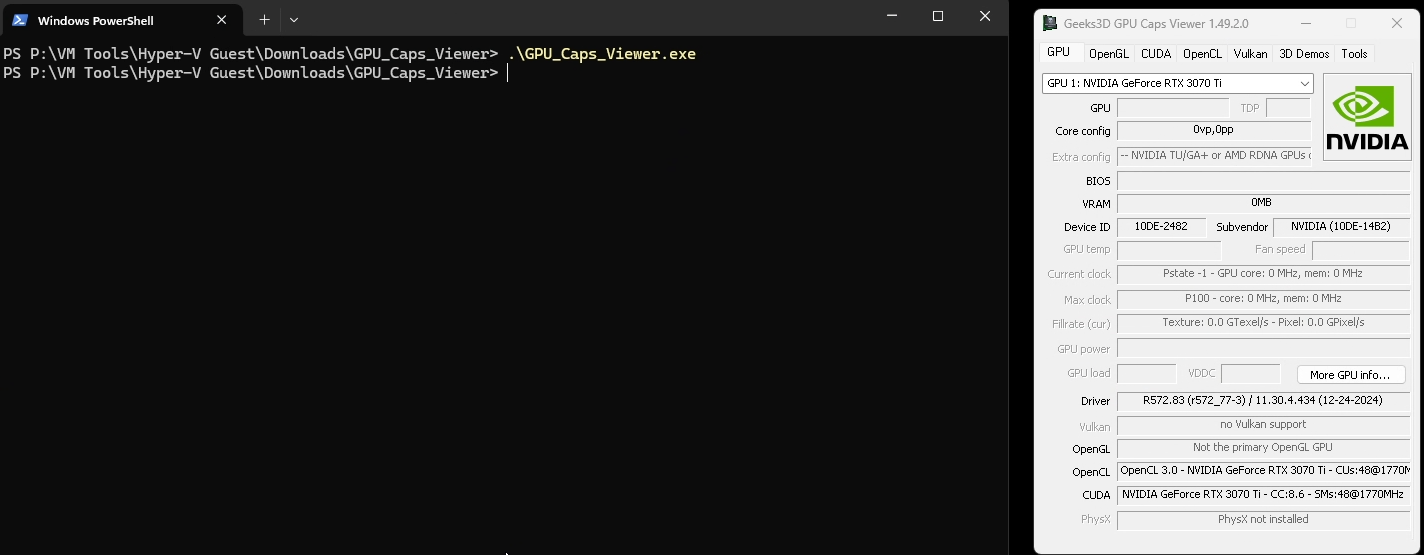
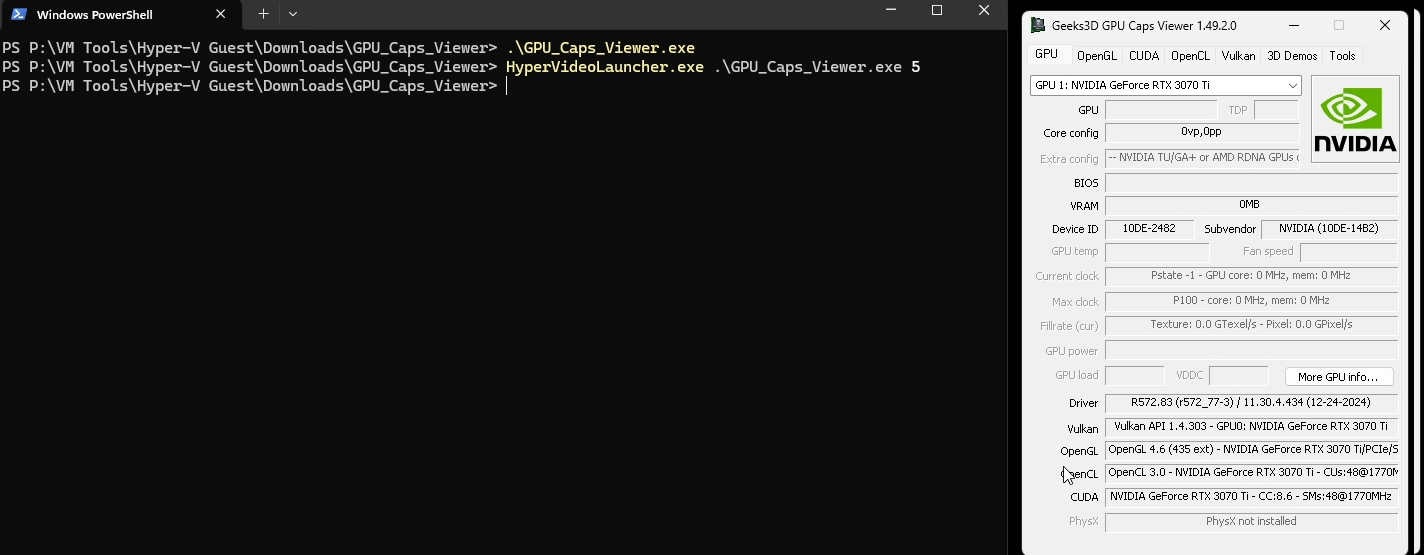
I am certain there are many limitations to this tool. There have been reports that this would only work for 32-bit vulkan applications. As there are many different tools for creating GPU-PV VMs, your choice may affect your results. Also, I am not a Powershell expert or a windows developer so there are likely many better ways to crack this particular nut, but this was my solution.
I would not use something like this with a hardware monitor attached (which is pretty hard to do with GPU-PV) because this script quickly turns displays on and off. It seems like it could cause damage to a physical monitor. I feel ok about using this because the on/off is happening within the VM software. But I could be (and often am) wrong. Use at your own risk.