An interactive 3D visualization package for SAGE26 semi-analytic galaxy formation outputs.
Renders dark matter haloes and SAGE galaxies together in a browser-based interactive viewer powered by PyVista and Trame.
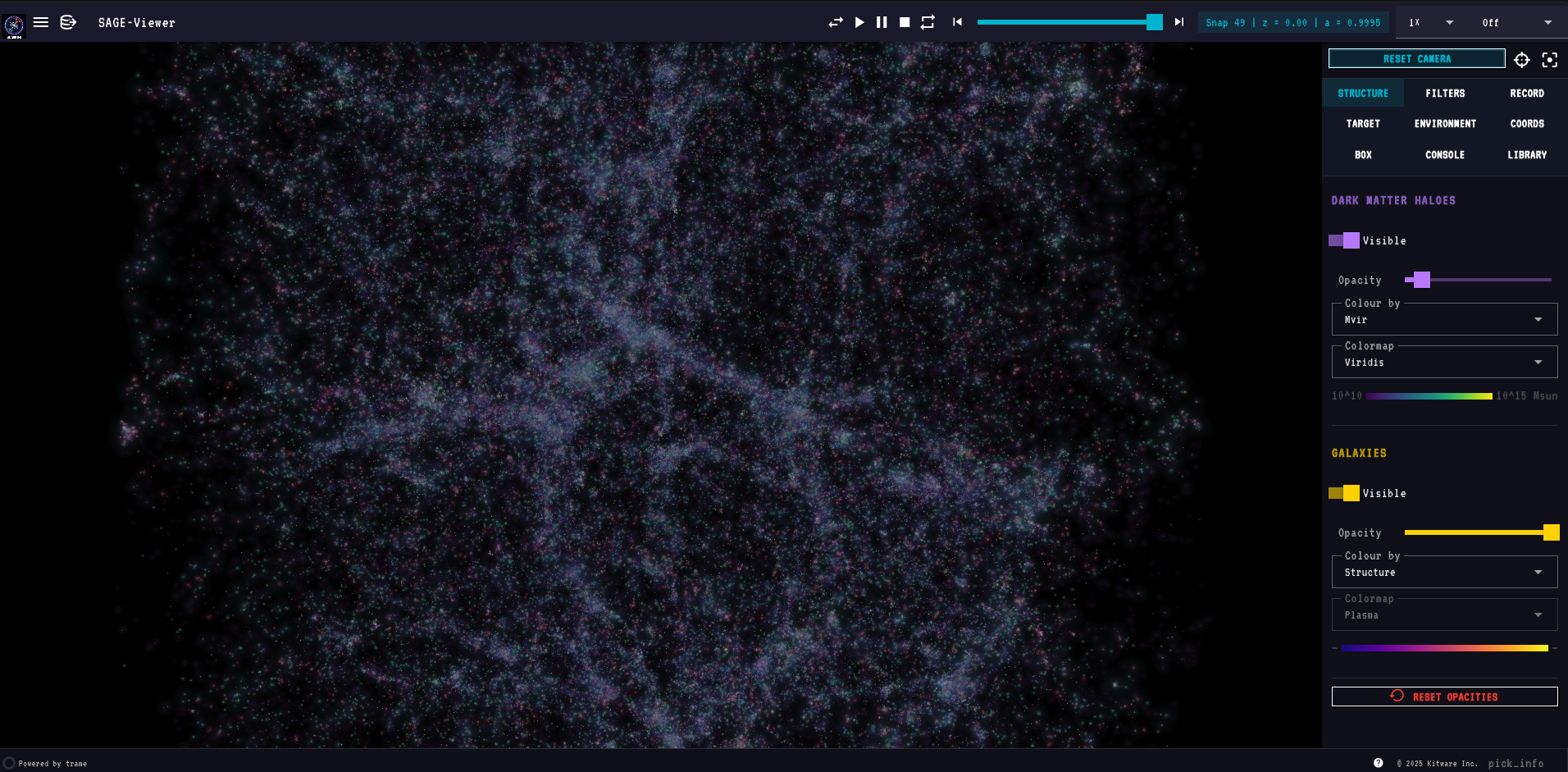
- World-space gaussian splat rendering of haloes and galaxies — splats scale with camera distance and stay physically meaningful at any zoom
- Structure render mode: each galaxy drawn as a layered composition — cold-gas envelope (blue, sized by ColdGas) + outer envelope (green for CGM-regime sized by CGMgas, red for Hot-regime sized by HotGas)
- 27 selectable matplotlib colormaps, identical lists for halo and galaxy layers
- Live colormap, colour-by mode, opacity and visibility controls per layer
- Colour-by dropdowns are model-aware — only modes whose underlying field is present in the loaded model appear in the list; they update automatically on model switch
- Full still-quality rendering at all times — no resolution drop during camera drag or playback
- Play / Pause / Stop / Reverse / Repeat transport at 0.1× – 5× speeds
- Continuous camera rotation (CW / CCW at 15° / 30° / 60° per second)
- Reset / Centre / Focus buttons
- Fly to halo, galaxy, coordinates, or sub-box (with focus mode that masks everything outside)
- Draw Sphere (Coords tab): place a live two-handle sphere in the viewport — drag the centre ball to translate, drag the edge ball to resize; Lock Sphere commits it as the active focus region
- Draw Box (Box tab): place a live resizable box widget — drag any face or corner handle; Lock Box commits it; Clear on both tabs cancels the widget without navigating
- Switching models always lands at z=0 of the new model; slider and snap chip update immediately
- Camera bookmarks (save, restore, delete)
- Galaxy Info panel (Target tab) — GalaxyID, type, halo Mvir, stellar mass, sSFR, cold gas, B/T, BH mass, H2 mass, gas regime, FFB regime, environment classification, mass-weighted stellar age
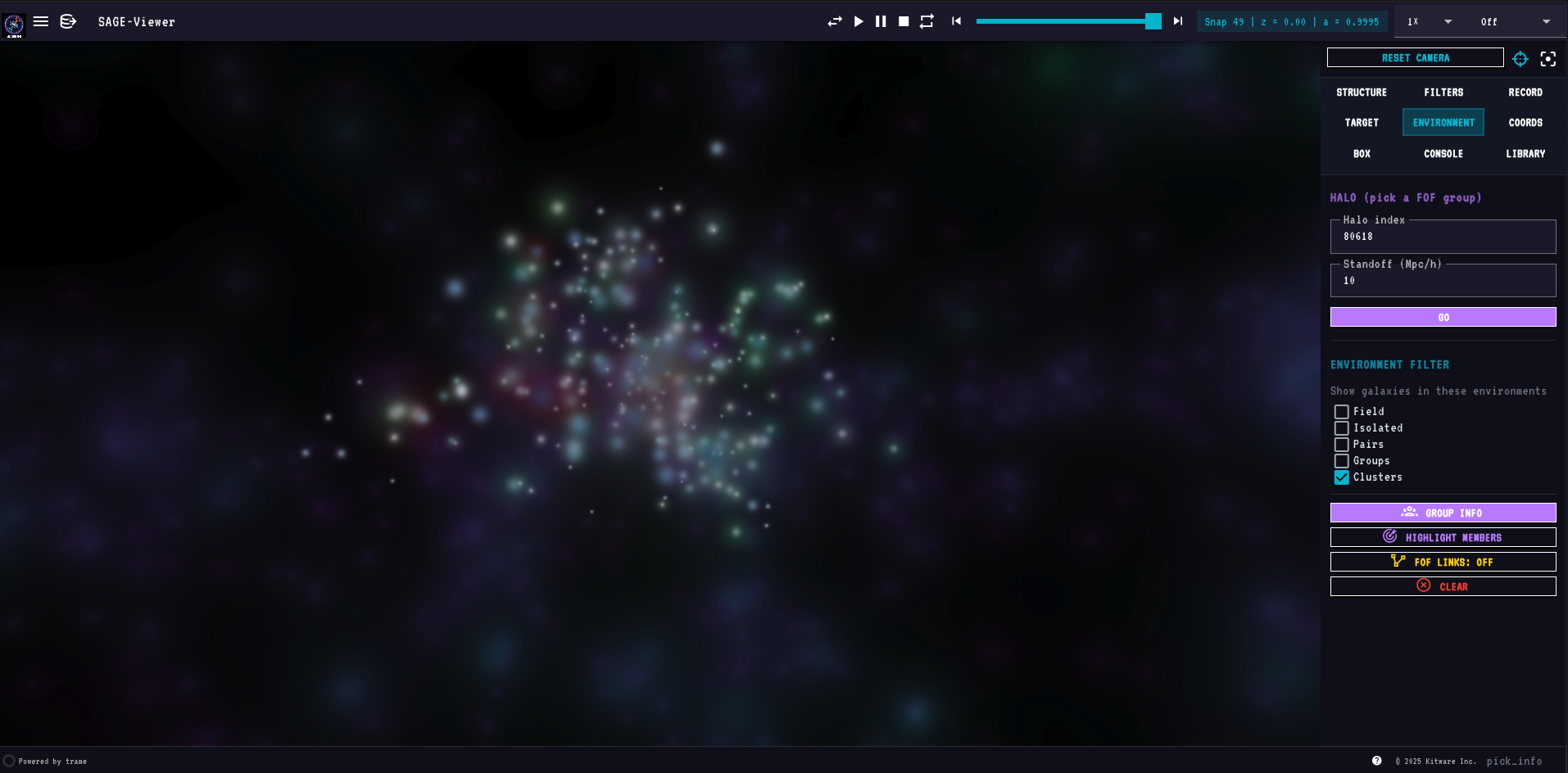
- Group Info panel (Environment tab) — FOF-aggregate stats: classification, member breakdown (centrals vs satellites), host Mvir, total stellar / cold gas / SFR, mean B/T, spatial extent, target role, BCG stellar mass
- Highlight Galaxy / Highlight Members buttons add regime-coloured splat overlays — CGM-regime members in dodgerblue, Hot-regime in tomato; the selected galaxy is marked with a white border ring
- Galaxy Info, Group Info, and highlight splats all appear in screenshots and recordings — info panels are composited as overlays; highlight actors are baked into the pre-rendered playback frames
- Double-click any point in the viewport (any tab) to populate the Target tab's halo + galaxy IDs and draw a red marker on the selection. Only currently visible galaxies (passing all filters and focus) are selectable. If Focus is active, the camera carries to the new selection at the last-used radius.
- Enter to run in every input field — Halo idx, Galaxy idx, Coords X/Y/Z, Box bounds, Console command, script path, screenshot/movie label all submit on Enter, equivalent to clicking the paired Go / Zoom / Run / Take Screenshot button

- Halo filters: Mvir (log10), Rvir (Mpc/h), Vvir (km/s)
- Galaxy filters: stellar mass, sSFR, B/T, age, BH mass, ICS mass, type (centrals / satellites), FFB regime, CGM / Hot regime, environment class (Field / Isolated / Group / Cluster, via checkboxes in the Environment tab)
- Filters are active-only — a slider sitting at its full-range endpoints has no effect; move it inward to filter. Every galaxy with detectable mass is visible at startup.
- Filters auto-disable when the loaded model doesn't contain the underlying field
- Reset Filters button restores defaults
- Playback respects all scene state — the pre-render frame cache is keyed on filter values, focus region, layer visibility/opacity/color-mode, and highlight indicator state; changing any of these and pressing Play again always produces fresh frames
- Load two or more SAGE models side-by-side in a single viewport with
+SBSin the Models section of the hamburger menu - Each box is fully independent: its own snapshot, filters, colormaps, opacity, and visibility settings
- A box strip at the bottom of the viewport shows all loaded boxes; click any box label to make it active — the entire right panel (Structure, Filters, Target, Console, …) then controls that box
- Active box label is green; idle boxes are white
- Play, step, and the snapshot slider advance only the active box's snapshot
- Rotation is disabled in multi-box mode (all boxes share one camera; independent rotation is not supported)
- Halo Mvir colour mode is always locked to Viridis; the colormap selector is greyed out when Mvir is selected
- CLR button in the box strip resets that box to its defaults without affecting others
- Auto-scans
<sage_root>/output/for SAGE model subfolders - Switch the primary model from the hamburger menu (any box size)
- Overlay a second compatible model on top (same box size + snap count)
- Loading spinner during model swaps; warning snackbar for incompatible overlays
- Screenshots in PNG / JPG / TIFF
- Movie recording in GIF / MOV (H.264, via ffmpeg) / PNG sequence
- Configurable FPS (1 – 60) and resolution (Native / 2× / 4× supersampled)
- Optional user-typed label per capture; everything saves into
sage_outputs/session_<timestamp>/in your current working directory - Overlay compositing — Galaxy Info, Group Info, console pop-out, and open Library cards are all composited into screenshots and recordings exactly as they appear on screen
- Catalogue export (CSV, HDF5, FITS, TXT) for the current filter selection, target, or box region — or, in Lightcone Mode, the whole cone (including any synthetic-photometry columns) — saves to
sage_outputs/catalogues/
- Play JSON-defined stories — ordered scenes of captured viewer state (snapshot, camera, layers, filters, focus) with text/media overlays — as full presentations over the live 3D view
- Scenes carry titles, headings, body text, citations, LaTeX equations (vendored KaTeX, offline), images, videos, audio, and a clickable scene-menu grid
- Camera motions per scene: orbit, snapshot sweeps through cosmic time (with pre-rendering for instant playback), and fly-throughs with optional snapshot rewind to a target redshift
- Portable stories: symbolic snapshot references (
"first","last","40%","z=1.5") resolve against whatever model is loaded - Stories load from
sage_stories/in your launch directory; a bundled Presentation Template provides a full talk skeleton to copy and fill in — see the Story Mode guide
- Guided setup flow, accessible standalone (
visagewith no--par/--lightcone) or from the Launch-Mode dropdown (SAGE-logo button, top-left of the toolbar) - Three guided flows share the same wizard shell, switchable at any time ("Back" / dedicated toolbar buttons):
- SAGE26 setup — clone, compile, configure, and run SAGE26
- SAGEswarm — clone SAGEswarm, install its Python requirements, configure
run_pso.sh, and run the PSO calibration with a live plot gallery - LightSAGE — clone LightSAGE (upstream repo
sage-home/sage-lightcone), build only thesage2kdtree/cli_lightconetools (SAGE itself is never rebuilt — ViSAGE feeds it your existing SAGE26 output), configure and run the two-stage pipeline, then jump straight into Lightcone Mode on the result — with an optional third stage that synthesizes broadband photometry (SED) via FSPS (pip install "sage-viewer[sed]")
- Step chips in the header track progress per flow (cyan = current step, green = done, white = pending)
- Rescan button re-runs the environment scan from scratch at any point
- Clone SAGE26 option clones the SAGE26 repository from GitHub — prompts for the parent directory (defaults to home folder) before cloning
- Create config file option generates a new
.parfrom a template pre-filled with paths for your SAGE26 directory; choose a custom filename before writing - Every editable config (
.par,run_pso.sh,run_lightcone.sh) is shown as a parameter form — one labelled box per option, pre-filled with its default — instead of raw text; edits fold back into the file on Save & Run, preserving comments and layout - The LightSAGE build auto-detects a macOS Apple-clang/SDK mismatch and falls back to a compatible SDK; the generated build/run scripts live in
~/.visage/, never inside the third-party checkout - Screenshots, recordings, catalogue exports, and LightSAGE lightcone output all save to
sage_outputs/in the directory you launched from - Wizard always resets cleanly when reopened
visage --lightcone FILEopens acli_lightconeHDF5 output in the exact same Explore UI as a SAGE box — same toolbar, navigation panel (every colour-by mode), info panel, and gaussian-splat rendering- Reads every SAGE field carried in the flat lightcone file into a full galaxy snapshot, plus host haloes built from the
Type == 0centrals - The snapshot slider becomes a redshift/time cut: it only spans the snapshots actually present in the cone, and moving it removes the near (lower-redshift) side of the cone, keeping the far side — the full cone shows at the slider's maximum
- Camera — reset frames the cone zoomed-in, horizontal and centred, end to end; the go-to-centre button stands you at the observer (coordinate origin) looking outward along the cone
- Photometry tab (replaces the Box tab) — if the cone carries synthetic photometry, a separate, independent splat layer that builds a false-colour image from a stack of the ticked filters (each tinted its representative colour; mass-to-light stackable too). Own Visible/Opacity; show it with the galaxies on, off, or on its own
- Reach it from the Launch-Mode wizard's "Visualize lightcone" step after a run, the wizard's Load Existing Lightcone button, the Session Models list (see below), or directly via
--lightcone
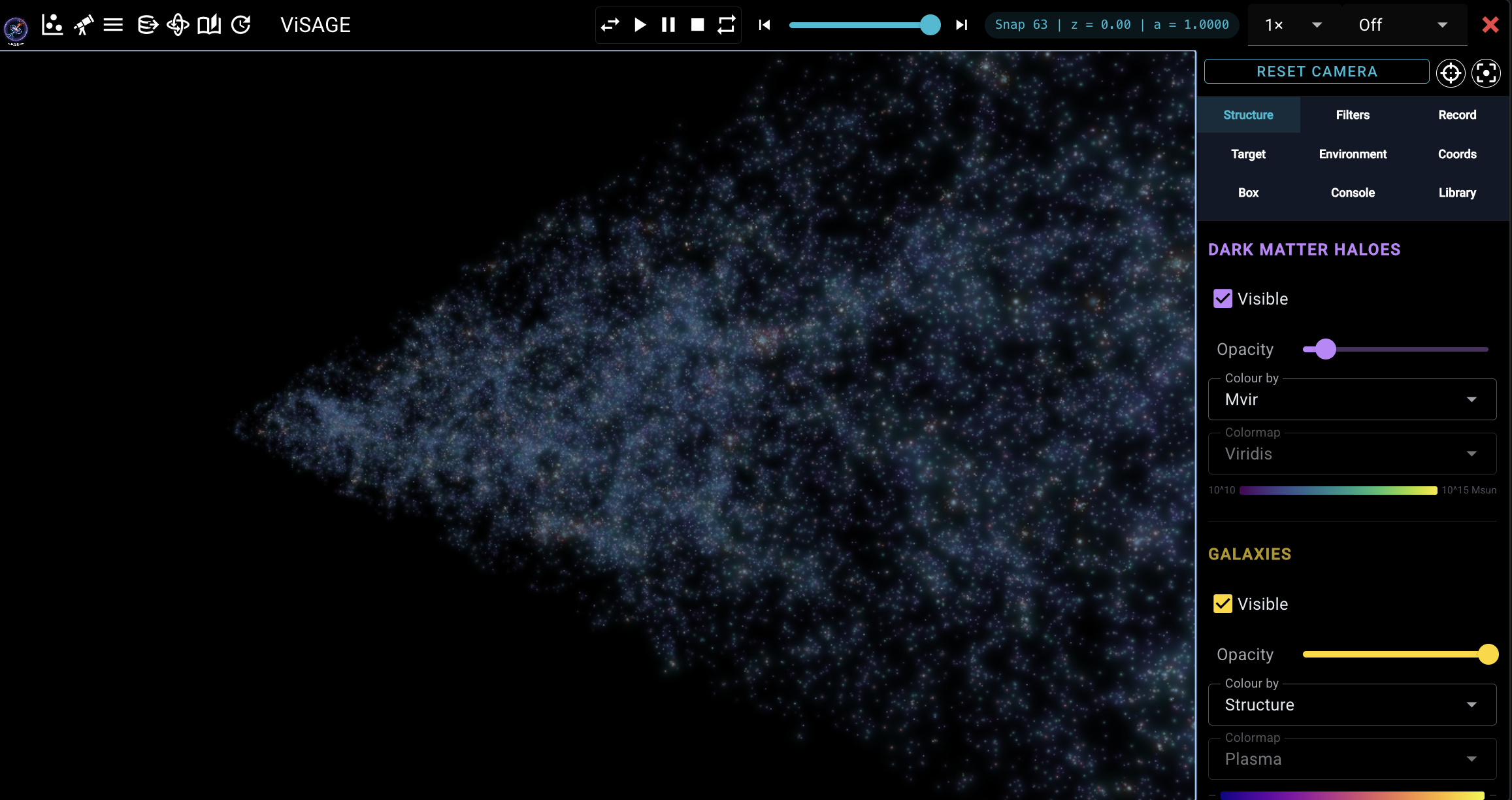
- The Launch-Mode dropdown lists every box and lightcone opened so far this session under Session Models, with a box or telescope icon per kind and the active one marked
- Click any entry to jump straight back to it (a quick relaunch on the same port) — so loading a box after a lightcone (or vice versa) never loses track of what you had open
- Persisted in
~/.visage/session_models.jsonacross relaunches
- Terminal mode — a live xterm.js terminal backed by a real PTY (
$SHELL -l); full ANSI colour, cursor control, and interactive programs (vim,top,htop,less) all work - SAGE command mode — natural-language SAGE commands (
show only clusters,go to halo 42,snap 30,screenshot, …); switch via the SAGE Cmds button,terminalreturns to the shell - Multiple sessions with a
+button — each console has its own PTY process and command history - Pop-out floats a movable / resizable console card over the viewport so you can keep typing while watching the render
- Cosmology (h, Ω_m, Ω_Λ), box size, and snapshot redshifts are read directly from
model_0.hdf5'sHeader/Simulation - The
.parfile is now only needed for tree-file paths
| Simulation | Box size | Snapshots | Tree format |
|---|---|---|---|
| miniMillennium | 62.5 Mpc/h | 64 | lhalo_binary |
| microUchuu | 96 Mpc/h | 50 | lhalo_binary |
Both supported automatically — point at the .par file and ViSAGE figures out the rest from the HDF5.
pip install sage-viewerExplore Mode — view existing SAGE26 results by pointing at a .par file:
visage --par /path/to/SAGE26/input/millennium.parLaunch Mode — configure and run SAGE26 via the guided wizard. Run from your SAGE26 root so the wizard can find your .par files and executable automatically:
cd /path/to/SAGE26
visage
Open the printed URL in any browser. To launch on a remote cluster and view locally, use SSH port-forwarding:
# On the cluster
visage --par millennium.par --port 8080

# In a local terminal
ssh -L 8080:localhost:8080 user@cluster
# Then open http://localhost:8080 in your browser--par FILE Path to a SAGE .par file — omit (with --lightcone) to launch in Launch Mode (wizard)
--lightcone FILE Path to a cli_lightcone HDF5 output file — opens the
full Explore UI on the lightcone instead of a SAGE box
--par-dir DIR Directory to scan for additional .par files
(defaults to the parent of --par; used for the
multi-model dropdown)
--snap N Initial snapshot number (default: last = z=0)
--port N Trame server port (default: 8080)
--n-jobs N Worker threads for parallel halo file reads
--max-halos N Downsample ceiling per snapshot
--min-halo-mass MSUN Minimum halo mass to load
--min-stellar-mass MSUN Minimum stellar mass to load
Galaxies have no display cap — every galaxy above the mass floor loads, since all snapshots are preloaded up front.
If your SAGE root looks like:
SAGE26/
├── input/
│   ├── millennium.par
│   ├── millennium_vanilla.par
│   └── microuchuu.par
└── output/
    ├── millennium/model_0.hdf5
    ├── millennium_vanilla/model_0.hdf5
    └── microuchuu/model_0.hdf5
then visage --par input/millennium.par discovers all three models automatically. Click the hamburger icon (top-left) → Models section to switch, or click "+ overlay" next to a compatible model to render both at once.
pip install sage-viewerRequires Python ≥ 3.10. After install, visage is available as a command. If your shell can't find it, add the user bin directory to your PATH:
# macOS (Python 3.12 user install)
export PATH="$HOME/Library/Python/3.12/bin:$PATH"
Movie recording in MOV format requires ffmpeg in your PATH.
Synthetic photometry (SED synthesis for lightcones) is an optional extra — it pulls in FSPS + astropy, which the base install omits:
pip install "sage-viewer[sed]"FSPS also needs its stellar-population data on disk, pointed at by the SPS_HOME environment variable (see the python-fsps docs). Nothing else in ViSAGE depends on it.
git clone https://github.com/MBradley1985/ViSAGE
cd ViSAGE
pip install .A helper script is included for module-system clusters (Slurm, PBS, etc.):
# Load a Python module first (name varies by cluster)
module load python/3.12.0

# Create a venv and install ViSAGE in one step
./install_hpc.sh

# Optional: place the venv on scratch for faster I/O
./install_hpc.sh /scratch/$USER/visage-env
The install is editable (pip install -e .) so a git pull updates the code immediately with no reinstall. Load ffmpeg via your module system if you need MOV recording.
In every session:
source .venv/bin/activate
visage --par /path/to/millennium.par --port 8080
# SSH-tunnel the port to your local browserFull documentation at mbradley1985.github.io/ViSAGE.
When multiple boxes are loaded a box strip appears at the bottom of the viewport. Click any box to make it active (green label). All tab controls then target that box.
| Tab | Purpose |
|---|---|
| Structure | Layer visibility, opacity, colour-by mode, colormap (with inline colorbar) |
| Filters | Range sliders for halo and galaxy properties |
| Record | Screenshots (PNG/JPG/TIFF) and movie recording (GIF/MOV/PNG); overlays composite into captures |
| Target | Halo / galaxy navigation, focus zoom, Galaxy Info, Highlight Galaxy |
| Environment | Halo selector, environment-class checkboxes, Group Info, Highlight Members |
| Coords | Fly to arbitrary (x, y, z) — "Use Current Position" populates from camera; Draw Sphere places an interactive two-handle sphere (drag centre ball to translate, drag edge ball to resize); Lock Sphere commits it as the focus region |
| Box | Zoom to axis-aligned sub-box — "Use Current View" populates from camera; Draw Box places a resizable interactive box; Lock Box commits it as the focus region. In Lightcone Mode this tab becomes Photometry: a separate false-colour image layer built from a stack of synthetic-photometry filters (own Visible/Opacity, independent of the galaxies) |
| Console | Live xterm.js shell terminal (PTY-backed) + SAGE natural-language command mode. Multiple sessions, pop-out window |
| Library | Browse stored screenshots / movies; double-click a row to open as a movable, resizable floating card over the viewport (multiple items open simultaneously); per-row delete button removes the file from disk immediately |

The Focus button (top of the right panel) is tab-aware: it focuses on whatever's active in the current tab (target galaxy, environment halo, coords point, or box region).
MIT — see LICENSE.