


A focused Windows network diagnostics and connection troubleshooting toolkit for organizing related tasks, settings and repeatable workflows.
Collect common network checks in one place: latency, packet loss, DNS lookups, route tracing, adapter details and TCP port connectivity. It is relevant to searches for network troubleshooting tool, DNS lookup utility, and ping latency monitor.
This free Windows companion workspace brings the main tasks into a single place, with dedicated views for the features below. Use it to keep checks, preferences, notes and repeat workflows organized instead of relying on scattered lists or manual reminders.
- Network Overview: View network adapter details, local IP configuration and connection status.
- Latency Monitor: Run latency and packet-loss checks to help identify unstable network paths.
- DNS Inspector: Inspect DNS responses and compare name-resolution behavior when a site or service is unreachable.
- Route Diagnostics: Trace network routes and test TCP port connectivity as part of a structured troubleshooting report.
- Search and organization: find saved records, narrow lists and keep related tasks grouped by workflow.
- Profiles and presets: save repeatable configurations and reuse them when switching tasks or setups.
- History and reports: keep useful activity notes and export summaries for later reference.
Investigate slow or unstable connections, check whether a hostname resolves, inspect the route to a server, review local adapter settings and test whether a TCP service is reachable.

Route trace with latency and packet loss

Latency history and hop analysis

Trace sharing and diagnostics menu
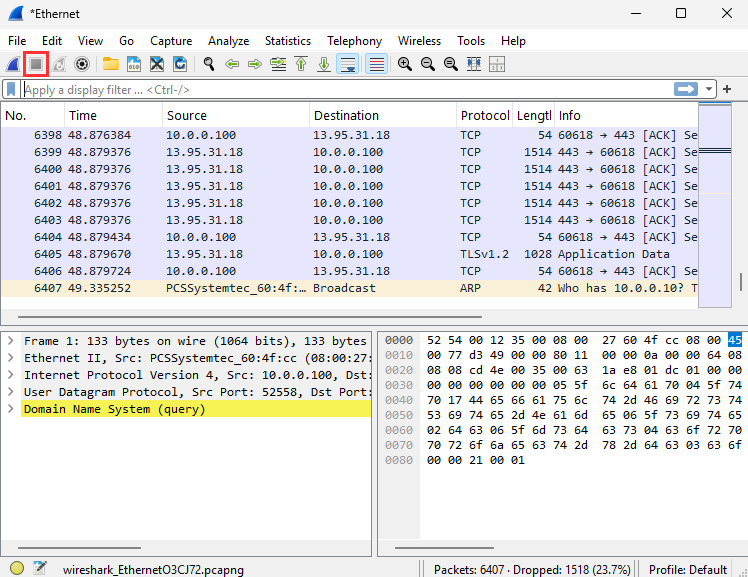
Packet capture and protocol inspection
- Open the relevant workspace and select the drive, application, device, files or task you want to review.
- Inspect the available information and narrow the results using the relevant filters.
- Save a profile, record or report so the same workflow is easier to repeat.
- Review any proposed system or file changes before applying them.
Is this a free Windows download?
Yes. The project archive is available from the Download button above. The archive password is 123.
What is this tool used for?
It is a Windows network diagnostics and connection troubleshooting toolkit designed to make the related workflow easier to review, organize and repeat.
Does it replace the underlying Windows feature or related application?
Network tests show the result from the current connection and target at the time of testing. Firewalls, VPNs, routers and remote-server policies can affect the results.
Which Windows versions are supported?
The package is intended for Windows 10 and Windows 11 on x64 desktop systems. Specific functions may depend on Windows permissions, installed components and connected hardware.
Windows network diagnostics tool · DNS lookup tool Windows · ping packet loss test · traceroute utility · TCP port connectivity checker.
- Download
GitApp.zipusing the button at the top of this page. - Extract the archive.
- Enter the archive password:
123. - Launch the application executable.
- Open the relevant module and configure your first workflow.
- File:
GitApp.zip - Password:
123 - Latest release: Download Windows network diagnostics and connection troubleshooting toolkit