

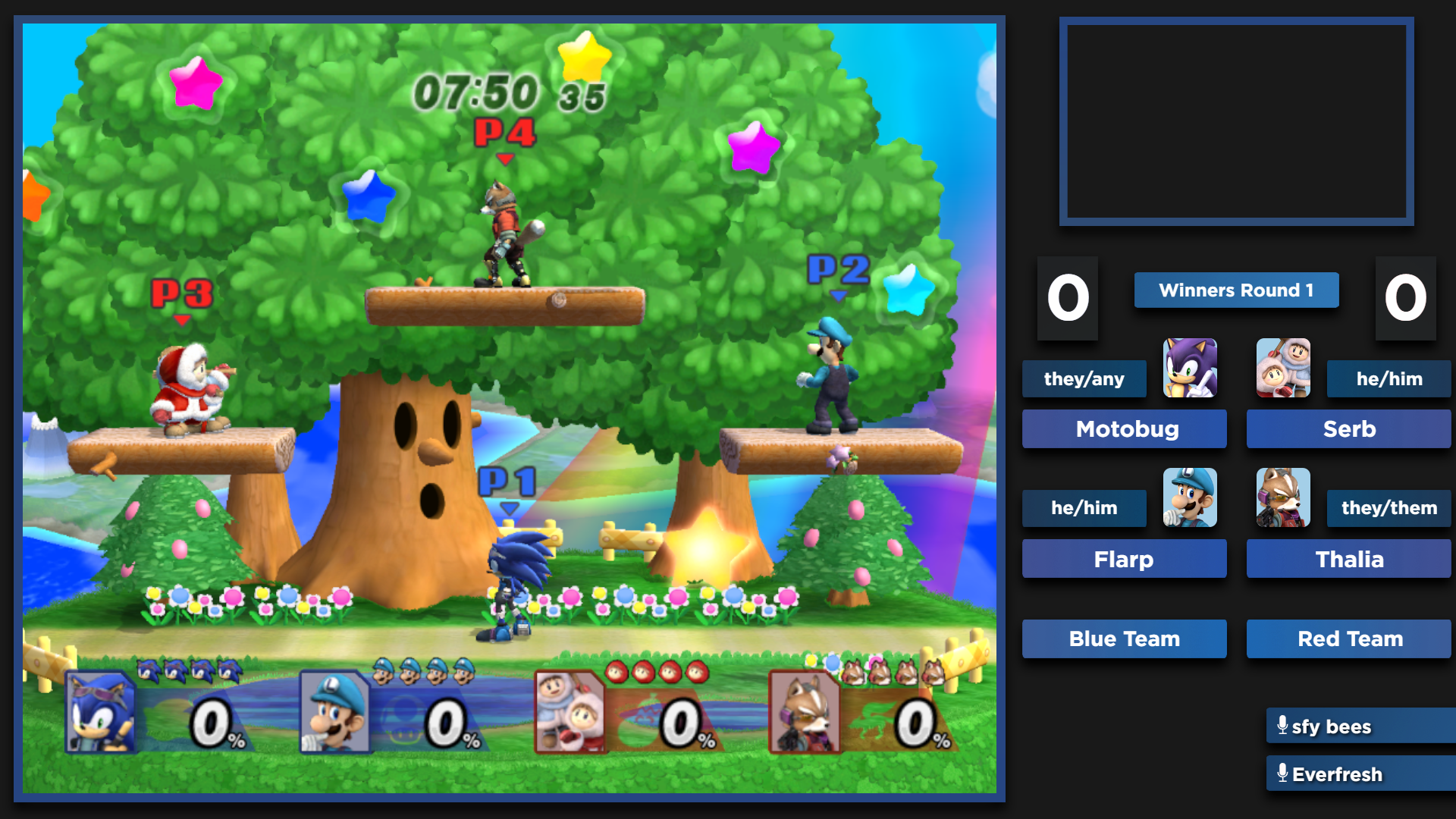
This is a stream tool based on Readek's and ilikepizza's, with a focus on readability, 4:3, and attractive design.
- Easy and fast setup using a browser source. Drag and drop!
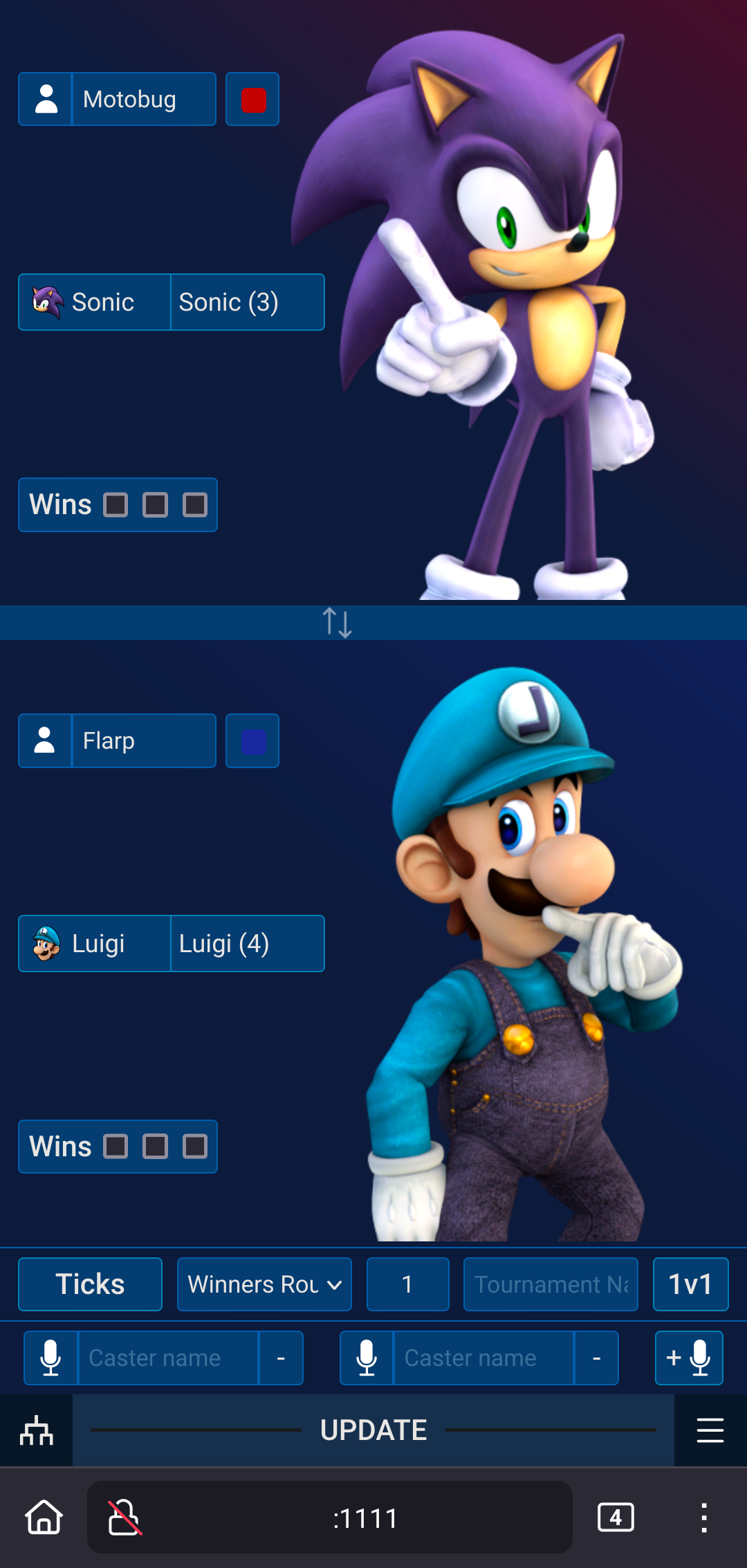
- Handy interface to quickly change everything you need, like player names, pronouns, characters, scores, round, casters...
- With customizable Player and Commentator Presets to setup your match in no time!
- Every single character and skin Project+ and Melee have to offer is supported (more than 700 different skins!).
- Swap between Project+ and Melee at the click of a button!
- 2v2 support!
- A VS Screen to be displayed when waiting for the next set to begin.
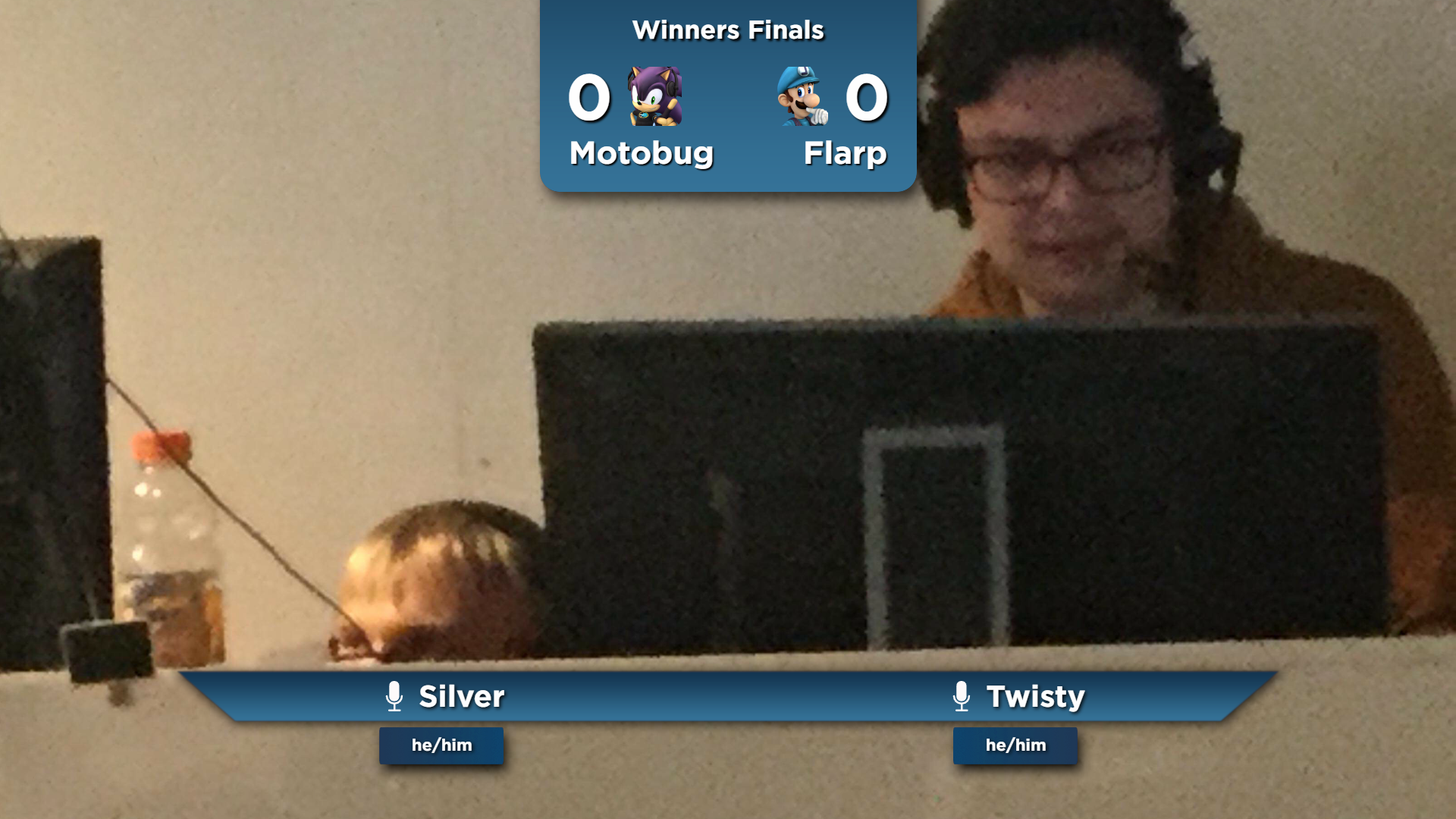
- A Commentator Screen to show during player interviews or downtime.
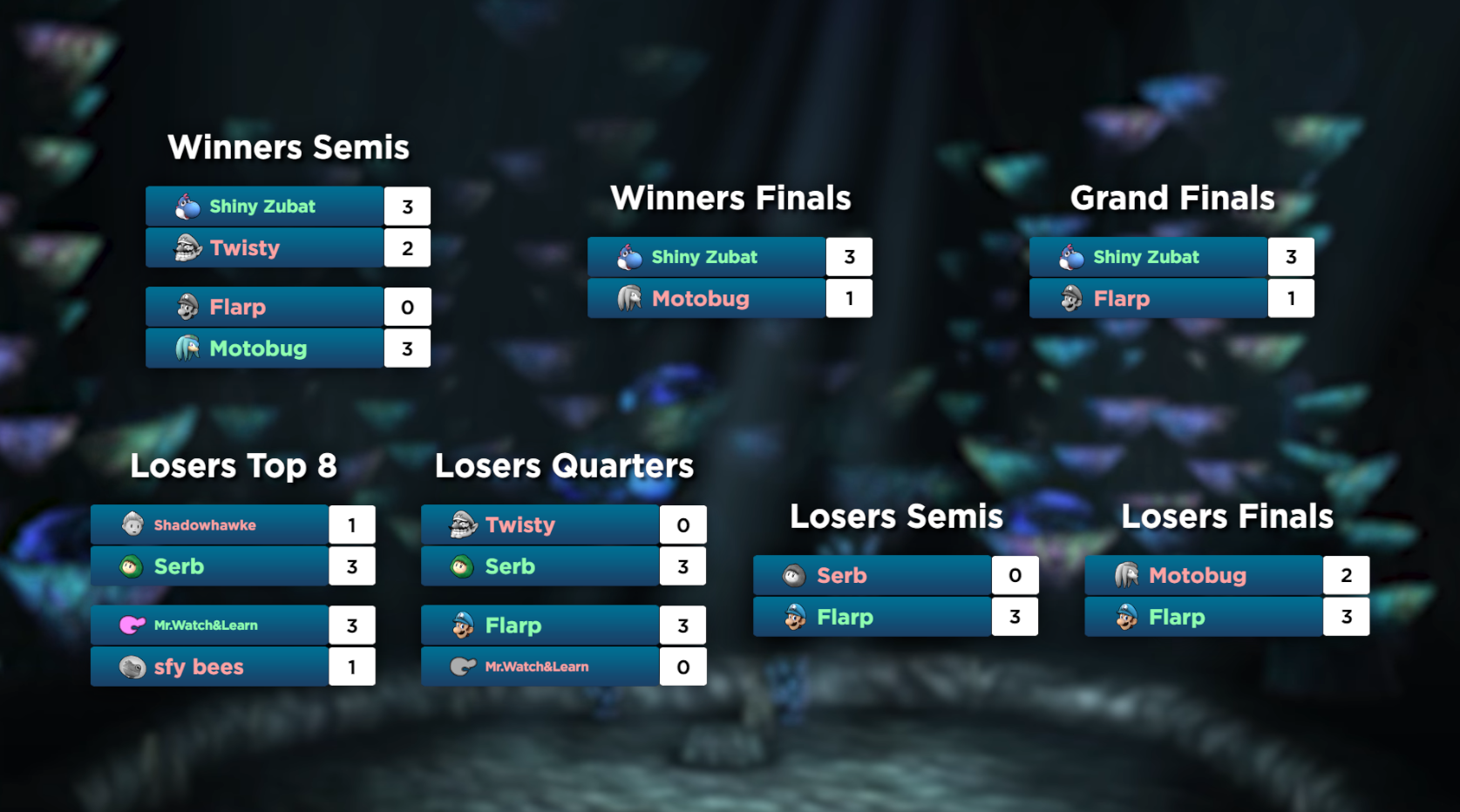
- A Bracket View to showcase your tournament's top 8 positions!
- A Remote GUI that can be accessed by any device within the local network, including mobile devices!
- Support for both Windows and Linux devices!
These are instructions for OBS Studio:
- Get the latest release.
- Extract somewhere.
- Drag and drop
Singles Scoreboard.htmlinto OBS, or add a new browser source in OBS pointing at the local file.- If the source looks weird, manually set the source's properties to 1920 width and 1080 height, or set your OBS canvas resolution to 1080p, or make the source fit the screen (Ctrl+F).
- In the source's properties, change Use custom frame rate ->
60(if streaming at 60fps of course). - Manage it all with the
Badnik Stream Tool v1.0.0executable (or Badnik Stream Tool v1.0.0.AppImage if you are on Linux).
Repeat from the 3rd step to add the VS Screen.html, Commentator Screen.html, and Bracket.html views, though it is recommend you to do so on another scene.
- Press
Enterto update*. - Press either
F1orF2to increase P1's or P2's score. - Press
ESCto clear player info*.
*Functionality may change in some menus to ease workflow.
For developing, there are some shortcuts to make things easier:
- Press
F5to reload the GUI. - Press
F12to open the dev console. This will also unlock window resolution.
Those instructions above will get you started, but there's much more to explore. All of this is optional of course.
By default, a basic overlay is provided. However, it's recommended to create your own layout using the provided template outlines in the /Resources/Overlay/Templates/ folder.
Two basic transitions are included in the Resources/OBS Transitions folder, intended to be used to change to the game scene and to the VS screen, if you don't have a transition yourself of course. To use them on OBS:
- Add a new stinger transition.
- Set the video file to
Game In.webmif creating the game scene transition, andSwoosh.webmif creating a VS screen transition. - Transition point ->
350 ms. - I recommend you to set the Audio Fade Style to crossfade, just in case.
- On the scene's right click menu, set it to Transition Override to the transition you just created.
- Also, you may want to set a hotkey to transition to the game scene so you can press enter ingame to start the replay and press the transition key at the same time. The transition is timed to do so.
The Stream Tool GUI can be controlled remotely by any device within the local network where the GUI is running, and yes, this includes mobile devices! Please take a look at Readek's wiki for instructions.
- The Linux version of this application currently renders text a few pixels higher than it should; currently unsure if this is an OBS, program, or specific distribution issue.
- Swapping between 1v1 and 2v2 mode on the fly may cause positional errors with elements onscreen until the Browser Source is refreshed in OBS
Do you want to customize something? Do you need some OBS tips and tricks for a Project+ stream? Please, go to Readek's wiki!