
Visual Drag & Drop editor for Home Assistant picture-elements dashboards.
Move, resize, copy and edit Lovelace floor-plan elements directly in the browser, with automatic saving back to Home Assistant.
Element Positioner adds a sidebar panel, registers its Lovelace frontend resource automatically, and is packaged as a HACS custom integration.


Visueller Drag & Drop Editor für Home Assistant picture-elements Dashboards.
Positioniere Elemente direkt auf deinem Grundriss — ohne Code zu schreiben.
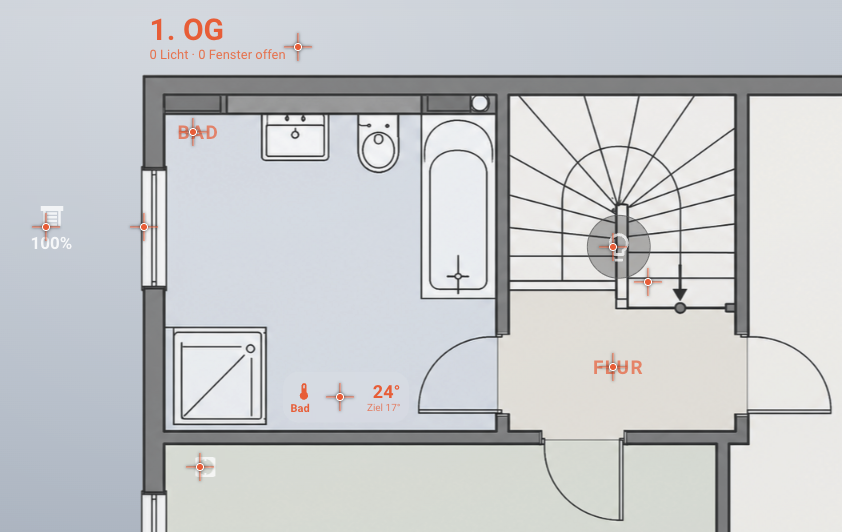
Fadenkreuze auf allen picture-elements — einfach ziehen um zu positionieren

Statusbar mit Suche, Undo/Redo, Snap-Grid und Resize-Modus
| Feature | Beschreibung |
|---|---|
| 🖱️ Drag & Drop | Elemente ziehen — Position wird sofort in HA gespeichert |
| ⌨️ Pfeiltasten | Feinpositionierung 0,1 % pro Schritt (Klick → Fokus → ↑↓←→) |
| 🔲 Mehrfachauswahl | Shift+Klick markiert mehrere Elemente für gemeinsames Verschieben |
| 📝 YAML Editor | Doppelklick → YAML mit Zeilennummern, Suche, Vollbild, Syntaxprüfung und Entity-Vorschlägen bearbeiten |
| 📋 Element kopieren | Elemente zwischen Dashboard-Tabs übertragen |
| 🎨 Format-Painter | Style von einem Element auf ein anderes übertragen |
| ↶ Undo/Redo | Bis zu 20 Schritte (Ctrl+Z / Ctrl+Y, Mac: ⌘) |
| ⊞ Snap-Grid | OFF / 1 % / 3 % / 5 % — Drag und Pfeiltasten rasten ein |
| ⤡ Resize-Modus | Breite und Höhe über Kanten und Ecken ändern, auch bei Conditional-Elementen |
| 🔍 Suche | Elemente nach Name filtern |
| 🗑️ Löschen | Element entfernen (2× bestätigen) |
| 🌐 Zweisprachig | UI automatisch auf Deutsch oder Englisch (via Browser-Sprache) |
- Home Assistant
2023.9oder neuer picture-elementsCard auf einem Dashboard- Lovelace im Speicher-Modus (nicht YAML-Modus)
- Admin-Rechte
- HACS öffnen → Integrationen
- Drei-Punkte-Menü → Benutzerdefinierte Repositories
- URL:
https://github.com/Presley2/ha-element-positioner— Kategorie: Integration - Element Positioner in der Liste suchen → Herunterladen
- HA neu starten
Nach dem Neustart:
- Einstellungen → Integrationen → Integration hinzufügen
- „Element Positioner" suchen → auswählen → Senden
- Fertig — Sidebar-Panel erscheint automatisch ✅
Schritte anzeigen
- Den Ordner
custom_components/element_positioner/aus dem neuesten Release herunterladen - In
/config/custom_components/element_positioner/kopieren - HA neu starten
- Einstellungen → Integrationen → Integration hinzufügen → Element Positioner
- Sidebar → Element Positioner → Toggle An
- Zum gewünschten Dashboard-Tab wechseln → Fadenkreuze erscheinen auf allen Elementen
- Element ziehen → Position wird sofort gespeichert
- Doppelklick auf Kreuz → YAML Editor öffnet sich
Alle Shortcuts und Funktionen sind direkt im Sidebar-Panel dokumentiert.
| Card-Typ | Unterstützt |
|---|---|
picture-elements |
✅ Vollständig |
vertical-stack / horizontal-stack mit picture-elements |
✅ |
conditional um picture-elements |
✅ |
grid mit picture-elements |
✅ |
sidebar-Views |
✅ |
panel-Views |
✅ |
sections-Views mit picture-elements |
✅ (auch mit Bildschirm-Sichtbarkeit) |
Browser: Chrome, Firefox, Safari, Edge, iPad Safari (alle aktuellen Versionen)
Kreise erscheinen nicht
→ Hard Refresh: Ctrl+Shift+R im Browser
Position speichert nicht
→ HA-Verbindung prüfen: F12 → Console auf Fehler prüfen
→ Admin-Rechte und Lovelace-Speicher-Modus erforderlich
Integration erscheint nicht in der Liste
→ HA nach HACS-Installation neu gestartet? Dann erneut suchen.
Ich hab dieses Tool für mich selbst entwickelt — zusammen mit Claude Code und zugeschnitten auf mein eigenes Setup, meine installierten Integrationen und meine Dashboards. Es funktioniert bei mir zuverlässig, aber ich kann nicht garantieren, dass es in jeder Umgebung läuft. Keine offizielle HA-Integration, kein Support-Versprechen — einfach ein Projekt das mir den Alltag erleichtert und vielleicht auch dir hilft. 🙂
Visual Drag & Drop editor for Home Assistant picture-elements dashboards.
Position elements directly on your floor plan — no coding required.
Crosshairs on all picture-elements — just drag to reposition
Status bar with search, undo/redo, snap grid and resize mode
| Feature | Description |
|---|---|
| 🖱️ Drag & Drop | Drag elements — position is saved to HA instantly |
| ⌨️ Arrow keys | Fine positioning at 0.1 % per step (click → focus → ↑↓←→) |
| 🔲 Multi-select | Shift+click selects multiple elements for group move |
| 📝 YAML Editor | Double-click → edit YAML with line numbers, search, fullscreen, syntax checks and entity suggestions |
| 📋 Copy element | Transfer elements between dashboard tabs |
| 🎨 Format Painter | Copy style from one element to another |
| ↶ Undo/Redo | Up to 20 steps (Ctrl+Z / Ctrl+Y, Mac: ⌘) |
| ⊞ Snap Grid | OFF / 1 % / 3 % / 5 % — drag and arrow keys snap to grid |
| ⤡ Resize mode | Resize width and height using edge and corner handles, including conditional elements |
| 🔍 Search | Filter elements by name |
| 🗑️ Delete | Remove element (confirm twice) |
| 🌐 Bilingual | UI automatically in German or English (via browser language) |
- Home Assistant
2023.9or newer picture-elementscard on a dashboard- Lovelace in storage mode (not YAML mode)
- Admin rights
- Open HACS → Integrations
- Three-dot menu → Custom Repositories
- URL:
https://github.com/Presley2/ha-element-positioner— Category: Integration - Search for Element Positioner → Download
- Restart HA
After restart:
- Settings → Integrations → Add Integration
- Search for "Element Positioner" → select → Submit
- Done — sidebar panel appears automatically ✅
Show steps
- Download the
custom_components/element_positioner/folder from the latest release - Copy to
/config/custom_components/element_positioner/ - Restart HA
- Settings → Integrations → Add Integration → Element Positioner
- Sidebar → Element Positioner → toggle On
- Navigate to the desired dashboard tab → crosshairs appear on all elements
- Drag an element → position is saved immediately
- Double-click a crosshair → YAML editor opens
All shortcuts and features are documented directly in the sidebar panel.
| Card type | Supported |
|---|---|
picture-elements |
✅ Full support |
vertical-stack / horizontal-stack with picture-elements |
✅ |
conditional wrapping picture-elements |
✅ |
grid with picture-elements |
✅ |
sidebar views |
✅ |
panel views |
✅ |
sections views with picture-elements |
✅ (including screen visibility) |
Browsers: Chrome, Firefox, Safari, Edge, iPad Safari (all current versions)
Crosshairs don't appear
→ Hard refresh: Ctrl+Shift+R in the browser
Position doesn't save
→ Check HA connection: F12 → Console for errors
→ Admin rights and Lovelace storage mode are required
Integration doesn't show in the list
→ Did you restart HA after the HACS install? Then search again.
I built this tool for myself — together with Claude Code, tailored to my own setup, my installed integrations, and my dashboards. It works reliably for me, but I can't guarantee it runs in every environment. Not an official HA integration, no support promise — just a project that makes my daily life easier and might help you too. 🙂
MIT License — see LICENSE