Success Statement: Create a working 2Dof ball balancer, like as seen in This Video, utlizing PID control to optimize balancing.
Criteria:
- Use PID
- Balance the ball
Constraints:
- We need to a camera and camera recognition to track the ball, as alternatives were too expensive
- We didn't want to use kinematics to control the plate
- We didn't have a camera that connected to an arduino, so we needed to learn how to a raspberry pi
Potential Problems:
- Raspberry pi zero won't be fast enough to run our code
- Image recognition will be hard
- We have too little time to complete a project of this difficulty
- One servo will not be enough to turn it fast enough
| Type | Dates | Goals |
|---|---|---|
| RESEARCH | Dates: 4/19 - 4/24 | Goals: Finish Research |
| DESIGN | Dates: 4/24 - 5/5 | Goals: Kaz finishes CAD and assembles |
| CODING | Dates: 4/24 - 5/5 | Goals: Graham finishes prototype code and starts to debug |
| DOCUMENTING | Dates: 4/19 - 5/19 | Goals: Finish in-depth documentation, include reflection and required parts |
Material List
- Acryllic
- 2 Servos
- Raspbery Pi
- Switch
- LED
- Breadboard
- M-F Aluminum Standoffs
- Pi Cobbler
- Keyboard
- Mouse
- Monitor
- Week 4/24-31 -Documentation just started and all the code functions individually except for the pid code. It, in concept, functions perfectly, but needs lots of tuning. -One problem we have is that the servos are off center, originally we thought about changing the set point of the PID function to accomidate, but instead of dealing with I we decided to level the servo instead and offset its degrees.
- Week 5/1-5 -The code is all put together and functions well, but the camera recognition isn't completly consistent so the box can never truly decide where the center of the pingpong ball is so its very jittery. This week we intend to finish the code and have the ball balencing. We're also going to add some quality of life attachments next time, and different possible balensable objects. Our teacher placed an order for steel balls, so those might be better.
- Week 5/8-13 -This week we plan to finish the documentation and get the code for the steel ball working. We also want to consider trying to use an auto PID function to make our life easier. Finally, we want to make a base for the project so that we can store everything in a box and not have it all out.
- Week 5/15-19 -This week we realize how much time we have left in the school year, and to prevent us from failing our project will drop the extra stuff. The metal balls were too heavy for the servos. The base will be completed and finally we will get our preject graded.
Camera Code
import os
import cv2
import math

##Resize with resize command
def resizeImage(img):
    dst = cv2.resize(img,None, fx=0.25, fy=0.25, interpolation = cv2.INTER_LINEAR)
    return dst

##Take image with Raspberry Pi camera
os.system("raspistill -o image.jpg")

##Load image
img = cv2.imread("/home/pi/Desktop/image.jpg")
grey = cv2.imread("/home/pi/Desktop/image.jpg",0) #0 for grayscale

##Run Threshold on image to make it black and white
ret, thresh = cv2.threshold(grey,50,255,cv2.THRESH_BINARY)

##Use houghcircles to determine centre of circle
circles = cv2.HoughCircles(thresh,cv2.cv.CV_HOUGH_GRADIENT,1,75,param1=50,param2=13,minRadius=0,maxRadius=175)
for i in circles[0,:]:
    #draw the outer circle
    cv2.circle(img,(i[0],i[1]),i[2],(0,255,0),2)
    #draw the centre of the circle
    cv2.circle(img,(i[0],i[1]),2,(0,0,255),3)

##Determine co-ordinates for centre of circle
x1 = circles[0][0][0]
y1 = circles[0][0][1]
x2 = circles[0][1][0]
y2 = circles[0][1][1]
##Angle betwen two circles
theta = math.degrees(math.atan((y2-y1)/(x2-x1)))

##print information
print "x1 = ",x1
print "y1 = ",y1
print "x2 = ",x2
print "y2 = ",y2
print theta
print circles

##Resize image
img = resizeImage(img)
thresh = resizeImage(thresh)
##Show Images
cv2.imshow("thresh",thresh)
cv2.imshow("img",img)

cv2.waitKey(0)
This code uses OpenCV to edge detect using Hue Saturation and Color, it combines the three and out pops your circle. The explination and how to install is all of the link.
Servo Code
import RPi.GPIO as GPIO
import time

control = [5,5.5,6,6.5,7,7.5,8,8.5,9,9.5,10]

servo = 22

GPIO.setmode(GPIO.BOARD)

GPIO.setup(servo,GPIO.OUT)
# in servo motor,
# 1ms pulse for 0 degree (LEFT)
# 1.5ms pulse for 90 degree (MIDDLE)
# 2ms pulse for 180 degree (RIGHT)

# so for 50hz, one frequency is 20ms
# duty cycle for 0 degree = (1/20)*100 = 5%
# duty cycle for 90 degree = (1.5/20)*100 = 7.5%
# duty cycle for 180 degree = (2/20)*100 = 10%

p=GPIO.PWM(servo,50)# 50hz frequency

p.start(2.5)# starting duty cycle ( it set the servo to 0 degree )


try:
       while True:
           for x in range(11):
             p.ChangeDutyCycle(control[x])
             time.sleep(0.03)
             print x

           for x in range(9,0,-1):
             p.ChangeDutyCycle(control[x])
             time.sleep(0.03)
             print x

except KeyboardInterrupt:
    GPIO.cleanup()
Unlike C++, Python bases its arduino code off of hertz. That means that instead of 180* is -0.5 to 0.5.
Recording Code
```py # Python program to illustrate # saving an operated videoimport numpy as np import cv2
cap = cv2.VideoCapture(0)
fourcc = cv2.VideoWriter_fourcc(*'XVID') out = cv2.VideoWriter('output.avi', fourcc, 20.0, (640, 480))
while(True): # reads frames from a camera # ret checks return at each frame ret, frame = cap.read()
# Converts to HSV color space, OCV reads colors as BGR
# frame is converted to hsv
hsv = cv2.cvtColor(frame, cv2.COLOR_BGR2HSV)

# output the frame
out.write(hsv)

# The original input frame is shown in the window
cv2.imshow('Original', frame)

# The window showing the operated video stream
cv2.imshow('frame', hsv)


# Wait for 'a' key to stop the program
if cv2.waitKey(1) & 0xFF == ord('a'):
    break
cap.release()
out.release()
cv2.destroyAllWindows()
</details>

## PID_Code
* [Website](https://pypi.org/project/simple-pid/)
<details>
  <summary>PID Code</summary>

```py
from simple_pid import PID
pid = PID(1, 0.1, 0.05, setpoint=1)#IMPORTANT

# Assume we have a system we want to control in controlled_system
v = controlled_system.update(0)

while True:
    # Compute new output from the PID according to the systems current value
    control = pid(v)#IMPORTANT

    # Feed the PID output to the system and get its current value
    v = controlled_system.update(control)#IMPORTANT
This code is a non-functioning example, it just shows how you'd call a function. The main lines are as marked, I suggest looking them up in the link to better understand the code.
import numpy as np
from picamera import PiCamera
import cv2


kernel = np.ones((5,5),np.uint8)

# Take input from webcam
cap = cv2.VideoCapture(-1)

# Reduce the size of video to 320x240 so rpi can process faster
cap.set(3,160)
cap.set(4,160)

def nothing(x):
    pass
# Creating a windows for later use
cv2.namedWindow('HueComp')
cv2.namedWindow('SatComp')
cv2.namedWindow('ValComp')
cv2.namedWindow('closing')
cv2.namedWindow('tracking')


# Creating track bar for min and max for hue, saturation and value
# You can adjust the defaults as you like
cv2.createTrackbar('hmin', 'HueComp',38,179,nothing)
cv2.createTrackbar('hmax', 'HueComp',92,179,nothing)

cv2.createTrackbar('smin', 'SatComp',48,255,nothing)
cv2.createTrackbar('smax', 'SatComp',245,255,nothing)

cv2.createTrackbar('vmin', 'ValComp',176,255,nothing)
cv2.createTrackbar('vmax', 'ValComp',255,255,nothing)

# My experimental values


while(1):

    buzz = 0
    _, frame = cap.read()

    #converting to HSV
    hsv = cv2.cvtColor(frame,cv2.COLOR_BGR2HSV)
    hue,sat,val = cv2.split(hsv)

    # get info from track bar and appy to result
    hmn = cv2.getTrackbarPos('hmin','HueComp')
    hmx = cv2.getTrackbarPos('hmax','HueComp')


    smn = cv2.getTrackbarPos('smin','SatComp')
    smx = cv2.getTrackbarPos('smax','SatComp')


    vmn = cv2.getTrackbarPos('vmin','ValComp')
    vmx = cv2.getTrackbarPos('vmax','ValComp')

    # Apply thresholding
    hthresh = cv2.inRange(np.array(hue),np.array(hmn),np.array(hmx))
    sthresh = cv2.inRange(np.array(sat),np.array(smn),np.array(smx))
    vthresh = cv2.inRange(np.array(val),np.array(vmn),np.array(vmx))

    # AND h s and v
    tracking = cv2.bitwise_and(hthresh,cv2.bitwise_and(sthresh,vthresh))

    # Some morpholigical filtering
    dilation = cv2.dilate(tracking,kernel,iterations = 1)
    closing = cv2.morphologyEx(dilation, cv2.MORPH_CLOSE, kernel)
    closing = cv2.GaussianBlur(closing,(5,5),0)

    # Detect circles using HoughCircles
    circles = cv2.HoughCircles(closing,cv2.HOUGH_GRADIENT,2,240,param1=120,param2=10,minRadius=10,maxRadius=0)
    # circles = np.uint16(np.around(circles))

    #Draw Circles
    if circles is not None:
            for i in circles[0,:]:
                # If the ball is far, draw it in green
                print (i[0], i[1])

                if int(round(i[2])) < 30:
                    cv2.circle(frame,(int(round(i[0])),int(round(i[1]))),int(round(i[2])),(0,255,0),5)
                    cv2.circle(frame,(int(round(i[0])),int(round(i[1]))),2,(0,255,0),10)
                elif int(round(i[2])) > 35:
                    cv2.circle(frame,(int(round(i[0])),int(round(i[1]))),int(round(i[2])),(0,0,255),5)
                    cv2.circle(frame,(int(round(i[0])),int(round(i[1]))),2,(0,0,255),10)
                    buzz = 1

	#you can use the 'buzz' variable as a trigger to switch some GPIO lines on Rpi :)
    # print buzz
    # if buzz:
        # put your GPIO line here


    #Show the result in frames
    cv2.imshow('HueComp',hthresh)
    cv2.imshow('SatComp',sthresh)
    cv2.imshow('ValComp',vthresh)
    cv2.imshow('closing',closing)
    cv2.imshow('tracking',frame)

    k = cv2.waitKey(5) & 0xFF
    if k == 27:
        break

cap.release()

cv2.destroyAllWindows()Prototype Code
import numpy as np
from picamera import PiCamera
import cv2
from simple_pid import PID
from gpiozero import Servo
from time import sleep
from gpiozero.pins.pigpio import PiGPIOFactory
from gpiozero import Device
import math
import subprocess

Xval = 0
Yval = 0
servoOutputX = 0
servoOutputY = 0
Xcenter = 0.075
Ycenter = -0.04
SPX = 80
SPY = 80
subprocess.Popen(["pigpiod"])

kernel = np.ones((5,5),np.uint8)

# Take input from webcam
cap = cv2.VideoCapture(-1)

# Reduce the size of video to 320x240 so rpi can process faster
cap.set(3,SPX*2)
cap.set(4,SPY*2)

def nothing(x):
    pass
# Creating a windows for later use
cv2.namedWindow('XPID')
cv2.namedWindow('YPID')
cv2.namedWindow('tracking')


# Creating track bar for min and max for hue, saturation and value
# You can adjust the defaults as you like
cv2.createTrackbar('P', 'XPID',150,200,nothing)
cv2.createTrackbar('I', 'XPID',190,200,nothing)
cv2.createTrackbar('D', 'XPID',170,200,nothing)
cv2.createTrackbar('P', 'YPID',150,200,nothing)
cv2.createTrackbar('I', 'YPID',190,200,nothing)
cv2.createTrackbar('D', 'YPID',170,200,nothing)

Device.pin_factory = PiGPIOFactory()


servoX = Servo(25)
servoY = Servo(21)

pidX = PID(0.0, 0.0, 0.0, setpoint=SPX)
pidX.output_limits = (-0.06, 0.06)
pidY = PID(0.0, 0.0, 0.0, setpoint=SPY)
pidY.output_limits = (-0.06, 0.06)

while(1):

    buzz = 0
    _, frame = cap.read()

    #converting to HSV
    hsv = cv2.cvtColor(frame,cv2.COLOR_BGR2HSV)
    hue,sat,val = cv2.split(hsv)

    hmn = 30
    hmx = 92


    smn = 8
    smx = 136


    vmn = 205
    vmx = 255

    # get info from track bar and appy to result
    Xp = cv2.getTrackbarPos('P','XPID')
    Xi = cv2.getTrackbarPos('I','XPID')
    Xd = cv2.getTrackbarPos('D','XPID')
    Yp = cv2.getTrackbarPos('P','YPID')
    Yi = cv2.getTrackbarPos('I','YPID')
    Yd = cv2.getTrackbarPos('D','YPID')


    # Apply thresholding
    hthresh = cv2.inRange(np.array(hue),np.array(hmn),np.array(hmx))
    sthresh = cv2.inRange(np.array(sat),np.array(smn),np.array(smx))
    vthresh = cv2.inRange(np.array(val),np.array(vmn),np.array(vmx))

    # AND h s and v
    tracking = cv2.bitwise_and(hthresh,cv2.bitwise_and(sthresh,vthresh))

    # Some morpholigical filtering
    dilation = cv2.dilate(tracking,kernel,iterations = 1)
    closing = cv2.morphologyEx(dilation, cv2.MORPH_CLOSE, kernel)
    #closing = cv2.GaussianBlur(closing,(5,5),0)

    # Detect circles using HoughCircles
    circles = cv2.HoughCircles(closing,cv2.HOUGH_GRADIENT,2,120,param1=120,param2=50,minRadius=10,maxRadius=0)
    # circles = np.uint16(np.around(circles))

    #Draw Circles
    if circles is not None:
            for ii in circles[0,:]:
                # If the ball is far, draw it in green
                print (ii[0], ii[1])
                Xval = ii[0]
                Yval = ii[1]

cv2.circle(frame,(int(round(ii[0])),int(round(ii[1]))),2,(0,255,0),10)

        #you can use the 'buzz' variable as a trigger to switch some GPIO
lines on Rpi :)
    # print buzz
    # if buzz:
        # put your GPIO line here


    XmyP = float(Xp)/1000.0-0.2
    XmyI = float(Xi)/1000.0-0.2
    XmyD = float(Xd)/1000.0-0.2
    print(XmyP, XmyI, XmyD)
    YmyP = float(Yp)/1000.0-0.2
    YmyI = float(Yi)/1000.0-0.2
    YmyD = float(Yd)/1000.0-0.2
    print(YmyP, YmyI, YmyD)

    #Show the result in frames


    if Xval <= (SPX-5) or Xval >= (SPX+5):
        servoOutputX = pidX(Xval)
        servoX.value = servoOutputX + Xcenter
    else:
        servoX.value = Xcenter
    if Yval <= (SPY-5) or Yval >= (SPY+5):
        servoOutputY = pidY(Yval)
        servoY.value = servoOutputY + Ycenter
    else:
        servoY.value = Ycenter


    cv2.imshow('tracking',frame)
    pidX.tunings = (-XmyP,-XmyI,-XmyD)
    pidY.tunings = (-YmyP,-YmyI,-YmyD)


    k = cv2.waitKey(5) & 0xFF
    if k == 27:
        break

cap.release()

cv2.destroyAllWindows()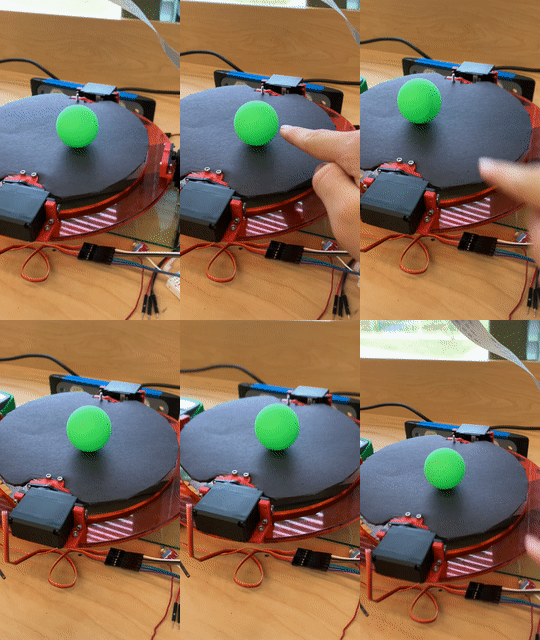

Final Code
import numpy as np
import cv2
from simple_pid import PID
from gpiozero import Servo
import time
from picamera import PiCamera
from gpiozero.pins.pigpio import PiGPIOFactory
from gpiozero import Device
import subprocess
import os

#camera = PiCamera()
#camera.start_recording('/home/pi/Videos/penis.h264')

Xval = 0
Yval = 0
servoOutputX = 0
servoOutputY = 0
Xcenter = 0.0
Ycenter = 0.12
SPX = 80
SPY = 80
OutputLimit = .08
PID.sample_time = 10
#subprocess.Popen(["pigpiod"])

kernel = np.ones((5,5),np.uint8)

# Take input from webcam
filename = '/home/pi/Videos/FunctionalVideo.avi'
frames_per_second = 24.0


# Video Encoding, might require additional installs
# Types of Codes: http://www.fourcc.org/codecs.php
VIDEO_TYPE = {
    'avi': cv2.VideoWriter_fourcc(*'XVID'),
}

def get_video_type(filename):
    filename, ext = os.path.splitext(filename)
    if ext in VIDEO_TYPE:
      return  VIDEO_TYPE[ext]
    return VIDEO_TYPE['avi']


cap = cv2.VideoCapture(0)
out = cv2.VideoWriter(filename, get_video_type(filename), 25, (SPX*2, SPY*2))


# Reduce the size of video to 320x240 so rpi can process faster
cap.set(3,SPX*2)
cap.set(4,SPY*2)

def nothing(x):
    pass
# Creating a windows for later use
cv2.namedWindow('PID')


# Creating track bar for min and max for PID
# You can adjust the defaults as you like
cv2.createTrackbar('P', 'PID',130,500,nothing)
cv2.createTrackbar('I', 'PID',100,500,nothing)
cv2.createTrackbar('D', 'PID',70,500,nothing)
Device.pin_factory = PiGPIOFactory()


servoX = Servo(19)
servoY = Servo(13)

pidX = PID(0.07, 0.05, 0.03, setpoint=SPX)
pidX.output_limits = (-OutputLimit, OutputLimit)
pidY = PID(0.07, 0.05, 0.03, setpoint=SPY)
pidY.output_limits = (-OutputLimit, OutputLimit)
try:
    while(1):
        ret, frame = cap.read()
        out.write(frame)

        #converting to HSV
        hsv = cv2.cvtColor(frame,cv2.COLOR_BGR2HSV)
        hue,sat,val = cv2.split(hsv)

        hmn = 49
        hmx = 83


        smn = 48
        smx = 245


        vmn = 95
        vmx = 176

        # get info from track bar and appy to result
        p = cv2.getTrackbarPos('P','PID')
        i = cv2.getTrackbarPos('I','PID')
        d = cv2.getTrackbarPos('D','PID')


        # Apply thresholding
        hthresh = cv2.inRange(np.array(hue),np.array(hmn),np.array(hmx))
        sthresh = cv2.inRange(np.array(sat),np.array(smn),np.array(smx))
        vthresh = cv2.inRange(np.array(val),np.array(vmn),np.array(vmx))

        # AND h s and v
        tracking = cv2.bitwise_and(hthresh,cv2.bitwise_and(sthresh,vthresh))

        # Some morpholigical filtering
        dilation = cv2.dilate(tracking,kernel,iterations = 1)
        closing = cv2.morphologyEx(dilation, cv2.MORPH_CLOSE, kernel)
        closing = cv2.GaussianBlur(closing,(5,5),0)

        # Detect circles using HoughCircles
        circles = cv2.HoughCircles(closing,cv2.HOUGH_GRADIENT,2,240,param1=120,param2=10,minRadius=10,maxRadius=0)
        # circles = np.uint16(np.around(circles))

        #Draw Circles
        if circles is not None:
            for ii in circles[0,:]:
                # If the ball is far, draw it in green
                Xval = ii[0]
                Yval = ii[1]
                cv2.circle(frame,(int(round(ii[0])),int(round(ii[1]))),2,(0,255,0),10)

    #you can use the 'buzz' variable as a trigger to switch some GPIO lines on Rpi :)
        # print buzz
        # if buzz:
            # put your GPIO line here


        XmyP = float(p)/1000.0
        XmyI = float(i)/1000.0
        XmyD = float(d)/1000.0
        YmyP = float(p)/1000.0
        YmyI = float(i)/1000.0
        YmyD = float(d)/1000.0

        pidX.tunings = (XmyP,XmyI,XmyD)
        pidY.tunings = (YmyP,YmyI,YmyD)

        servoOutputX = -1 * pidX(Xval)
        servoX.value = servoOutputX + Xcenter
        servoOutputY = pidY(Yval)
        servoY.value = servoOutputY + Ycenter


        cv2.imshow('PID',frame)


        #print("PIDY", YmyP, YmyI, YmyD)
        #print("PIDX", XmyP, XmyI, XmyD)
        print("COORDANITES:", "(",Xval,",",Yval,")")
        #print("SERVO VALUES:", servoOutputX, servoOutputY)
        k = cv2.waitKey(5) & 0xFF
        if k == 27:
            break
except KeyboardInterrupt:
    pass
cap.release()
out.release()
cv2.destroyAllWindows()
- This is taken from the camera thats also doing the image processing

* The wiring uses two servos a button and a switch, the other wires are for the camera cable, the RaspeberryPi documentation shows you how to do that
Though there are many cool designs to control the balancing plate online, like

which use more complex systems to create more precise or versatile movements, I went for the most basic of designs, which is one servo controls X, and the other controls Y. I orginally thought that we would need two servos per axis to balance out the weight of the servos, but the in the final design we decided to go with only one servo on each side.


- Circuitry

- Image of Final Project

-
Final Setup
-
Here is our final design and link to CAD
Build, in this project, was a practice in "rolling with it". At one point, only two of the four servos were working, one of the brackets was broken, the camera was incredibly laggy, and yet we were still making progress on making it balance. In reflection, maybe we should have focused on those problems instead of trying to push on, but this is a reflection, not a message to the past, so we didn't. But if we did this again, I would try and fix those basic build problems before using code.
The code works great. the main problem is that the image recognition isnt perfect. One way to fix this is better resolution, but we tried that and the Raspberry Pi couldn't loop fast enough before the ball fell off. We decided to do this project to one up our teachers PID example, when we looked at the logistics of it, we realized that we had to use a Raspberry Pi instead of a Metro Board. The extra difficutly was slightly overwhelming, but we tried. After we found inspiring code on the internet the project seemed tangible. It was. Look below for our main pointers on problems and the example code and how to use it is above, along with links to the websites we got them from. If I was to redo this project I would start doing the same thing, but I would figure out how to process the code on the computer so it can run faster. If it runs faster we can increase the resolution and in turn make the project more accurate and faster. Overall, Im proud of my project and hope that whoever imporves upon it or uses it can enjoy it too.
- The PiGPIO library for the servos requires you to
sudo pigpiodafter a restart. Don't know why, but it doesnt work otherwise. Here is the error message:Can't connect to pigpio at 127.0.0.1(8888) - The image recognition is very light sensative, and normally only works at a certain time of say. Use a wall or don't use it near a window.
- The example code for the image recognition doesn't work off of the site, its library imports are bad and ineffective. Skip straight to using the final code.
- The image recognition doesn't like reflections. Don't use acrylic for the plate.
- The recording portion of OpenCV is bad, but the computer won't let you connect more than one object to the PiCamera.
- The servos don't need as much of output capability as you think (PID code). Our prototype code lets the servos go from -0.06 to 0.06 htz.
- The camera module is on uneven ground, our design has two vertical supports that aren't perfectly vertical. With our camera in the middle, that means that our camera isnt perfectly centered. For an easy fix, you can change that in the setpoint in the
x = PID(kP, kI, kD, setpoint = a)