


A reusable, machine-readable schema for defining family custody / parenting schedules. Designed to be AI-friendly (JSON rules + examples) so you can generate clear messages, calendar entries, or visualizations for any given date.
This project provides:
- A neutral schema for defining parenting time schedules.
- A JSON template for rules (weekdays, weekends, holidays, exceptions).
- Worked examples (with ISO 8601 calendar week rotation).
- Clear handoff logic for school days and special Sunday rules.
You can reuse this schema for any co-parenting arrangement by changing the parties and rules.
✅ AI-Ready: JSON schema designed for LLM integration
✅ Legally Sound: ISO 8601 week numbering matches court documents
✅ Visual: Generate beautiful PNG calendars
✅ Flexible: Support for complex modulo rules and exceptions
✅ Type-Safe: Full Pydantic validation
✅ CLI + API: Use from command line or Python code
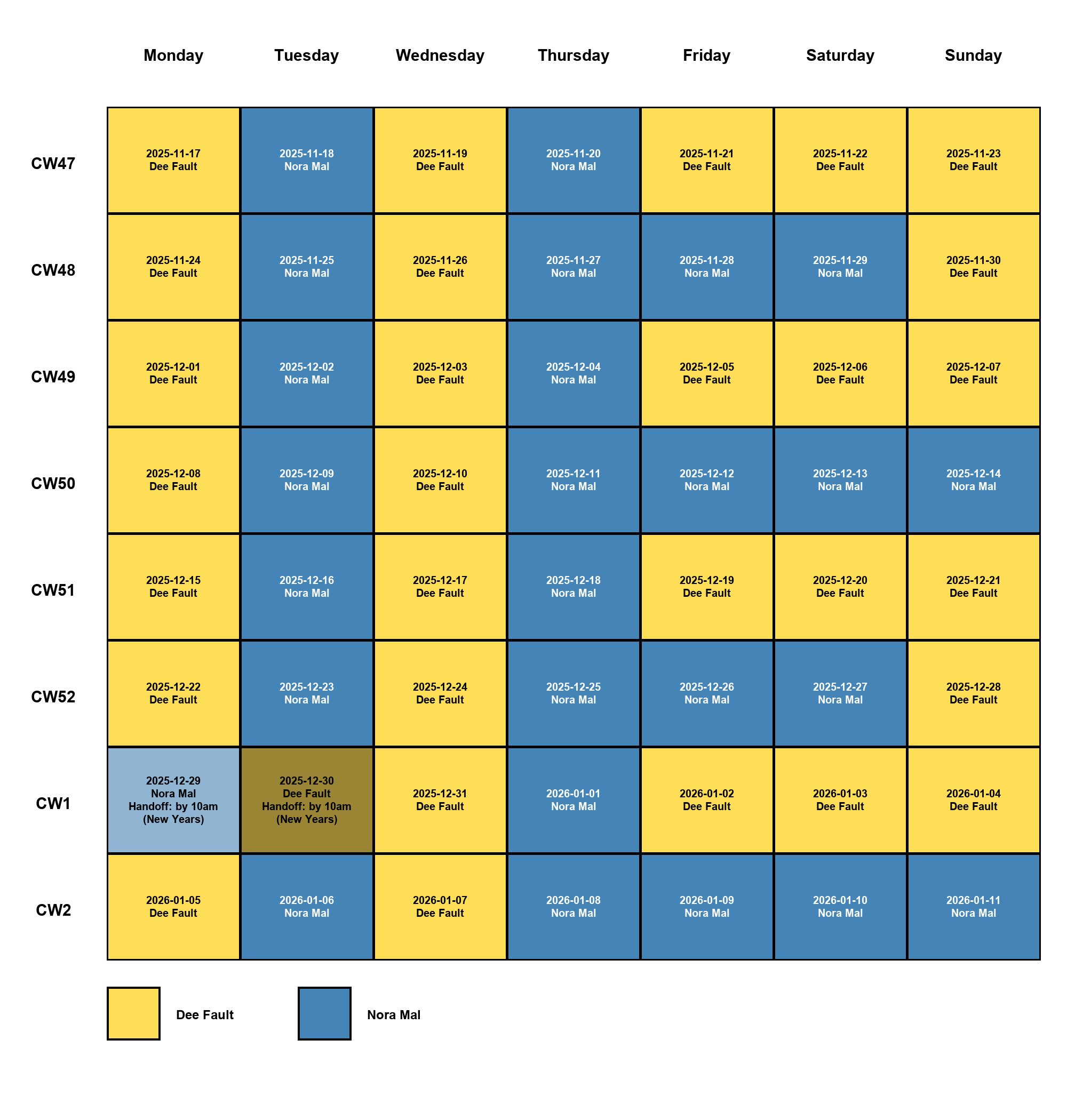
Hot pink = Guardian 1, Midnight blue = Guardian 2
The calendar color-codes each day by guardian (hot pink for Guardian 1, midnight blue for Guardian 2), making it easy to see custody patterns at a glance. You can export schedules in multiple formats (JSON, PNG) and customize colors to match your preferences.
$ family-schedulekit resolve 2025-02-23
{
  "date": "2025-02-23",
  "calendar_week": 8,
  "guardian": "guardian_2",
  "handoff": "guardian_2_to_guardian_1_by_1pm"
}-
Schedule Structure
- Schedules are organized by odd weeks and even weeks
- Each week (odd or even) defines custody for all 7 days
- Any day can use simple guardian assignment or complex modulo rules
-
Example Schedule
- Odd ISO weeks (CW1, CW3, CW5, …):
- Monday-Thursday → Guardian 1
- Friday-Sunday → Guardian 1
- Even ISO weeks (CW2, CW4, CW6, …):
- Monday → Guardian 2
- Tuesday → Guardian 1
- Wednesday → Guardian 2
- Thursday → Guardian 1
- Friday-Saturday → Guardian 2
- Sunday uses modulo rules based on calendar week number:
- If
CW % 4 == 0: Guardian 2 has Sunday - Otherwise: Guardian 1 has Sunday
- If
- Odd ISO weeks (CW1, CW3, CW5, …):
-
Handoffs
- Default handoff location applies whenever custody changes between guardians
- Special handoffs can be configured for any weekday with specific times and guardians
- Example: Sunday Guardian 2 → Guardian 1 by 1 PM when Guardian 2 has custody
-
Calendar Week System
- Uses ISO 8601 week numbering (CW1 begins on the Monday containing the first Thursday of the year)
The default configuration format is YAML (JSON is also supported).
version: "1.0.0"

parties:
  guardian_1: Dee Fault
  guardian_2: Nora Mal
  children:
    - Buggy
    - Piplet

calendar_week_system: ISO8601

handoff:
  default_location: school
  special_handoffs:
    sunday:
      from_guardian: guardian_2
      to_guardian: guardian_1
      time:
        hour: 13
        minute: 0
        by: true
      description: guardian_2_to_guardian_1_by_1pm

rules:
  odd_weeks:
    monday: guardian_1
    tuesday: guardian_1
    wednesday: guardian_1
    thursday: guardian_1
    friday: guardian_1
    saturday: guardian_1
    sunday: guardian_1
  even_weeks:
    monday: guardian_2
    tuesday: guardian_1
    wednesday: guardian_2
    thursday: guardian_1
    friday: guardian_2
    saturday: guardian_2
    sunday:
      modulo_rules:
        - modulo: 4
          remainder: 0
          guardian: guardian_2
      otherwise: guardian_1

holidays:
  "2025-12-25": guardian_1
  "2025-07-04": guardian_2

visualization:
  guardian_1: hotpink
  guardian_2: midnightblue
  holiday: lightblue
unknown: grayNote: Both YAML (
.yaml,.yml) and JSON (.json) formats are supported. YAML is recommended for better readability.
The schema supports flexible modulo rules for even-week days, allowing complex rotation patterns beyond simple alternating weeks.
sunday:
  modulo_rules:
    - modulo: 4
      remainder: 0
      guardian: guardian_2
otherwise: guardian_1modulo: The divisor for the modulo operation (≥2)remainder: The target remainder when CW % modulo is calculated (0 to modulo-1)guardian: Which parent gets custody when the rule matchesotherwise: Fallback guardian when no rules match
You can chain multiple modulo rules for a single day. Rules are evaluated in order:
saturday:
  modulo_rules:
    - modulo: 3
      remainder: 0
      guardian: guardian_1
    - modulo: 3
      remainder: 1
      guardian: guardian_2
  otherwise: guardian_2
This gives Guardian 1 every CW divisible by 3 (CW6, CW12, CW18...), Guardian 2 when CW%3==1 (CW4, CW10, CW16...), and Guardian 2 otherwise (CW8, CW14...).
even_weeks:
  monday: guardian_2
  tuesday: guardian_1
  wednesday: guardian_2
  thursday: guardian_1
  friday:
    modulo_rules:
      - modulo: 4
        remainder: 2
        guardian: guardian_1
    otherwise: guardian_2
  saturday:
    modulo_rules:
      - modulo: 3
        remainder: 0
        guardian: guardian_1
    otherwise: guardian_2
  sunday:
    modulo_rules:
      - modulo: 4
        remainder: 0
        guardian: guardian_2
otherwise: guardian_1Define specific dates that override normal schedule rules:
holidays:
  "2025-12-25": guardian_1
  "2025-07-04": guardian_2
  "2025-11-27": guardian_2
Dates must be in YYYY-MM-DD format. When a date appears in holidays, it completely overrides weekday/weekend rules.
Note: The holidays field is deprecated in favor of the more flexible swaps system (see below).
Use swaps for schedule exceptions with automatic visual differentiation and optional notes:
swaps:
  "2025-12-25":
    guardian: guardian_1
    note: Christmas
    handoff: at guardian_1's house by 10am
  "2025-07-04":
    guardian: guardian_2
    color: red
    note: 4th of July swap
  "2025-03-15":
    guardian: guardian_2
    note: Spring break trade
Swap Features:
- Automatic color shading: By default, swap days use a lighter/darker shade of the guardian's color
- Custom colors: Override with
"color": "red"or any named color/hex value - Notes: Add context with the
notefield (shown in visualizations) - Custom handoffs: Specify handoff details specific to this swap
Visualization Colors:
Configure swap shading and week start day in the visualization section:
visualization:
  guardian_1: hot_pink
  guardian_2: midnight_blue
  swap_shade_percent: 20
start_weekday: sundayswap_shade_percent: Controls how much to lighten (for dark colors) or darken (for light colors) swap dates. Default is 20%.start_weekday: First day of week in PNG calendars. Options:"monday"(default) or"sunday"
Configure specific handoff times and guardians for any weekday:
handoff:
  default_location: school
  special_handoffs:
    sunday:
      from_guardian: guardian_2
      to_guardian: guardian_1
      time:
        hour: 13
        minute: 0
        by: true
      description: guardian_2_to_guardian_1_by_1pm
    friday:
      from_guardian: guardian_1
      to_guardian: guardian_2
      time:
        hour: 15
        minute: 30
      description: Weekend pickup at school
Time Format:
hour: Integer 0-23 (required)minute: Integer 0-59 (default: 0)use_24h: Boolean, use 24-hour format (default: false = 12-hour AM/PM)by: Boolean, indicates "by this time" vs "at this time" (default: false)
Time Examples:
time:
  hour: 13
  minute: 0                    # 1:00 PM (or 1PM)

time:
  hour: 15
  minute: 30                   # 3:30 PM

time:
  hour: 18
  minute: 0
  use_24h: true                # 18:00

time:
  hour: 13
  minute: 0
  by: true                     # by 1:00 PM
Special handoff rules apply when:
- The current day matches a configured weekday
- The guardian with custody matches
from_guardian - Then the handoff description will be included in the schedule
Examples:
Simple default handoff location:
handoff:
  default_location: school
Multiple special handoffs:
handoff:
  default_location: school
  special_handoffs:
    monday:
      from_guardian: guardian_2
      to_guardian: guardian_1
      time:
        hour: 18
        minute: 0
      description: Guardian 2 drops off at Guardian 1's house
    thursday:
      from_guardian: guardian_1
      to_guardian: guardian_2
      time:
        hour: 17
minute: 0When exporting PNG calendars, special handoffs with time information are rendered as gradients to visually show the custody transition:
How It Works:
For a handoff configured to complete at 1PM (13:00):
special_handoffs:
  sunday:
    from_guardian: guardian_2
    to_guardian: guardian_1
    time:
      hour: 13
      minute: 0
      by: true
    description: guardian_2_to_guardian_1_by_1pm
Visual Result in PNG:
- Top section (midnight to 11AM): Solid
from_guardiancolor - they have custody in the morning - Gradient section (11AM to 1PM): Smooth color transition - handoff is happening
- Bottom section (1PM to midnight): Solid
to_guardiancolor - handoff complete
Key Features:
- Gradients only appear when the special handoff applies (resolver adds the description to the record)
- 2-hour gradient window before the handoff time for visual clarity
- Clear visual indication of who has custody before and after the handoff
- Works automatically when
configis passed torender_schedule_image()
Example:
from family_schedulekit import ScheduleConfigModel, render_schedule_image
from family_schedulekit.exporter import resolve_range
from datetime import date
from pathlib import Path

config = ScheduleConfigModel(**config_data)
records = resolve_range(date(2025, 2, 17), weeks=4, cfg=config)

render_schedule_image(
    records=records,
    start=date(2025, 2, 17),
    weeks=4,
    out_path=Path("schedule.png"),
    config=config,  # Pass config to enable gradient feature
)
The CLI automatically enables gradients when using the --config option:
family-schedulekit export --start 2025-02-17 --weeks 4 --formats png --config my-schedule.yamlCustomize PNG calendar colors using any of the 147 CSS3 color names or hex strings:
visualization:
  guardian_1: coral
  guardian_2: steelblue
  holiday: gold
  unknown: lightgray
All CSS3 Color Names Supported:
The library supports all 147 standard CSS3 color names via the webcolors library, including:
- Pinks:
pink,hotpink,deeppink,lightpink,palevioletred, etc. - Blues:
blue,darkblue,midnightblue,lightblue,skyblue,steelblue,navy, etc. - Greens:
green,darkgreen,lightgreen,forestgreen,lime,limegreen,seagreen, etc. - Purples:
purple,lavender,violet,indigo,orchid,plum, etc. - Oranges/Reds:
orange,coral,red,crimson,tomato,orangered,salmon, etc. - Yellows:
yellow,gold,goldenrod,khaki, etc. - Grays:
gray,grey,lightgray,darkgray,silver,dimgray, etc. - And many more:
chocolate,sienna,wheat,beige,ivory,snow, etc.
View All Available Colors:
To see the complete list of 147 colors with visual previews in your terminal:
family-schedulekit list-colorsThis command displays all color names with colored swatches, RGB values, and shows exactly what value to use in your schema.
You can also use hex strings: "#FF1493", "#81C995", etc.
Default Colors:
guardian_1:hotpink(RGB: 255, 105, 180)guardian_2:midnightblue(RGB: 25, 25, 112)holiday:lightblue(RGB: 173, 216, 230)unknown:gray(RGB: 128, 128, 128)
Requires Python 3.13+ (supports up to Python 3.14).
Install from PyPI:
pip install family-schedulekitOr with uv:
uv add family-schedulekitClone the repository and install with dev dependencies:
git clone https://github.com/weekendsuperhero/family-schedulekit
cd family-schedulekit
uv sync --extra dev
uv sync --extra devinstalls runtime dependencies along with ruff, pytest, mypy, Pillow, and argcomplete.
# 1. Create a schedule configuration
family-schedulekit init --guardian-1 "Parent A" --guardian-2 "Parent B" --child "Child Name"

# 2. Check who has custody today
family-schedulekit resolve $(date +%Y-%m-%d)

# 3. Export a visual calendar
family-schedulekit export --weeks 4 --formats png
See your schedule at schedule_YYYY-MM-DD.png!
The CLI uses a configuration file to store your schedule settings. By default, configs are stored in:
~/.config/family-schedulekit/schedule.yaml
This follows the XDG Base Directory specification for user configuration files.
Format Support: The tool supports both YAML (.yaml, .yml) and JSON (.json) formats. YAML is recommended for better readability, but JSON is fully supported for backward compatibility.
Config Versioning: All config files include a version field (currently 1.0.0) to track schema changes and ensure compatibility as the project evolves.
# Generate a new schedule configuration (saves to ~/.config/family-schedulekit/schedule.yaml)
family-schedulekit init --guardian-1 ParentA --guardian-2 ParentB --child Child1 --child Child2

# Or specify a custom location (supports .yaml, .yml, or .json)
family-schedulekit init --guardian-1 ParentA --guardian-2 ParentB --child Child1 --child Child2 -o path/to/config.yaml

# Resolve a specific date (uses ~/.config/family-schedulekit/schedule.yaml by default)
family-schedulekit resolve 2025-02-23

# Resolve an entire week
family-schedulekit resolve --week-of 2025-02-23

# List available templates
family-schedulekit list-templates

# List all 147 CSS3 color names with terminal preview
family-schedulekit list-colors

# Export multi-format schedule files (defaults to most recent Monday, uses your config)
family-schedulekit export --weeks 6 --formats json png

# Or specify a custom start date
family-schedulekit export --start 2025-02-03 --weeks 6 --formats json png

# Use a different config file (supports .yaml, .yml, or .json)
family-schedulekit export --config path/to/config.yaml --weeks 6 --formats png
ℹ️ PNG export requires Pillow, which is included with the base install.
PNG Color Scheme: Calendar visualizations use color-coded cells to distinguish guardians. The default colors are:
- Guardian 1:
hotpink(RGB: 255, 105, 180) - Guardian 2:
midnightblue(RGB: 25, 25, 112) - Holiday override:
lightblue(RGB: 173, 216, 230)
The colors are chosen for high contrast and accessibility, with automatic text color selection (black or white) based on background luminance. You can customize colors using any of the 147 CSS3 color names or hex values (see Visualization Colors).
If you use uv:
# Sync project dependencies (runtime + dev extras)
uv sync --extra dev

# Run commands in the managed environment
uv run --extra dev pytest
uv run family-schedulekit export --start 2025-02-03 --weeks 6 --formats png
The workspace uv.lock should be committed so collaborators resolve the exact versions.
Auto-complete subcommands and options using argcomplete:
Bash:
# Enable once per shell session
eval "$(register-python-argcomplete family-schedulekit)"

# Or install permanently
register-python-argcomplete family-schedulekit >> ~/.bash_completion
source ~/.bash_completion
Zsh:
# Add to ~/.zshrc
autoload -U bashcompinit && bashcompinit
eval "$(register-python-argcomplete family-schedulekit)"

# Reload your shell
source ~/.zshrc
Fish:
# Generate and save completions
register-python-argcomplete --shell fish family-schedulekit > ~/.config/fish/completions/family-schedulekit.fish

# Reload completions
source ~/.config/fish/completions/family-schedulekit.fishfrom family_schedulekit import resolve_for_date, load_default_config
from datetime import date
config = load_default_config()
result = resolve_for_date(date(2025, 2, 23), config)
print(result)
# {'date': '2025-02-23', 'calendar_week': 8, 'guardian': 'guardian_2', 'handoff': 'guardian_2_to_guardian_1_by_1pm'}You can customize calendar visualization colors programmatically:
from family_schedulekit.visualizer import render_schedule_image
from family_schedulekit.exporter import resolve_range
from family_schedulekit import load_default_config
from datetime import date
from pathlib import Path

config = load_default_config()
records = resolve_range(date(2025, 2, 3), weeks=6, cfg=config)

# Custom color palette (CSS3 color names, hex strings, or RGB tuples)
custom_palette = {
    "guardian_1": "coral",          # CSS3 color name (147 colors available)
    "guardian_2": "steelblue",      # CSS3 color name
    "holiday": "#FFD700"            # Hex string
    # Can also use RGB tuples: "guardian_1": (242, 139, 130)
}

render_schedule_image(
    records=records,
    start=date(2025, 2, 3),
    weeks=6,
    out_path=Path("custom_schedule.png"),
    palette=custom_palette
)
Default colors:
guardian_1:hotpink(RGB: 255, 105, 180)guardian_2:midnightblue(RGB: 25, 25, 112)holiday:lightblue(RGB: 173, 216, 230)unknown:gray(RGB: 128, 128, 128)
See all 147 available CSS3 color names: family-schedulekit list-colors
Generate comprehensive context for AI assistants to understand and work with your schedule:
# Generate AI context with schema and examples
family-schedulekit ai-context --weeks 4 --output ai-context.json

# Or output to stdout for piping
family-schedulekit ai-context --date 2025-03-01 | jq .rules_summary
from family_schedulekit import generate_ai_context
from datetime import date
# Generate context for AI assistants
context = generate_ai_context(
target_date=date(2025, 3, 1),
weeks_ahead=4,
include_examples=True,
include_schema=True
)
# Context includes:
# - JSON schema for validation
# - Human-readable rules
# - Resolved schedule examples
# - Decision-making examples
# - AI-specific instructionsThe AI context includes everything needed for LLMs to:
- Make custody decisions for any date
- Draft schedule-aware messages
- Plan activities considering handoff times
- Resolve scheduling conflicts
- Generate calendar entries
Make sure you installed with pip install family-schedulekit not just cloning the repo.
Pillow is required and should install automatically. If not:
pip install PillowBash:
# Add to ~/.bashrc or ~/.bash_profile
eval "$(register-python-argcomplete family-schedulekit)"
source ~/.bashrc
Zsh:
# Add to ~/.zshrc
autoload -U bashcompinit && bashcompinit
eval "$(register-python-argcomplete family-schedulekit)"
source ~/.zshrc
Fish:
# Generate completions file
register-python-argcomplete --shell fish family-schedulekit > ~/.config/fish/completions/family-schedulekit.fishThe default config location is ~/.config/family-schedulekit/schedule.yaml. Create it with:
family-schedulekit init --guardian-1 "Parent A" --guardian-2 "Parent B" --child "Child Name"Open an issue: https://github.com/weekendsuperhero/family-schedulekit/issues
Dual Licensed: This project is available under two licenses:
- PolyForm Noncommercial 1.0.0 (free) for personal, educational, and non-commercial use with attribution
- Commercial License (paid) for business and commercial use
Non-Commercial (FREE with Attribution):
- Individual personal use ✓
- Educational purposes ✓
- Non-profit organizations ✓
- Academic research ✓
- Open-source projects (non-commercial) ✓
- Requires: Preserve copyright notice and license terms
Commercial (PAID LICENSE REQUIRED):
- Business or enterprise use
- Commercial products or services
- Revenue-generating applications
- For-profit organizations
- Internal business operations
For commercial licensing inquiries:
- Email: weekend@weekendsuperhero.io
- Web: https://weekendsuperhero.io/family-schedulekit/licensing
- 30-day free trials available!
See LICENSING.md for detailed information about:
- License comparison and FAQ
- Commercial pricing tiers (starting at $499/year)
- How to obtain a commercial license
- Compliance requirements
Quick links:
- LICENSE - Main license overview
- LICENSE-NONCOMMERCIAL - PolyForm Noncommercial 1.0.0 terms
- LICENSE-COMMERCIAL - Commercial license info
Required Notice: Copyright (c) 2025 Weekend Superhero LLC (https://weekendsuperhero.io)
© 2025 Weekend Superhero LLC. All rights reserved.