| Supported Targets | ESP32-P4 |
|---|
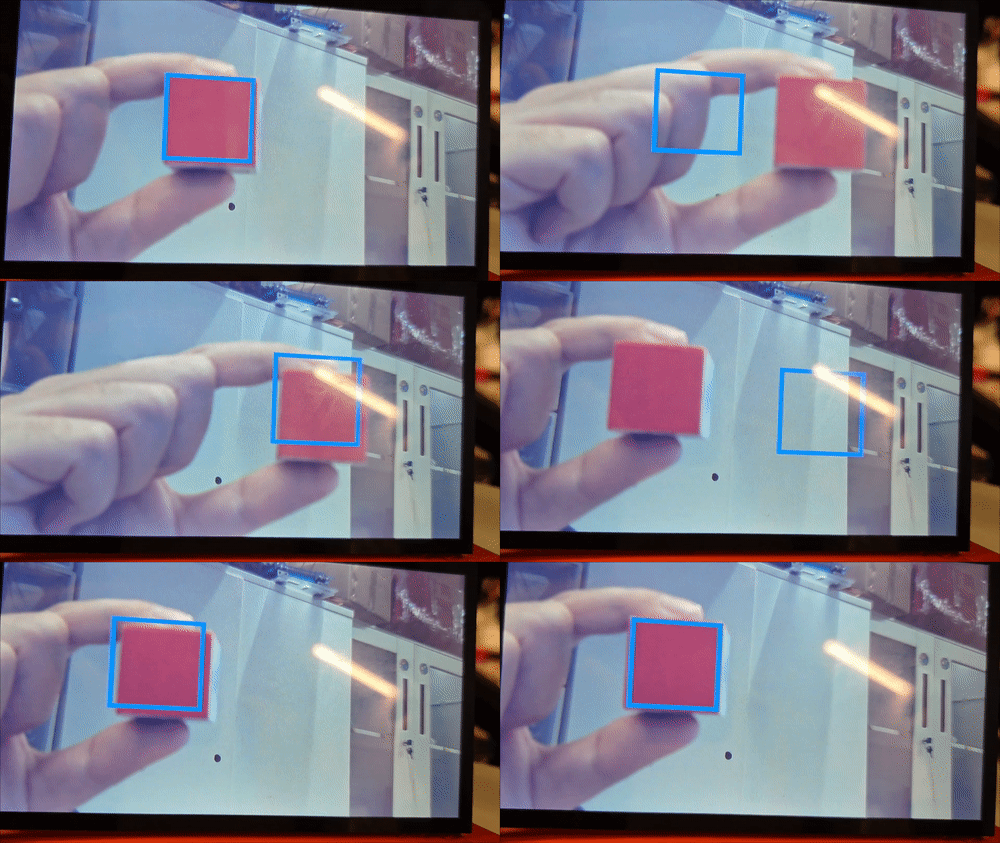
This example is based on the esp_video and opencv components, and demonstrates how to display the detect results on an LCD screen.
- This example supports ESP-IDF release/v5.4 and later branches. By default, it runs on ESP-IDF release/v5.4.
- Please follow the ESP-IDF Programming Guide to set up the development environment. We highly recommend you Build Your First Project to get familiar with ESP-IDF and make sure the environment is set up correctly.
- An ESP32-P4-Function-EV-Board.
- A 7-inch 1024 x 600 LCD screen powered by the EK79007 IC, accompanied by a 32-pin FPC connection adapter board (LCD Specifications).
- A MIPI-CSI camera powered by the SC2336 IC, accompanied by a 32-pin FPC connection adapter board (Camera Specifications).
- A USB-C cable for power supply and programming.
- Please refer to the following steps for the connection:
-
Step 1. According to the table below, connect the pins on the back of the screen adapter board to the corresponding pins on the development board.
Screen Adapter Board ESP32-P4-Function-EV-Board 5V (any one) 5V (any one) GND (any one) GND (any one) PWM GPIO26 LCD_RST GPIO27 -
Step 2. Connect the FPC of LCD through the
MIPI_DSIinterface. -
Step 3. Connect the FPC of Camera through the
MIPI_CSIinterface. -
Step 4. Use a USB-C cable to connect the
USB-UARTport to a PC (Used for power supply and viewing serial output). -
Step 5. Turn on the power switch of the board.
-
Run idf.py menuconfig and navigate to the Example Configuration menu, where you can configure the relevant pins and example-related options.
This example supports configuring two HSV ranges, and you can adjust the Primary Color Range and the Secondary Color Range separately to identify the colors you want. By default, the intervals are set for recognizing red.
Example Configuration  --->
    Primary Color Range  --->
        (0) Primary Lower H (Hue)
        (120) Primary Lower S (Saturation)
        (70) Primary Lower V (Value)
        (10) Primary Upper H (Hue)
        (255) Primary Upper S (Saturation)
        (255) Primary Upper V (Value)
    Secondary Color Range  --->
        (170) Secondary Lower H (Hue)
        (120) Secondary Lower S (Saturation)
        (70) Secondary Lower V (Value)
        (180) Secondary Upper H (Hue)
        (255) Secondary Upper S (Saturation)
        (255) Secondary Upper V (Value)
As well, in the Espressif Camera Sensors Configurations, the camera sensor can be selected.
Component config  --->
    Espressif Camera Sensors Configurations  --->
        [*] SC2336  ---->
            Default format select for MIPI (RAW8 1280x720 30fps, MIPI 2lane 24M input)  --->
                (X) RAW8 1280x720 30fps, MIPI 2lane 24M input
Build the project and flash it to the board, then run monitor tool to view serial output (replace PORT with your board's serial port name):
idf.py -p PORT flash monitorTo exit the serial monitor, type Ctrl-].
See the ESP-IDF Getting Started Guide for full steps to configure and use ESP-IDF to build projects.