
Turn any Linux PC and any mix of drives into a beautiful home server.
Mount drives. Share them. Protect them. Browse everything from one interface.
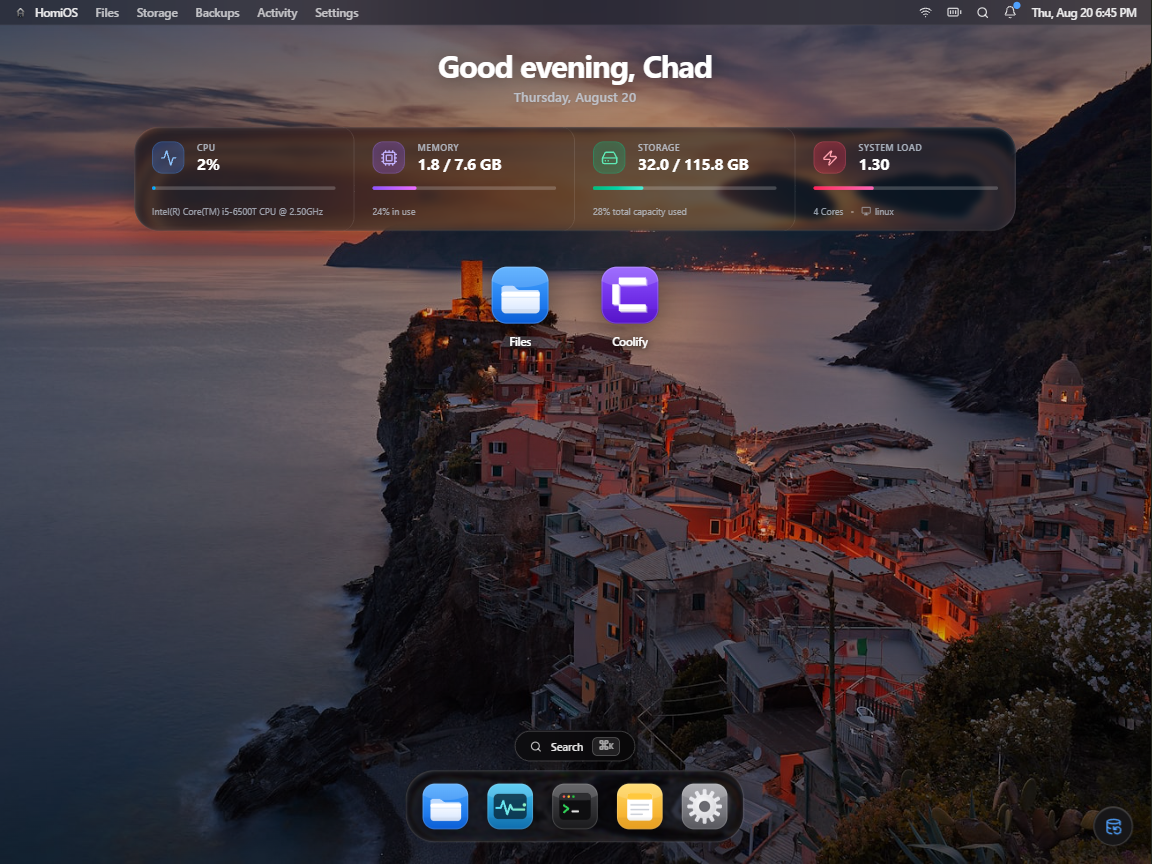
HomiOS is a self-hosted home server environment built around a simple idea:
Your homie doesn't judge what hardware you've got. Neither does HomiOS.
You shouldn't need a purpose-built NAS, matching drives, a rack server, or an expensive storage setup just to build a useful home server.
Have an old laptop? Use it.
A cheap mini PC? Perfect.
A SATA HDD, two random USB SSDs and an NVMe boot drive? HomiOS is designed for exactly that.
HomiOS sits on top of Linux and turns the hardware you already own into an approachable home server with a desktop-style interface for files, storage, sharing, local protection, system activity and optional self-hosted applications.
Instead of learning:
lsblk
blkid
mount
fstab
smb.conf
rsync
cron
systemctl
you get:
Mount
Share
Protect
Browse
HomiOS doesn't hide Linux.
It abstracts the parts you shouldn't have to manage manually.
HomiOS discovers connected storage and lets you manage it visually.
USB SSDs, SATA HDDs, NVMe drives and other Linux block storage can live together without forcing you into a traditional NAS architecture.
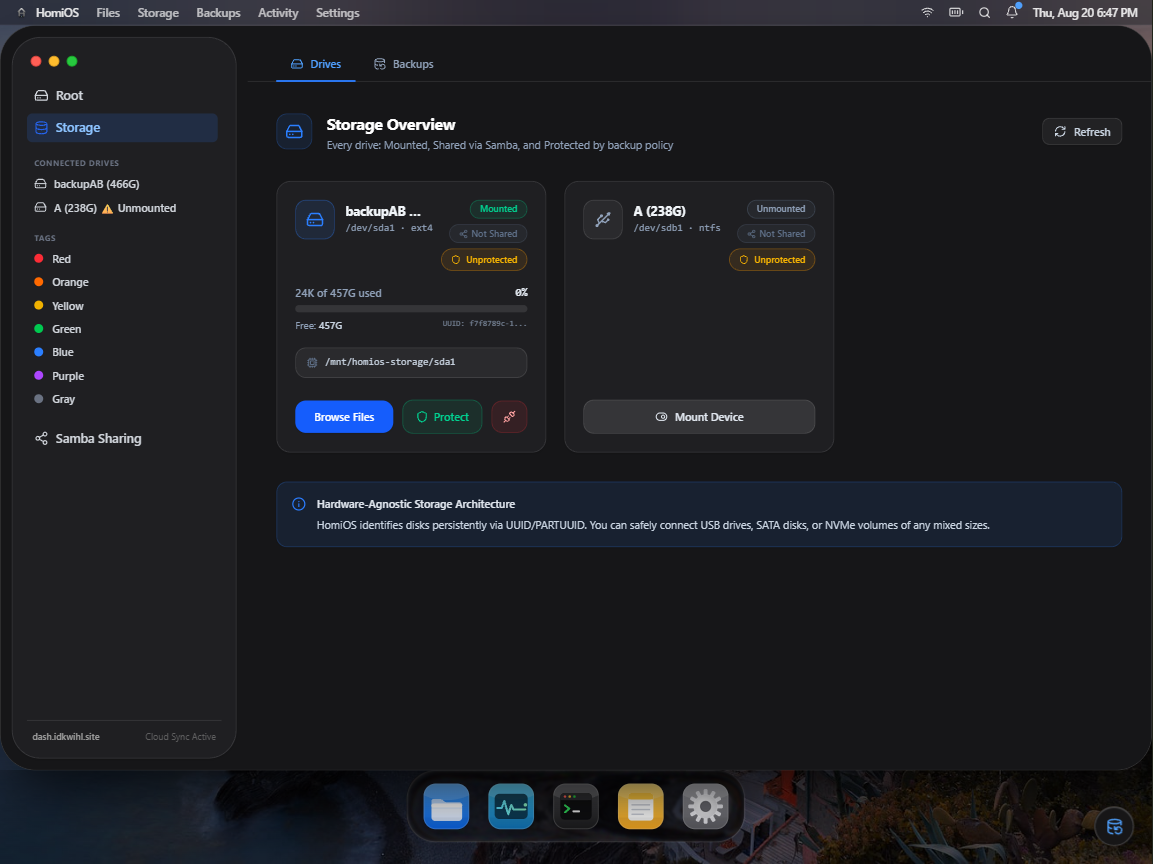
From the Storage interface you can:
- Detect connected drives
- Identify drives using persistent filesystem/partition UUIDs
- Mount and unmount storage
- Inspect capacity and usage
- See mount points
- Create Samba shares
- See whether a drive is protected
- Configure local protection policies
- Manage mismatched storage from one place
HomiOS tracks storage by persistent identity rather than relying on transient names such as /dev/sdb or /dev/sdc.
That means Linux can reorder devices after a reboot without changing which physical drive a HomiOS protection policy belongs to.
Your home server has a filesystem.
It should have a proper file manager too.
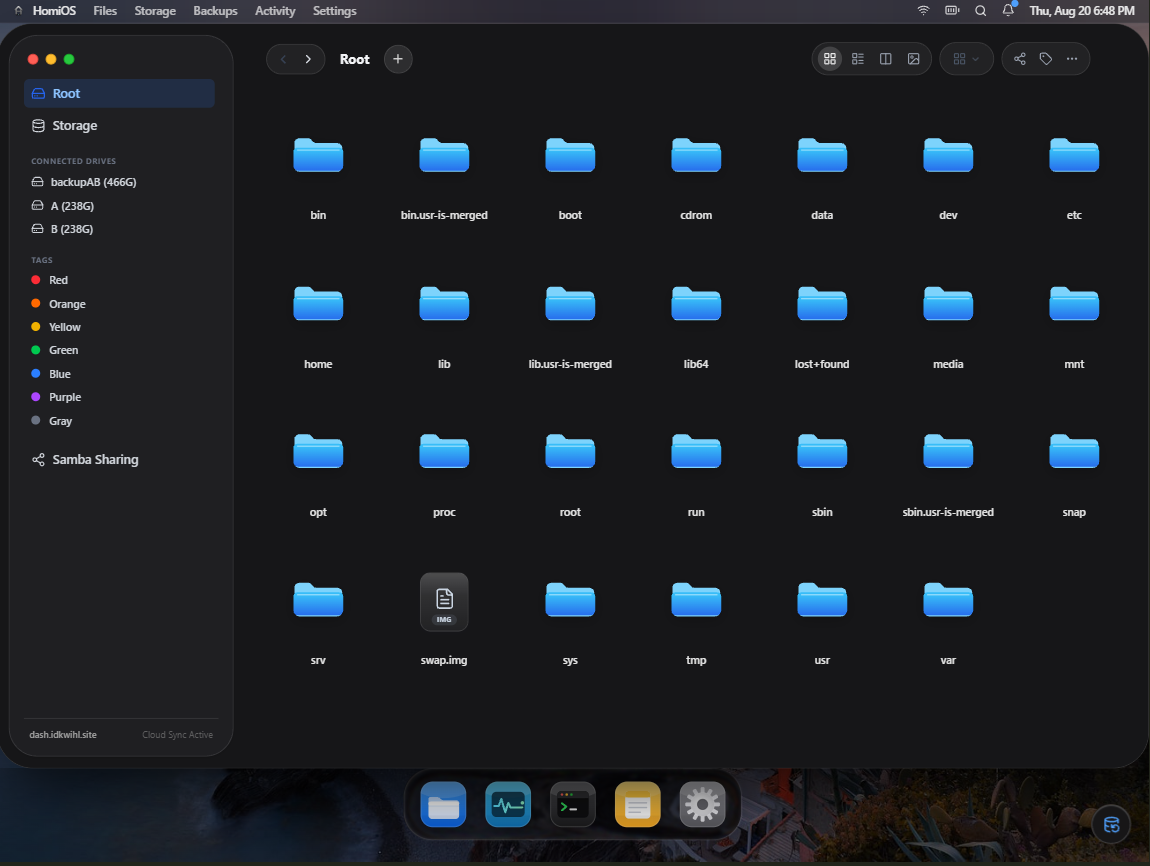
HomiOS provides a Finder-style environment for browsing and managing your server:
- Root filesystem access
- Connected drives in the sidebar
- Grid and alternative view modes
- File and folder operations
- Tags
- Quick navigation
- Storage integration
- Samba access
- Background transfer activity
- Search
- Desktop-style interaction
Advanced users still have Linux underneath.
Everyone else gets a filesystem they can actually use.
Not every home server needs RAID.
Sometimes you have:
240 GB USB SSD
        +
240 GB USB SSD
        ↓
500 GB SATA HDD
and you simply want the important data copied somewhere safer.
HomiOS provides Scheduled Local Protection between drives.
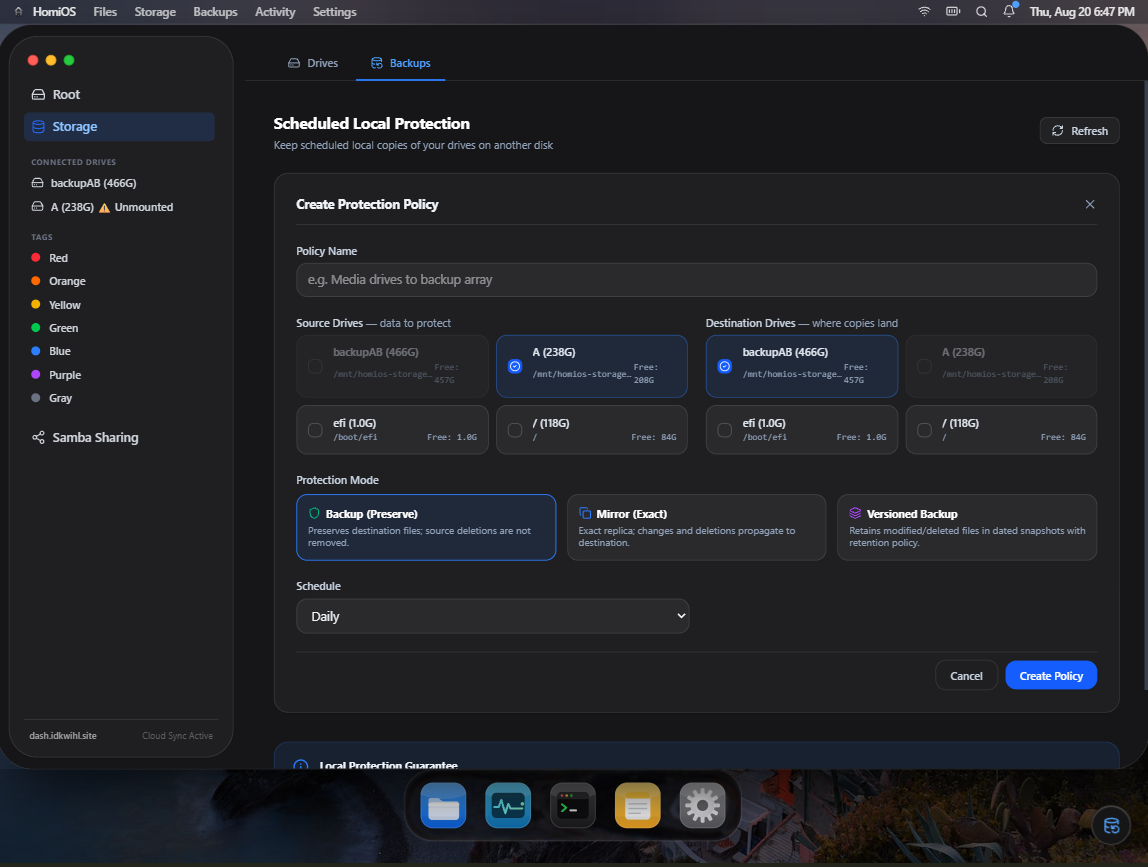
Choose a source, destination, protection mode and schedule.
Copies source data to another drive while preserving files already present at the destination.
Deleting something from the source does not automatically delete its existing backup.
Maintains an exact replica of the source.
Changes and deletions propagate to the destination.
Protects current data while retaining replaced and deleted versions under HomiOS-managed version storage.
Retention can be configured so old versions are eventually pruned.
HomiOS doesn't treat the existence of a backup configuration as proof that your data is protected.
Protection has explicit health states:
Healthy
Syncing
Overdue
At Risk
Not Yet Protected
Unprotected
For example, a configured protection plan whose destination drive has disappeared is At Risk, not Healthy.
Home servers aren't datacenters.
USB drives disconnect.
Disks fill up.
Machines reboot.
Device names change.
HomiOS's protection engine is designed around those realities.
File writes use temporary partial files before final promotion:
source
   ↓
.homios-partial-<job>-<uuid>
   ↓
copy
   ↓
verify
   ↓
atomic rename
   ↓
destination
A failed or interrupted copy therefore isn't intentionally promoted as a successfully completed destination file.
HomiOS also handles:
- Destination-full failures
- Mid-transfer drive disconnects
- Interrupted backup jobs
- Stale partial cleanup
- Persistent UUID-based drive identity
- Failed-job reporting
- Scheduled retry through the next protection run
HomiOS local protection is not RAID and not an off-site backup.
A local copy cannot protect you from every failure scenario. Theft, catastrophic hardware damage, malware, filesystem corruption or other machine-wide failures can affect multiple locally attached drives.
HomiOS describes these features as local protection rather than pretending that a second local disk makes your data indestructible.
Turn your HomiOS storage into network-accessible shares from the UI.
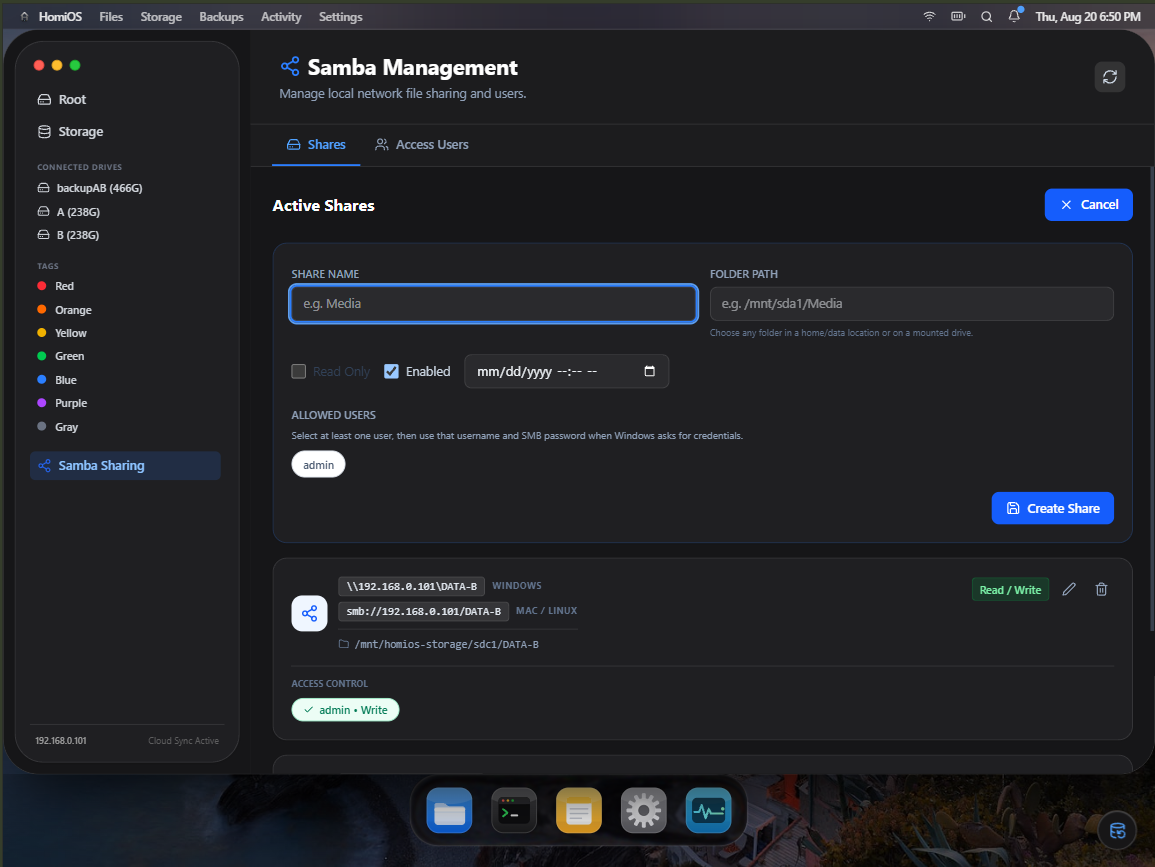
Select what you want to share, configure access and let HomiOS handle the underlying Samba configuration.
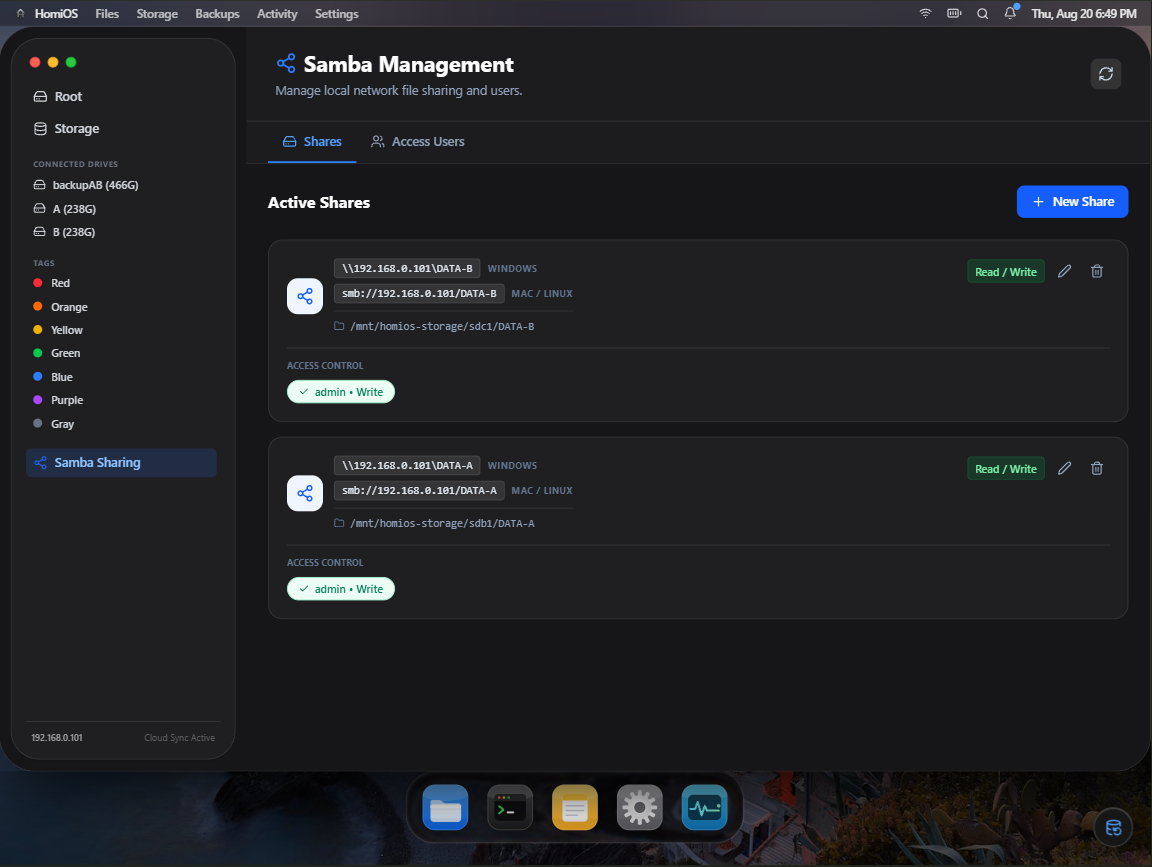
See and manage your server's shares without manually maintaining Samba configuration files.
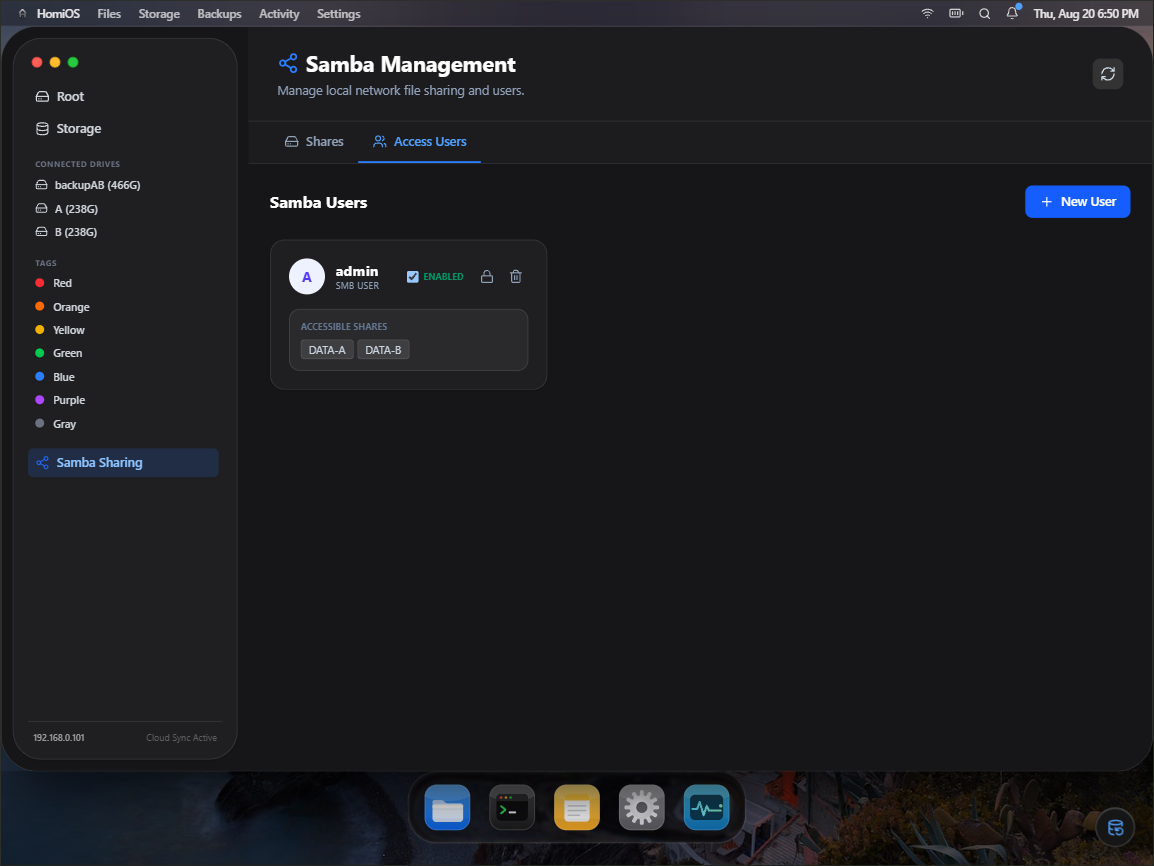
Manage the users that can access your network storage from the same interface.
The goal is simple:
Plug in a drive
      ↓
Mount
      ↓
Share
      ↓
Use it from your other devices
HomiOS is designed as an actual home-server environment rather than a collection of configuration pages.
The desktop provides live system telemetry for:
- CPU
- Memory
- Storage
- System load
Telemetry is actionable rather than decorative. System information connects back into the relevant management interfaces.
HomiOS also includes a Spotlight-style command interface for quickly reaching applications, drives, settings and actions.
Background work appears through a persistent Job Center with lifecycle information such as:
Scanning
   ↓
Comparing
   ↓
Copying
   ↓
Verifying
   ↓
Completed
Transfers can expose progress, file counts, throughput, ETA and actionable failures without forcing you into a terminal to figure out what the server is doing.
HomiOS can coexist with services such as Coolify and other self-hosted applications.
But HomiOS is not trying to become another homelab app-store dashboard.
There are already excellent tools for deploying containers.
HomiOS focuses on the layer underneath them:
the machine itself.
Hardware
   ↓
Drives
   ↓
Mounting
   ↓
Files
   ↓
Sharing
   ↓
Protection
   ↓
Applications
Optional integrations are capability-aware.
If an optional application isn't enabled, HomiOS doesn't pretend it exists. Its launcher, route and runtime integration can follow the same capability state.
Already running Coolify?
HomiOS doesn't need to take it over.
The installer supports explicit Coolify ownership modes:
managed
external
disabled
HomiOS manages the Coolify lifecycle. During installation it downloads the official deployment files and pulls a pinned official Coolify image; the Coolify source repository is not bundled inside HomiOS.
An existing Coolify installation belongs to you, not HomiOS.
HomiOS will not silently:
- reinstall it
- stop it
- modify its lifecycle
- take over its proxy
- reconfigure external networking
HomiOS operates without Coolify integration.
This ownership model lets HomiOS live alongside an existing production homelab instead of assuming it owns the entire machine.
The default HomiOS application port is:
8740
For direct LAN access:
http://YOUR_SERVER_IP:8740
A typical reverse-proxy deployment looks like:
Internet
   ↓
HTTPS / Cloudflare
   ↓
Reverse proxy
   ↓
HomiOS :8740
The unusual port is for avoiding common homelab/dev-service collisions — not as a security mechanism.
Authentication, network isolation, firewalling and HTTPS should still be configured appropriately.
HomiOS uses its internal cloud-storage subsystem to connect Google accounts and pool their Drive capacity. Create the OAuth credentials in the Google Cloud Console; no separate 9Drive UI or API key is required.
-
Enable the Google Drive API for the Google Cloud project.
-
Configure the OAuth consent screen. While the app is in Testing mode, add every Google account that will connect to HomiOS under Test users.
-
Create an OAuth client ID with application type Web application.
-
Add the public HTTPS origin of the HomiOS server under Authorized JavaScript origins. Use only the scheme and hostname, with no path or trailing slash.
-
Add the following exact callback under Authorized redirect URIs:
https://YOUR_HOMIOS_DOMAIN/api/cloud-drive/oauth-callback
For example, a HomiOS instance hosted at https://dash.idkwihl.site uses:
Authorized JavaScript origin:
https://dash.idkwihl.site

Authorized redirect URI:
https://dash.idkwihl.site/api/cloud-drive/oauth-callback
The redirect URI must match exactly, including the https scheme, hostname,
path, capitalization, and absence of a trailing slash. Copy the generated
Client ID and Client secret into the Google OAuth fields in the HomiOS
Settings app, save them, and then connect accounts from Add Cloud Account.
Cloud Drive keeps each connected provider account as a separate virtual root:
Cloud Drive
\-- user@example.com
    +-- Existing My Drive folders
    +-- Existing My Drive files
    \-- New HomiOS uploads
Opening a Google account root synchronizes its complete My Drive hierarchy into HomiOS metadata. Items that only appear under Shared with me are excluded unless they have been added to My Drive. Uploads and new folders created at an account root are written directly to that account's My Drive root; operations in nested folders retain the same account ownership. Rename, move, download, and delete operations are applied to Google Drive as well. Direct moves between two different connected accounts are rejected; use a copy/download-and-upload flow for cross-account transfers.
If Google authorization succeeds but HomiOS displays Could not connect cloud account, inspect the service log:
sudo journalctl -u homios --since "10 minutes ago" --no-pager \
  | grep -A12 -B2 "Google OAuth callback failed"
An ETIMEDOUT error for https://oauth2.googleapis.com/token means the HomiOS
server could not complete the outbound token exchange. On hosts with DNS records
for both address families but no working IPv6 route, Node's network-family
auto-selection can time out even when direct IPv4 connectivity works.
Compare IPv4 and IPv6 connectivity:
curl -4 -sS -o /dev/null \
  -w 'IPv4: HTTP %{http_code}, connect %{time_connect}s\n' \
  --connect-timeout 10 https://oauth2.googleapis.com/token

curl -6 -sS -o /dev/null \
  -w 'IPv6: HTTP %{http_code}, connect %{time_connect}s\n' \
  --connect-timeout 10 https://oauth2.googleapis.com/token
The token endpoint may return HTTP 404 for these GET requests; any HTTP response proves that the connection succeeded. If IPv4 succeeds while IPv6 fails, verify the Node-specific workaround before changing the service:
NODE_OPTIONS="--dns-result-order=ipv4first --no-network-family-autoselection" \
node -e "require('https').get('https://oauth2.googleapis.com/token',r=>{console.log('HTTP',r.statusCode);r.resume()}).on('error',console.error)"
If that command returns an HTTP status, apply the workaround only to HomiOS:
sudo mkdir -p /etc/systemd/system/homios.service.d

printf '%s\n' \
  '[Service]' \
  'Environment="NODE_OPTIONS=--dns-result-order=ipv4first --no-network-family-autoselection"' \
  | sudo tee /etc/systemd/system/homios.service.d/override.conf

sudo systemctl daemon-reload
sudo systemctl restart homios
Confirm that the running service received the setting:
sudo systemctl show homios -p Environment --value --no-pager \
  | grep -- '--no-network-family-autoselection'
Start a new Google connection after correcting connectivity. OAuth authorization codes are short-lived and single-use, so a code from a timed-out attempt cannot be retried.
HomiOS is intended for Linux home servers, particularly Ubuntu/Debian-based systems.
You'll need:
- A Linux machine
- Root/sudo access
- Network connectivity
- Whatever storage you already have
curl -fsSL https://raw.githubusercontent.com/abdlx/HomiOS/main/install.sh | sudo bashThe installer is designed to be part of the product experience:
One command
   ↓
Detect environment
   ↓
Preserve existing services
   ↓
Install HomiOS
   ↓
Start the service
   ↓
Open the UI
If Coolify already exists and HomiOS should not manage it:
curl -fsSL https://raw.githubusercontent.com/abdlx/HomiOS/main/install.sh | sudo bash -s -- --existing-coolifyThis puts Coolify into external ownership mode.
curl -fsSL https://raw.githubusercontent.com/abdlx/HomiOS/main/install.sh | sudo bash -s -- --non-interactiveCombine flags when required:
curl -fsSL https://raw.githubusercontent.com/abdlx/HomiOS/main/install.sh | sudo bash -s -- --existing-coolify --non-interactiveTraditional NAS software often assumes you're willing to build your machine around storage.
HomiOS starts from the opposite direction.
What hardware do you already have?
Maybe it's:
Old mini PC
├── 128 GB NVMe
├── 500 GB SATA HDD
├── 240 GB USB SSD
└── 240 GB USB SSD
That's enough.
Maybe next month you add another USB HDD.
That's fine too.
HomiOS is built around heterogeneous home-server hardware rather than demanding that the hardware conform to HomiOS.
That is where the name comes from.
Home + Homie + OS.
A homie doesn't judge what you've got.
Neither should your home server.
HomiOS exists for the pile of perfectly usable hardware sitting in people's homes.
Old laptops.
Office mini PCs.
External USB drives.
Leftover SATA disks.
Small SSDs.
Mismatched capacities.
Hardware that doesn't make sense for a pristine NAS build can still make an excellent home server.
HomiOS doesn't try to pretend Linux isn't there.
It gives common infrastructure operations human interfaces:
| Linux | HomiOS |
|---|---|
lsblk / blkid |
Drives |
mount / fstab |
Mount |
smb.conf |
Share |
rsync + scheduling |
Protect |
| filesystem commands | Files |
| process inspection | Activity |
Power users can still reach the underlying system.
Normal users don't need to start there.
HomiOS is not:
- A RAID implementation
- A replacement for off-site backups
- A reason to expose your server directly to the public internet
- A hypervisor
- Just another Docker application launcher
- A requirement to replace your existing homelab stack
It is the layer that makes ordinary Linux hardware easier to turn into a useful home server.
HomiOS is under active development.
Storage software deserves a higher reliability bar than ordinary dashboard software. Automated testing covers core behavior, but new releases should still be treated appropriately while real-world hardware validation expands.
If you're testing HomiOS, keep irreplaceable data backed up independently.
Issues, hardware reports and reproducible failure cases are especially valuable.
There are millions of machines that are already powerful enough to be home servers.
The problem isn't always hardware.
It's friction.
HomiOS is trying to turn:
"I have an old PC and some random drives."
into:
"I have a home server."
without requiring the user to become a storage administrator first.