Evergreen Task Statuses
Evergreen's New UI has the following task statuses. These statuses are described below.
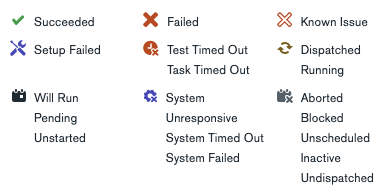
-
Succeeded - Task completed successfully
-
Failed - Task has failed. A task can fail either because a test failed or because a task command exited non-zero.
-
Known Issue - This is a subset of Failed, and it means that a failed task contains a task annotation with a non-empty issues list. Task annotations can be created by external services such as the Build Baron team’s failure triage tool, or can be added manually. Task annotation permissions are managed through MANA.
-
Setup Failed - Users can set a default failure type of "test", "system", or "setup". They can also set that type for individual commands. These cause a failing command to turn the task into a test (red), system (purple), or setup (lavender) failure.
-
Task Timed Out - A task timed out, whether due to a large cumulative time taken or a large amount of time for one single command. Evergreen tasks have a default timeout duration of 6 hours, and Evergreen commands have a default timeout duration of 2 hours. There are two types of timeouts in Evergreen, exec_timeout_secs and timeout_secs, and they are further documented here.
-
Dispatched - Evergreen has started to dispatch a task to a host, but the task is not yet being executed.
-
Running - Task is currently running.
-
Will Run - Task is in the task queue and will run in the future. Hasn’t been dispatched.
-
Pending - Pending tasks have unmet dependencies, but they will be queued to run.
-
System Unresponsive - System unresponsive means that the task has failed because Evergreen has not heard from the agent on that host in a while.
-
System Timed Out - System timed out means that there was a timeout (exec_timeout_secs or timeout_secs was reached) and the running command was labeled "system" (as opposed to "test" or "setup").
-
System Failed - Either a host was reaped or the host was terminated by AWS for some reason or the task has failed and the failing command was labeled “system” on the project’s YAML, as opposed to “test” or “setup”.
-
Aborted - Task was aborted, either by the user or by Evergreen. There are several ways to abort a running task. For example, users can manually abort a task from the task page, and they can abort all running tasks from the UI or CLI when restarting a patch. Additionally, tasks can be aborted by Evergreen in scenarios where doing so would conserve execution resources. For example, Evergreen can abort tasks in a given commit queue build, if any one task fails in that commit queue build, since there's no need to continue executing the build in that case. For PR-based workflows, a patch is created when you open a PR, and a new commit aborts all running tasks associated with the patch and creates a new patch.
-
Blocked - Task is blocked on a dependency, and the dependency has finished with a status other than the one the task depends on. If the task is configured to override dependencies the task will be set to run instead.
-
Unscheduled - Unscheduled tasks are not scheduled to run, and require action from the user in order to be executed by Evergreen.