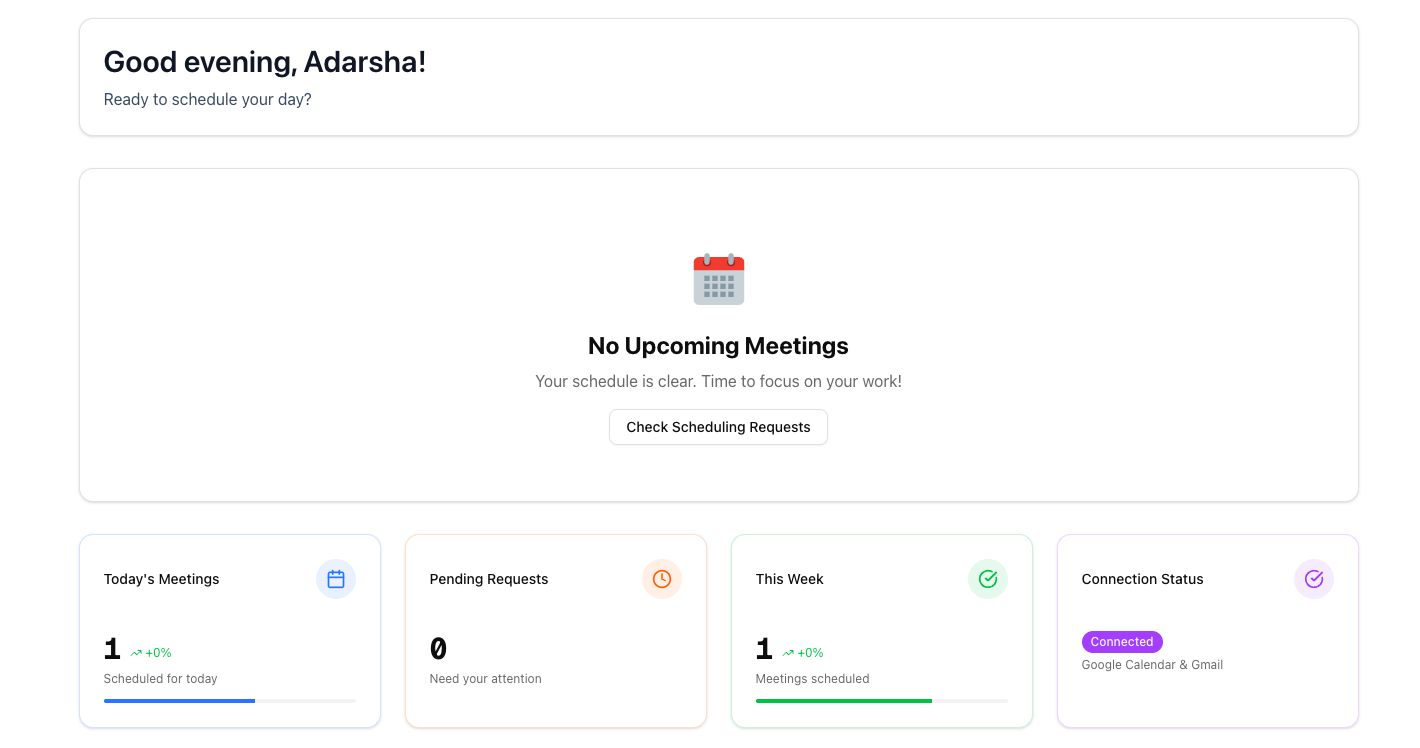
CC your scheduling emails to Cedular, and watch it handle everything automatically schedule, confirm, reschedule, and cancel meetings — all without leaving your email inbox.
- CC-to-Schedule: Simply CC your connected Cedular email address on any scheduling conversation—everything happens in your email inbox
- Schedule Meetings: Automatically finds optimal time slots and proposes them via email
- Confirm Meetings: When someone confirms a time, Cedular creates the calendar event automatically
- Reschedule Meetings: Handles reschedule requests by finding new available slots
- Cancel Meetings: Cancels meetings and updates calendar events when requested
- AI Chat Assistant: Chat with Cedular directly to check availability, schedule meetings, and manage your calendar—all from the dashboard
- AI-Powered: Intelligently interprets email content to understand scheduling intent (schedule, confirm, reschedule, cancel)
- ⚡ Zero Manual Work: Fully automated—no need to check emails or manually manage calendar events
- Dashboard & Tracking: Monitor email threads and meeting status in real-time
- Framework: Next.js 16
- Language: TypeScript
- Database: PostgreSQL with Prisma ORM
- Authentication: Better Auth
- AI: OpenAI SDK, Workflow Dev Kit
- Styling: Tailwind CSS
- UI Components: Radix UI
- Package Manager: pnpm
Before you begin, ensure you have the following installed:
- Node.js (v20 or higher)
- pnpm (v10 or higher)
- Docker and Docker Compose (for local PostgreSQL database)
- Google Cloud Account (for Gmail integration)
Here's how Cedular works—it's as simple as CC'ing an email:
The Flow:
Connect your Google account to get your dedicated Cedular email address. When you need to handle scheduling, just CC your Cedular email on any scheduling conversation. As soon as the email arrives, Gmail instantly notifies Cedular through push notifications.
Cedular intelligently analyzes the email content to understand what action is needed:
- Schedule: Finds optimal time slots based on your calendar and preferences, proposes them via email, and waits for confirmation
- Confirm: When someone confirms a proposed time, automatically creates the calendar event and syncs it to Google Calendar
- Reschedule: Finds new available slots and proposes alternative times
- Cancel: Cancels the meeting and updates your calendar automatically
All of this happens automatically without leaving your email inbox—Cedular handles the entire email conversation, manages your calendar, and keeps your dashboard updated. You can track progress and see statistics, but you never have to lift a finger. The entire scheduling workflow happens through email replies, so you can stay in your inbox where you already work.
flowchart TD
    A[Connect Google Account] --> B[Gmail Watch Established]
    B --> C[CC Cedular Email]
    C --> D[New Email Arrives]
    D --> E[Gmail Push Notification]
    E --> F[Cedular Receives Notification]
    F --> G[Analyze Email Content]
    G --> H{Detect Intent}

    H -->|Schedule| I[Find Optimal Time Slots]
    H -->|Confirm| J[Create Calendar Event]
    H -->|Reschedule| K[Find New Time Slots]
    H -->|Cancel| L[Cancel Meeting]
    H -->|Not Scheduling| M[Ignore]

    I --> N[Propose Times via Email]
    N --> O[Wait for Confirmation]
    O --> P{User Confirms?}
    P -->|Yes| J
    P -->|No| Q[Keep Waiting]

    J --> R[Sync to Google Calendar]
    K --> S[Propose New Times]
    S --> O
    L --> T[Update Calendar]

    R --> U[Update Dashboard]
    T --> U
    Q --> U
    M --> U
    U --> V[Track Progress & Statistics]
    V --> W[Real-time Status Updates]

    style A fill:#3b82f6,stroke:#1e40af,stroke-width:2px,color:#fff
    style B fill:#3b82f6,stroke:#1e40af,stroke-width:2px,color:#fff
    style C fill:#3b82f6,stroke:#1e40af,stroke-width:2px,color:#fff
    style D fill:#f59e0b,stroke:#d97706,stroke-width:2px,color:#fff
    style E fill:#f59e0b,stroke:#d97706,stroke-width:2px,color:#fff
    style F fill:#f59e0b,stroke:#d97706,stroke-width:2px,color:#fff
    style G fill:#10b981,stroke:#059669,stroke-width:2px,color:#fff
    style H fill:#10b981,stroke:#059669,stroke-width:2px,color:#fff
    style I fill:#8b5cf6,stroke:#7c3aed,stroke-width:2px,color:#fff
    style J fill:#10b981,stroke:#059669,stroke-width:2px,color:#fff
    style K fill:#f59e0b,stroke:#d97706,stroke-width:2px,color:#fff
    style L fill:#ef4444,stroke:#dc2626,stroke-width:2px,color:#fff
    style M fill:#6b7280,stroke:#4b5563,stroke-width:2px,color:#fff
    style N fill:#8b5cf6,stroke:#7c3aed,stroke-width:2px,color:#fff
    style O fill:#8b5cf6,stroke:#7c3aed,stroke-width:2px,color:#fff
    style P fill:#10b981,stroke:#059669,stroke-width:2px,color:#fff
    style Q fill:#6b7280,stroke:#4b5563,stroke-width:2px,color:#fff
    style R fill:#10b981,stroke:#059669,stroke-width:2px,color:#fff
    style S fill:#f59e0b,stroke:#d97706,stroke-width:2px,color:#fff
    style T fill:#ef4444,stroke:#dc2626,stroke-width:2px,color:#fff
    style U fill:#8b5cf6,stroke:#7c3aed,stroke-width:2px,color:#fff
    style V fill:#8b5cf6,stroke:#7c3aed,stroke-width:2px,color:#fff
    style W fill:#8b5cf6,stroke:#7c3aed,stroke-width:2px,color:#fff
Beyond email-based scheduling, Cedular also includes an AI chat assistant built into the dashboard. Chat directly with Cedular to:
- Check your calendar availability - Ask "What's on my calendar this week?"
- Schedule meetings - Say "Schedule a meeting with john@example.com next Tuesday at 2pm"
- Find optimal times - Request "Find a good time for a 1-hour meeting with the team"
- Manage events - Update or cancel meetings through conversation
- Get calendar insights - Ask questions about your schedule
The chat assistant uses the same calendar tools and AI capabilities as the email workflow, giving you a conversational interface for managing your calendar when you prefer typing over email.
-
Clone the repository (if applicable) or navigate to the project directory
-
Install dependencies:
pnpm install
This automatically runs
prisma generatepostinstall. -
Set up environment variables:
cp .env.example .env.local
Fill in the required values:
DATABASE_URL- PostgreSQL connection stringNEXT_PUBLIC_APP_URL- Your app URL (e.g.,http://localhost:3000)- Google OAuth credentials (
GOOGLE_CLIENT_ID,GOOGLE_CLIENT_SECRET) - Google OAuth redirect URIs
GOOGLE_CLOUD_PROJECT_ID(optional, for Gmail push notifications)GMAIL_PUBSUB_TOPIC(optional, for Gmail push notifications)CRON_SECRET(optional, for cron jobs)- Other optional integrations (OpenAI, Langfuse, etc.)
-
Start the database:
pnpm db:start
This starts a PostgreSQL instance using Docker Compose.
-
Run database migrations:
pnpm db:migrate
This applies all Prisma migrations and generates the Prisma client.
-
Start the development server:
pnpm dev
The app will be available at
http://localhost:3000.
Note: Restart the dev server after any
.env.localchanges.
Cedular requires Google Cloud setup for Gmail integration. Follow these steps:
- Complete the Google Cloud setup:
- Follow the full checklist in
docs/setups/GOOGLE_SETUP.md - It covers:
- Creating a Google Cloud project
- Setting up OAuth credentials
- Creating Pub/Sub topic and subscription
- Configuring ngrok for local webhook testing
- Understanding the Gmail watch/cron lifecycle
- Follow the full checklist in
- Register Gmail watch:
- After signing in with Gmail, call
GET http://localhost:3000/api/gmail/setup(or visit it in your browser) - This registers the Gmail watch for your account
- Important: Gmail watches expire after ~7 days. You can either:
- Manually call the setup endpoint again when it expires
- Rely on the cron endpoint (
/api/cron/renew-gmail-watches) protected byCRON_SECRET
- After signing in with Gmail, call
- For local Pub/Sub pushes use ngrok (
ngrok http 3000) and update the subscription’s push endpoint tohttps://<forwarding-url>/api/emails/webhook. - Production deployments should point
NEXT_PUBLIC_APP_URLand all Google redirect/webhook URLs to the live domain, secure secrets with your platform’s vault, and enable Pub/Sub authentication.
pnpm dev– Next.js dev server.pnpm build/pnpm start– production build and server.pnpm lint/pnpm typecheck– code quality checks.pnpm db:*– manage the PostgreSQL instance (start,stop,reset,studio,migrate,generate).pnpm eval:*– run Evalite commands for automated experiments (seeevalite.config.ts).
-
Ensure your
DATABASE_URLis set in your production environment:DATABASE_URL="prisma+postgres://accelerate.prisma-data.net/?api_key=..." -
Run production migrations:
pnpm db:migrate:deploy
-
Verify migrations:
pnpm db:migrate:status
Note:
- Use
prisma migrate deploy(notmigrate dev) for production - it applies pending migrations without creating new ones - For PostgreSQL, the
prisma+postgres://connection string works for both queries and migrations - If you're using other databases (MySQL, MongoDB, etc.) with
prisma://URLs, you may need aDIRECT_DATABASE_URLfor migrations
Make sure all production environment variables are set in your hosting platform (Vercel, etc.):
DATABASE_URL- Prisma Accelerate connection string (for app queries)DIRECT_DATABASE_URL- Direct PostgreSQL connection string (for migrations only)- All Google OAuth credentials
NEXT_PUBLIC_APP_URL- Your production domain- Other required variables from
.env.example
- Gmail watch expired: Gmail watches expire after ~7 days. Call
/api/gmail/setupagain or set up the cron job for automatic renewal. - Webhook not receiving events: Ensure ngrok is running and the Pub/Sub subscription push endpoint matches your ngrok URL.
- Database connection errors: Make sure Docker is running and the database container is up (
pnpm db:start).
For developers working on the codebase:
- Email stats and cards share a grid/column layout (cards stretch in large layouts, tables span available width) and use shared skeleton states under
src/app/(internal)/meetingand.../email-threads. - The webhook handler (
src/app/api/emails/webhook/route.ts) decodes Pub/Sub payloads, matches the assistant email, and kicks offprocessEmailFromHistory. - Use
/api/cron/renew-gmail-watcheswith theAuthorization: Bearer ${CRON_SECRET}header for scheduled renewals; logs appear with[Cron]and[Webhook]prefixes.
.env.example– all required environment variables for dev/local and optional integrations.docs/setups/GOOGLE_SETUP.md– canonical Google Cloud + Gmail flow (OAuth, Pub/Sub, ngrok, watches).src/app/api/gmail/setup/route.ts,src/lib/gmail-watch-renewal.ts,src/app/api/emails/webhook/route.ts– core server routes for Gmail integration.