-
First, download the minecraft server.jar
-
Then you will need NodeJs installed: version 6 or 7.
-
Then you need to get the zip project from here
-
Then drag the folder inside the zip (minecraftHue-master folder) to your desktop. You should open the folder, and see the app.js, appHue.js, README.md and NO OTHER FOLDERS INSIDE.
-
Drop the minecraft server.jar file into the minecraftHue-master folder.
-
Now, run the mineCraftHueSetup file from within the mineCraftHue-master folder. The mineCraftHueSetup script will first run an install. This will take about a minute. Just wait patiently.
-
Then a new windows will launch for you to set up philips Hue for minecraft. Follow the instructions: enter your minecraft username, and then you need to run and hit the button on your hue bridge.
-
You will only need to run this once if you follow the instructions and get a "Status: SUCCESS" after completion.
Once you see:
[17:13:07] [Server thread/INFO]: Game rule commandBlockOutput has been updated to false,
- Close the server console, and then launch the "Start MineCraft" file.
From now on, you just need to run the "Start MineCraft" file. There is need to re-run the minecraft hue bridge setup, unless you are starting a new server from scratch. LEAVE THE CONSOLE WINDOW OPEN
Connect to your Local running server by going to Multiplayer, Add Server, give your server a name, type: localhost under "Server Address", add, and connect.
Once you log into your server you can simply type: /say turnOn 1
...and that will turn on the first Hue bulb in your house.
or if you want to get creative, turn on creative mode in minecraft: /gamemode 1
then type / first, then backspace (so there is no '/' in the message box), then type:
command_block
The server will give you a command block. Place the command block, right click on the command block,
type /say turnOn 1. into the command block.
place another command block, and right click and put in: /say turnOff 1.
put pressure plates next to each block, then walk over them.
You should see your lights flicking on and off in the house.
CONGRATULATIONS!!

or stop by at my blog: audstanley.com
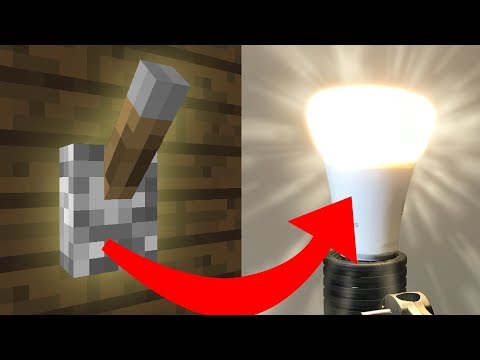
Also, shout out to OMGCraft. Thanks for making a video:
If you want to get push notifications every time someone logs onto your minecraft server, setup and account at pushover after creating a pushover account, you will see "You user Key" with a bunch of random looking letters and numbers. Copy it, then open philipsHue.json in your mineCraftHue-master folder,
and paste between quotation marks: "pushoverAPI": "HERE"
{
    "username": "not here",
    "hueUser": "not here",
    "pushoverAPI": "HERE",
    "pushoverAPP": "not here"
}
then on pushover.net, go to: "Your Applications (Create an Application/API Token)" You only need to give the application a name, something like: mineCraftHue. Copy the api(application) token (also more random looking letters and numbers), open philipsHue.json in your mineCraftHue-master folder.
paste the APP token inside the quotation marks: "pushoverAPP": "HERE"
{
    "username": "not here",
    "hueUser": "not here",
    "pushoverAPI": "not here",
    "pushoverAPP": "HERE"
}
Save the philipsHue.json file, then you should receive pushover notifications through the pushover application on Android or IOS everytime someone logs onto your server. Restart the server: if you made changes to your philipsHue file while you were running the server. Otherwise, just start the server.