

Android ADB desktop app.


AYA is a desktop application for easily controlling android devices, which can be considered as a GUI wrapper for ADB.
Click here to download and install AYA. Windows x64, Mac arm64, Mac x64 and Linux x86_64 are supported.
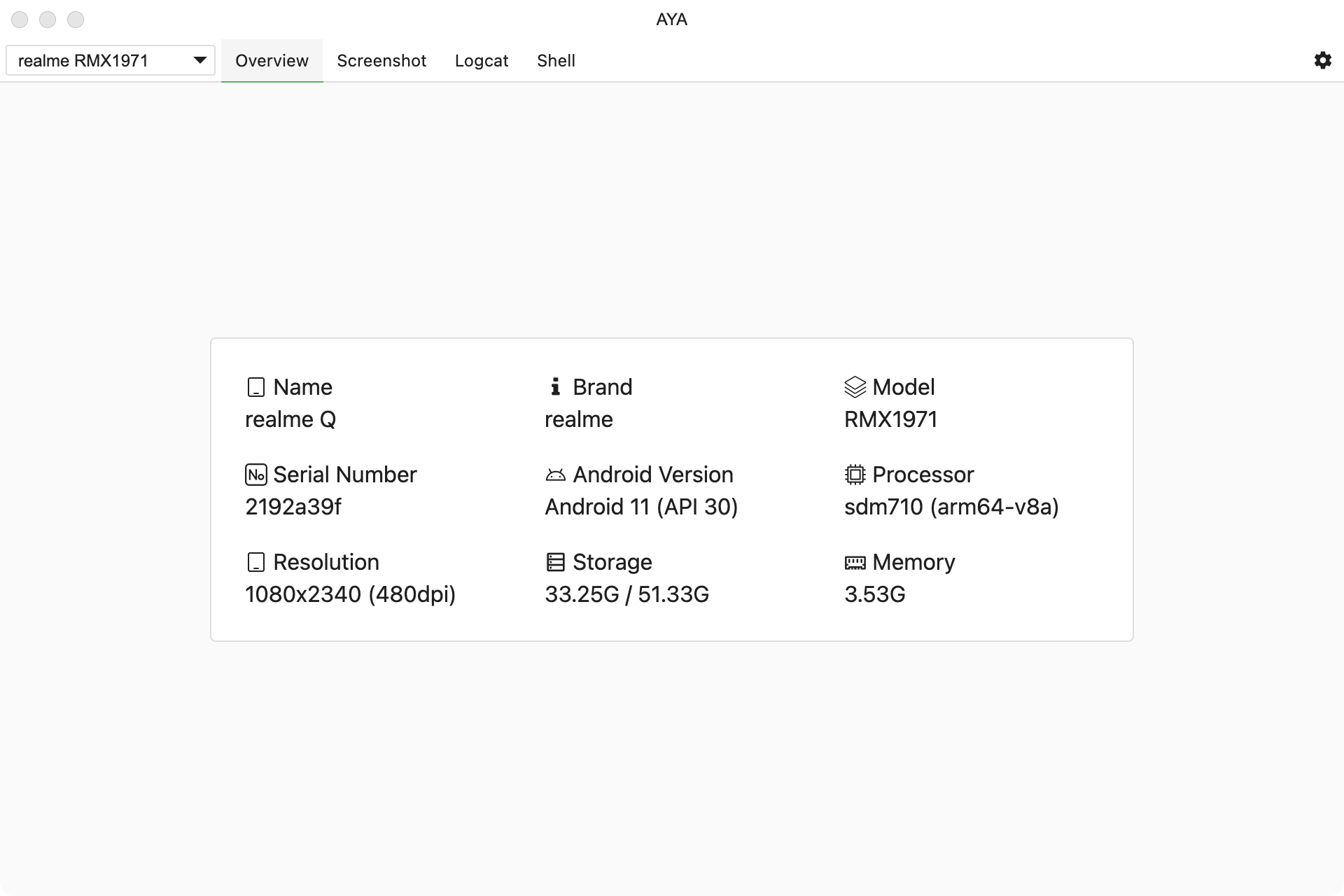
- Screen mirror
- File explorer
- Application manager
- Process monitor
- Layout inspector
- CPU, memory and FPS monitor
- Logcat viewer
- Interactive shell
For more detailed usage instructions, please read the documentation at aya.liriliri.io!
- licia: Utility library used by AYA.
- luna: UI components used by AYA.
- vivy: Icon image generation.
- echo: Harmony OS version of AYA.
Read Contributing Guide for development setup instructions.
This checkout adds legacy device support and LAN discovery. Launch the built Windows app with start-aya.cmd.
| Android | Mirror | Input / app metadata |
|---|---|---|
| 2.3 (API 9–10) | Native minicap on ARMv7; ASM-style framebuffer + WebGL RGB565 on ARMv5 | IWindowManager helper, API 9 compatible metadata reader; verified on ZTE U880E (2.3.7) |
| 4.0–4.0.4 (API 14–15) | Native minicap, no PIE | IWindowManager helper |
| 4.1–4.4 (API 16–19) | Native minicap with SDK-specific library | InputManager helper |
| 5.0+ | scrcpy 3.1; audio enabled only on API 30+ | Existing service on API 23+, legacy metadata reader below API 23 |
The legacy stream defaults to a 640-pixel longest edge, quality 65 and a 12 FPS cap. It uses one persistent device process and an ADB socket, streams JPEG buffer slices through a loopback HTTP endpoint, and uses Chromium's native MJPEG image decoder. It avoids per-frame shell commands, files, Base64, renderer IPC and canvas redraws. Slow consumers drop frames; hiding the window stops capture. ARMv5 RGB565 follows the local ASM raw framebuffer approach and uploads reusable RGB565 textures to WebGL, with no PNG encoding/decoding or per-pixel JavaScript conversion; its native dirty-rectangle path defaults to an 8 FPS cap and backs off to 1 FPS when unchanged; the ADB framebuffer fallback is capped at 4 FPS. This reduces copies; it does not promise end-to-end GPU zero-copy on legacy hardware.
Device Manager → LAN scan discovers ADB on configurable ports (5555 by default), plus mDNS wireless connection/pairing services. Select a local subnet or enter /22–/30, then connect or pair. Scanning does not enable wireless debugging on a device; legacy devices must first enable wireless mode over USB.
Build resources: run script/minicap.ps1 (pinned @devicefarmer/minicap-prebuilt 2.7.3 with SHA-256 verification); run script/legacy.ps1 -Tools <directory-with-ecj.jar-and-dx.jar> -AndroidJar <SDK-android.jar>; build the existing server with Gradle and copy server/aya.dex to resources/aya.dex. Prepare ADB and scrcpy with the existing scripts. Build main, preload and renderer, then copy the contents of resources to dist/resources.
Validation: npm run lint, npx tsc --noEmit, npm run check:compat (uses connected authorized devices; checks lists, app label/icon metadata, input startup, screenshots, framebuffer conversion, native streaming and bounded LAN probes). Runtime assets and test screenshots are ignored by Git. Minicap retains its bundled Apache 2.0 notice; legacy touch injection is adapted from the local D:/android/usb-mouse project.
CPU monitoring uses at least 750 ms of valid device-time deltas (one-second warmup), the aggregate /proc/stat CPU row for the total, stable kernel core IDs and explicit online/offline states. Execution excludes idle and I/O wait; guest time is not double-counted. Zero deltas, counter resets, reconnects and newly online cores require a valid baseline. The total follows the kernel aggregate CPU counters; the title separately shows the current online/physical core counts. Per-core states are sampled at the end of each interval. Missing temperature/frequency values stay unavailable. Old-kernel available memory is explicitly estimated. Display flip counters are labeled as display composition, and repeated historical frame timestamps do not count as new app frames.
Run npm run test:performance for regression fixtures and npm run check:performance for read-only checks against all connected devices. The latter saves raw aggregate counters and the matching reported results in legacy/build/performance-validation.json.
Validated the connected Galaxy Note (4.0.4), Galaxy Core Prime (4.4.4), ZTE U880E (2.3.7) and MI 6 (7.1.1). The hardware audit finished with 63 passed and 9 blocked by device restrictions. Desktop verification and focused regressions finished with 53 passed, with no unhandled renderer errors. All 702 installed packages retained metadata rows. MI 6 recording was parsed by ffprobe as H.264, 1920×1080, 2.959 seconds.
The audit fixed legacy log crashes/history clearing, file transfer failure recovery, file preview and Range handling, PNG export/clipboard bytes, fragmented terminal output, old toolbox options, application storage/signature display, stale device/webview results, stream cleanup, process metadata loading and version-dependent operations. Unknown measurements use —; diskstats cache values use ≈. Device-controlled labels remain text.
Reproduce locally:
npm run test:audit: protocol fragmentation, parsing, storage/signature display, bounded command concurrency, read-only retry, stream cleanup and HTTP preview edge cases.npm run test:performanceandnpm run check:performance: CPU/FPS regression cases and raw kernel counter comparisons.npm run check:metadata: read-only checks of every installed package and process names on connected devices.- Build the isolated fixture with
script/audit-fixture.ps1 -Tools <ecj-and-dx-directory> -Sdk <Android-SDK-directory>, then runnpm run check:hardware-fixture. This installs/manipulates/uninstalls onlyio.liriliri.aya.audit, creates uniquely named temporary files and restores the original foreground component. If that package already exists, its data is preserved and those fixture tests are skipped. - After building main/preload/renderer and copying runtime resources, run the Electron executable with
script/audit-ui.cjsandscript/audit-ui-regression.cjs. These use separate test profiles; UI tests export images, copy an image while restoring the prior clipboard, and save a short recording.
Evidence is generated under legacy/build/: full-audit-report.json, audit-results.json, metadata-validation.json, performance-validation.json, UI screenshots/recording and cleanup records. The nine blocked checks retain the actual permission/install errors. Android 4.1 hardware, actual Android 11+ wireless pairing/audio, simulator lifecycle, root/reboot/global ADB restart and changing the user's network mode were not exercised. Font controls were tested by writing back their existing value. The full report records these coverage limits explicitly.
The mirror toolbar now has left/right quarter-turn controls. Each device remembers its view rotation; screenshots follow the displayed orientation. Live rotation uses compositor transforms, with inverse pointer mapping, rather than per-frame canvas copies. The minimum mirror width is 480 pixels so the added controls remain visible.
Legacy capture uses separate physical, logical and JPEG dimensions: Samsung Note 4.0.4 SurfaceFlinger frames require a display transform, while Android 4.4 virtual-display frames are already upright. The existing input heartbeat reads rotation through WindowManager (older devices) or DisplayManager (API 17+) and restarts capture only when orientation changes. The latest JPEG is retained as buffer slices so a viewer connecting after a static first frame still receives it.
Run npm run test:rotation for geometry and pointer regressions. After building resources and the desktop app, run Electron with script/test-rotation-ui.cjs for live rotation/snapshot/persistence checks. Its Note and Android 4.4 touch/orientation checks use only the isolated audit fixture and restore the original foreground activity.
Mirror → Settings provides a 1–60 FPS limit, saved separately for each device. Click Apply settings to restart capture with that limit. Defaults are 8 FPS on Android 2.3, 12 FPS on Android 4.x and 60 FPS on newer systems. The limit reaches native minicap, framebuffer polling or scrcpy respectively; actual frame rates depend on device capacity and screen updates.
Layout offers an expandable control tree and an XML source view, with selection, attributes, screenshot bounds and XML export. Android 4.3+ uses a direct accessibility snapshot without waiting for animation to become idle, with the system UIAutomator command as fallback. Android 4.1–4.2 uses UIAutomator. On Android 4.0, use Enable layout reading to install the bundled AYA helper, enable its accessibility service on the device, return to the target app, then refresh. The Note service is installed and enabled locally. It reads the current window only on request over an ADB local socket; it has no Internet permission. Android 2.3 displays its unsupported capability explicitly.
Build the helper with script/inspector.ps1 -Tools <ecj-and-dx-directory> -Sdk <Android-SDK-directory> and copy resources/aya-inspector.apk into the packaged resources alongside legacy-input.jar. After building the desktop app, run Electron with script/test-fps-layout-ui.cjs for settings persistence, capture limits, tree/XML export and banner regressions on the four local physical devices. The latest focused report is legacy/build/fps-layout-report.json (13 passed). npm run check:layout verifies real XML, Settings resource IDs, foreground restoration and live legacy frame caps, saving legacy/build/layout-capture-report.json.
ARMv5 devices first try the bundled read-only native framebuffer helper (script/framebuffer.ps1 -Ndk <NDK-r17c-directory>). It maps the existing framebuffer, respects stride and page offsets, merges changed strips into rectangles and sends RGB565 updates over one persistent ADB socket. Chromium updates only those texture regions. Static screens back off to 1 FPS; input restores sampling up to the configured cap. Slow consumers receive a fresh full snapshot after skipped deltas. Missing permissions or unsupported pixel layouts fall back to the existing ADB framebuffer path. No root, framebuffer writes, device-side video encoding or global device setting changes are needed.
Legacy navigation keys use the persistent input helper instead of starting input keyevent for each key. Successful touch injection no longer allocates a second MotionEvent, and the helper watchdog wakes once per second.
npm run test:framebuffer covers fragmented/malformed packets, texture coordinates, partial GPU uploads and the raw fallback. npm run check:gingerbread benchmarks only the isolated audit fixture on ZTE_SP920, checks delivered navigation keys and restores the prior foreground app. Results are in legacy/build/gingerbread-benchmark.json and gingerbread-key-latency.json. In the 10-second animation comparison, 8-FPS native capture delivered 75 frames versus 39 at the previous 4-FPS cap; ADB plus native capture processes used about 21% versus 34% device CPU, and PC capture CPU fell from about 6.1% to 0.9% of one core. Overall device CPU remained close to 100% because its background/system load also consumed the available CPU; these figures describe capture overhead, not a guarantee of lower whole-device utilization.
Device lists and Overview resolve serial numbers from system properties, including the boot serial fallback. When old ROMs such as ZTE U880E expose no valid system serial, USB/ADB identifiers are displayed explicitly as ADB serial numbers (ZTE_SP920 on the local ZTE). Empty, unknown and zero placeholder values are ignored; network addresses are not used as serial numbers. This reuses the existing properties and transport ID without additional polling. Device matching requires a known system serial or an identical transport ID, so blank or ADB fallback values cannot merge unrelated devices. npm run test:audit includes serial fallback and identity regressions; the local UI verification is recorded in legacy/build/serial-verified/report.json.
On connection, AYA starts a delayed preload queue. Requests share one global worker, with foreground requests first, deduplication and round-robin service across devices. Android 2.3–4.0 uses batches of two; other legacy systems use four and newer systems use eight. Batches have a cooldown based on elapsed time, and recent mirror input pauses background work. Disconnects cancel pending requests. Package readers run at Android background thread priority.
Legacy phones store metadata and lossless PNG icon data under /data/local/tmp/aya/package-cache-v4; the newer service uses package-cache-v4-service. APK version/update time/path/size/mtime, firmware and locale form cache identities. Legacy inventories validate version stamps together so opening the app list can reuse desktop data without querying every package again. Updates, removals and AYA package operations invalidate affected entries; manual refresh revalidates metadata. Maintenance prunes removed legacy entries and trims large caches around 64 MiB. Reader processes exit after inactivity; disk caches survive reconnects.
Icons use the best available APK density resource, retain original raster detail up to 128 pixels and use 128 pixels for scalable drawables. The old 32-pixel output is replaced: local ZTE Settings is 72 pixels, UC Browser is 96 and the launcher is 84. Small original assets cannot gain extra detail. Cache policy changes regenerate older outputs.
Validation commands: npm run test:package-queue covers batching, cooldowns, deduplication, priority, cancellation, version inventories, input pauses and fragmented UTF-8 responses. npm run check:icon-cache checks all four phones and legacy cache hits after a reader restart. npm run check:package-queue measures real preload concurrency and ZTE reader CPU. Build the isolated update fixture with script/cache-fixture.ps1, passing -Tools and -Sdk, then run npm run check:package-cache. After building and copying resources, run Electron with script/test-icon-cache-ui.cjs for a representative ZTE icon sample at 125% scale.
The combined report is legacy/build/package-cache-report.json. A ten-second sample measured about 2.4% CPU in the ZTE metadata reader process, excluding other phone processes. Update and uninstall checks passed. The fixture enable/disable check was blocked by the Note ROM's component-state permission and remains recorded as blocked.