A ROS2 package integrating large language models (LLMs) to control Universal Robots, leveraging the ROSA framework for natural langauge based robotic manipulation. Use natural language such as move tcp up by 20cm to control the robot.
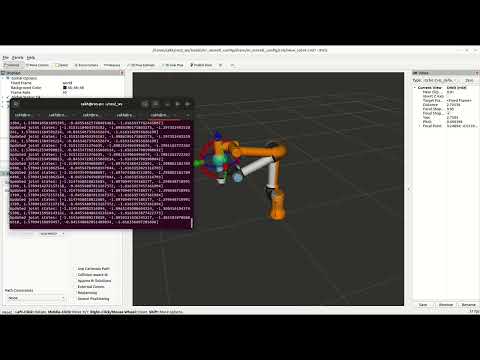
- LLM Integration of Universal Robots: Seamlessly interact with and control the Universal Robot (UR) using natural language commands through large language models (LLMs) such as ChatGPT.
- Read Current Joint States: Query the robot's state with intuitive commands like, "What are the current joint angles in degrees?".
- Joint Motion Commands: Issue joint motion commands with natural language, such as, "Move the wrist1 joint by 30 degrees".
- Cartesian Motion Commands: Control the robot's TCP directly in Cartesian space using commands like, "Move the end effector 30cm up".
- More features in planning If you want any features, open up an issue.
- For more features and capabilites refer to the Tools and Capabilities section.
This project is currently in the test phase and may cause the robot to move unexpectedly or randomly. The project has been tested with ROS2 humble and UR5e robot.
- Use a simulated robot for testing to avoid potential damage to physical hardware.
- Exercise extreme caution when using a real robot.
The author is not responsible for any issues, damages, or malfunctions that occur as a result of using this package. Use it at your own risk.
Before using this package, ensure the following packages are installed and configured:
-
UR Robot Driver
Establishes a connection between ROS2 and Universal Robots. Source (!) install this package and ensure that you are able to command the robot, for instance using MoveIt!Tip If the robot does not move, check if the scaled_joint_trajectory_controller is active.
-
ROSA Package
Enables integration of large language models with ROS2. It is not required to install the package from source, instead you can install the ROSA usingpip3 install jpl-rosa
To ensure proper functionality, test the package using the Docker container provided in its repository. This step is crucial for verifying that all necessary configurations for integrating the LLM with ROS (such as adding the API key) have been completed.
-
Cartesian Controller
Provides Cartesian control for use in ROS2. The package has to be installed in the same workspace as the llm-ur-control. llm-ur-control utilizes the cartesian_motion_controller from this package to enable TCP motion in cartesian space.Tip After cloning the repo, you can safely delete the folders cartesian_controller_simulation and cartesian_controller_tests for colcon build to complete successfully.
-
Install ROS2. The package has been tested on ROS2 humble. Support for any other distribution cannot be guaranteed.
-
Make sure that all the dependencies are properly installed and working.
-
Clone this repository:
cd ros2_ws/src
git clone https://github.com/cakh/llm-ur-control.git
cd ..
rosdep install --from-paths src --ignore-src -r -y
-
Update UR Controller: llm-ur-control utilizes the cartesian_motion_controller which is not used by the ur_robot_driver as default controller. Hence the file ur_robot_driver/config/ur_controllers.yaml has to be modified with this controller. For this purpose, add the following lines to the above mentioned file in the ur_robot_driver package in your workspace:
   cartesian_motion_controller:
     type: cartesian_motion_controller/CartesianMotionController
cartesian_motion_controller:
  ros__parameters:
    # See the cartesian_compliance_controller
    end_effector_link: "$(var tf_prefix)tool0"
    robot_base_link: "$(var tf_prefix)base_link"
    joints:
      - $(var tf_prefix)shoulder_pan_joint
      - $(var tf_prefix)shoulder_lift_joint
      - $(var tf_prefix)elbow_joint
      - $(var tf_prefix)wrist_1_joint
      - $(var tf_prefix)wrist_2_joint
      - $(var tf_prefix)wrist_3_joint

    # See the cartesian_compliance_controller
    command_interfaces:
      - position
        #- velocity

    solver:
      error_scale: 1.0
      iterations: 10
      publish_state_feedback: True

    pd_gains:
      trans_x: { p: 1.0 }
      trans_y: { p: 1.0 }
      trans_z: { p: 1.0 }
      rot_x: { p: 0.5 }
      rot_y: { p: 0.5 }
      rot_z: { p: 0.5 }
An example of the modified ur_controllers.yaml can be found in this repo under ur_agent/config
-
Update the launch file of ur_moveit_config under the ur_robot_driver repo to spawn cartesian_motion_controller. Edit the ur_moveit_config/launch/ur_moveit.launch.py to add the following code above the line 274 (nodes_to_start = ...):
cartesian_motion_controller_spawner = Node(
     package="controller_manager",
     executable="spawner",
     name="cartesian_motion_controller_spawner",
     output="screen",
     arguments=["cartesian_motion_controller"],
 )
and modify the nodes_to_start variable to include this controller spawner:
nodes_to_start = [move_group_node, rviz_node, servo_node, cartesian_motion_controller_spawner]
An example of the modified ur_moveit_config/launch/ur_moveit.launch.py can be found in this repo under src/ur_agent/config
-
Build the package:
cd ros2_ws/
colcon build
source install/setup.bash
-
If you are using the OpenAI API, you need to add your API key to your environment variables.
gedit ~/.bashrcAdd the following line at the end of the file:
export OPENAI_API_KEY=<your_openai_api_key>Save and close the file, then apply the changes:
source ~/.bashrc
-
Establish a connection between the simulated (or real) robot and ROS2 using the UR Robot Driver. Ensure that you can control the robot using MoveIt!.
-
To start the simulated UR5e robot, run:
ros2 run ur_client_library start_ursim.sh ur_type:=ur5e
-
To start the driver, in a new terminal, run:
ros2 launch ur_robot_driver ur_control.launch.py ur_type:=ur5e robot_ip:=192.168.56.101 launch_rviz:=false
Make sure you see the following:
[UR_Client_Library:]: Robot connected to reverse interface. Ready to receive control commands.
-
To start MoveIt!, in a new terminal, run:
ros2 launch ur_moveit_config ur_moveit.launch.py ur_type:=ur5e launch_rviz:=true
-
-
Verify Robot Control:
- Open RViz and ensure that you can move the robot using the interactive marker.
- Use Plan & Execute in Rviz to execute robot motion.
- If this step does not work, check whether the scaled_joint_trajectory_controller is active.
- Without the robot (simulated or real) being successfully controlled in this step, the agent will probably not be able to execute motion commands.
-
Start the services for ur_agent
- Launch the services for the ur_agent by running:
ros2 launch ur_agent agent.launch.py
To know more about the services, check the How the Agent Controls the Robot section.
-
Start the ur_agent
ros2 run ur_agent ur_agent.py
You should see the following on your terminal:

-
Control the robot You should now be able to control the robot using natural language. Try out the following examples:
what are the current joint positions?can you convert these values to degrees?What is the current tcp position?move the tcp 25cm in the y direction
- The agent primarily controls the robot using custom ROS2 services.
- Each custom service is implemented as an executable located in the
scriptsfolder. - A launch file is provided to start all the required custom services. You can start the services using the following command:
ros2 launch ur_agent agent.launch.py
This package provides several tools for controlling the robot and monitoring its state. Apart from the custom tools described in the following sections, ROSA can utilize a wide range of ROS2 topics and services to perform its actions autonomously. In this context, a tool is a functional module integrated into ROSA that provides a specific capability, such as retrieving data, commanding motions, or managing controllers. To see the full list of available tools, simply type:
list available tools
in the command prompt. Below is an overview of one of the key tools available:
The publish_joint_positions tool enables you to command the UR5e robot to move its six joints to specified positions over a defined duration.
How it Works
- The tool first checks if the scaled_joint_trajectory_controller is active.
- It reads the current joint states by subscribing to /joint_states topic and updates the value of specified joints, keeping the rest unchanged.
- The tool constructs a trajectory message, including the target positions and motion duration, and publishes it to the /scaled_joint_trajectory_controller/joint_trajectory topic.
Example: To move the robot's joints to specific positions over 5 seconds, you might issue:
Move the robot's joints to positions [-90, -90, -120, 0, -90, 180] in 5 seconds.
Move the wrist2 joint by -20 degrees.
The retrieve_joint_states tool allows you to query the current positions of the robot's joints.
How it Works
- It waits for the robot's joint states to be published on the /joint_states topic.
- Once the joint states are received, it formats the data into a human-readable string.
- If joint states are unavailable within a timeout period, the tool returns an error message.
Example:
What are the current joint states in degrees
The activate_controller_request tool allows you to activate the desired controller that commands the robot while disabling all conflicting controllers. It does this using a custom service controller_switcher which uses the controller manager to switch controllers (specifically using /controller_manager/switch_controller)
Key Features
- Currently supports switching between:
- scaled_joint_trajectory_controller
- cartesian_motion_controller
- Ensures the correct controller is active for specific robot operations, such as joint motion or Cartesian motion.
Example:
Can you activate scaled joint trajectory controller?
The Cartesian Motion Request tool enables precise Cartesian control of the robot’s Tool Center Point (TCP) by specifying its desired position in Cartesian coordinates.
How it Works
- The tool validates the input values to ensure they are provided as floats.
- It initializes a Pose message with the desired position and a default orientation.
- The tool communicates with the move_to_pose (custom) service, sending the request and waiting for a synchronous response.
Example:
can you move the tcp to 0.2,0.5,0.7
can you move the tcp 20cm upward
The Get Current Pose tool allows you to retrieve the current position and orientation of the robot’s Tool Center Point (TCP).
How it Works
- The tool subscribes to the /cartesian_motion_controller/current_pose topic to fetch the pose.
- Waits for the topic to update with the current TCP pose.
- Formats the position and orientation into a human-readable string.
Example:
What is the current position of the TCP
- currently limited by the number of tools available.