
This is a small set of tools that can help users that manage Vest CP servers with wordpress installations.
To install login as root at your vesta server and clone or download this repo
git clone https://github.com/codemonkeys-studio/vesta-wordpress-tools.gitcd into vesta-wordpress-tools
cd vesta-wordpress-toolsmake the installer script executable
chmod +x install.shand run it
./install.shThis will install the main scripts, v-installwp, v-migratewp and v-fixwpssl to /usr/local/bin (make sure it's in your PATH) along with 2 helper scripts used by the main scripts (v-dbexists and v-dropbox_list)
A small script to automatically install Wordpress and any plugins you may want in a Vesta CP server
You must run it as root
It uses WP-CLI to perform the Wordpress & plugin installation and can install WP-CLI if it is not already installed
The first time this script is run it will ask you some questions so that it can create a config file in your home dir with some default values so that you don't have to enter them each time you run the script. Here's an example of the config file:
DEFAULT_EMAIL=test@example.com
DEFAULT_FNAME=Foo
DEFAULT_LNAME=Bar
DEFAULT_VESTA_USER_PACKAGE=pack1
DEFAULT_WEB_DOMAIN_BACKEND=back1
ACTIVATED_PLUGIN=worker
ACTIVATED_PLUGIN=wordfence
ACTIVATED_PLUGIN=classic-editor
OPTIONAL_PLUGIN=woocommerce
OPTIONAL_PLUGIN=contact-form-7
DROPBOX_API_KEY=XXXXXXXXXXXXXXXXXXXX
DROPBOX_FOLDER_PATH=
The DEFAULT_EMAIL, DEFAULT_FNAME, DEFAULT_LNAME, DEFAULT_VESTA_USER_PACKAGE & DEFAULT_WEB_DOMAIN_BACKEND config variables are used in vesta user and website creation as suggestions so that you only have to press Return when asked to accept the suggested value and not enter the value again and again
The ACTIVATED_PLUGIN and OPTIONAL_PLUGIN variables should be filled with the plugin slug, which you can get from the plugin's url in the Wordpress plugin repository e.g. The plugin Classic Editor has a url https://el.wordpress.org/plugins/classic-editor/ so the slug is the last part of that url "classic-editor"
Each activated plugin will be installed and activated automatically after the wordpress installation is finished.
You will be asked if you want to install and activate each one of the optional plugins.
The DROPBOX_API_KEY is only needed if you want the script to connect to a Dropbox folder and offer to install any plugin it finds there (like premium plugins or plugins you created yourself). Instructions on how to get an Api Key are given at the end of this README.
The workflow of the script is the following:
- It asks you for the Vesta user that will own the new website
- It asks you for the website's domain (without the www, that will be created as an alias automatically)
- If the user doesn't exist it asks you some details like the user's email, first name and last name so that it can create the user
- Using the above provided info, it creates the user and the website
- You get asked if you want to install a Let's Encrypt SSL certificate for the domain. If you answer yes here it will also edit the website's nginx.conf and add a permanent 301 redirect to https, so that all http requests will be redirected to https. It will add the redirect directive at the 4th line of the nginx conf which is pretty standard with all the nginx templates I've seen in Vesta, but keep it in mind in case something goes wrong and you need to delete this line to cancel the redirect.
- After that, it will ask you for the database/user name. (By default it creates a database and db user with the same name and automatically creates a strong password which it outputs to the terminal) The convention for vesta db naming is user_dbname, so you should only enter the last part "dbname", the user_ will be prefixed automatically.
- It will download and extract the latest version of Wordpress to the new website's public_html directory.
- It will ask you for the Site's title and the administrator user's email and create an Administrator user using the provided email as username. The password will be automatically created by wordpress and echoed in the terminal. (you could always perform a password reset using your email if you miss it).
- It will install and activate all the plugins you entered at the config as ACTIVATED_PLUGIN and ask you about the optional and dropbox plugins
- And finally if one of the plugins activated is the ManageWP worker plugin, it will echo the ManageWP Connection Key so that you can immedietly add it to ManageWP
In order to install some premium wordpress plugins you may have, you can connect your Dropbox account so that the script can download the plugins from there.
To do that you have to create a Dropbox App in order to get an API key
To Create an App go to Dropbox Developers
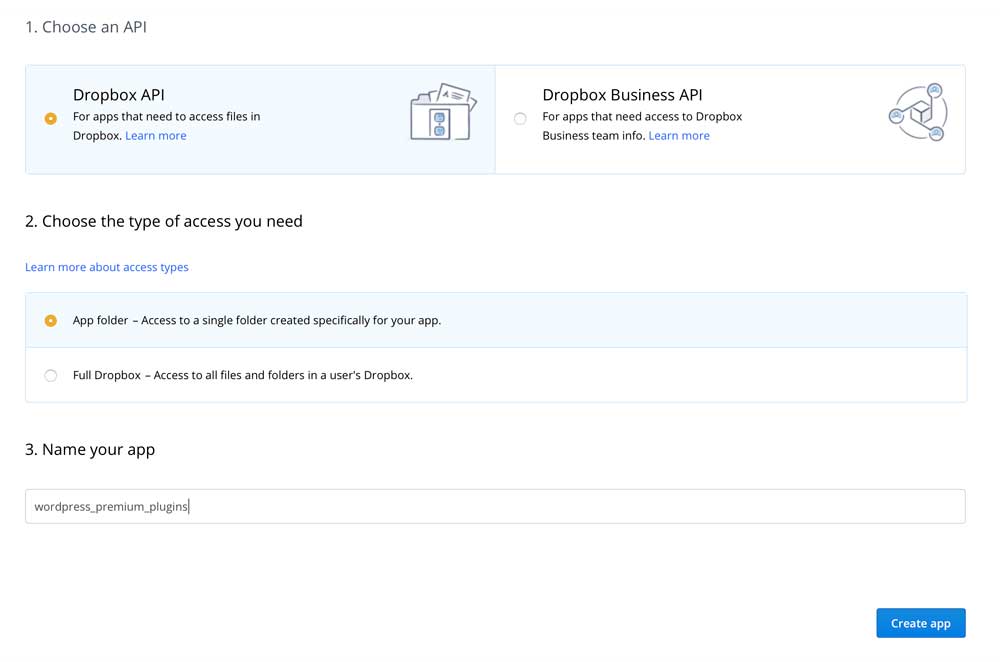
Choose Dropbox API & App Folder inthe Type of Access section and enter a name for your app (that will also be the name of the dropbox folder that will be created so I wouldn't put any spaces or not allowed characters there) and click Create App
All you have to do now is click the buttton Generate Access token in the OAuth section and copy the API key
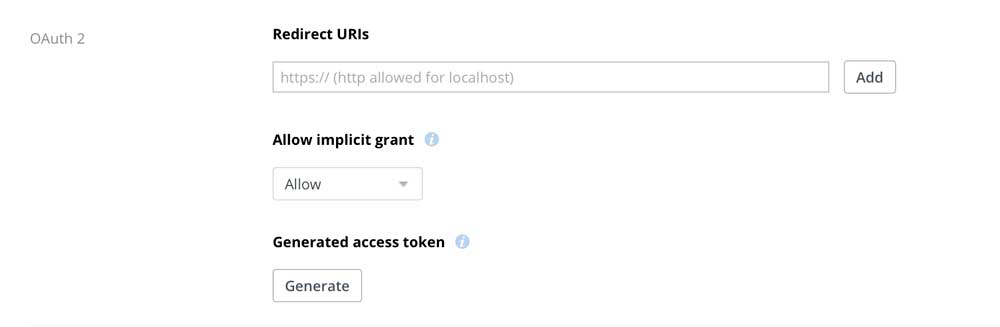
Assign the generated API key to the DROPBOX_API_KEY variable in the installwp script
DROPBOX_API_KEY="XXXXXXX"The DROPBOX_FOLDER_PATH variable should remain empty if you don't plan to create any folders inside the /Apps/your_app_name folder in your Dropbox.
If you do create folders and you want to load the plugins from a specified folder the you should fill in the folder path. The root of your app is the folder /Apps/your_app_name so if you want to load the plugins from the folder /Apps/your_app_name/folder/subbolder the DROPBOX_FOLDER_PATH variable should contain the string "/folder/subbolder"
DROPBOX_FOLDER_PATH="/folder/subbolder"to be added later
to be added later