This plugin allows you to run custom & built-in plugins and commands in the Sibelius music notation software using Elgato Stream Deck.
Firstly you must be using a version of Sibelius which supports it being remotely controlled (Sibelius Connect). This was first introduced in version 2024.3.
You can enable (or disable) the remote control feature by going to the Input Devices page of the Preferences dialog.
Warning
You must not change the network port used for the websocket connection from its default 1898.
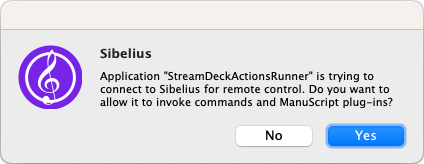
Each time you open Sibelius and press a button on your Stream Deck to use one of these actions an initial connection will need to be made, which you must accecpt if you wish to allow remote control.
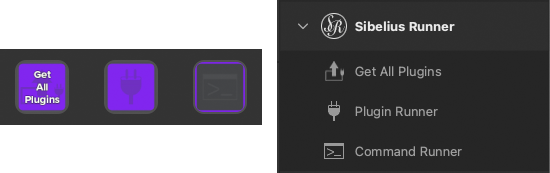
There are 3 available actions:
- Get All Plugins
- Plugin Runner
- Command Runner
Important
To use the Plugin Runner action you must first load all the Sibelius plugins using the Get All Plugins action
- Add the Get All Plugins action to an empty Stream Deck key. Only one instance of this action should ever be needed and it never interacts with Sibelius.
- This next step is a temporary solution until a folder picker element is added to the available components used to create Stream Deck plugins. The folder where the plugins reside needs to be provided. Click the Add file element in the Get All Plugins UI.
- A file will need to be selected so the plugin can extract the folder to use. You can place an empty document in the Sibelius Plugins folder purely to allow access. Something like: access.txt, or whatever name you wish then select this file in the UI. On a Mac the location to the folder will be something like:
users/{username}/Library/Application Support/Avid/Sibelius/Plugins. The Library folder in this path is hidden in the {username} folder, on a Mac, pressingshift + command + .shows hidden files/folders. Select the temporary file you put in this folder and click Open. - Press the Get All Plugins key to get all the folders and plugins. If successful you will see a tick on the key. The only time this will need to be repeated is if new plugins are added to the folder.
Drag the Plugin Runner action to an empty key and click Choose Plugin. Choose a category, which represents a folder inside the Sibelius Plugins folder. The Name drop down should then be populated with the available plugins for this category. Select a plugin and the key is ready to use. The key's title is automatically set using the plugin name for convenience but you can override this by entering a value in the Input field of the UI.
Drag the Command Runner action to an empty key. As there are over 600 available commands these have been grouped into 20 sections and sorted by the command ID name, rather than the display value. All the available command IDs with their display name can be found on this pdf starting at page 96. Choose a group and a command name. The key titles are not set automatically here.
If it says Awaiting categories... when adding a new Plugin Runner key, make sure you have followed the loading Sibelius plugins instructions mentioned above and that you have pressed the Get All Plugins key. Ensure that the path provided is the top level Plugins folder. If you have done this, try deleting the plugin runner key and making a new one.
Version 1.0.0 of the Sibelius Runner plugin is available to download from the release folder. Once downloaded, you can double-click the file to install it on your Stream Deck.