Daysheet maker is a bespoke utility for a specific workplace and task. Its primary and only function is to take Kronos schedules, automatically generated for retail managers at the relevant business, and transform them into “Daysheets”.
This tool only works on Windows.
- Go to the Releases page.
- Download the latest installer: DaySheetMaker-Setup-x.x.x.exe.
- Run the file — installation is automated and only takes a moment.
- Have your Kronos schedule spreadsheet ready for import. (.XLXS or .CSV only, no .PDFs!)
A “Daysheet,” or daily staffing sheet, is a one-day schedule view for a specific department. It shows the date, day of the week, all employees in that department who are working on any given day, and their shift start and end times.
It was a weekly ritual for a member of the frontline management staff in the relevant department to spend at least half an hour filling out seven daysheets by hand. This process involves scanning the schedule, picking out and typing all the names of employees on the relevant day, entering their name and shift hours into the daysheet, and ordering employees by role and start time. The alternative, using Kronos to generate daysheets, produces an inferior product. Leading multiple managers to manually create their own daysheets in Excel instead.
This tool automates the process entirely. Additionally, the daysheets produced by this program are much richer with information than anything worth the effort of implementing by hand. There’s a lot of data in those schedules, and the output from this program takes advantage of it to provide actionable information.
Roles are the specific job categories within your department, such as 'cashier' or 'service leader.' They determine how your Daysheet is organized.
- Cleanup: The schedules exported from Kronos often contain abbreviated or "ugly" job titles, called Raw Names (e.g., 'Crt Str Assoc' or 'CashierEXP'). Your configuration allows you to map these raw names to a cleaner, user-friendly Display Name. The Display Name is what appears on your final Daysheet output as the header for each role's subsection and Labor Tracker.
- Grouping: You can assign multiple Raw Names to the same Display Name. For example, you might map both 'SL SelfScan' and 'Service Clerk' to the same Display Name "Service Desk". This groups them together on the output under the same header, and consolidates their labor hours into a single labor tracker.
The list order in the settings menu will be mirrored exactly in your final output (e.g., placing Manager roles at the top).
Each configured role has an associated Labor Tracker table. If a role is very small or you don't need detailed staffing metrics for it, you can simply disable its Labor Tracker to keep your output cleaner. If all role trackers are disabled, the program will automatically substitute the tracking section with the "Daily Notes" block instead.
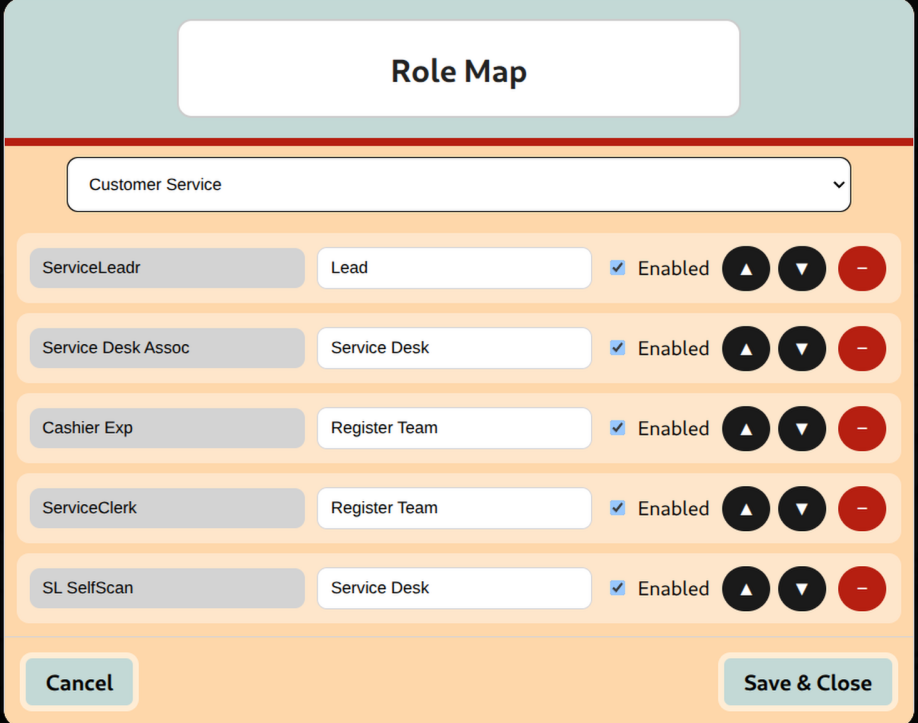
The menu to configure roles.
A ‘Time Block’ is a range of time of arbitrary duration and name. The application stores the time blocks you define, and then can then measure the total labor hours which ‘overlap’ with these ranges.
For example, if I define a time block from 5am to 10am and I have three employees,
- Jeff who works from 5am to 12pm,
- Laura who works from 7am to 3pm, and
- Michelle who works from 12pm to 9pm.
Jeff would contribute 5 hours (5am – 10am), Laura would contribute 3 hours (7am – 10am), and Michelle would contribute 0 hours, as her shift starts past 10am. In total, this time block would have a value of 8 labor hours.
This can be implemented in a number of ways, depending on what's most useful to the manager and department in question. The time blocks tracked could be as simple as having one tracked block during a labor intensive time,like production from 5am - 8am in the bakery. Or it could be used to equally divide the day to understand the ebb and flow of labor coverage over time.
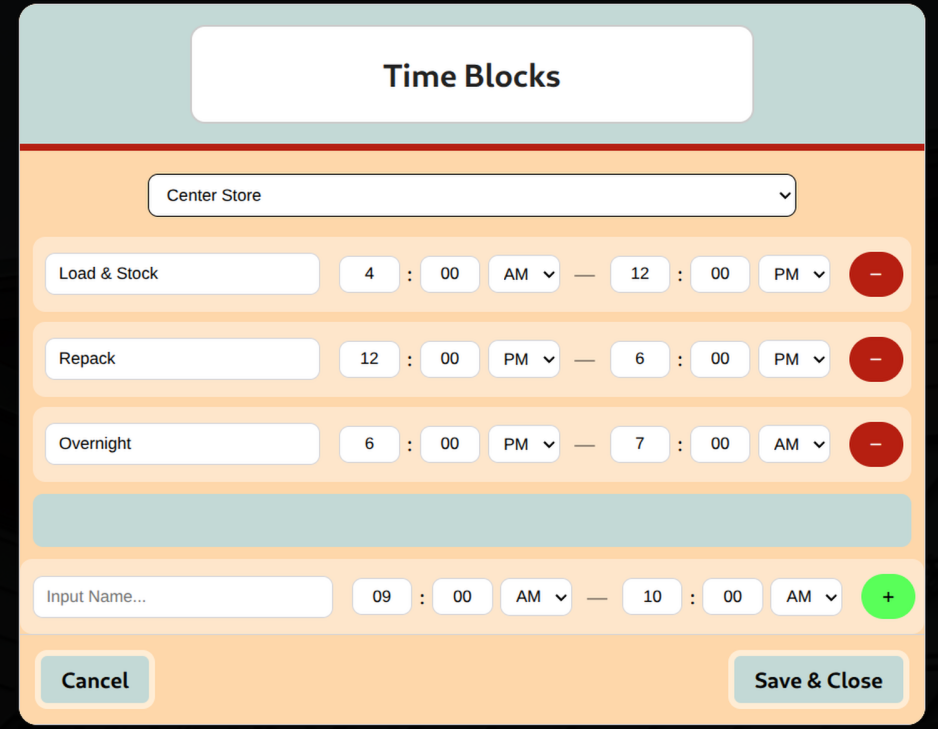
The 'Time Blocks' management menu.
The labor tracker is just a collection of all the time blocks you’ve configured shown as a table ordered by start time. They can have as many elements as you have time blocks, and will be rendered by default on a per role basis in your output. However there’s also the option to condense all the per-role labor trackers into a unified table that tracks the entire department as one unit.
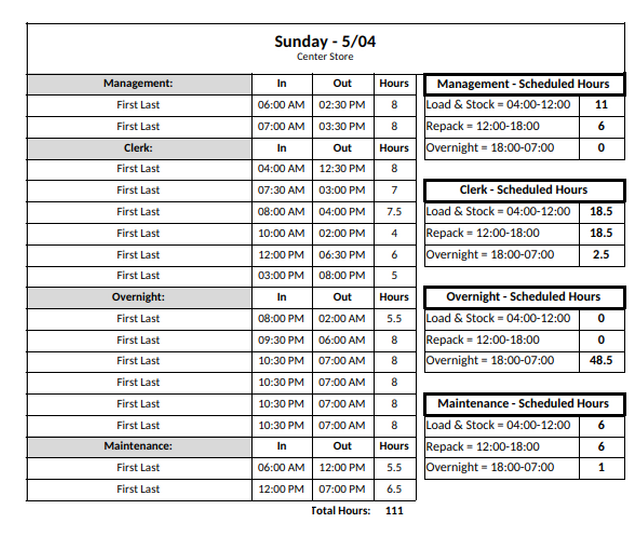
Standard 'Labor Trackers' for a department with 4 roles.
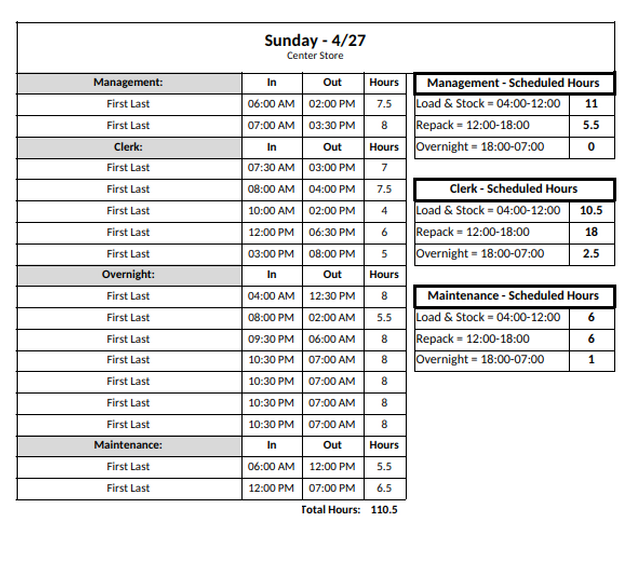
'Labor Trackers' for a department with 4 roles, and one disabled.
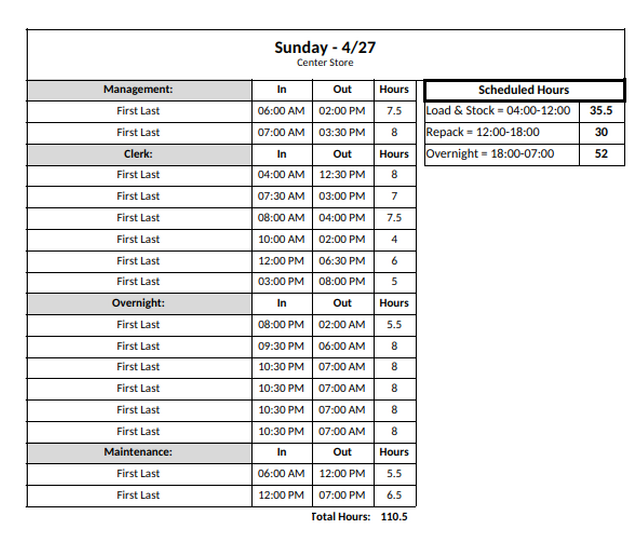
'Labor Trackers' where scope is shifted from per role to per department.
ESH, or effective/estimated shopping hours is an online fulfillment department specific metric. It attempts to show how many shopping hours per hour the department will have. i.e. the amount of labor dedicated to shopping in specific. This is useful for comparing against the estimated labor required figure in the order management system dashboard (OMS). With these two data points, anyone will easily be able to forecast a labor shortage and call for help well before it becomes an issue. In specific, if the ESH value is far below the "estimated shopping labor required" shown by OMS/Spectrum, it's worth reassessing your situation and perhaps calling for help.
The metric ESH is derived by a simple formula: the Total Scheduled Labor per Hour minus a configurable Hourly ESH Constant.
ESH/hour = (Total Labor Hours per hour) - (ESH Constant)
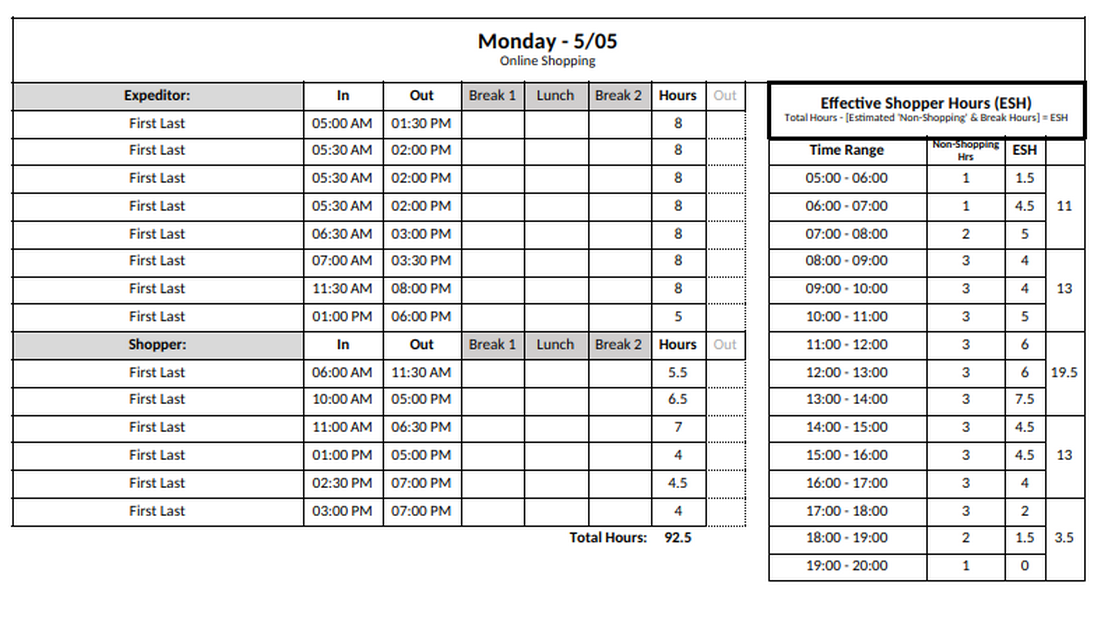
A daysheet featuring the ESH table.
The “ESH constant” is configurable by the user and can be changed for every hour. The "ESH constant" is meant to represent time allotted for all activities that aren’t shopping. This could be the non-shopper role, it could be breaks, it could be the time that people take to set up between trips. The default settings were arrived at after surveying multiple people in the online fulfillment department and getting their opinions, but they will vary based on department size. A smaller staff needs to allot less time for breaks, and has fewer expeditors facilitators at any given time too, so feel free to experiment!
ESH can also be disabled entirely in favor of the time blocks system, or the “Daily Notes”.
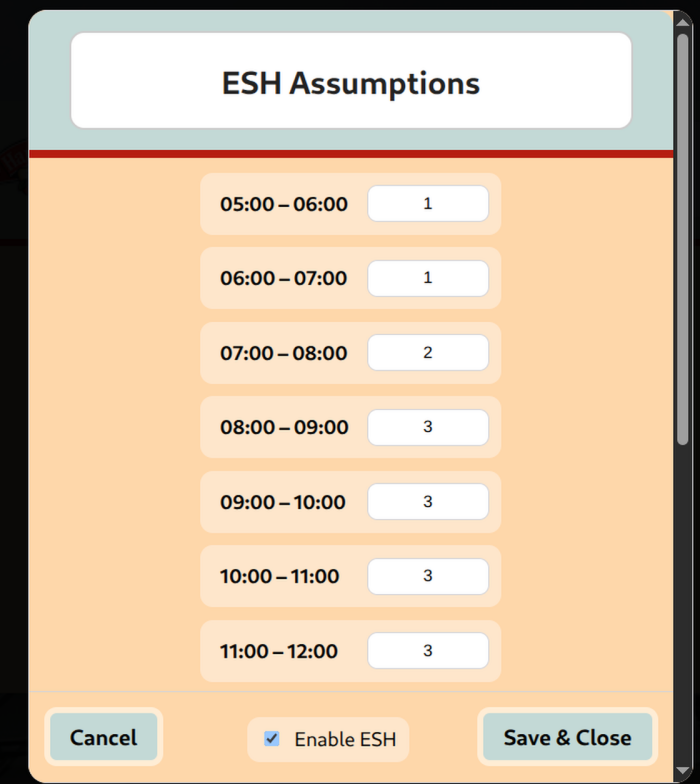
The menu to edit ESH constant.
In the event that every role is disabled in settings, or the daily notes override setting is enabled, in lieu of the ESH table, or time blocks, a “Daily Notes” block is rendered instead. This is just free writing space and is available both as a fallback option, and as a preference for people who find more value in writing their own announcements by hand, which is understandable because the daysheets are typically seen by everyone multiple times per day.
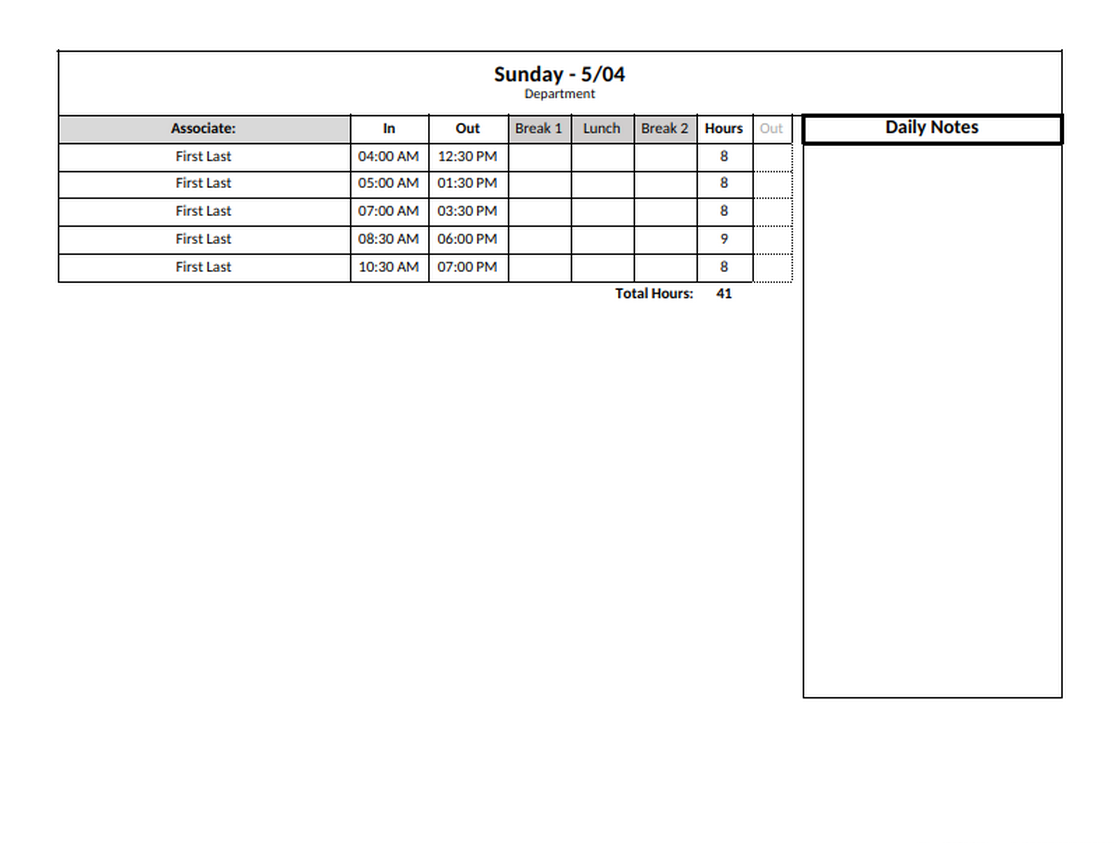
'Daily notes' example.
By default the program saves your output to a directory called "Daysheet Archive" located in the "Documents" directory of the current user. However, you can specify an arbitrary save location in the application settings.
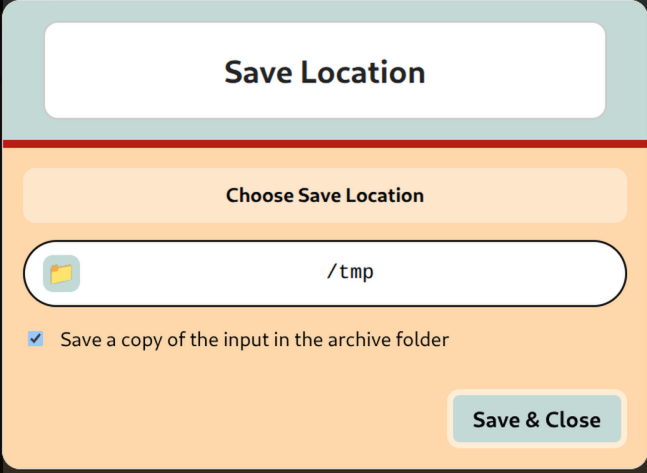
Save Location.