This integration has been forked to get it back up and running. Successfully tested on a Kobra S1 Combo. It also resolves a few issues still present in the initial integration like timezones, tabs not clicking, error 500, etc. Kudos to @WaresWichall for this amazing integration
[!NOTE]
Anycubic have been attempting to block MQTT access, see hereI'm moving on to another printer brand and won't be active on this project as much but will still be fixing issues.
MQTT access is now available using Slicer Next (windows version) tokens.
Still works as of 01/12/2024.
Component is working very well so far with:
- Kobra 3 Combo
- Kobra 2
- Kobra 2 Max
- Kobra 2 Pro
- Photon Mono M5s (Basic support still)
- M7 Pro (Basic support still)
If you have success with other printers please report it, or if you don't please report that too :)
Anycubic Cloud is polled for data updates every 1 minute, whilst MQTT updates can be received multiple times per second.
If you find updates for any sensors are only received every minute, please open an issue.
This integration couples with my Anycubic card for Home Assistant


- Supports multiple printers
- Start print services / UI panel
- Pause/Resume/Cancel print buttons
- Edit ACE slot colours/settings via services / UI panel
- File manager via services / UI panel
- Retraction/Extrude services
- Printer sensors e.g. temperature, fan, print speed etc
- Job sensors e.g. name, progress, image preview, time, print params
- ACE sensors
- Firmware Update entities
- ACE drying management with customisable presets
- ACE spool management with customisable colour presets
- Configurable MQTT Connection Mode (Defaults to Printing Only)
- And more ...
It also comes with a frontend panel which will be added to your sidebar. Current features:
- Basic printer info (+ the printer card above)
- File manager (requires MQTT connection to be active)
- Start print services
- Pick a method of authentication and grab your logon token.
- Add this repository to HACS under ... (menu) > Custom Repositories as an Integration
- Restart Home Assistant
- Go to Settings > Integrations > Add New and search Anycubic
- Select your chosen authentication mode
- Paste your token into the
User TokenorSlicer Access Tokenbox. - Select your printer, then you're good to go!
- Optionally configure more options in the home assistant integration
configuremenus.
Sensor entities are created automatically for each printer once the integration has been set up. These cover printer state, job progress and ACE metrics. You can use them in dashboards or automations like any other Home Assistant entity. When MQTT is enabled, updates are delivered in real time; otherwise values are refreshed every minute via the cloud API.
Important
Only tested / supported with Slicer Next for Windows
- Make sure your installation of Slicer Next is logged in, then close it.
- Locate your
AnycubicSlicerNextconfig directory.
Note
This is found in:
%AppData%\AnycubicSlicerNext\AnycubicSlicerNext.conf
or
C:\Users\<USERNAME>\AppData\Roaming\AnycubicSlicerNext\AnycubicSlicerNext.conf
- Copy/save the whole
access_tokenstring without the quotes, it should be a 344 character string. - Ideally you should now clear your login config for the slicer to prevent it logging in at the same time as Home Assistant.
This can be done setting your
access_tokento an empty string in the config file, e.g."access_token": "",

Important
Unfortunately web authentication no longer supports MQTT updates.
- Go to the Anycubic Cloud Website
- Log in
- Open Developer Tools in your browser
- Paste
window.localStorage["XX-Token"]into the console - Copy/save the long string of numbers and letters without the
''- this is your token.
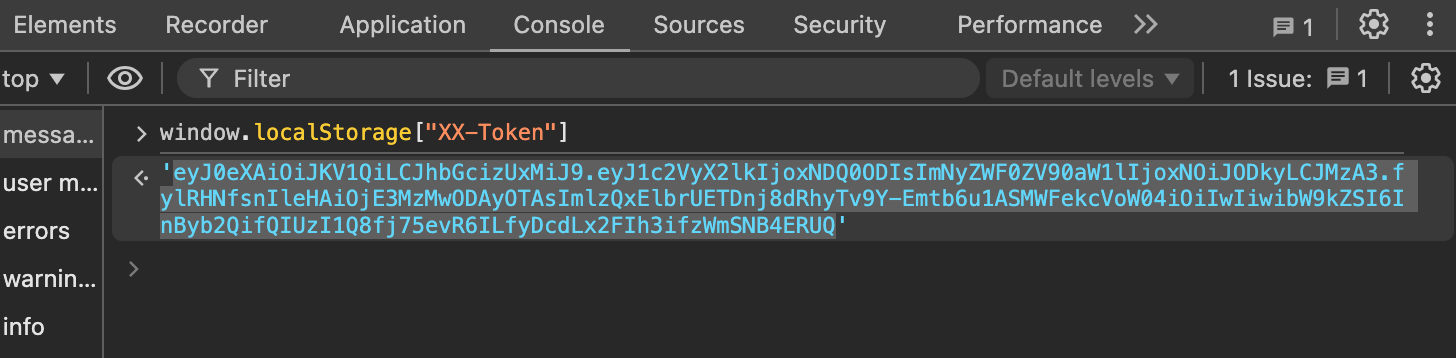
If you log yourself out or your token expires you'll get a re-authentication warning in Home Assistant, just grab a new token as above.
See CONTRIBUTING.md for contribution guidelines, including the preferred commit message style.