
A visual editor for your Home Assistant dashboards — no YAML needed.
A 3D floor plan of your home, real full screen for wall tablets and kiosks, and a setup wizard.
Build pages, menus, cards and an interactive 3D map of your home, see them on phone, tablet and desktop, and save with full history.
mega-dashboard.eu · by HomeNetcloud.eu · made by Harry Asar


Missing something, or something doesn't work? Tell me — I read everything, and it decides what I build next.


Installation · Getting started · Settings · 3D map · Troubleshooting · Website · 🇧🇬 Български
| Feature | What it does |
|---|---|
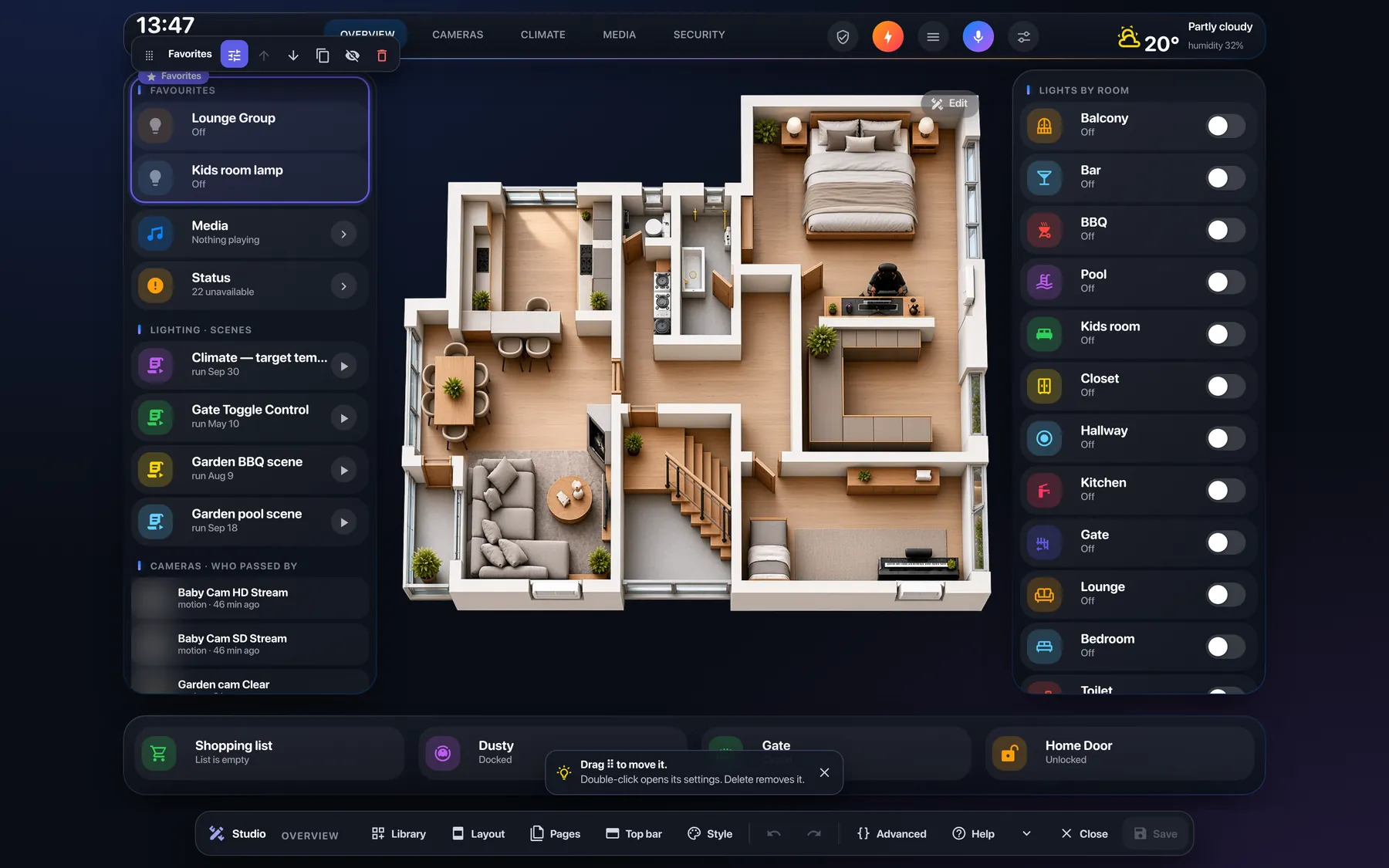
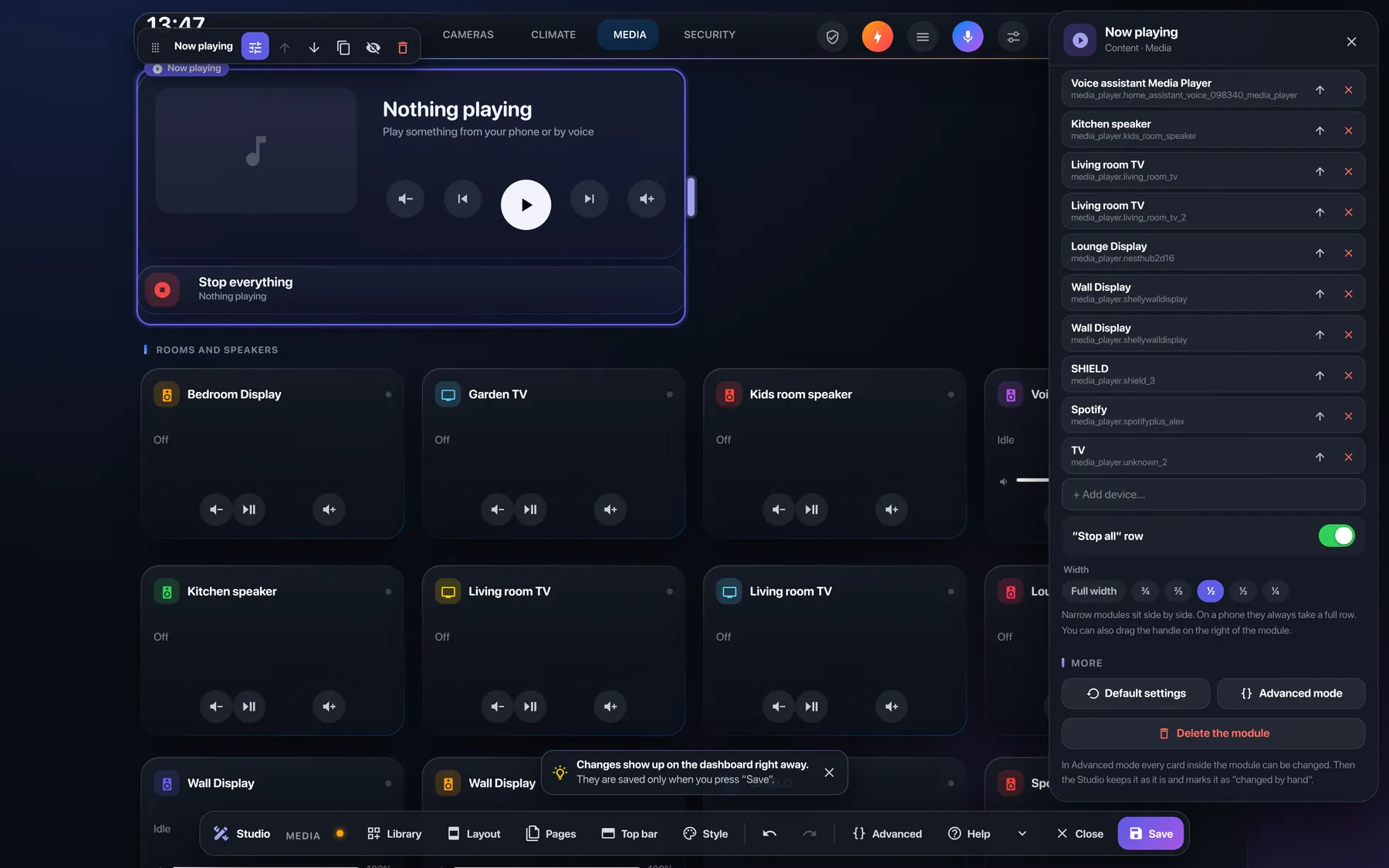
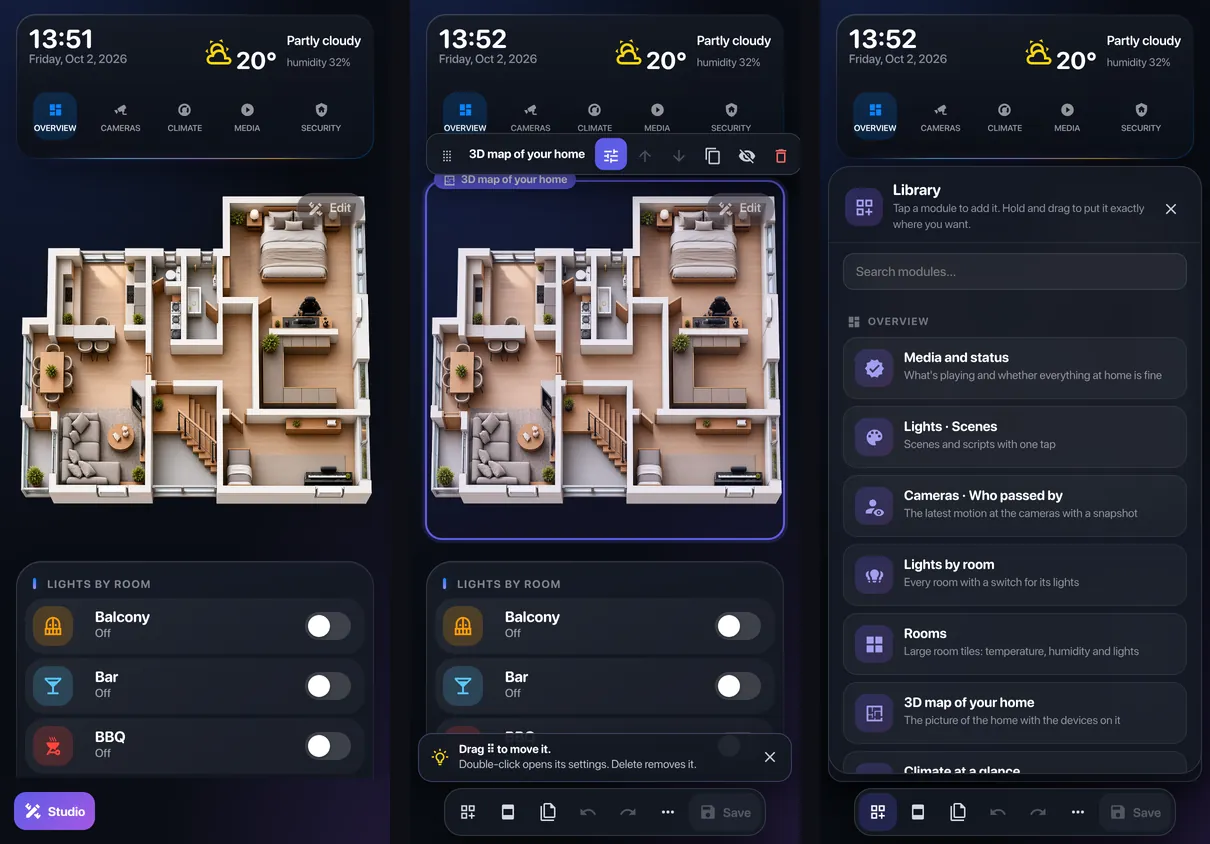
| 🎛️ Studio | Edit the dashboard right on the dashboard. Pages are made of zones (columns, a bottom bar, a slide-out panel) and zones hold modules — ready blocks that fill themselves with your devices. Select a module to get a toolbar (settings, up/down, duplicate, hide, delete), press + between modules, or drag one in from the Library with a live preview. Drag the right edge of a module to make it narrower or wider — narrow modules sit side by side. Hints at the bottom tell you what you can do next. Mouse and touch. |
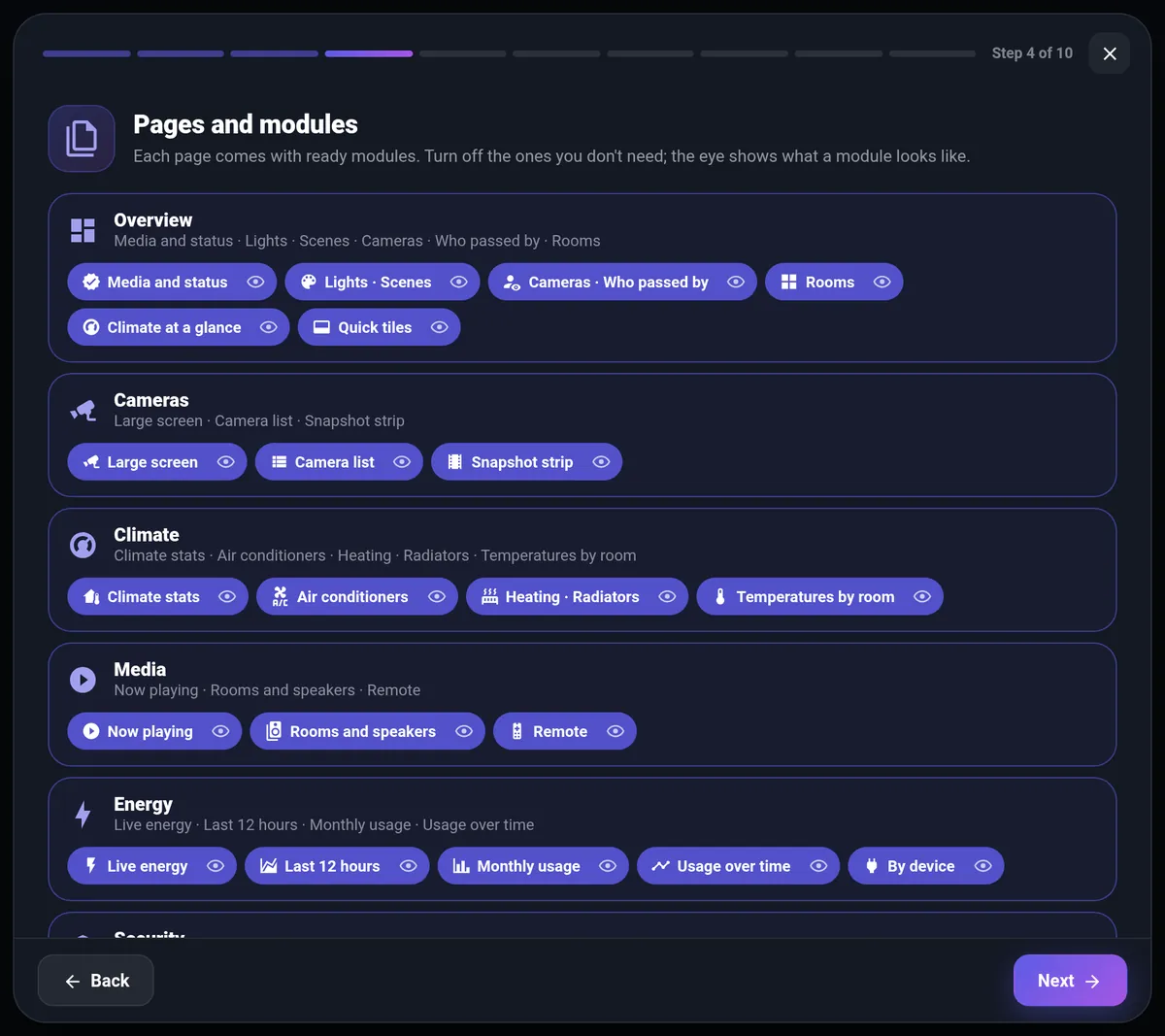
| 🪄 Wizard | Ten short screens build a complete dashboard from your home: the devices you use most (read from the last 14 days of the logbook — only actions by a person count), rooms in your order, pages and modules, a picture of your home (with a guide and a ready AI image prompt), background and accent (with a live example of what the accent colours), add-ons. See it on the dashboard shows the result before saving. |
| ✨ AI assistant | Optional, in the wizard: pick ChatGPT, Claude, Gemini or Ollama, paste your own key, and get a voice assistant with instructions written for your home (rooms, devices, most used) — connected in Home Assistant and set as the Assist pipeline if you want. |
| 🩺 Home check | Batteries below 20%, devices that don't respond, lights without a room (put them in rooms in one go) and tips like missing weather or people. |
| 🧭 Guide and tour | A short tour after creating, and a guide where every step has Show me. |
| 🌳 The whole dashboard as a tree | Top bar, pages, sections and nested cards (including custom_fields, state-switch states and browser_mod popups). Filter it, collapse it, or search everything with Ctrl+K. |
| 👆 Pick on the page | Point at any card right on the dashboard and the editor opens it. Taps don't switch anything while you pick. |
| 📝 Plain forms | Each card has Content, Actions, Style and Code tabs — device, name, icon, what happens on tap, colours and sizes, state rules and shared styles. |
| 🧩 Card gallery | 25 ready-made cards using only built-in Home Assistant cards: room (every device in an area), tile, thermostat, 3D map / floor plan, pages menu, phone-only menu, who is home, weather, graphs, energy, camera, media, to-do, calendar and more — or Like the cards next to it. |
| 🏠 3D map editor | Drag devices onto a picture of your home, add light glows and air-conditioner / radiator animations, and a separate night picture. Works with mouse and touch. |
| 📱 Phone, tablet, desktop | Every dashboard has a computer, a tablet and a phone version. Pick one in the Studio and arrange it on its own — hide, move, resize or restyle anything there and the other versions stay as they are. All changes every version at once, ⧉ copies a page or the whole layout between them. |
| 💾 Safe saving | Nothing is written until you press Save. Undo / redo, conflict detection if the dashboard was changed elsewhere, and a history of recent saves you can restore. |
| ⚙️ Dashboard tools | Page settings (title, path, icon, theme, background, who sees it), kiosk mode, device check (find and replace unavailable entities everywhere), cleanup of unused styles, backup and restore. |
| 🎨 Your editor, your look | Glass, solid, black (OLED), light or Like HA theme, any accent colour, four text sizes. Only the editor changes — never your dashboard. |
| 🖥️ Full screen | Hide the Home Assistant header and sidebar (with kiosk-mode). Administrators get them back with the HA menu button in the top bar. |
| 🌍 7 languages | English, German, French, Spanish, Italian, Dutch and Bulgarian. It follows your Home Assistant language by itself; change it any time. Keyboard shortcuts also work with a Cyrillic layout. |
- Home Assistant 2024.10 or newer, as Home Assistant OS or a Supervised install — they have the app store. On Container or Core, use Docker instead.
- A Home Assistant administrator account — only administrators see the editor.
- A dashboard in the normal UI (storage) mode. YAML dashboards open read-only.
-
Click the button below. Home Assistant adds the Mega Dashboard app store and opens the app.
Or open Settings → Apps → App store → ⋮ → Repositories, add
https://apps.mega-dashboard.eu/and open Mega Dashboard. -
Press Install, then Start.
-
Reload the browser once (
Ctrl+F5, or close and reopen the Home Assistant app on phones and tablets).
The app copies Mega Dashboard and the add-ons it needs to /config/www/mega-dashboard/, registers them as dashboard resources and creates a Mega Dashboard dashboard in the sidebar, where the wizard opens by itself. The app's own page shows what's installed and has Repair and Remove from dashboards buttons.
| App option | Default | What it does |
|---|---|---|
create_dashboard |
on | Creates the Mega Dashboard dashboard once |
kiosk_mode |
on | Installs kiosk-mode (full screen) |
mini_graph_card |
on | Installs mini-graph-card |
advanced_camera_card |
on | Installs advanced-camera-card |
telemetry |
on | Anonymous install count (sends a random install ID and version once a day; no IP or home data stored) |
Container and Core have no app store, so Mega Dashboard runs as its own small container next to Home Assistant. It does the same as the app: copies the files, registers the resources, creates the dashboard and keeps them up to date.
-
In Home Assistant open your profile → Security (as an administrator) and create a long-lived access token.
-
Add this to your
docker-compose.yml— the folder on the left is the one that holds yourconfiguration.yaml:services: mega-dashboard: image: images.mega-dashboard.eu/mega-dashboard:latest container_name: mega-dashboard restart: unless-stopped network_mode: host environment: HA_URL: http://127.0.0.1:8123 HA_TOKEN: "paste-the-token-here" volumes: - /path/to/homeassistant/config:/homeassistant
Not on the same machine or not on the host network? Put Home Assistant's address in
HA_URL(for examplehttp://192.168.1.10:8123) and dropnetwork_mode. -
docker compose up -d, then reload the browser once. If your config folder had nowwwfolder before, Mega Dashboard creates it and a notification asks you to restart Home Assistant once — it only serves that folder after a restart.
The options are environment variables: CREATE_DASHBOARD, KIOSK_MODE, MINI_GRAPH_CARD, ADVANCED_CAMERA_CARD, TELEMETRY (all on by default; set "false" to turn one off). Update with docker compose pull && docker compose up -d. To remove it, run docker compose run --rm mega-dashboard remove (takes the resources out, your dashboards stay), then docker compose down. What it did is in docker logs mega-dashboard.
The app has already created a Mega Dashboard dashboard — open it from the sidebar and the wizard starts by itself. You can also edit any dashboard you already have, or start with another fresh one:
-
Open Settings → Dashboards and press Add dashboard.
-
Choose New dashboard from scratch, give it a title and an icon, and press Create.
-
Open it from the sidebar.

Note
The default Overview dashboard is generated automatically. Opening Settings there starts the wizard, and saving takes control of it. To keep the generated cards instead, choose Edit dashboard (✏️ or ⋮) and Take control first.
On the dashboard, press the Settings button in the bottom-left corner (or the ⚙️ in the dashboard's own top bar), or press Ctrl+Shift+E.
- On an empty dashboard the wizard opens.
- On a dashboard made by the wizard the Studio opens.
- On any other dashboard the editor opens in Advanced mode (below). Studio in its bar turns the dashboard into modules: pages the Studio knows become modules, your own pages stay exactly as they are.
The wizard looks at your home and asks, one screen at a time: the language (your Home Assistant language is preselected), where the dashboard will be viewed (wall tablet, phone or computer), your most used devices, rooms and their order, pages and modules, a picture of your home, the look, an optional AI assistant, a home check and the add-ons.
It needs button-card, layout-card and card-mod (and kiosk-mode for full screen). The app has already installed them. Then the Studio opens with a three-step tour.
Tip
In full screen the dashboard's top bar has an HA menu button (administrators only) that brings back the Home Assistant header and sidebar for the current page.
| To… | Do this |
|---|---|
| Select a module | Tap it. The toolbar above it has drag, settings, up/down, duplicate, hide and delete. |
| Add a module | Point at a zone and press +, or open Library and tap or drag a module. Greyed modules don't fit your home and say why. |
| Move a module | Drag the handle (on a phone: hold until it lifts). Drop it into any zone on the page. |
| Make it narrower or wider | Drag the bar on the right edge of the selected module, or pick a width (full, ¾, ⅔, ½, ⅓, ¼) in its settings. Narrow modules sit side by side; on a phone every module takes a full row. Double-click the bar for full width. |
| Change a module | ⚙️ in the toolbar: title, devices, rooms, options. Default settings rebuilds it for your home. |
| Change the page layout | Layout: Like Overview, Cameras, One column, Two columns; turn zones on and off, including a slide-out side panel. |
| Pages, top menu, look | Pages (add, rename, reorder), Top menu (buttons, tabs and full screen — hide the HA header and sidebar), Look (background, own photo, accent with a numbered example of where it shows). |
| Hints, language | The hint above the bottom bar changes with what you do; × hides it. Help turns hints back on and switches the language. |
| Anything else | Advanced opens the full editor on the selected module. A module changed there is kept as changed by hand until you reset it. |
| Edit the phone or tablet version | Pick Computer, Tablet or Phone in the bar above the bottom one. Changes apply only to that version; turn on All to change every version, or ⧉ to copy a page, the top bar or everything to another version. Pages, the name and the theme are shared. |
| Save | Save (Ctrl+S). Undo / redo with Ctrl+Z / Ctrl+Y. |
| Step | Where |
|---|---|
| Back to the Studio | Studio in the editor bar. |
| Pages — Overview, Cameras, Climate… | New page below the tree. Then set the title, icon, theme, background and who sees it. |
| A menu between pages | Gallery → Pages menu (or Phone menu for phones only). |
| Cards | Select a page or group → New card. Room adds every device in an area in one go. |
| Change a card | Select it in the tree or with Pick on the page, then use the tabs on the right. |
| 3D map of your home | Gallery → 3D map / floor plan → upload a picture → Save → Points and devices. See 3D map. |
| Phone and tablet layout | The screen buttons above the preview, and Where it shows on each card. |
| Save | Save (Ctrl+S). History restores an earlier save. |
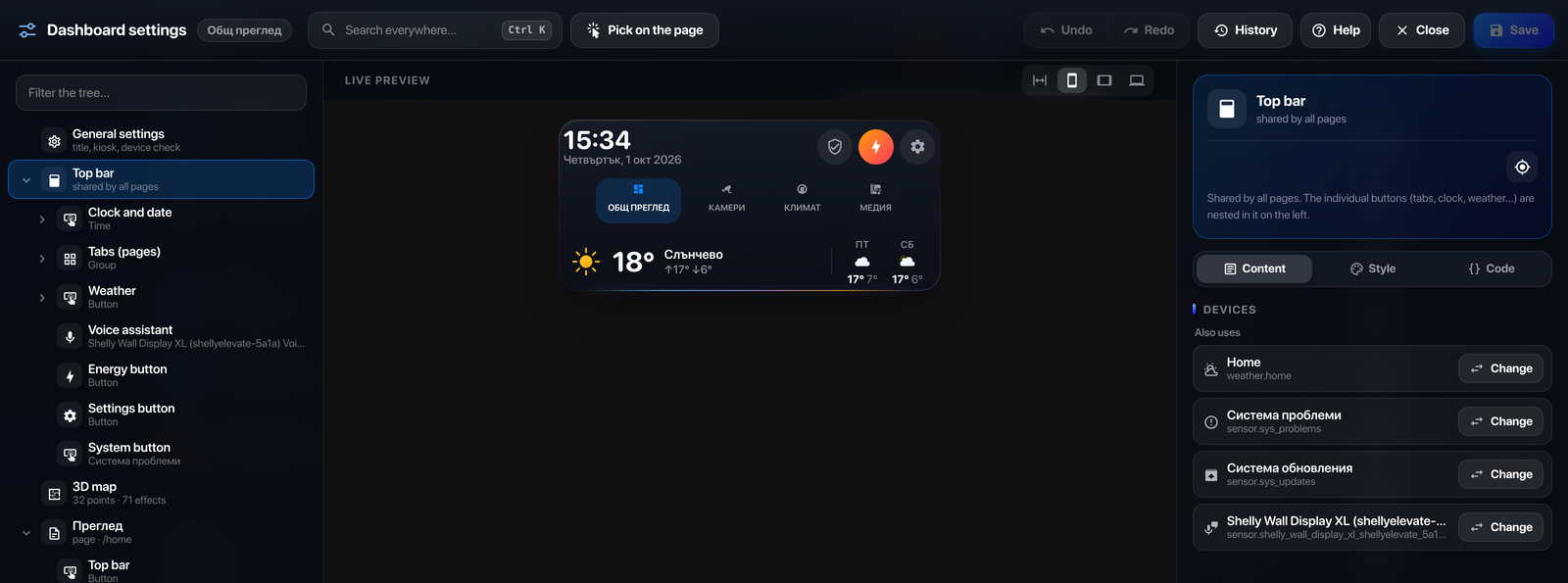
Open General settings at the top of the tree.
| Section | What it does |
|---|---|
| Editor look | Theme (glass, solid, black, light, Like HA), accent colour, background opacity, text size. |
| Dashboard | Title and theme for all pages. |
| Full screen (kiosk) | Hide the Home Assistant header and sidebar — for everyone or only on phones. |
| Device check | Lists every device the dashboard uses, finds unavailable ones and replaces a device everywhere at once. |
| Cleanup | Removes shared styles that no card uses any more. |
| Backup | Download the whole dashboard as a file and restore it later. |
| Editor preferences | Language (Like HA or one of the 7), where the Settings button sits (left, right or hidden), confirm before removing, live preview. |
Your look and preferences are stored in your Home Assistant user, so they follow you to every device.
| Shortcut | Action |
|---|---|
Ctrl+Shift+E |
Open the editor |
Ctrl+K |
Search everywhere |
Ctrl+S |
Save |
Ctrl+Z / Ctrl+Y (or Ctrl+Shift+Z) |
Undo / redo |
? |
Help |
Esc |
Close a dialog or the editor |
Arrows, Shift+arrows, Delete |
Map editor: nudge (0.1% / 1%) and remove the selected point |
Any picture-elements card with a picture works as a map.
- Prepare a picture of your home from above — a floor plan or a 3D render (PNG, JPG or WebP). A second, darker picture for the night is optional.
- In the editor: New card → 3D map / floor plan, upload the picture and press Save.
- Select the map and press Points and devices. Add devices from Home Assistant and drag them into place.
- On the Animations tab, add light glows and air-conditioner or radiator animations. On Map you swap the day and night pictures.
- Press Save in the map editor.
Maps made in the gallery get an Edit button in their top-right corner (administrators only). To add it to an existing map, add this element to the card:
- type: custom:ov3d-map-edit
  map_id: home
  button: true
  style:
    left: 97.5%
    top: 3.5%
    transform: translate(-100%, 0)
Without button: true the element is invisible and only names the map.
The built-in Home Assistant cards work without anything else. The app installs these free, open-source add-ons for you; the optional ones can be turned off in the app's options. An add-on you already have is used as it is.
| Add-on | Unlocks | From the app |
|---|---|---|
| button-card | Styles, shared templates and state rules | always |
| card-mod | Custom CSS on any card | always |
| layout-card | Layouts by areas — columns, top bar, bottom bar | always |
| kiosk-mode | The full-screen switches in General settings | optional, on |
| mini-graph-card | Nicer graphs for energy and temperature | optional, on |
| advanced-camera-card | Live cameras with switching and recordings | optional, on |
| browser_mod | Popups from automations too — popups on buttons open without it (Mega Dashboard has its own) | no — open in HACS |
New versions show up under Settings → Updates. Update the app, then reload the browser. What changed is in the changelog.
I don't see the Settings button
- You must be logged in as an administrator.
- Reload the browser with
Ctrl+F5(on phones, close and reopen the app). - Open the app's page: it should say Everything is installed. If not, press Repair.
- The button may be hidden in Editor preferences — press
Ctrl+Shift+Eto open the editor anyway. - The button is hidden while the normal Home Assistant dashboard editor is open.
"This dashboard is generated automatically"
This dashboard is generated from YAML mode. Open it, choose Edit dashboard and Take control, then open the editor again.
"YAML · read only"
The dashboard is defined in YAML files, so it can't be saved from the browser. Create a dashboard in the UI, or switch this one to UI mode.
Two Settings buttons, or the old version keeps loading
Another copy of Mega Dashboard is still listed in Resources, for example one added by hand. The app keeps only its own and removes the others within 15 minutes — press Repair on its page to do it right away, then reload the browser.
"The dashboard was changed elsewhere"
Someone saved the same dashboard from another device or from the normal editor while you were editing. Press OK to save yours over it, or Cancel to keep the other version — your edits stay in the editor, unsaved. History has the earlier saves.
Your devices, rooms and dashboards stay in your Home Assistant. Dashboards are saved through Home Assistant's own API. Preferences and history are stored in your Home Assistant user. Uploaded pictures go to Home Assistant's image storage. Once a day the app sends a random installation ID and version to apps.mega-dashboard.eu so we know how many installations are in use (no IP address or home data is stored); you can turn this off with telemetry in the app's Configuration tab (TELEMETRY=false in Docker).
On the app's page press Remove from dashboards, then uninstall the app and reload the browser. Your dashboards are standard Home Assistant configuration, but the ones made by Mega Dashboard use button-card, layout-card and card-mod — keep those installed (for example with HACS), or their cards show errors. The map Edit buttons (custom:ov3d-map-edit) need Mega Dashboard itself — remove those elements from your maps.
💡 Suggest an idea · 🐞 Report a problem — the same buttons are in the Studio (⋯ and Help), and from there the problem form fills in your versions by itself.
Questions and help: Discussions. Bugs: Issues.
Mega Dashboard is free. If it saves you an evening of YAML, you can say thanks with a coffee — it keeps new versions coming.
Harry Asar · by HomeNetcloud.eu · website: mega-dashboard.eu
Free to use. All rights reserved. © 2026 Harry Asar
The add-ons the app installs keep their own licenses.