
Animated video and image backgrounds for Home Assistant Lovelace dashboards, with support for entity-driven state changes, per-view configuration, transparent panels, and card opacity.
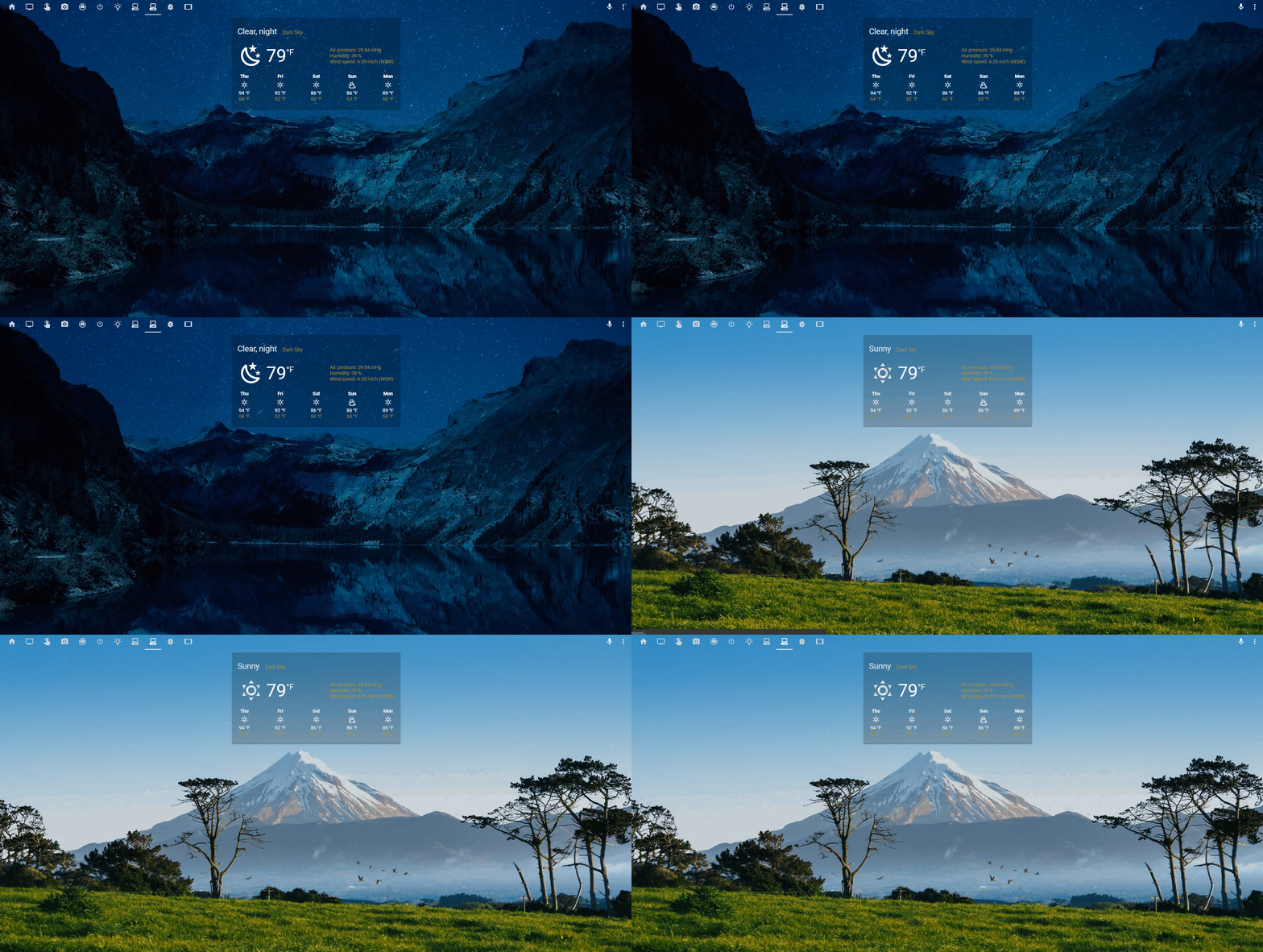
This project builds on the work of several contributors:
- Villhellm — original author. May he rest in peace.
- dreimer1986 — fixes for Home Assistant 2023.04.0 and transparent card mode.
- rbogdanov — added transparent panel support and card opacity mode.
- imonlinux — fixes for HA 2026.x, layout and CSS stacking context fixes, shadow DOM targeting corrections, and group config inheritance fixes.
Note: HACS 2.0 changed the installation process significantly. The old "overflow menu → Custom repositories" workflow no longer exists. HACS is now installed as a proper Home Assistant integration. If you don't have HACS yet, follow the official HACS installation guide.
- In HACS, select the three-dot menu (⋮) in the top right and choose Custom repositories.
- Paste
https://github.com/imonlinux/lovelace-animated-backgroundas the repository URL and select Dashboard as the category. - Find Lovelace Animated Background in the available downloads and install it.
- Add the resource to your dashboard.
- Copy
animated-background.jsfrom this repository to<config directory>/www/animated-background.json your Home Assistant instance. - Register the resource — see Registering the resource below.
Registering the resource
After installing manually, you need to register the JavaScript file as a Lovelace resource.
Via the UI
Requires Advanced Mode to be enabled on your user profile. Go to your profile (click your name in the bottom-left sidebar) and toggle Advanced Mode on.
Navigate to Settings → Dashboards, then open the three-dot menu (⋮) in the top right and select Resources. Add a new resource with:
- Manual install URL:
/local/animated-background.js - Resource type: JavaScript Module
Add the animated_background: block at the root of your Lovelace dashboard configuration — not inside a view or card. If you are using UI-managed dashboards, access the raw configuration editor via the pencil icon → three-dot menu → Edit in YAML on your dashboard.
animated_background:
  default_url: "https://cdn.flixel.com/flixel/ypy8bw9fgw1zv2b4htp2.hd.mp4"
  entity: "weather.home"
  state_url:
    'sunny':
      - "https://cdn.flixel.com/flixel/hlhff0h8md4ev0kju5be.hd.mp4"
      - "https://cdn.flixel.com/flixel/zjqsoc6ecqhntpl5vacs.hd.mp4"
    'rainy': "https://cdn.flixel.com/flixel/f0w23bd0enxur5ff0bxz.hd.mp4"
    'clear-night':
      - "https://cdn.flixel.com/flixel/ypy8bw9fgw1zv2b4htp2.hd.mp4"
      - "https://cdn.flixel.com/flixel/rosz2gi676xhkiw1ut6i.hd.mp4"

title: Home
views: ...
Any
mp4,webm, or image URL will work, including local/local/paths. Using locally stored videos is strongly recommended — it greatly improves loading times and avoids dependence on external CDNs. Short looping videos ("cinemagraphs") work best.See the example configuration below.
All options go under the animated_background: key at the root of your Lovelace dashboard config.
| Option | Type | Description |
|---|---|---|
default_url |
string or list | Fallback video or image URL when no entity state matches. If a list is provided, a random entry is selected. |
enabled |
bool | Set to false to disable the plugin entirely. Default: true. |
entity |
string | Home Assistant entity whose state drives background changes. |
state_url |
map | Map of entity states to video or image URLs. Each value can be a single URL or a list. Set a state to 'none' to disable the background for that state. Required if entity is set. |
opacity |
number (0–99) | Makes the view element semi-transparent so the background shows through cards. Requires a theme that sets card backgrounds to transparent or semi-transparent. Note: this creates a CSS stacking context — see Troubleshooting. |
transparent_panel |
bool | Makes the top navigation panel/header transparent. Default: false. |
views |
list | Per-view configuration overrides. See View Configuration. |
groups |
list | Named reusable configurations that views can reference. See Group Configuration. |
included_users |
list of strings | Only these users will see the animated background. All others are excluded. |
excluded_users |
list of strings | These users will not see the animated background. |
included_devices |
list of strings | Only these device types will show the background. Supported values: iphone, ipad, windows, macintosh, android. |
excluded_devices |
list of strings | These device types will not show the background. |
debug |
bool | Enables detailed console logging. |
display_user_agent |
bool | Shows an alert with your current user agent string. Useful for determining the correct value to use in device include/exclude lists. |
Note on
opacity: Theopacitysetting makes the entire view container semi-transparent, which only produces a see-through card effect when combined with a theme that sets--ha-card-backgroundto a transparent or semi-transparent colour (e.g.rgba(0,0,0,0.3)). Without a compatible theme, cards will appear faded but not transparent. Several HACS themes (such as iOS themes) provide this out of the box.
Note on
transparent_panelandopacitywith groups: These settings are always read from the rootanimated_background:config, even when a view is using a group configuration. You do not need to repeat them inside each group definition.
You can override the background for specific dashboard views using the views: key.
| Option | Type | Description |
|---|---|---|
path |
string | The view path — whatever appears after /lovelace/ in the URL. |
config |
config object | A full or partial configuration for this view. Accepts the same options as a group config. |
animated_background:
  default_url: "https://cdn.flixel.com/flixel/ypy8bw9fgw1zv2b4htp2.hd.mp4"
  entity: "weather.home"
  state_url:
    'sunny': "https://cdn.flixel.com/flixel/hlhff0h8md4ev0kju5be.hd.mp4"
  views:
    - path: gaming
      config:
        entity: "light.game_room"
        state_url:
          'on':  "https://cdn.flixel.com/flixel/8cmeusxf3pkanai43djs.hd.mp4"
          'off': "https://cdn.flixel.com/flixel/ypy8bw9fgw1zv2b4htp2.hd.mp4"

title: Home
views: ...Groups let you define a named background configuration that can be reused across multiple views with a single line.
| Option | Type | Description |
|---|---|---|
name |
string | The name used to reference this group from a view. |
config |
config object | The background configuration for this group. |
To use a group on a view, add animated_background: <group-name> to the view definition. Set it to 'none' to explicitly disable the background on a view.
animated_background:
  default_url: "https://cdn.flixel.com/flixel/ypy8bw9fgw1zv2b4htp2.hd.mp4"
  transparent_panel: true
  groups:
    - name: weather
      config:
        entity: "weather.home"
        state_url:
          'sunny':
            - "https://cdn.flixel.com/flixel/hlhff0h8md4ev0kju5be.hd.mp4"
            - "https://cdn.flixel.com/flixel/zjqsoc6ecqhntpl5vacs.hd.mp4"
          'rainy': "https://cdn.flixel.com/flixel/f0w23bd0enxur5ff0bxz.hd.mp4"

views:
  - path: home
    title: Home
    animated_background: weather
    cards: ...
  - path: cameras
    title: Cameras
    animated_background: 'none'  # disable background on this view
cards: ...This is a complete real-world example using locally stored videos for all standard weather states. The filename portion of each local path is the Flixel CDN ID, so you can also use them directly as CDN URLs — see the note below the example.
animated_background:
  default_url: /local/backgrounds/clear-night/ypy8bw9fgw1zv2b4htp2.hd.mp4
  transparent_panel: true
  groups:
    - name: weather
      config:
        entity: weather.home
        state_url:
          exceptional:
            - /local/backgrounds/sunny/hlhff0h8md4ev0kju5be.hd.mp4
            - /local/backgrounds/sunny/zjqsoc6ecqhntpl5vacs.hd.mp4
            - /local/backgrounds/sunny/8cmeusxf3pkanai43djs.hd.mp4
            - /local/backgrounds/sunny/jvw1avupguhfbo11betq.hd.mp4
            - /local/backgrounds/sunny/guwb10mfddctfvwioaex.hd.mp4
          sunny:
            - /local/backgrounds/sunny/hlhff0h8md4ev0kju5be.hd.mp4
            - /local/backgrounds/sunny/zjqsoc6ecqhntpl5vacs.hd.mp4
            - /local/backgrounds/sunny/8cmeusxf3pkanai43djs.hd.mp4
            - /local/backgrounds/sunny/jvw1avupguhfbo11betq.hd.mp4
            - /local/backgrounds/sunny/guwb10mfddctfvwioaex.hd.mp4
          partlycloudy:
            - /local/backgrounds/partlycloudy/13e0s6coh6ayapvdyqnv.hd.mp4
            - /local/backgrounds/partlycloudy/aorl3skmssy7udwopk22.hd.mp4
            - /local/backgrounds/partlycloudy/qed6wvf2igukiioykg3r.hd.mp4
            - /local/backgrounds/partlycloudy/3rd72eezaj6d23ahlo7y.hd.mp4
            - /local/backgrounds/partlycloudy/9m11gd43m6qn3y93ntzp.hd.mp4
            - /local/backgrounds/partlycloudy/hrkw2m8eofib9sk7t1v2.hd.mp4
          cloudy:
            - /local/backgrounds/cloudy/13e0s6coh6ayapvdyqnv.hd.mp4
            - /local/backgrounds/cloudy/aorl3skmssy7udwopk22.hd.mp4
            - /local/backgrounds/cloudy/qed6wvf2igukiioykg3r.hd.mp4
            - /local/backgrounds/cloudy/3rd72eezaj6d23ahlo7y.hd.mp4
            - /local/backgrounds/cloudy/9m11gd43m6qn3y93ntzp.hd.mp4
            - /local/backgrounds/cloudy/hrkw2m8eofib9sk7t1v2.hd.mp4
            - /local/backgrounds/cloudy/e95h5cqyvhnrk4ytqt4q.hd.mp4
            - /local/backgrounds/cloudy/l2bjw34wnusyf5q2qq3p.hd.mp4
            - /local/backgrounds/cloudy/rrgta099ulami3zb9fd2.hd.mp4
          mostlycloudy:
            - /local/backgrounds/mostlycloudy/l2bjw34wnusyf5q2qq3p.hd.mp4
            - /local/backgrounds/mostlycloudy/rrgta099ulami3zb9fd2.hd.mp4
          clear-night:
            - /local/backgrounds/clear-night/x9dr8caygivq5secll7i.hd.mp4
            - /local/backgrounds/clear-night/v26zyfd6yf0r33s46vpe.hd.mp4
            - /local/backgrounds/clear-night/ypy8bw9fgw1zv2b4htp2.hd.mp4
            - /local/backgrounds/clear-night/rosz2gi676xhkiw1ut6i.hd.mp4
            - /local/backgrounds/clear-night/x5rxll400y2um2xe677c.hd.mp4
          fog:
            - /local/backgrounds/fog/5363uhabodwwrzgnq6vx.hd.mp4
            - /local/backgrounds/fog/4dbfz329lqn0gzxft14l.hd.mp4
            - /local/backgrounds/fog/vabb5tnx2psqf1221ue9.hd.mp4
            - /local/backgrounds/fog/1xgcgyb68b15ysz30gw9.hd.mp4
          rainy:
            - /local/backgrounds/rainy/f0w23bd0enxur5ff0bxz.hd.mp4
            - /local/backgrounds/rainy/qti3s5st0srowd9krhcw.hd.mp4
          lightning:
            - /local/backgrounds/lightning/sbk5sc03j7vay52r3e4o.hd.mp4
            - /local/backgrounds/lightning/chrgj6raf5q3s6y2so7z.hd.mp4
            - /local/backgrounds/lightning/j6txa6307zgmk4olaykl.hd.mp4
          lightning-rainy:
            - /local/backgrounds/lightning-rainy/sbk5sc03j7vay52r3e4o.hd.mp4
            - /local/backgrounds/lightning-rainy/chrgj6raf5q3s6y2so7z.hd.mp4
          pouring:
            - /local/backgrounds/pouring/f0w23bd0enxur5ff0bxz.hd.mp4
            - /local/backgrounds/pouring/qti3s5st0srowd9krhcw.hd.mp4
          snowy:
            - /local/backgrounds/snowy/on3ysblo5hzdmrhv1kwh.hd.mp4
            - /local/backgrounds/snowy/psi1hhbsshcus8eumtr7.hd.mp4
          snowy-rainy:
            - /local/backgrounds/snowyrainy/ndza6yswd0k6vlboxyhk.hd.mp4
          windy:
            - /local/backgrounds/windy/2qmg1xgcswq79lxu09rl.hd.mp4
            - /local/backgrounds/windy/guwb10mfddctfvwioaex.hd.mp4

views:
  - path: home
    title: Home
    animated_background: weather
    cards: ...
To use CDN URLs instead of local files, replace any
/local/backgrounds/<state>/<id>.hd.mp4withhttps://cdn.flixel.com/flixel/<id>.hd.mp4. For example:
/local/backgrounds/sunny/hlhff0h8md4ev0kju5be.hd.mp4
→ https://cdn.flixel.com/flixel/hlhff0h8md4ev0kju5be.hd.mp4
The plugin tracks a single entity at a time, but you can combine multiple entity states into one value using a Template Helper. This example creates a background that changes based on both the time of day and a bedroom switch state.
Option 1: Create a Helper in the UI (recommended)
Go to Settings → Devices & Services → Helpers → Create Helper → Template → Template sensor and enter:
{{ states('sun.sun') + '-' + states('switch.bedroom') }}
Give it a name like Sun and Bedroom. This creates a sensor (e.g. sensor.sun_and_bedroom) without editing any YAML files.
Option 2: YAML in configuration.yaml
template:
  - sensor:
      - name: "Sun and Bedroom"
        state: "{{ states('sun.sun') + '-' + states('switch.bedroom') }}"
        # Returns states like 'above_horizon-on' or 'below_horizon-off'
Lovelace config (either option):
animated_background:
  entity: "sensor.sun_and_bedroom"
  state_url:
    'above_horizon-on':  "https://cdn.flixel.com/flixel/hlhff0h8md4ev0kju5be.hd.mp4"
    'above_horizon-off': "https://cdn.flixel.com/flixel/zjqsoc6ecqhntpl5vacs.hd.mp4"
    'below_horizon-on':  "https://cdn.flixel.com/flixel/9m11gd43m6qn3y93ntzp.hd.mp4"
    'below_horizon-off': "https://cdn.flixel.com/flixel/hrkw2m8eofib9sk7t1v2.hd.mp4"
sun.sunhas two states —above_horizon(daytime) andbelow_horizon(night) — giving you four possible combinations to map backgrounds to.
If you use Bubble Card or similar popup integrations and notice popups opening behind the background, this is a CSS stacking context issue caused by the opacity option.
When opacity is set (any value 1–99), the plugin applies an opacity CSS property to the view container element. This forces the browser to create a new stacking context, which confines the z-index of all child elements — including popups — preventing them from rendering above the background.
Solutions:
- Remove the
opacityoption from your config if you don't need semi-transparent cards. This is the cleanest fix. - Bubble Card workaround: Add
hide_backdrop: trueto your Bubble Card configuration. This disables the Bubble Card backdrop element which is the part most affected by the stacking context. Note that this removes the dimmed backdrop visual from Bubble Card popups.
Do not apply
filteroropacityCSS directly tohui-masonry-view,hui-sections-view, orhui-panel-viewvia themes or custom CSS — this will cause the same stacking context issue.
If you are using device exclusions to prevent the background loading on mobile, monitor your Home Assistant app data usage after installing. If you notice unexpectedly high data usage, please open an issue.
If you intentionally use this plugin on mobile, be aware it will consume significant mobile data, particularly with remote CDN video URLs. Using locally stored videos (/local/) will reduce this considerably.