A modern, high-performance progressive blur for Flutter — powered by custom GPU shaders.
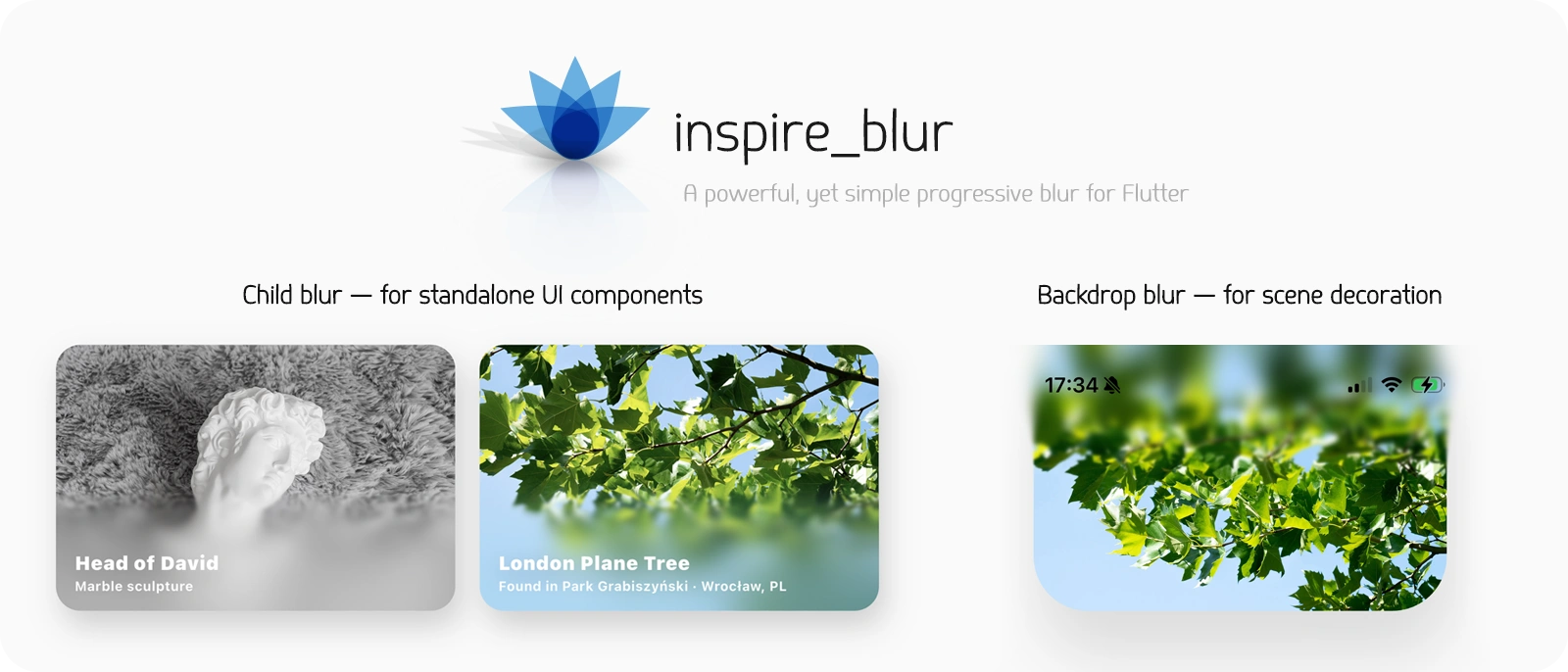
Inspire Blur is a simple, flexible, and efficient way to add gradually fading blur effects in Flutter.
It comes with a clean, ready-to-use API.
Inspire Blur is designed to handle many of the common challenges of applying variable blur and shader-based effects in Flutter — such as performance trade-offs, layout edge cases, and rendering inconsistencies across environments.
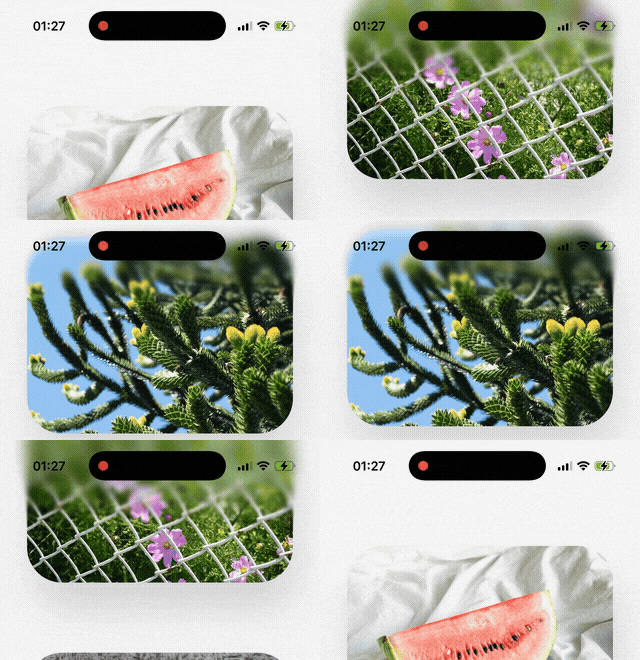
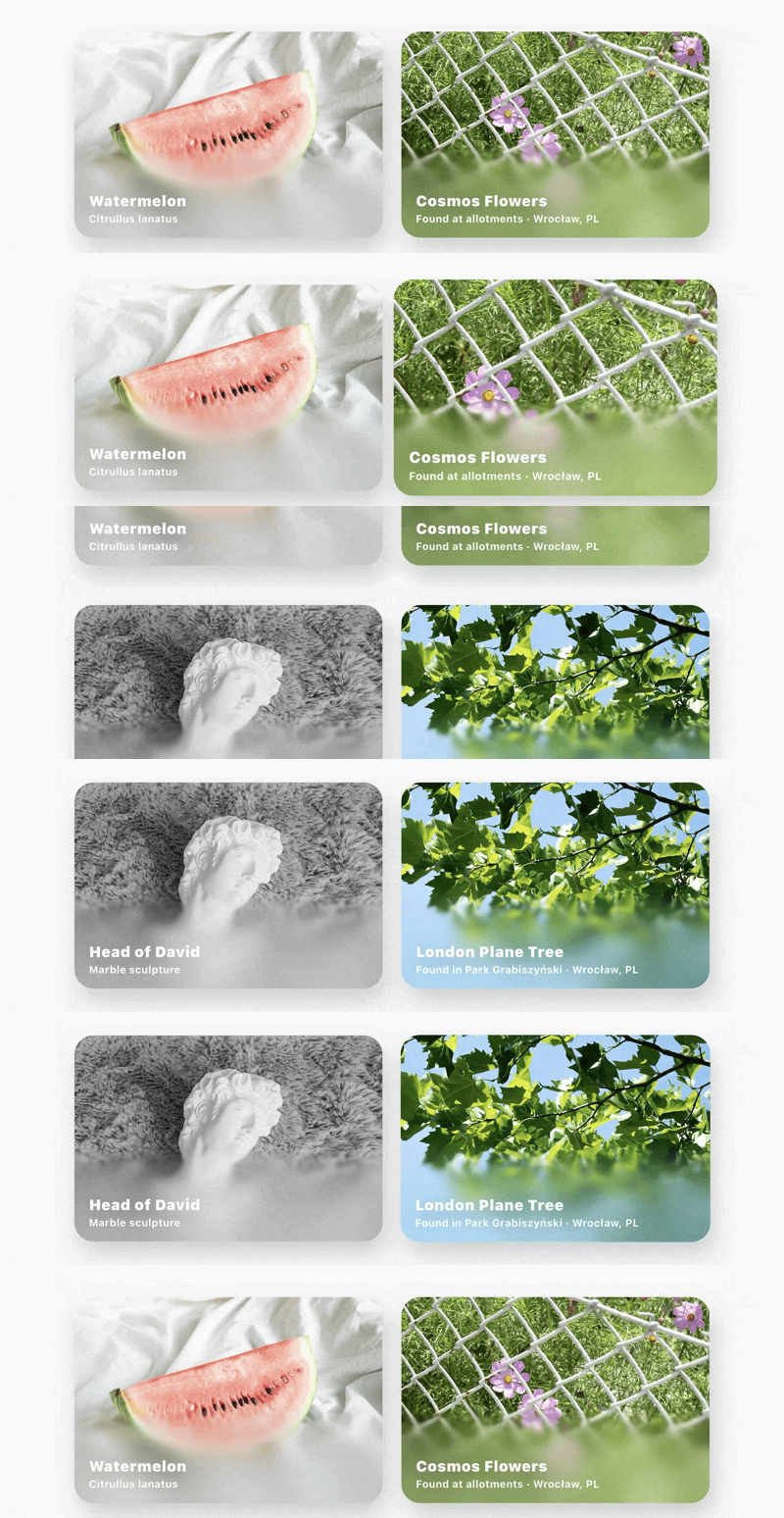
Run the example app to see interactive demos, including both backdrop and child blur in real-world scenarios.
Flutter currently does not provide a built-in blur widget with variable strength.
Inspire Blur uses custom GPU shaders to create blur effects of varying strength. This approach makes it more powerful and customizable than solutions that simply apply a ShaderMask to a uniform blur.
- Gradient-based smoothly fading blur
- Scene-level and component-level blur modes
- GPU-accelerated custom shader implementation
- Presets for common blur fades and shapes
- Fully custom blur distributions using image masks
- Flexible, yet simple configuration
- Built-in handling for complex UI layering setups (Stacks, Gradients, Shadows, Overlays, etc.)
- Dynamic blur that works well with animations
- Optimized for Impeller — with automatic fallback
Inspire Blur has two blur widgets:
- Backdrop blur — a widget that blurs the content behind it.
- Child blur — a widget that blurs the content inside it.
Best for large, dynamic areas, such as screens, scaffolds, lists, grids, or carousels. It blurs any content rendered behind it, making it ideal for broad scene-level effects.
- iOS-like system bars — recreate the iOS blur effect beneath the status and navigation bars.
Ideal for standalone UI elements like cards, images, or small components. It works by wrapping the widget that should be blurred.
- Card with a background image and text on top — blur effect with a gradually fading intensity that makes the text and icons stand out more on top of the background.
Both blur modes can produce similar visual effects, but they are designed for different scenarios. Choosing the appropriate mode helps ensure the best compatibility.
| Blur mode | Typical use case |
|---|---|
| Child blur | Individual components such as cards, images, or standalone widgets. |
| Backdrop blur | Full-screen overlays and scene-level effects. |
To get started, import the package:
import 'package:inspire_blur/inspire_blur.dart';Wrap the widget that should be blurred with Inspire.childBlur():
Inspire.childBlur(
  config: InspireBlurConfig(...), // Blur configuration
  child: MyWidget(), // Widget to be blurred
)Add Inspire.backdropBlur() to the same Stack as the content that should be blurred.
The blur widget must be added after the other widgets in the stack so it renders above them.
Stack(
  children: [
    MyWidget(), // Widgets to be blurred
    Inspire.backdropBlur(
      config: InspireBlurConfig(...), // Blur configuration
    ),
  ],
);It is recommended to call Inspire.warmUp() during app startup to ensure blur effects render immediately when first displayed.
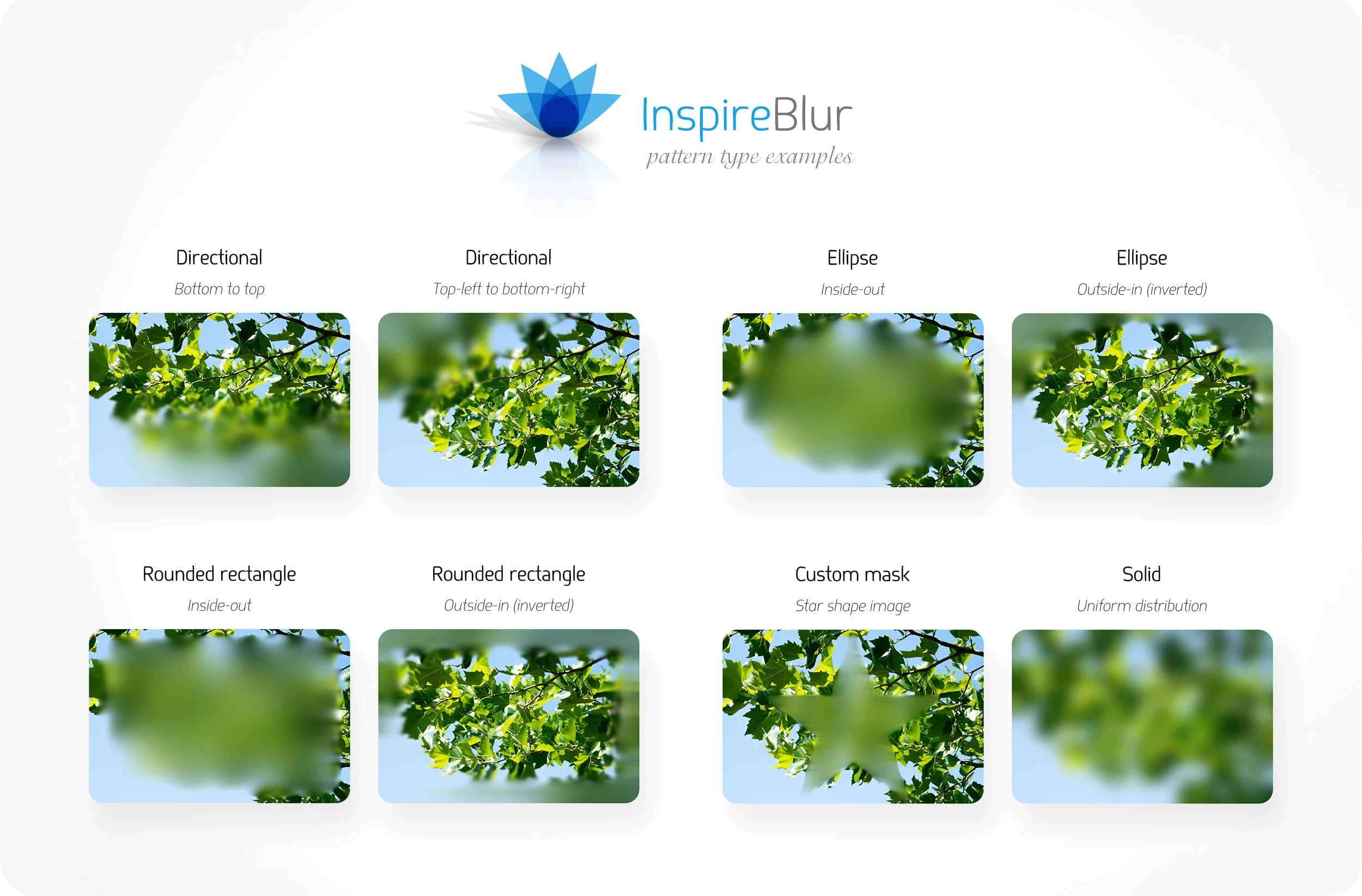
This type of blur progressively fades along a direction, gradually changing its strength from one side to the other.
Use one of the predefined factories:
InspireBlurConfig.topToBottom()
InspireBlurConfig.bottomToTop()
InspireBlurConfig.leftToRight()
InspireBlurConfig.rightToLeft()
For a custom direction, use:
InspireBlurConfig.directional()This type of blur has a non-uniform (variable) distribution, where the blur strength is determined by a shape.
The BlurTransform.inversionFactor property inverts the blur distribution. By default, the blur starts at the center and gradually fades outward. When BlurTransform.inversionFactor is 1.0, the blur instead starts at full strength around the edges and gradually fades inward.
Choose a custom fadeCurve to control how the blur intensity is distributed across the transition. The default curve, Curves.easeOutSine, produces a more natural fade that is more visually smoothened out.
For an elliptical blur, use:
InspireBlurConfig.ellipse()For a rectangular blur, use:
InspireBlurConfig.rectangle()For a rounded rectangular blur, use:
InspireBlurConfig.roundedRectangle()The customMask() factory enables arbitrary spatial blur distributions that cannot be achieved with the built-in blur patterns.
For an arbitrary blur distribution, use:
InspireBlurConfig.customMask(
  maskImage: ...
)
Provide a grayscale maskImage with a recommended resolution between 64×64 and 1024×1024 pixels. The image acts as a spatial blur map, where the brightness of each pixel determines the local blur intensity.
Note: To prevent the effect from appearing stretched, use a maskImage with an aspect ratio matching the component being blurred.
To apply a uniform blur over the entire area, use:
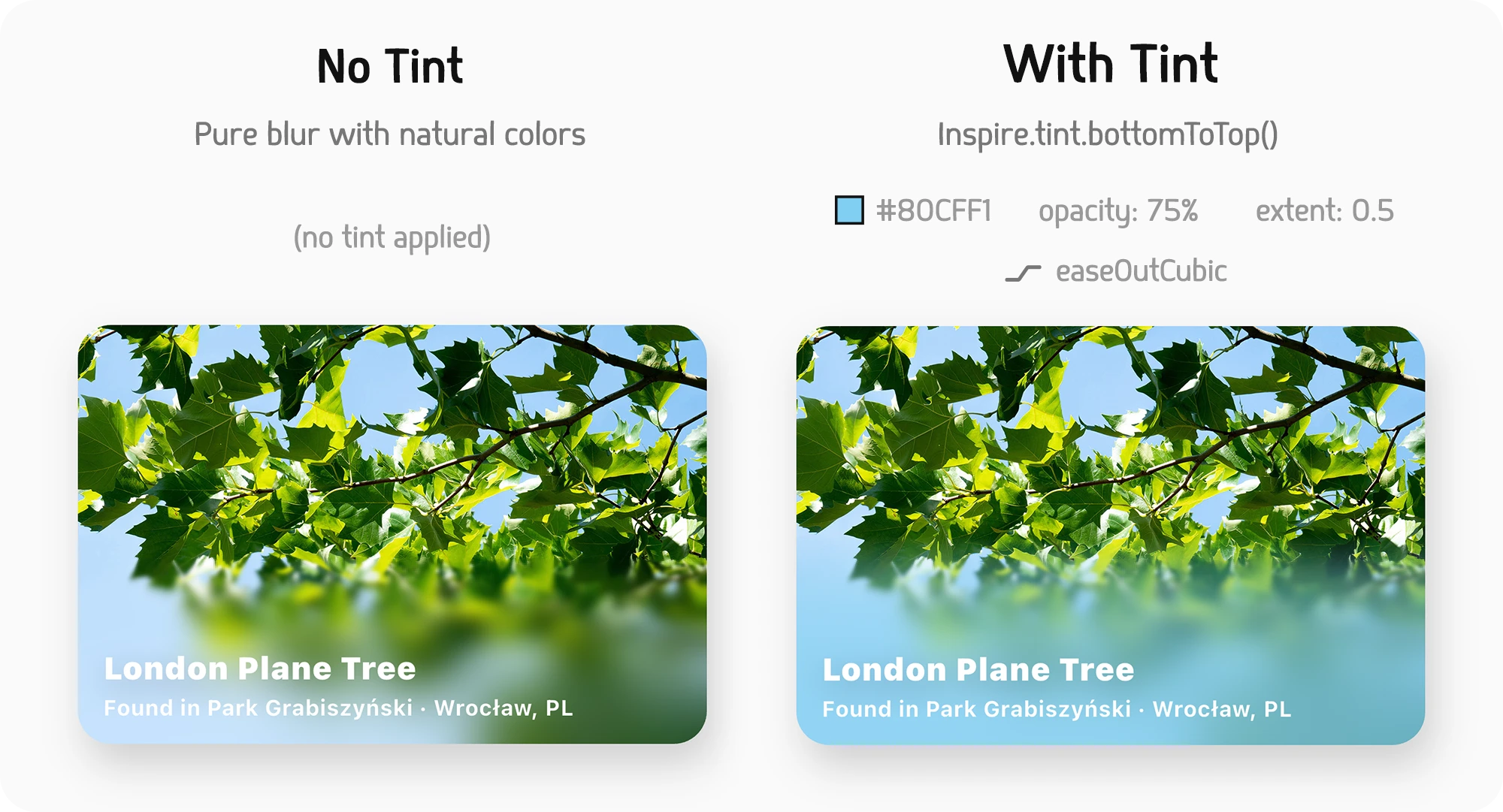
InspireBlurConfig.solid()To apply a color tint to the blurred area of a widget, use one of the factory methods from Inspire.tint. Tinting adds a distinct accent color helping to soften the blur transition. This results in a more natural, integrated appearance.
The tint transition can be adjusted using the curve parameter. Curves such as Curves.easeOutCubic will typically produce a more natural effect than the regular Curves.linear. Various curves might also make the tint look more or less prominent.
The extent parameter defines how far the tint effect extends.
| Blur mode | How to apply tint |
|---|---|
| Child blur | Wrap the Inspire.childBlur inside the tint widget. |
| Backdrop blur | Place the tint widget after the Inspire.backdropBlur in the Stack. |
See the below example of a tint applied to a child blur. In this example the light blue color was picked by hand, but for a real scenario it is recommended to use a color palette generator to get the accent color from an image automatically.
Inspire.tint.bottomToTop(
  color: const Color(0xFF80CFF1),
  opacity: 0.75,
  extent: 0.5,
  curve: Curves.easeOutCubic,
  child: Inspire.childBlur(
    child: // ... card image
  ),
),
Blur strength is defined by sigma values:
sigma— uniform blur (both directions)sigmaX— horizontal blursigmaY— vertical blur
sigma cannot be combined with sigmaX and sigmaY.
Using only sigmaX produces a horizontal blur, while using only sigmaY produces a vertical blur.
| Configuration | Usage |
|---|---|
| Uniform | Provide sigma for equal blur on both axes. |
| Directional | Provide sigmaX or sigmaY for single-axis blur. |
| Asymmetric | Provide both sigmaX and sigmaY for uneven blur strength along the axes. |
Examples:
// Correct:
InspireBlurConfig.topToBottom(sigma: 8) // Same strength on both axes
InspireBlurConfig.topToBottom(sigmaX: 8) // Horizontal blur
InspireBlurConfig.topToBottom(sigmaY: 8) // Vertical blur
InspireBlurConfig.topToBottom(sigmaX: 8, sigmaY: 5) // More horizontal strength

// Incorrect:
InspireBlurConfig.topToBottom() // No sigma values provided
InspireBlurConfig.topToBottom(sigma: 5, sigmaX: 3) // 2D and 1D sigma cannot be used together

// Not recommended:
InspireBlurConfig.topToBottom(sigmaX: 5, sigmaY: 5) // Same as `sigma: 5`Progressive blur does not have to span the entire widget area. Use the extent property to produce only a partial blur distribution. For example a value of 0.5 will make the blur end at half way through the area.
Values greater than 1.0 are also supported, allowing the blur transition to extend beyond the widget bounds.
For example:
- 0.0 → no blur is visible
- 0.5 → blur stops halfway
- 1.0 → blur spans the entire area
The blur strength is distributed according to the selected fade curve, allowing you to fine-tune how quickly the blur intensity progresses across the area.
The default is Curves.easeInSine, which produces a natural, more gradual soft edge blur fade that is progressing more softly. For a regular linear gradient blur progression, use Curves.linear.
To transform blur distribution, use InspireBlurConfig.transform property. All the values of BlurTransform can be smoothly animated.
| Property | Application |
|---|---|
| scale | Enlarges or shrinks the blur distribution. Negative values mirror it. |
| offset | Translates the blur distribution horizontally and vertically. |
| rotation | Rotates the blur distribution around the origin. |
| origin | Specifies the origin point around which the transformation is performed. |
| inversionFactor | Inverts the blur distribution. |
Inspire.backdropBlur() is a widget that blurs everything displayed behind it.
It is built on top of Flutter’s BackdropFilter widget. It applies the custom blur shader via ImageFilter.shader.
A typical way to use Inspire.backdropBlur() is to add it to a Stack on top of the content that needs to be blurred. Make sure it is the last widget in the stack so it renders above the content.
Inspire.childBlur() is a widget that blurs everything inside it.
It has two modes available:
InspireBlurMode.imageFilterInspireBlurMode.animatedSampler
Each one uses a different underlying mechanism to render the blur effect.
These two modes have different trade-offs in terms of rendering accuracy, performance, and compatibility.
To let Inspire Blur choose the best mode automatically, use the default InspireBlurMode.auto which will determine the most suitable mode at runtime.
- The
imageFiltermode is recommended for static and complex layouts. It is more tightly integrated with the rendering pipeline, making it more stable for complex layouts with stacks, shadows, and layered effects. - The
animatedSamplermode is recommended for scrollable content and simpler layouts. It provides better accuracy for elements of lists, grids, carousels, etc. It may however produce less accurate results for complex widgets, especially those using stacks and shadows.
Note that imageFilter is only supported on Impeller. If it’s chosen and Impeller is not available, animatedSampler will be used instead.
Designed with performance in mind, Inspire Blur minimizes GPU cost while maintaining high visual quality.
Inspire Blur relies on custom GPU shaders to achieve efficient blur rendering while allowing a high degree of customization. Each shader uses a lightweight one-dimensional convolution kernel, making the implementation GPU-friendly.
For uniform blur, horizontal and vertical passes are combined to approximate a 2D blur effect. Stacking two 1D blur passes is typically more efficient than a single 2D blur pass, especially for large sigma values. It produces visual quality that is visually comparable to a full 2D convolution for most UI use cases.
Both Backdrop blur and Child blur can be used together within the same screen. When backdrop blur is on top of a widget that has a child blur applied, both should blend smoothly without any issues.
However, this comes with an associated performance cost. Using a large number of blur effects in a single scene may impact performance due to the need to allocate additional resources, such as framebuffers or save layers. This is particularly relevant in complex layouts or scrollable content where multiple layers are recomposited frequently.
If you encounter performance issues, consider reducing the blur sigma or limiting the area where the effect is applied. Additionally, limit the number of distinct blur effects displayed at once.
iOS and Android platforms are fully supported.
On Web, only child blur with InspireBlurMode.animatedSampler is supported.
My blur effect is too slow or starts lagging
Limit the number of distinct blur effects used on a single screen. Each additional blur increases GPU workload and rendering cost. Combining backdrop blur and child blur on the same screen may also introduce additional overhead. If you still experience bad performance, consider lowering the sigma value.
There is jank when blur is first rendered
Make sure to call
Inspire.warmUp()before rendering blur effects. A recommended place is during app startup, such as on a splash screen.
I’m getting visual artifacts, such as overblown shadows
Try using child blur with
InspireBlurMode.imageFilter. This mode provides more accurate rendering in certain scenarios, but is currently only available on the Impeller engine.
Child blur appears inaccurate while scrolling
Try using
InspireBlurMode.animatedSampler, which works better in scrollable widgets and dynamically changing layouts.
I’m using platform views
Blur effects currently do not support platform views such as:
- WebView
- Google Maps
- Native UIKit/AppKit views
This limitation originates from Flutter’s platform view rendering architecture.
It is recommended to call Inspire.warmUp() on app startup, for example during a splash screen. This function preloads the shaders used by the effects.
While not required, this is a useful optimization that ensures the blur effect renders immediately when first used, avoiding potential frame drops — especially on lower-end devices.
Consider choosing lower sigma values for better performance. On lower-end devices, sigma values above 8-13 may become expensive depending on the layout complexity and number of active blur effects.
Blur strength is perceived differently depending on the screen resolution. On smaller screens, lower sigma values may produce a visually similar result to higher sigma values on larger screens. For extra consistency it is advised to scale sigma depending on the screen resolution.
- Built for Impeller first. Optimized for Flutter’s modern rendering engine.
- Graceful best-effort fallback. To extensively cover a wide range of devices, it automatically falls back to Skia if Impeller is unavailable.
- Actively maintained. We’re working on constantly improving the performance and extending the available features, ensuring compatibility with latest Flutter, and no deprecation warnings.
If Inspire Blur helped you build a beautiful UI for your app, consider giving it a 👍 on pub.dev and a ⭐️ on GitHub. It helps other Flutter developers discover the project and supports its growth.
If Inspire Blur has been useful in your project and you'd like to say thanks, you can support its continued development on buymeacoffee.com ☕️.
Your support helps keep new features, improvements, and future packages coming.
Did Inspire Blur turn out to be a great fit for your app? Share it with us! We'd love to feature your app. You can find the template on our GitHub.
Help inspire the Flutter community by showcasing what custom GPU shaders can do!
