







A complete, plug-and-play Docker image for running your own Matrix homeserver on Unraid. No manual config file editing, no SSH access to the container required — just enter your domain and database credentials and the container handles the rest.
Maintained solo, in whatever spare time there is. Questions via the support thread, bugs, ideas and feature requests via GitHub issues. If it's useful to you, a coffee is always welcome.

The container itself is plug-and-play, but two things outside the container must be set up correctly or Synapse will not work:
1. Create the PostgreSQL database with the right locale (UTF8 + C collation).
In your Postgres container console (psql -U postgres):
CREATE USER admin WITH PASSWORD 'yoursecretpassword';
CREATE DATABASE matrix
    ENCODING 'UTF8' LC_COLLATE='C' LC_CTYPE='C'
    TEMPLATE template0 OWNER admin;
Any other locale and Synapse refuses to start. Full details in section 4.
2. Add NPM Advanced config to your matrix.yourdomain.tld proxy host.
NPM → your proxy host → Edit → Advanced tab → paste this complete block into
Custom Nginx Configuration:
# Matrix media uploads can be large
client_max_body_size 100M;

# Long-polling sync needs generous timeouts
proxy_read_timeout 600s;
proxy_send_timeout 600s;

# Forward real client IP (matches x_forwarded: true in homeserver.yaml)
proxy_set_header X-Forwarded-For $remote_addr;
proxy_set_header X-Forwarded-Proto $scheme;
proxy_set_header Host $host;

# WebSocket / HTTP-1.1 upgrade for /_matrix/client/*/sync
proxy_http_version 1.1;
proxy_set_header Upgrade $http_upgrade;
proxy_set_header Connection "upgrade";
Without these, media uploads fail and Sync requests time out. Details and the
federation well-known snippet are in section 5 and section 6.
- What Is This?
- Screenshots
- Quick Start on Unraid
- Setting Up PostgreSQL
- NPM Configuration (Nginx Proxy Manager)
- Enabling Federation
- Monitoring (Prometheus)
- Adding Bridges
- Creating the First Admin User
- Generating Registration Tokens
- Delegated Auth and QR Code Login
- S3 Media Storage
- Updates
- Troubleshooting
- Contributing / License
- License
- Support this project
This image is a wrapper around the official Synapse image from Element (ghcr.io/element-hq/synapse).
It extends bare Synapse with all the components needed for a fully functional
Matrix homeserver:
| Component | Purpose | Port |
|---|---|---|
| Synapse | Matrix homeserver (core component) | 8008 |
| coturn | TURN/STUN server for voice and video calls | 3478, 5349, 49160–49200/udp |
| Element Web | Modern Matrix client (web UI) | 8080/element/ |
| Ketesa | Admin interface (users, rooms, tokens), the maintained fork of Synapse-Admin | 8080/admin/ |
| lighttpd | Lightweight web server for Element Web + Ketesa | 8080 |
| Prometheus metrics | Internal Synapse metrics endpoint | 9090 |
Why a wrapper instead of building from scratch?
The official Synapse image receives security patches immediately and is tested against every new
Synapse release. We build on top of it rather than alongside it — meaning: always up to date,
without maintaining our own Synapse build pipeline. The GitHub Actions workflow checks for new
Synapse releases every hour and rebuilds the image automatically — and no build ships blind:
before :latest is published, CI boots the freshly built image against a throwaway PostgreSQL
and refuses to release it unless Synapse is demonstrably running on that database (a silent
SQLite fallback fails the build). Details in section 13.
PostgreSQL is external — this image does not include its own database. Synapse requires PostgreSQL with specific locale settings (see section 3), and keeping it external gives you full control over backups, connections, and performance.
Element Web ships inside this image — no separate container needed. It is served at
http://UNRAID-IP:8080/element/ (signing in is covered in section 9).
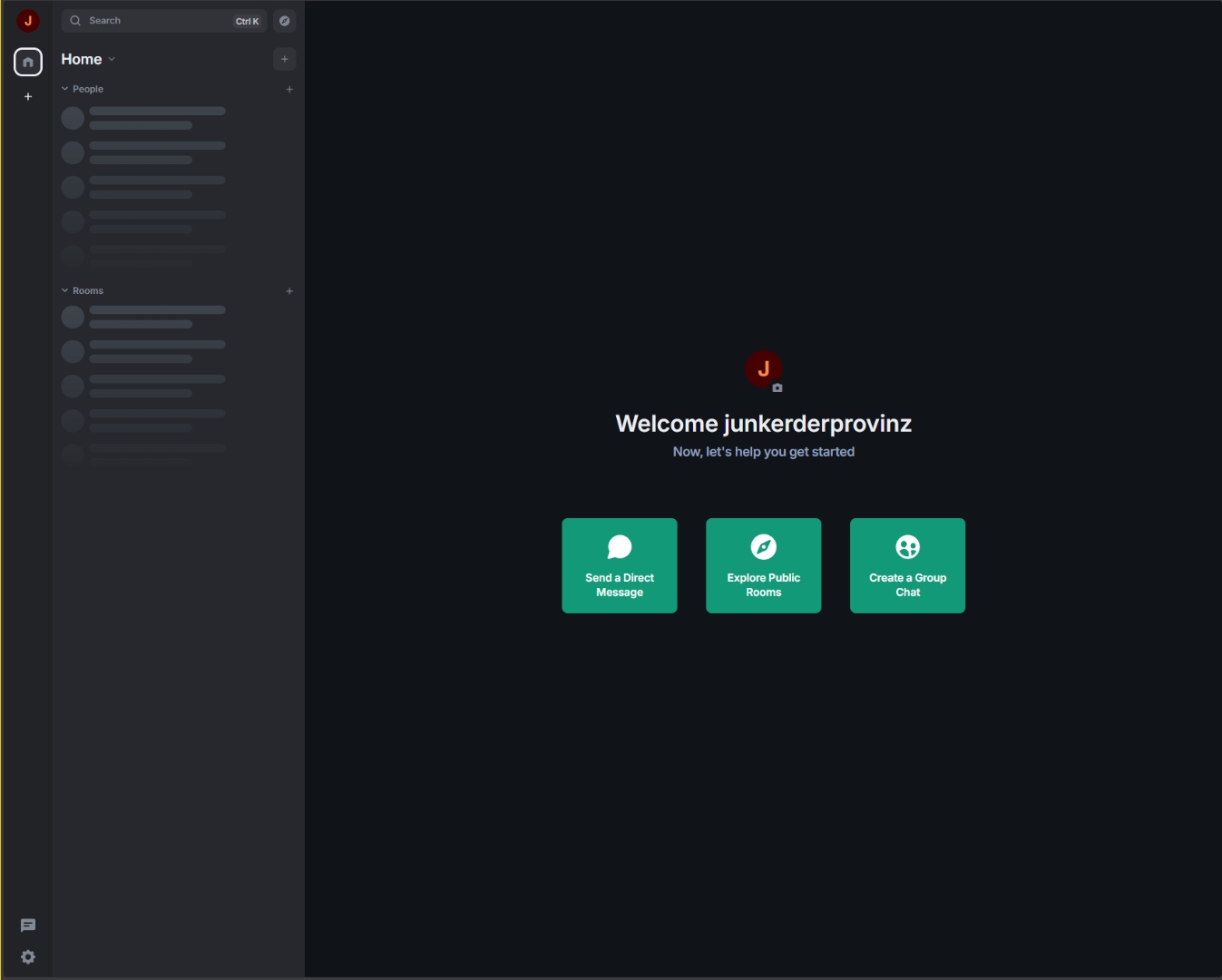
First login — Element home view served by your own Synapse homeserver.
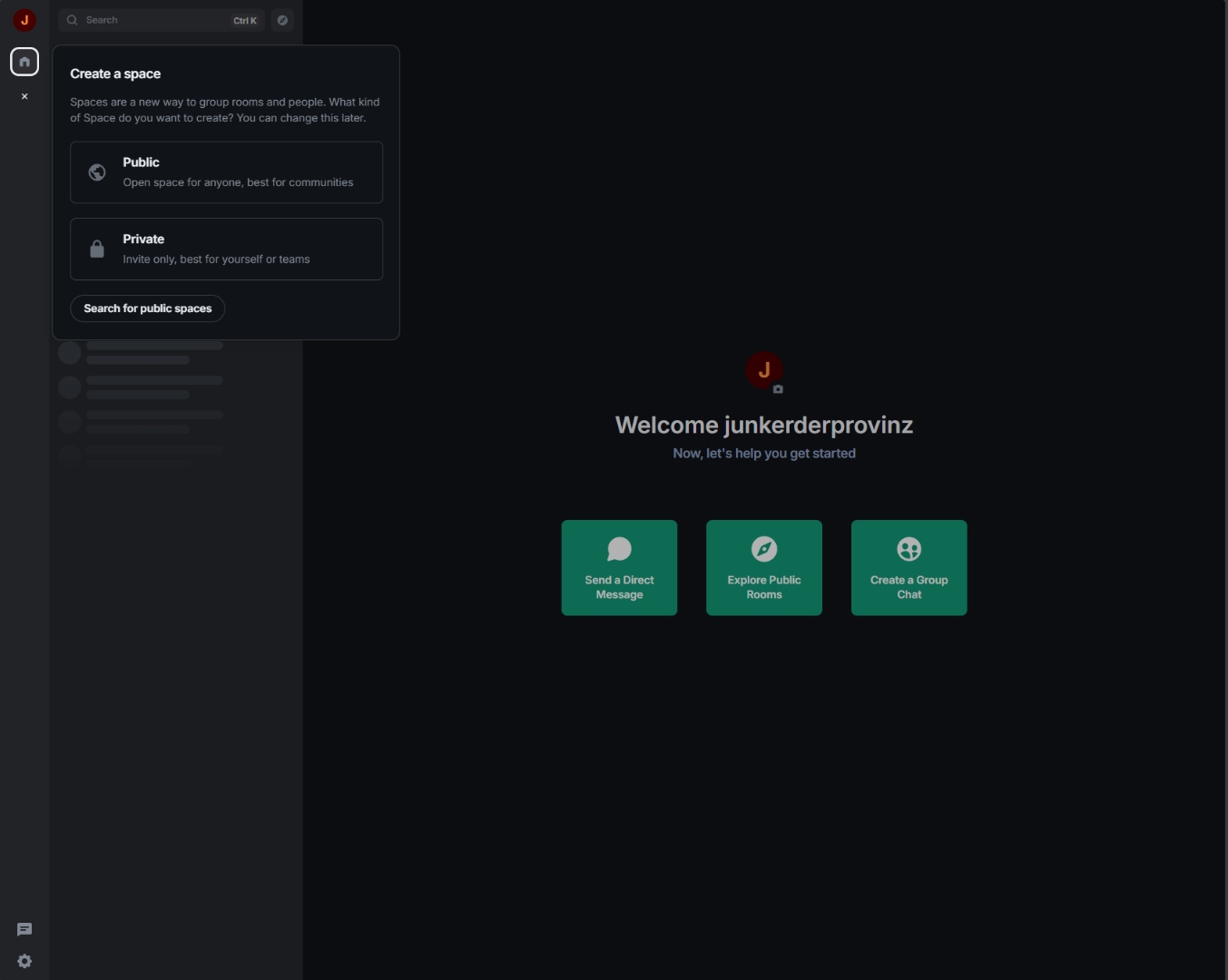
Public vs. private Spaces — group rooms and people by topic or team.
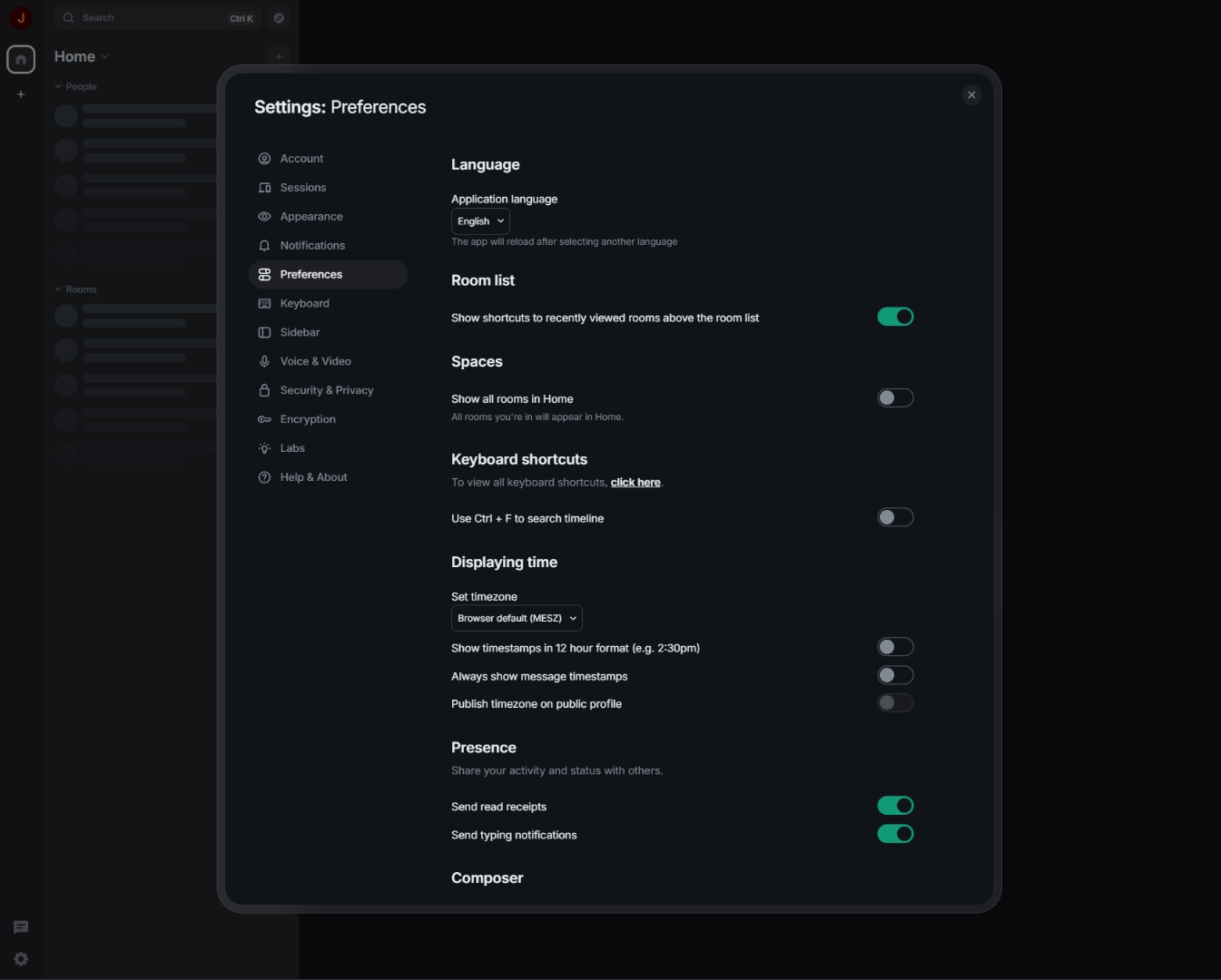
Preferences — application language, room list, Spaces, time format, presence.
Before installing the Matrix template, the database must be ready (UTF8 + LC_COLLATE='C').
See section 4 for the exact SQL — Synapse will not start without it.
Option A: Community Applications (recommended)
- In Unraid, open: Apps → Community Applications
- Search for
Matrix All-in-One - Click Install
Option B: Manual template URL
- Unraid → Docker → Add Container
- Click Template URLs in the top right
- Paste the following URL:
https://raw.githubusercontent.com/junkerderprovinz/unraid-apps/main/matrix/matrix.xml - Click Save, then select Matrix from the template list
In the template form, you must configure the following fields:
| Field | Example value | Note |
|---|---|---|
SERVER_NAME |
matrix.yourdomain.tld |
Can never be changed! |
POSTGRES_HOST |
192.168.1.10 |
Unraid host IP (see "Why IP?" below) |
POSTGRES_USER |
admin |
Must exist in PostgreSQL |
POSTGRES_PASSWORD |
yoursecretpassword |
Stored masked |
POSTGRES_DB |
matrix |
Must exist with correct locale settings |
Important:
SERVER_NAMEis the foundation of your Matrix identity. All user IDs take the form@username:SERVER_NAME. This setting cannot be changed after the first run without dropping the entire database.
Everything else has sensible defaults. The most useful optional variables:
| Variable | Default | What it does |
|---|---|---|
ENABLE_REGISTRATION |
false |
Open self-service signup + Element's Create Account button. Leave it off unless you enjoy spam signups — section 10 has the token-based alternative. |
TURN_DOMAIN / TURN_PORT |
SERVER_NAME / 3478 |
Route voice/video (TURN) through a dedicated subdomain and/or a remapped port — e.g. to take coturn around your reverse proxy. |
TURN_TLS_ENABLE |
auto |
TURN over TLS (turns:). auto = on when a certificate is mounted at /data/certs; true/false force it. See Troubleshooting → TURN over TLS. |
ADMIN_USER / ADMIN_PASSWORD |
— | Auto-create the first server admin (or promote an existing account) on the next start — see section 9. |
ELEMENT_EXTRA_FEATURES |
{} |
JSON object merged into Element Web's features block (labs/feature flags), e.g. {"feature_html_topic": true} for Markdown/HTML room topics (MSC3765). Invalid JSON is ignored with a warning in the log rather than breaking Element Web. |
- Click Apply → the container starts
- In Unraid, open: Docker → Matrix → Logs
- You should see:
[init] INFO: Container initialization complete. Starting services ... - After approximately 30–60 seconds a loud
MATRIX IS READYbanner appears in the log — Synapse is now serving on port 8008
Follow section 5 to make Synapse accessible over HTTPS.
Don't forget the Advanced tab — client_max_body_size 100M; and proxy_read_timeout 600s;
are required for media uploads and Sync to work.
Synapse has strict requirements for the PostgreSQL database:
- Encoding:
UTF8 - LC_COLLATE:
C - LC_CTYPE:
C
Without these exact settings, Synapse will refuse to start with an error such as
database encoding is not UTF8 or collation mismatch.
In Unraid via Docker terminal:
- Open Docker → PostgreSQL15 → Console
- Enter:
psql -U postgresThe SQL below uses admin as the database user and matrix as the database name —
these are the template defaults documented here. You are free to choose different
names; just make sure the POSTGRES_USER and POSTGRES_DB fields in the Unraid
template match whatever values you actually create.
-- Create the Synapse database user
-- (you may use any username; 'admin' is the template default)
CREATE USER admin WITH PASSWORD 'yoursecretpassword';

-- Create the database with the locale settings required by Synapse
-- IMPORTANT: use template0, not template1 — only template0 allows
--            overriding LC_COLLATE and LC_CTYPE
CREATE DATABASE matrix
    ENCODING 'UTF8'
    LC_COLLATE='C'
    LC_CTYPE='C'
    TEMPLATE template0
    OWNER admin;

-- Grant permissions
GRANT ALL PRIVILEGES ON DATABASE matrix TO admin;

-- Test the connection
\c matrix admin
-- If no error appears: everything is correct
\qBy default, Unraid runs all containers on the standard bridge network. On this network,
container name resolution does not work — Docker only resolves container names to IPs
when both containers are on the same custom Docker network.
Using your Unraid host IP + the published PostgreSQL port works on any network type:
POSTGRES_HOST = 192.168.1.10
POSTGRES_PORT = 5432
This avoids "connection refused" errors that often happen when using the container name
(PostgreSQL15) on the default bridge network.
If you prefer container names: create a custom Docker network in Unraid
(Settings → Docker → IPv4 custom network subnet → enable), start both containers on it,
and set POSTGRES_HOST to the PostgreSQL container name.
Matrix clients require HTTPS. The Matrix container itself does not handle TLS — that is delegated to a reverse proxy (or a Cloudflare Tunnel).
There are two ways to reach Matrix from the internet. Both use the ports this
template already publishes (8008 for Synapse, 8080 for Element / Admin /
well-known), so no template change is needed for either one.
| Reverse proxy (NPM / Traefik / Caddy) | Cloudflare Tunnel | |
|---|---|---|
| Open router ports | 443 |
none |
| TLS handled by | the proxy (Let's Encrypt) | Cloudflare's edge |
| Media upload size | you choose (this README uses 100M) |
hard 100 MB cap on free/pro plans |
| Federation | well-known delegation (section 6) | same well-known delegation (section 6) |
| Voice / video (TURN) | forward the TURN ports | forward the TURN ports (UDP, not tunnelable) |
Recommended: a reverse proxy, which is what the rest of this section documents. A Cloudflare Tunnel is a fine alternative if you would rather not open any ports — just keep the 100 MB upload cap in mind and apply the same well-known delegation (section 6) so federation works. If you ever put the domain on Cloudflare's regular orange-cloud proxy instead of a tunnel, switch the Matrix subdomain to DNS only (grey cloud): the orange proxy throws bot challenges at non-browser clients and breaks federation.
Voice / video, either way: coturn (TURN/STUN) runs over UDP and cannot pass through an HTTP reverse proxy or a Cloudflare Tunnel. For working calls, forward the TURN ports (
3478plus the relay range) to your Unraid host regardless of which option you pick.
For the reverse-proxy route you need two proxy hosts in NPM:
NPM → Hosts → Add Proxy Host
| Field | Value |
|---|---|
| Domain Names | matrix.yourdomain.tld |
| Scheme | http |
| Forward Hostname/IP | 192.168.1.10 (your Unraid host IP) |
| Forward Port | 8008 |
| Websockets Support | enabled |
| Block Common Exploits | enabled |
Why IP instead of container name?
Container names only resolve inside custom Docker networks. Using192.168.1.10:8008(Unraid host IP + published container port) works reliably on bridge networks too.
SSL tab: Issue a Let's Encrypt certificate → enable Force SSL
Custom Nginx configuration (Advanced tab) — paste as one block:
# Matrix media uploads can be large
client_max_body_size 100M;

# Long-polling sync needs generous timeouts
proxy_read_timeout 600s;
proxy_send_timeout 600s;

# Forward real client IP (matches x_forwarded: true in homeserver.yaml)
proxy_set_header X-Forwarded-For $remote_addr;
proxy_set_header X-Forwarded-Proto $scheme;
proxy_set_header Host $host;

# WebSocket / HTTP-1.1 upgrade for /_matrix/client/*/sync
proxy_http_version 1.1;
proxy_set_header Upgrade $http_upgrade;
proxy_set_header Connection "upgrade";
Using a path-scoped reverse proxy instead (SWAG, Traefik, hand-written nginx)? The NPM host above forwards the whole subdomain to Synapse, so it covers every endpoint. Path-based configs must forward the entire
/_synapseprefix, not just/_synapse/client. Alocation ~ ^(/_matrix|/_synapse/client)block omits/_synapse/admin, so Synapse-Admin loads but its data calls return 404 and it shows "Server communication error". Widen it to^(/_matrix|/_synapse). See Troubleshooting → Synapse-Admin.
If you want Element Web accessible under its own domain (e.g. element.yourdomain.tld):
| Field | Value |
|---|---|
| Domain Names | element.yourdomain.tld |
| Scheme | http |
| Forward Hostname/IP | 192.168.1.10 (your Unraid host IP) |
| Forward Port | 8080 |
Element is then available at https://element.yourdomain.tld/element/.
Matrix federation lets your users chat with people on other Matrix servers
(like @user:matrix.org). It is enabled by default and controlled by the
Enable Federation template variable. Set it to false if you want to run
a private island server instead.
For other servers to find yours, two well-known endpoints must be reachable at
your domain. Synapse now serves both itself (serve_server_wellknown +
public_baseurl, set automatically from your SERVER_NAME):
/.well-known/matrix/server— tells other Matrix servers to federate with you over port 443/.well-known/matrix/client— tells Matrix clients which homeserver to use
Because Synapse serves these on the same listener as /_matrix, the
matrix.yourdomain.tld proxy host from section 5.2
already covers them. There are no custom /.well-known/... locations to add and
no JSON to write by hand — just make sure that proxy host forwards https:// matrix.yourdomain.tld/ to Synapse (it does by default).
Upgrading from an older build where you added manual
/.well-known/matrix/*proxy locations (or areturn 200 '{...}'snippet)? You can remove them — the container handles delegation now. Leaving them in place is harmless but redundant.
Once the container is up and the proxy host is in place, test the endpoints:
curl -s https://matrix.yourdomain.tld/.well-known/matrix/server
# expected: {"m.server": "matrix.yourdomain.tld:443"}

curl -s https://matrix.yourdomain.tld/.well-known/matrix/client
# expected: {"m.homeserver": {"base_url": "https://matrix.yourdomain.tld"}}
Then run the federation tester:
https://federationtester.matrix.org/
Enter matrix.yourdomain.tld. All checks should be green and FederationOK: true.
Common errors:
No .well-known found→ thematrix.yourdomain.tldproxy host is not forwarding/to Synapse yet — Synapse serves the well-known endpoints itself, there are no custom locations to addcontext deadline exceededon port 8448 → normal when well-known points to port 443; the tester just falls back to direct 8448. Once well-known is set up, this error becomes irrelevantCertificate error→ SSL certificate not valid for the domain
The container exposes Synapse's internal Prometheus metrics on port 9090, bound to
0.0.0.0 so Prometheus can reach them from the host network.
- Port:
9090 - Path:
/_synapse/metrics - Bind:
0.0.0.0(all interfaces)
Keep port 9090 on a private network — these metrics expose detailed internal Synapse state and should not be publicly accessible.
Add this to your prometheus.yml:
scrape_configs:
  - job_name: 'synapse'
    metrics_path: /_synapse/metrics
    static_configs:
      - targets: ['192.168.1.10:9090']
        labels:
instance: 'matrix.yourdomain.tld'The Synapse project maintains an official Grafana dashboard at: https://github.com/element-hq/synapse/tree/develop/contrib/grafana
Import the JSON dashboard into Grafana and point it at your Prometheus datasource to get a full view of federation lag, event processing rates, cache hit ratios, and more.
Bridges connect your Matrix homeserver to other messaging platforms — WhatsApp, Telegram, Signal, Discord, iMessage, and more. They appear as bots in your Matrix rooms and relay messages transparently between networks.
This image deliberately does not include any bridges. Keeping the core image focused on Synapse, coturn, and the web UIs ensures a smaller attack surface and simpler upgrades. Each bridge has its own release cycle and dependencies that are better managed separately.
The mautrix bridge collection is the most actively maintained set of Matrix bridges and covers WhatsApp, Telegram, Signal, Discord, Meta (Instagram/Facebook), Google Chat, and more. Run each bridge as its own Docker container alongside this one.
General workflow:
- Run the bridge container once to generate its
config.yaml - Edit
config.yamlto point at your Synapse homeserver URL and PostgreSQL database - Run the bridge with
--generate-registrationto produce aregistration.yamlfile - Copy
registration.yamlinto/data/appservices/inside the Matrix container - Restart the Matrix container — Synapse will automatically load all
.yamlfiles from/data/appservices/at startup
The /data/appservices/ directory on your Unraid host maps to
/mnt/user/appdata/matrix/appservices/. Create it manually if it does not yet exist.
Full installation guides for every supported platform: https://docs.mau.fi/bridges/
After the first run there are no users yet. Since open registration is disabled, the first admin user must be created. There are two ways to do this.
The template ships with two optional environment variables:
| Variable | Description |
|---|---|
ADMIN_USER |
Localpart of the admin account, e.g. admin |
ADMIN_PASSWORD |
Password for the auto-created admin account |
- Edit the Matrix container in Unraid
- Set
ADMIN_USERandADMIN_PASSWORD - Apply — the container restarts and creates the admin user automatically
On the next boot, after Synapse is ready, the bootstrap service registers the user as an admin — or promotes an existing account to server admin if that username already exists. Clear both variables afterwards so it doesn't run again on every restart.
The resulting Matrix ID is @<ADMIN_USER>:<SERVER_NAME>, e.g. @admin:matrix.yourdomain.tld.
Already registered that account in Element? Set
ADMIN_USER/ADMIN_PASSWORDto its name and restart — the bootstrap promotes the existing account to server admin (it only sets the admin flag; it won't change the password). This is what Synapse-Admin needs: a Synapse server admin, which is different from an Element room admin. Without it, Synapse-Admin loads but shows "Server communication error" because the/_synapse/adminAPI returns 403.
- Unraid → Docker → Matrix → Console
- Run the following command (replace the placeholder values):
register_new_matrix_user \
  -c /data/homeserver.yaml \
  -u YOUR_USERNAME \
  -p YOUR_PASSWORD \
  --admin \
  http://localhost:8008
You will be prompted for a username, password, and admin status interactively if you omit the
-u and -p flags.
Security note: The password is stored in the shell history when passed as a flag. For production use, omit the flags and enter credentials interactively.
Open http://UNRAID-IP:8080/element/ in your browser.
- Click Sign In
- Click Edit next to the homeserver
- Enter
https://matrix.yourdomain.tld - Sign in with your username and password
Registration tokens let you invite specific users to register without enabling open registration for everyone.
Want fully open signup instead? Set the
ENABLE_REGISTRATIONtemplate variable totrue— Element then shows its Create Account button and anyone can register. It defaults tofalseand should stay off unless you have a CAPTCHA in front of it or run on a trusted network.
- Open
http://UNRAID-IP:8080/admin/ - Sign in with the admin user
- Registration Tokens → Create Token
- Configure: maximum uses, expiry date
- Copy the token and share it with the invited user
# First, obtain an access token for the admin user:
curl -XPOST \
  'https://matrix.yourdomain.tld/_matrix/client/v3/login' \
  -H 'Content-Type: application/json' \
  -d '{"type":"m.login.password","user":"ADMIN_USER","password":"ADMIN_PASSWORD"}'

# Copy the token from the response, then:
curl -XPOST \
  'https://matrix.yourdomain.tld/_synapse/admin/v1/registration_tokens/new' \
  -H 'Authorization: Bearer YOUR_ACCESS_TOKEN' \
  -H 'Content-Type: application/json' \
-d '{"uses_allowed": 1}'For users to register with a token, the following must be set in /data/homeserver.yaml
(or in /data/homeserver-overrides.yaml):
enable_registration: true
registration_requires_token: true
Then restart the container: Docker → Matrix → Restart
Off by default, and it stays off until you change a field. If you never touch the settings in this section, the container behaves exactly as it always has. Nothing in this feature runs, and the Synapse config the container renders is byte-for-byte what it was before the feature existed.
Element shows Settings → Sessions → Link new device with a greyed-out Show QR code button and the
note "Not supported by your account provider". That is not a bug in Element. Signing a new device in by
QR code is MSC4108, which is built on
OAuth 2.0, and a plain Synapse with password logins has no OAuth to offer. Synapse will not even start
with msc4108_enabled unless authentication is delegated: it exits with
"MSC4108 requires matrix_authentication_service to be enabled".
So QR login requires running Matrix Authentication Service (MAS), Element's OAuth 2.0 provider for Matrix. It ships inside this image and can be switched on, but it is a second service with its own database, its own public hostname, and real consequences for how your users sign in.
Read this list. All of it applies the moment delegation is active.
| What changes | Detail |
|---|---|
| Sign-in moves to the browser | Element hides the password field entirely and sends users to your auth hostname. |
| Login by email address stops working | MAS's compatibility layer only accepts a username. |
| Password changes leave Element | Password, email and account deletion live in the MAS web UI from then on. |
| Removing a single device fails | The client-side "sign out this session" call is no longer served. |
| Synapse registration is impossible | Enable Registration cannot be used. Use Auth: allow registration instead. |
ADMIN_USER / ADMIN_PASSWORD stop working |
They cannot create or promote an admin any more. Use mas-cli manage (below). |
| Encrypted bridges break | Bridges that use appservice login with end-to-end encryption cannot authenticate. Unencrypted bridges keep working. |
Existing accounts are not moved automatically. They stay in Synapse until you run syn2mas, and until
you do, nobody can log in. That migration needs downtime and is not practically reversible once MAS has
been started and anyone has signed in. Back up first.
-
A second PostgreSQL database, empty, separate from Synapse's. MAS cannot share one.
CREATE DATABASE mas TEMPLATE template0 ENCODING 'UTF8' LC_COLLATE 'C' LC_CTYPE 'C';
-
A second reverse-proxy host, for example
auth.yourdomain.tld, forwarding to this container's port 8090, with a certificate. HTTPS is mandatory — MAS rejects plain-http redirect URLs, and Element's sign-in then fails with an unhelpful error. The container refuses to start ifAUTH_PUBLIC_BASEis nothttps://.In Nginx Proxy Manager, leave Block Common Exploits off on this host. It interferes with OIDC redirects and the symptom is a bare
403during sign-in, with nothing useful in any log.A separate hostname is what upstream documents and what this container is tested against. Serving MAS under a subpath of your Matrix host is not supported here.
-
Your Matrix client must be on an HTTPS origin. This catches people out, because it is not obvious that enabling delegated auth changes anything about the client. It does: Element registers itself with the auth service over OIDC, and the auth service rejects any
http://origin outright. If you have been opening the bundled Element athttp://UNRAID-IP:8080/element/, it will now load to a spinner and stop there, with the rejection visible only in the browser console.This affects browsers only. The mobile apps and Element Desktop are native clients with no browser origin, so they keep working with no extra host: Element X registers with a custom URI scheme, which the auth service accepts, and the classic apps are handed off to it through the ordinary SSO redirect. Do not build a third proxy host for the sake of your phone.
For the browser, any of these fixes it:
- Use Element Desktop, which has no browser origin and needs no extra host
- Give the bundled Element its own HTTPS proxy host, e.g.
element.yourdomain.tldto Unraid-IP:8080 - Point app.element.io at your homeserver
Do not serve Element from your Matrix hostname (
matrix.yourdomain.tld/element/) to save a proxy host. Element's own security notes advise against sharing an origin with the homeserver, because user-uploaded media served from the Matrix API would then sit on the same origin as the client. -
A routing rule on your Matrix host. Under delegation, Synapse no longer serves the login endpoints; MAS does. Without this rule Element fails immediately with
M_UNRECOGNIZED. In NPM, add to the Advanced tab of yourmatrix.yourdomain.tldhost, above the existing location block:location ~ ^/_matrix/client/(.*)/(login|logout|refresh) { proxy_pass http://UNRAID-IP:8090; proxy_set_header Host $host; proxy_set_header X-Forwarded-For $proxy_add_x_forwarded_for; proxy_set_header X-Forwarded-Proto $scheme; }
Everything else, including
/_synapse/mas, must keep going to port 8008.
Set these in the template (all under Advanced):
| Field | Value |
|---|---|
Delegated Auth (QR login) |
true |
Auth Public URL |
https://auth.yourdomain.tld/ |
Auth Database Name |
mas |
Start the container. The log ends with AUTH IS READY next to the usual MATRIX IS READY line. If
something is missing, the container stops with a [mas] ERROR: line explaining exactly what.
Set these in the Unraid template, not just on the running container. Unraid rebuilds the container from its template every time you hit Apply. If the template does not carry the
AUTH_*variables, an Apply silently turns delegated auth back off — while your accounts now live in the auth service, which locks everyone out until you put them back.
Your existing accounts stay in Synapse when you enable delegation. Until they are migrated, nobody can sign in. Users keep their sessions and devices through the migration, so nobody is signed out.
Back up first. This is the one step that cannot be undone once MAS has started and anyone has signed in afterwards:
docker exec Postgres pg_dump -U matrix -Fc matrix > /mnt/user/backups/matrix-$(date +%F).dump
docker stop Matrix
tar czf /mnt/user/backups/matrix-appdata-$(date +%F).tgz -C /mnt/user/appdata matrixSet Auth: migrate accounts to true and start the container. The migration runs during
initialisation, before Synapse starts — which is precisely the offline window upstream requires,
except you cannot forget it or have something restart the homeserver halfway through.
It runs a pre-flight check, then a dry run, then the real migration, and refuses to continue at the first sign of trouble. If anything fails the container stops with the reason in the log rather than coming up with half-migrated accounts. On success you get:
### ACCOUNTS MIGRATED - authentication is now handled by the auth service ###
It will not run a second time, so leaving the field on true afterwards is harmless.
check and --dry-run are safe while Synapse is running. The real migrate is not: stop the
container first, and note that this needs Synapse offline, which a running container cannot give you —
which is why the built-in path exists.
docker exec -it Matrix mas-cli syn2mas check \
    --config /data/mas/config.yaml \
    --synapse-config /data/homeserver.yaml \
    --synapse-config /data/homeserver-overrides.yaml
Both --synapse-config flags are required. The container renders the database connection into
homeserver-overrides.yaml, so passing only homeserver.yaml sends syn2mas at the generated SQLite
defaults instead of your actual PostgreSQL database.
Exit code 10 means the setup cannot be migrated as it stands; 11 means warnings only.
docker exec -it Matrix mas-cli manage register-user --config /data/mas/config.yaml \
    --yes --admin --password '<password>' <username>
docker exec -it Matrix mas-cli manage set-password --config /data/mas/config.yaml <username> '<password>'
docker exec -it Matrix mas-cli manage promote-admin --config /data/mas/config.yaml <username>
The admin UI at :8080/admin/ needs a token that carries Synapse admin scope:
docker exec -it Matrix mas-cli manage issue-compatibility-token --config /data/mas/config.yaml \
<username> --yes-i-want-to-grant-synapse-admin-privilegesThe button is enabled, you click it, and Element reports "An unexpected error occurred. The request to connect your other device has been cancelled." That means the rendezvous channel could not be reached, and there is one overwhelmingly likely cause.
Synapse hands clients the rendezvous URL built from public_baseurl, which this container derives
from your SERVER_NAME as https://SERVER_NAME/. If clients actually reach your homeserver at some
other address — a non-standard port, a different hostname, a tunnel — Element dutifully tries the
advertised URL, gets a connection error, and cancels. Everything else looks perfectly healthy, which is
what makes it confusing.
Check what the browser tried in the developer console. A failed request to
/_synapse/client/rendezvous/... on an address that is not the one you use is the confirmation.
Make sure https://SERVER_NAME/ really is where clients reach Synapse, and that your reverse proxy
forwards /_synapse/client/ (not just /_matrix) to port 8008.
Setting Delegated Auth back to false returns Synapse to handling its own logins. If you already
migrated with syn2mas, do not do this — the accounts and passwords now live in the MAS database and
logins will simply fail. Restore your backup instead. The container warns about exactly this situation on
start.
Off by default. If you never touch the settings in this section, media is stored exactly as it always
has been — under /data/media_store on the container's own volume. Nothing else here changes.
Synapse can copy every uploaded avatar, image and file to an S3-compatible bucket in addition to its local
store, via the upstream synapse-s3-storage-provider
module (bundled in the image, inert until you switch it on). The local /data/media_store stays a hot
cache — Synapse checks it first — while the bucket holds a durable, off-box copy. This is meant for a
self-hosted S3-compatible backend such as SeaweedFS or Garage — the same one you may already be
running for OpenCloud — not bare AWS: there is no built-in default endpoint, so the container refuses to
start with this feature on and no endpoint set, rather than silently talking to real AWS.
For a handful of accounts this is not solving a real problem — media volume stays small regardless. It is here for when the same server also hosts other buckets, and you would rather grow media storage independent of the container's own disk than resize volumes later.
- A bucket that already exists on your S3-compatible backend — this feature does not create one.
- An access key with read/write access to that bucket.
- The endpoint URL, e.g.
http://192.168.20.73:8333for a local SeaweedFS S3 gateway.
| Variable | Required | Default | Purpose |
|---|---|---|---|
S3_MEDIA_ENABLED |
No | false |
Master switch. |
S3_MEDIA_BUCKET |
Yes, when enabled | — | Bucket name. |
S3_MEDIA_ENDPOINT |
Yes, when enabled | — | S3-compatible endpoint URL. |
S3_MEDIA_ACCESS_KEY_ID |
Yes, when enabled | — | Access key. |
S3_MEDIA_SECRET_ACCESS_KEY |
Yes, when enabled | — | Secret key. |
S3_MEDIA_REGION |
No | us-east-1 |
Most self-hosted backends ignore this but boto3 requires some value. |
S3_MEDIA_STORAGE_CLASS |
No | STANDARD |
Passed straight through to the bucket. |
Set these in the Unraid template (or docker run -e) and restart the container. The log line
[s3-media] INFO: S3 media storage = ENABLED confirms it took effect.
Existing media is not migrated retroactively — only new uploads from the moment this is switched on are
copied to the bucket. To also move what is already on disk, run the upstream
migrate_media_to_s3.py
script against the running container (it needs the same config block this feature renders into
/data/homeserver-overrides.yaml).
Set S3_MEDIA_ENABLED back to false and restart. Synapse goes back to serving media purely from local
disk; anything already copied to the bucket is left there untouched (nothing deletes it), it is just no
longer read from or written to.
The GitHub Actions workflow checks every hour for a new Synapse release.
When one is found, the image is automatically rebuilt for linux/amd64 and linux/arm64
and pushed to junkerderprovinz/matrix on Docker Hub (mirrored to ghcr.io/junkerderprovinz/matrix).
Nothing is published blind — every rebuild must pass a boot smoke-test gate first:
- CI boots the freshly built image against a throwaway PostgreSQL and waits for
/health - It then asserts Synapse is actually using PostgreSQL — a silent SQLite fallback fails the build, so the issue #3 regression class can never ship again
- Every build also gets a Trivy CVE scan (results land in the repo's Security tab), and published images carry SBOM + provenance attestations
- Unraid → Docker → Matrix
- Click the container icon → Update available appears when a new version is out
- Click Update → Unraid pulls the new image and restarts the container
Or use Unraid's bulk update: Unraid → Docker → Update All Containers
Updates do not affect data in
/data— your homeserver.yaml, media files, and signing keys are preserved. Synapse database migrations run automatically on startup.
Cause: The PostgreSQL database was created without the correct locale settings.
Fix:
-- Drop and recreate the database (data loss!)
DROP DATABASE matrix;
CREATE DATABASE matrix
    OWNER admin
    ENCODING 'UTF8'
    LC_COLLATE='C'
    LC_CTYPE='C'
    TEMPLATE template0;
GRANT ALL PRIVILEGES ON DATABASE matrix TO admin;Cause: Files in /mnt/user/appdata/matrix/ are owned by a different user than PUID:PGID.
Fix in the Unraid terminal:
chown -R 99:100 /mnt/user/appdata/matrix/Cause: The SERVER_NAME environment variable is empty or missing in the template.
Fix: Unraid → Docker → Matrix → Edit → fill in SERVER_NAME → Apply
Cause: The Matrix container cannot reach the PostgreSQL container.
Checklist:
- Is the PostgreSQL container running? → Check the Unraid Docker tab
- Correct
POSTGRES_HOST? → Use the Unraid host IP (e.g.192.168.1.10) instead of a container name - Correct
POSTGRES_PORT? → Default is5432 - Is PostgreSQL listening on
0.0.0.0? → In PostgreSQL:listen_addresses = '*'inpostgresql.conf - Does
pg_hba.confallow connections from the Matrix container?
Common causes:
| Error | Cause | Fix |
|---|---|---|
No SRV or well-known |
Proxy host not forwarding / to Synapse |
Follow section 6 — Synapse serves well-known itself |
TLS certificate error |
Certificate invalid | Renew SSL certificate in NPM |
Connection timeout |
Port 443/8448 blocked | Check router port forwarding |
Invalid JSON |
Stale hand-written /.well-known proxy locations |
Remove them — Synapse serves the JSON itself (section 6) |
The Synapse-Admin page loads and you can log in, but the user / room lists stay empty
and you get a "Server communication error". Open the browser DevTools (F12) →
Network tab, reproduce, and check the status of the failing /_synapse/admin/...
request:
| Status | Cause | Fix |
|---|---|---|
| 403 | The account is not a Synapse server admin (an Element room admin is a different thing). | Set ADMIN_USER / ADMIN_PASSWORD to that account and restart — the bootstrap promotes it (see section 9). Or run UPDATE users SET admin = 1 WHERE name = '@you:yourdomain'; in Postgres and restart. |
| 404 | Your reverse proxy forwards /_matrix and /_synapse/client but not /_synapse/admin. |
Forward the whole /_synapse prefix, not just /_synapse/client. |
The 404 trap hits path-scoped configs (SWAG, Traefik, hand-written nginx). A SWAG
matrix.subdomain.conf typically ships with:
location ~ ^(/_matrix|/_synapse/client) { # ← misses /_synapse/adminWiden it so the admin API is forwarded too:
location ~ ^(/_matrix|/_synapse) { # ← covers /_synapse/adminNPM users following section 5.2 are not
affected: that proxy host forwards the entire subdomain to Synapse on 8008, so
/_synapse/admin is already covered.
In Unraid:
- Docker → Matrix → icon → Logs
Via terminal:
docker logs matrix --follow --tail 100Synapse's own logs (if configured in /data/logs/):
tail -f /mnt/user/appdata/matrix/logs/homeserver.log- Open port 3478 (TCP+UDP) and the relay range 49160–49200/udp in your router and forward them to the Unraid IP
- Verify that
turn_urisis correctly set inhomeserver.yaml— this happens automatically and followsTURN_DOMAIN/TURN_PORTif you set them (default:SERVER_NAME:3478) - The TURN shared secret in
homeserver.yamlandturnserver.confmust match (both are populated from/data/.turn_secret— check container logs if there are issues) denied-peer-ipinturnserver.confblocks private IP ranges — this may affect LAN testing but is not relevant for calls over the internet
TURN over TLS (the turns: scheme) is enabled automatically when you mount a certificate
into the container. Put fullchain.pem + privkey.pem in a folder and map it to /data/certs.
On the next start the container switches coturn's TLS listener on (port 5349) and adds matching
turns: URIs to Synapse; with no certificate it stays on plain TURN (port 3478). Watch the
container log for TURN over TLS = ENABLED / = off.
The filenames must be exactly:
/data/certs/fullchain.pem/data/certs/privkey.pem
Tip: NPM stores Let's Encrypt certificates in
/mnt/user/appdata/NginxProxyManager/letsencrypt/live/npm-X/. You can symlink or copy them:
mkdir -p /mnt/user/appdata/matrix/certs
cp /mnt/user/appdata/NginxProxyManager/letsencrypt/live/npm-1/fullchain.pem \
   /mnt/user/appdata/matrix/certs/fullchain.pem
cp /mnt/user/appdata/NginxProxyManager/letsencrypt/live/npm-1/privkey.pem \
   /mnt/user/appdata/matrix/certs/privkey.pem
Then set the TURN-TLS Certs path in the Unraid template to /mnt/user/appdata/matrix/certs
(mapped to /data/certs inside the container), and forward TLS port 5349 (TCP+UDP) to the
Unraid host. If the cert files are missing, plain TURN on port 3478 still works, so TLS is
entirely optional.
Advanced overrides (rarely needed):
| Variable | Default | Purpose |
|---|---|---|
TURN_TLS_ENABLE |
auto |
auto turns TLS on when a cert is present; true forces it on; false forces it off |
TURN_TLS_PORT |
5349 |
Public port advertised for turns: (change if you remap it) |
TURN_TLS_CERT / TURN_TLS_KEY |
/data/certs/fullchain.pem / /data/certs/privkey.pem |
Certificate + key paths inside the container |
Important
The certificate must be valid for TURN_DOMAIN (the host clients reach TURN at, default
SERVER_NAME). A client rejects a turns: server whose certificate name does not match the
host it dialled, and calls then fail even though plain TURN would work. Plain turn: on 3478
is always kept alongside turns: as a fallback, so a client that cannot use TLS still connects.
Found a bug? Have a feature request? → GitHub Issues
PRs are welcome. Please:
- Fork the repository
- Create a feature branch (
git checkout -b feature/my-feature) - Run shellcheck and hadolint locally (or rely on the lint workflow)
- Open a PR against
main
GNU Affero General Public License v3.0 (AGPL-3.0); see LICENSE
This project is not officially affiliated with Element HQ, the Matrix Foundation, or the Element project. Synapse, Element, and coturn are their respective trademarks/projects and are used here unmodified as base images / packages.
Built with care for the Unraid community.
Copyright (C) 2026 Junker der Provinz.
This repository packages Matrix Synapse as a container for Unraid. The packaging in this repository (Dockerfile, scripts, theme, web assets and everything else original here) is free software under the GNU Affero General Public License v3.0 (AGPL-3.0); see LICENSE. If you distribute it, or run a modified version as a network service, you must release your source under the same AGPL-3.0 terms and keep the existing copyright and attribution notices intact.
Scope. The AGPL applies to this repository's own code and assets. Matrix Synapse itself is a separate project under its own license and name; this repository does not claim it. The banner, logo, theme and other branding original to this repository remain reserved: a fork must use its own branding and may not present itself as this project.
Questions? Check the support thread. Bugs, ideas or feature requests? Please open a GitHub issue.
This is a one-person project. I put a lot of time and effort into building and maintaining it, in whatever free time I have. If it's helped you, I'd genuinely appreciate the support: you're welcome to buy me a coffee.