


Native Windows C++ coverage, directly in VS Code.
Run your real test executables under covdbg, see covered and uncovered lines in the editor, and open a detailed report, without leaving the IDE. covdbg works from the debug symbols your build already produces: no instrumentation, no compiler flags.
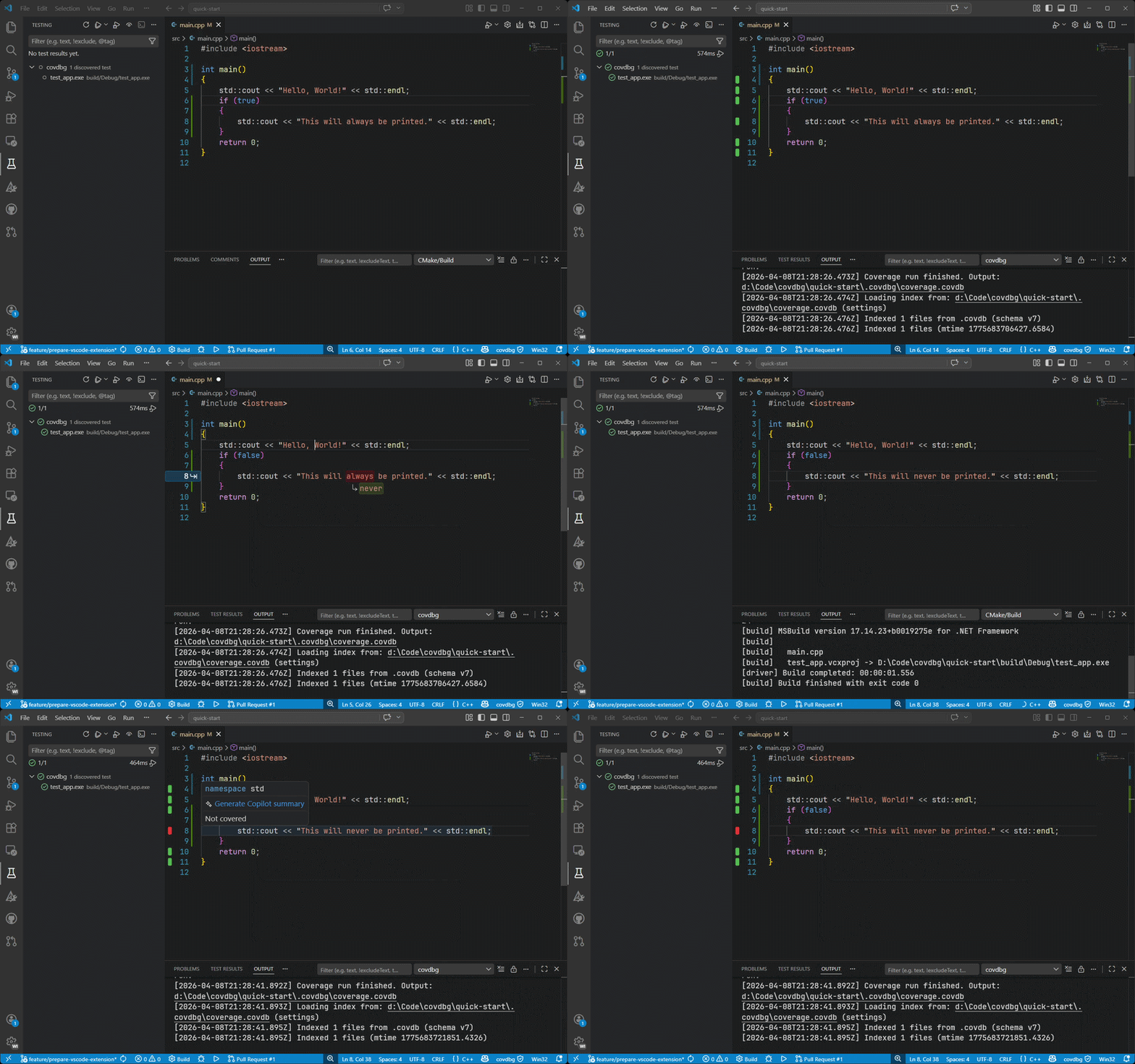
- One-click runs. Press ▶ in the Coverage view to run a discovered test executable with coverage. The next ▶ runs the same one again.
- Coverage in the editor. Covered and uncovered lines show in the gutter, as line highlights, or both.
- A Coverage view. The total, the files with the lowest coverage, and who is signed in, in the covdbg sidebar.
- A full report. Drill into files, folders and functions when line overlays are not enough.
- Testing view integration. Discovered test executables appear in the Testing view and can be run with coverage from there.
- Existing results. Load any
.covdb, including ones written by covdbg on the command line or in CI. The editor picks up changes on its own. - AI agents. covdbg's MCP server is offered to VS Code automatically, so agents can run coverage and read the results.
-
Install covdbg from the Visual Studio Marketplace, on Windows.
-
The extension needs covdbg 1.4 or newer; an older one is reported as too old, with an offer to update. It uses an installed covdbg when it finds one, in this order:
- the
covdbg.executablePathsetting; covdbg.exeonPATH;- the usual install folders.
If there is none, it falls back to the copy of covdbg bundled with the extension. On Windows on ARM, the extension bundles the ARM64 covdbg, which measures ARM64 programs; elsewhere it bundles the x64 covdbg, which measures x64 and 32-bit x86 programs. To install covdbg yourself, see covdbg.com/download.
- the
Coverage runs need a local window in a trusted workspace. Viewing existing .covdb files works in Restricted Mode too.
- Open your C++ folder and build your tests with debug information (a Debug build).
- Press ▶ in the Coverage view in the covdbg sidebar. If more than one test executable is found, pick the ones to run. The choice is remembered, and Choose Executable… in the view's menu changes it.
- Confirm once. If you are not signed in, your browser opens with a code filled in. Confirm it there. If the folder has no
.covdbg.yaml, the extension offers to create a starter one. The run then continues, and coverage appears in the editor and the Coverage view.
.covdbg.yaml decides which source files count toward coverage. The starter config counts every source file your debug information names, except the Windows SDK, the MSVC toolchain and runtime sources, and vendored dependencies. To count only your own code, list it under include:
version: 1
source_root: "."
coverage:
    default:
        files:
            include:
                - "src/**/*.cpp"
                - "src/**/*.h"
            exclude:
                - "third_party/**"
                - "**/Windows Kits/**"
                - "**/VC/Tools/MSVC/**"
Open or Create .covdbg.yaml in the Coverage view's menu opens it. See the configuration reference for every option.
The license service decides every run for the person signed in on the machine. The extension uses the same sign-in as covdbg on the command line, so if you have already run covdbg login, there is nothing more to do.
- Sign in with covdbg: Sign In, or just press ▶. Signing in is free.
- Your account and team decide what a run covers. The sign-in is for one team (or your personal account) at a time, and the Coverage view shows it, for example
Signed in as a@acme.com for Acme. To use another team, runcovdbg login --team <slug>in a terminal; the editor picks the new sign-in up on refresh. - With a project token, for example on a shared build machine, put
COVDBG_PROJECT_TOKENinto thecovdbg.runner.envsetting. A project token takes precedence over the sign-in.
covdbg: Sign Out ends the one session on this machine, for every covdbg that uses it. Seats, teams and your personal lock are managed at app.covdbg.com. See pricing and the licensing FAQ for details.
covdbg includes an MCP server, and the extension offers it to VS Code automatically. There is nothing to install or configure. In a trusted local window on Windows, the server appears as covdbg under MCP: List Servers.
Agents can then:
- run a test executable with coverage, wait for it, or cancel it;
- list the files with the most uncovered lines and read the uncovered code with its context;
- query a coverage database with read-only SQL, and merge several databases.
An agent's run looks for .covdbg.yaml beside the test executable, unless the agent names a config path.
Runs an agent starts are licensed like your own: by the machine's sign-in, or by a project token in covdbg.runner.env.
A run that names no output path writes to the same .covdb as runs started from the editor: the covdbg.runner.outputPath setting, or .covdbg/coverage.covdb under the working directory. Its results then load into the editor on their own. The tradeoff is that each such run overwrites the previous result. To keep one, have the agent write to a different output path.
See Connect an AI agent for using the server from other MCP clients.
The most useful settings:
| Setting | What it does |
|---|---|
covdbg.executablePath |
Use this covdbg.exe instead of looking for one. |
covdbg.renderMode |
Show coverage in the gutter, as line highlights, or both. |
covdbg.runner.targetArgs |
Arguments passed to the test executable. |
covdbg.runner.outputPath |
Where runs write their .covdb. |
covdbg.runner.env |
Extra environment variables for runs, such as COVDBG_PROJECT_TOKEN. |
covdbg.runner.binaryDiscoveryPattern |
Which executables count as tests. |
covdbg.runner.binaryDiscoveryExcludePattern |
Which of those to leave out. By default, Release and RelWithDebInfo build trees. |
- Product site: covdbg.com
- Documentation: covdbg.com/docs
- Release notes: CHANGELOG.md
- Contributing: DEVELOPMENT.md