The api is a CRUD(Create, Read, Update, Delete) spring boot api built with Java. The technologies used include Java & Spring Boot.
The application contains 4 main packages namely service, model, controller and repository. In the service package, is the PostService class which defines all the methods that allow us to perform all the CRUD operations.
In the model package is the Post class which defines a post object i.e. the structure of a post. In this instance, the post object has four characteristics(variables) which are the post id, post title, post details and post author.
In the controller package, we have the PostController which defines all the endpoints of the api. The endpoints supported by the application include
[1] a POST endpoint for creating new posts with the post body in the request /posts,
[2] a GET endpoint for getting all posts /allPosts,
[3] a GET endpoint for getting a specific post using the post id /allPosts/{postId},
[4] a DELETE endpoint for deleting a post using the post id /deletePost/{postId},
[5] a PUT endpoint for updating posts /updatePost.
The repository package contains the PostRepository which inherits from the CrudRepository class. The CrudRepository class contains various methods that allow us to create/update, retrieve & delete data.
The pom.xml file defines all the necessary dependencies needed for the application to work like the Java version and other Spring dependencies.
The api has been deployed to the Google Cloud App Engine and the url to access the application is [https://post-api-challenge.uc.r.appspot.com/]
In this application we're using an internal database provided by the Spring framework that resets when the application is restarted. To test the application, we'll be using Postman. If you don't have the application installed, you can download the standalone app from https://www.postman.com/downloads/ or just go to https://www.postman.com to create an account and you can test from the browser.
If you already have Postman installed or open in your browser, import this postman collection into your postman using this link (https://drive.google.com/file/d/1AG3Va0R8aZxPTs6BD31WFw9J0G6RjW_b/view?usp=share_link). After successfully importing the collection into your postman follow the steps below to test the application
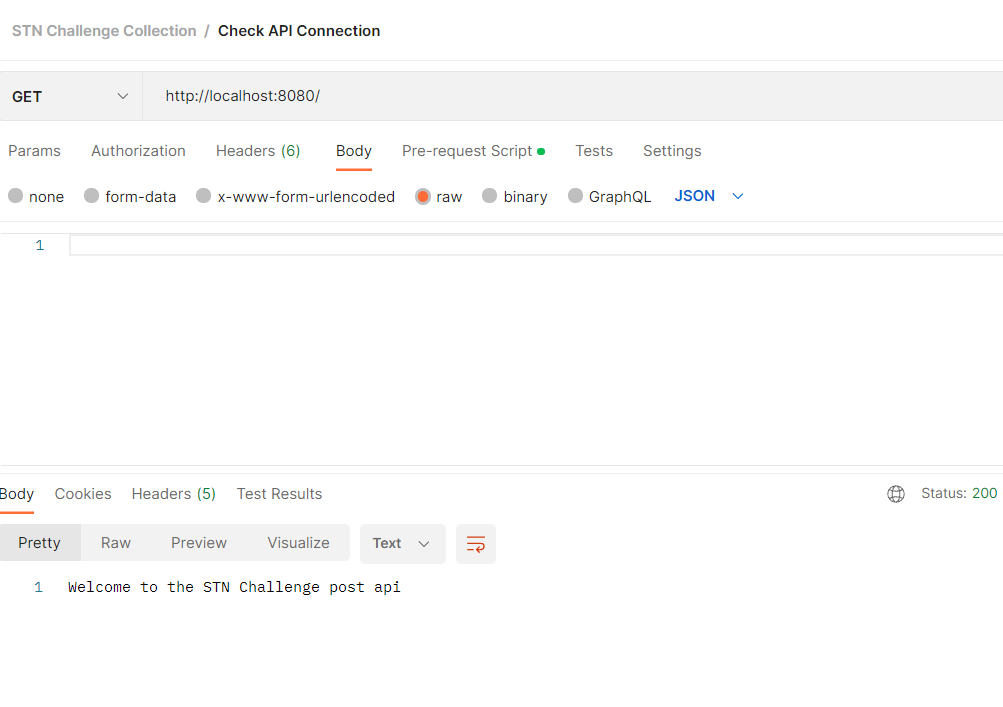
[1] Click on the Check API request and hit send to check if connection to the url is working. If successful you'll receive a welcome message
[2] Click on the Create Post request and hit send about 5 times to create random data in the db. For each time you hit send you should receive a response of the id of the post that has been created.
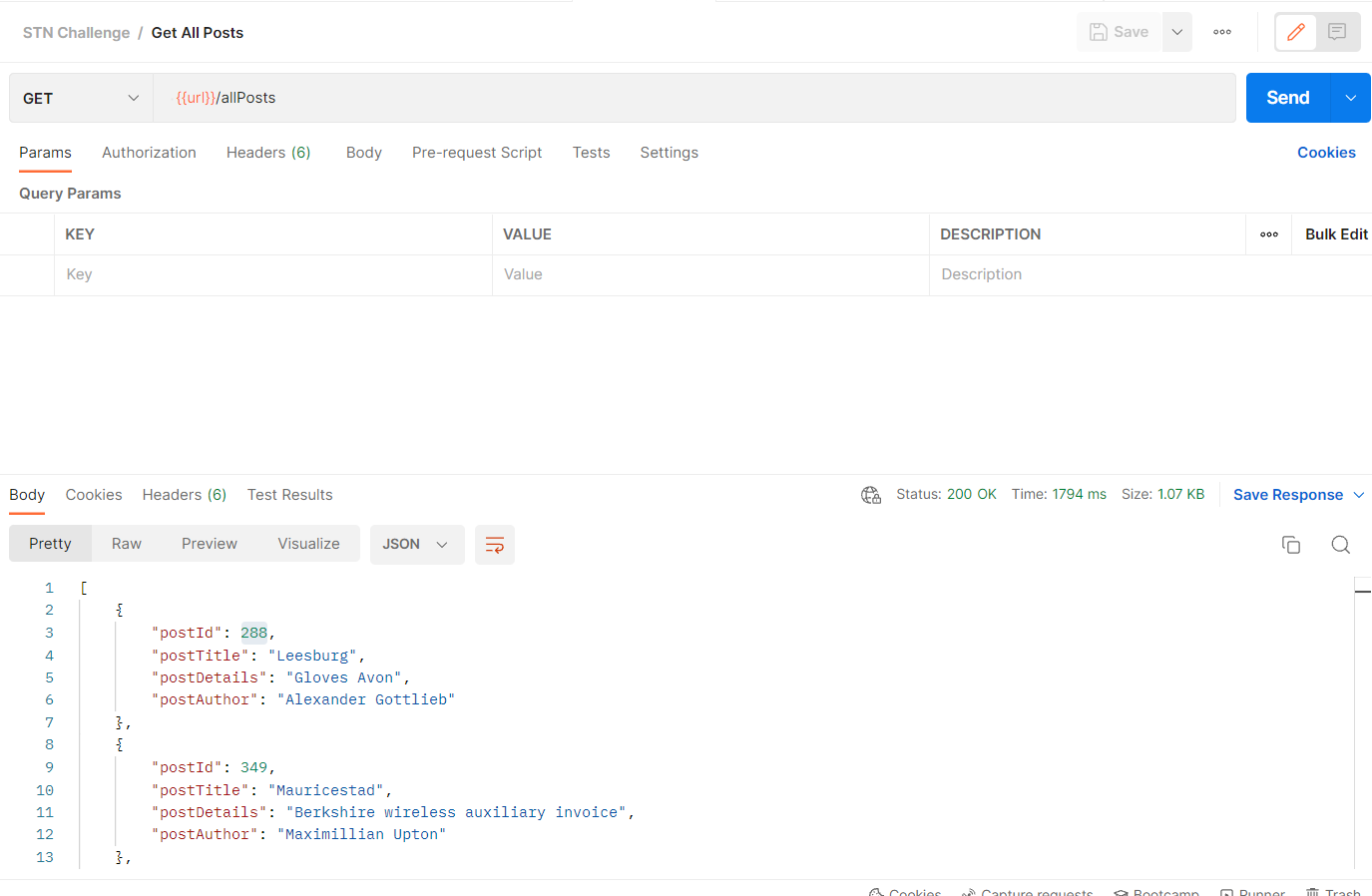
[3] Hit on the Get All Posts request and hit send and you should receive a response with all the posts that have been created.
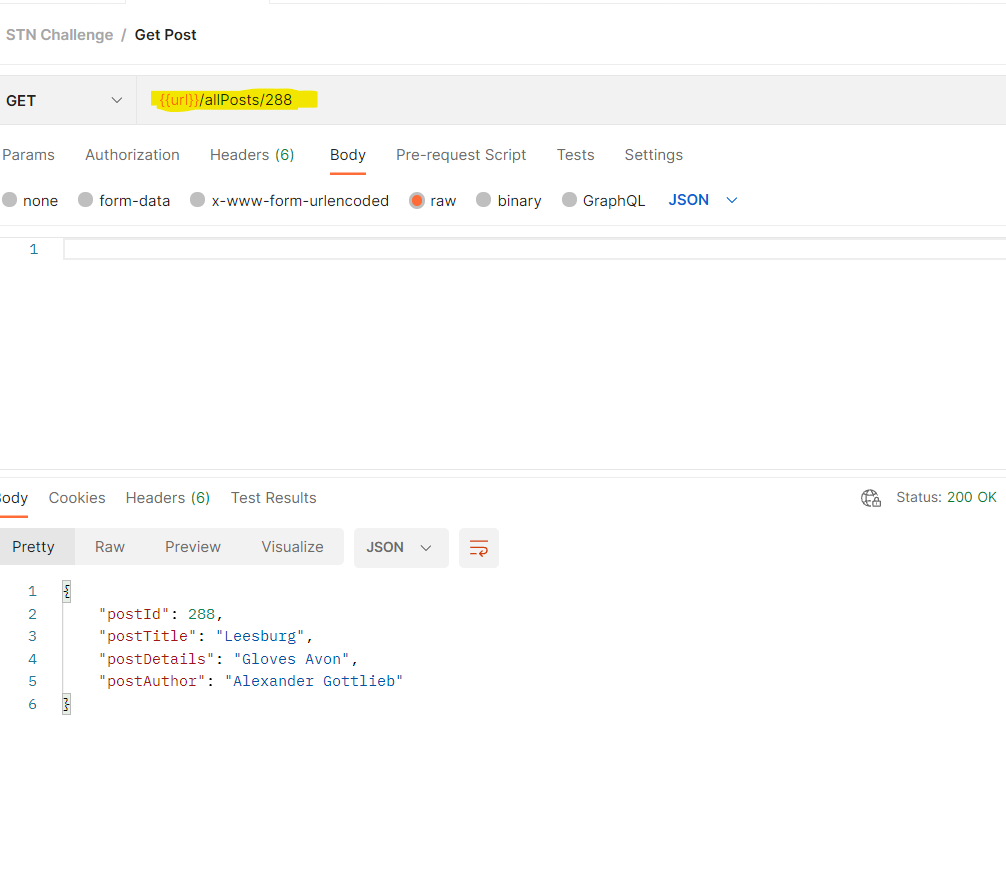
[4] Copy the post id of one of the created posts from the response in the previous step. Hit on the the Get Post request and replace the number 1 with the id you just copied and hit send. You will receive a response showing the specific post with the post id specified.
[5] Copy the post id of one of the created posts from the response in step 2. Hit on the Delete Post request and replace the number with the post id you just copied and hit send. Take note of the post id you used and repeat step 2 and you'll see that the post has been deleted from the response.
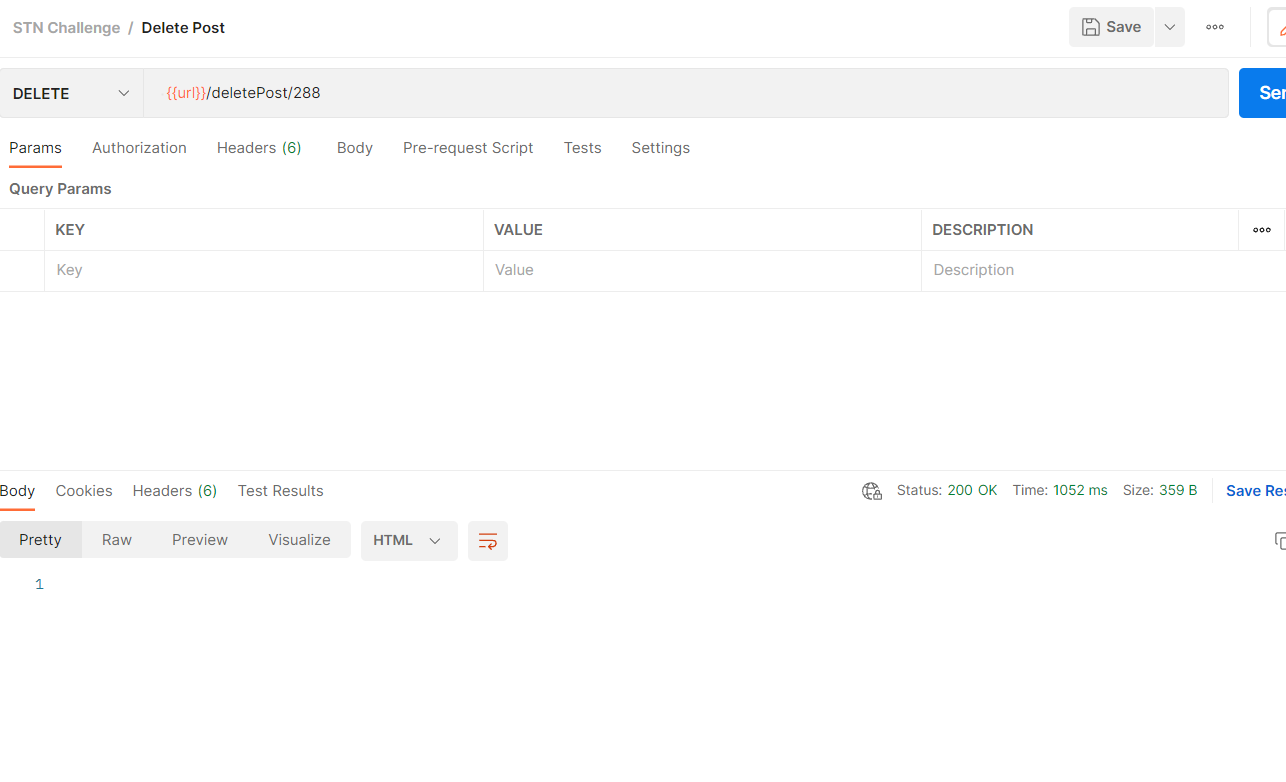
As you can see the post with the id 288 is no longer present
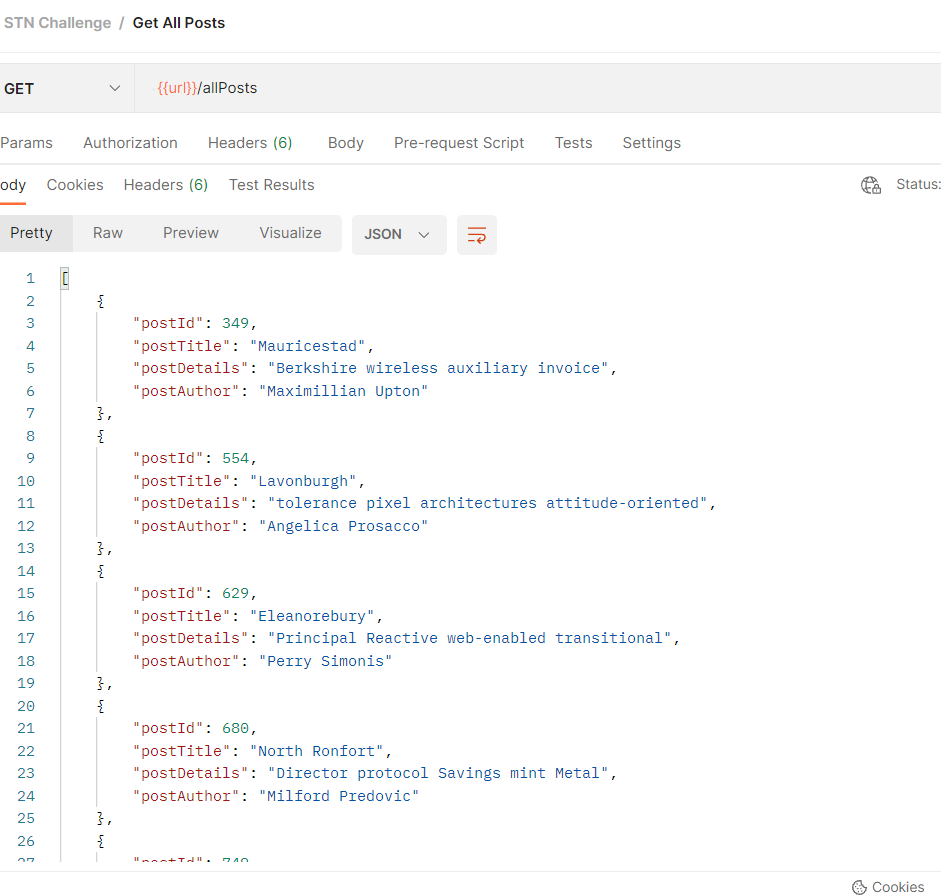
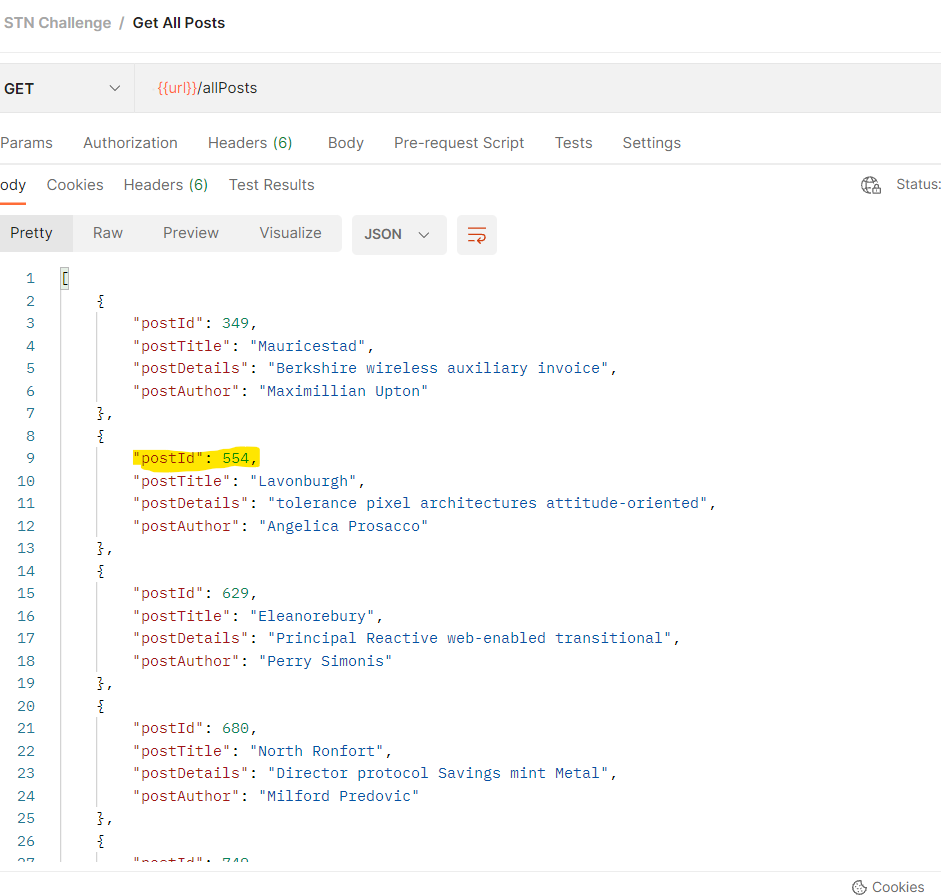
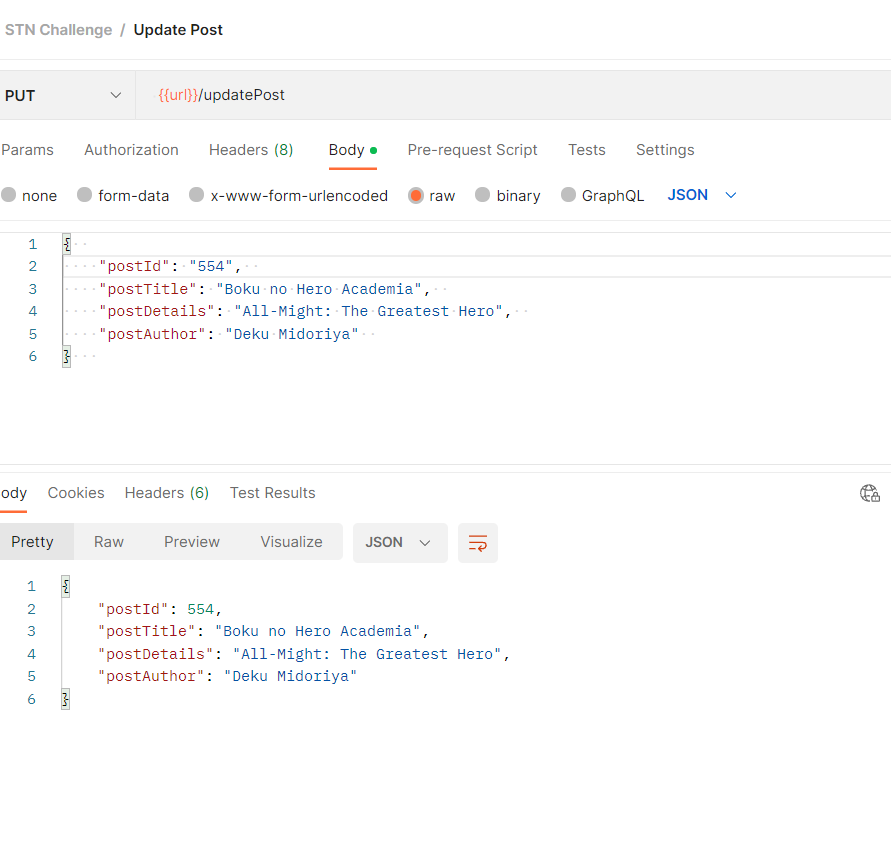
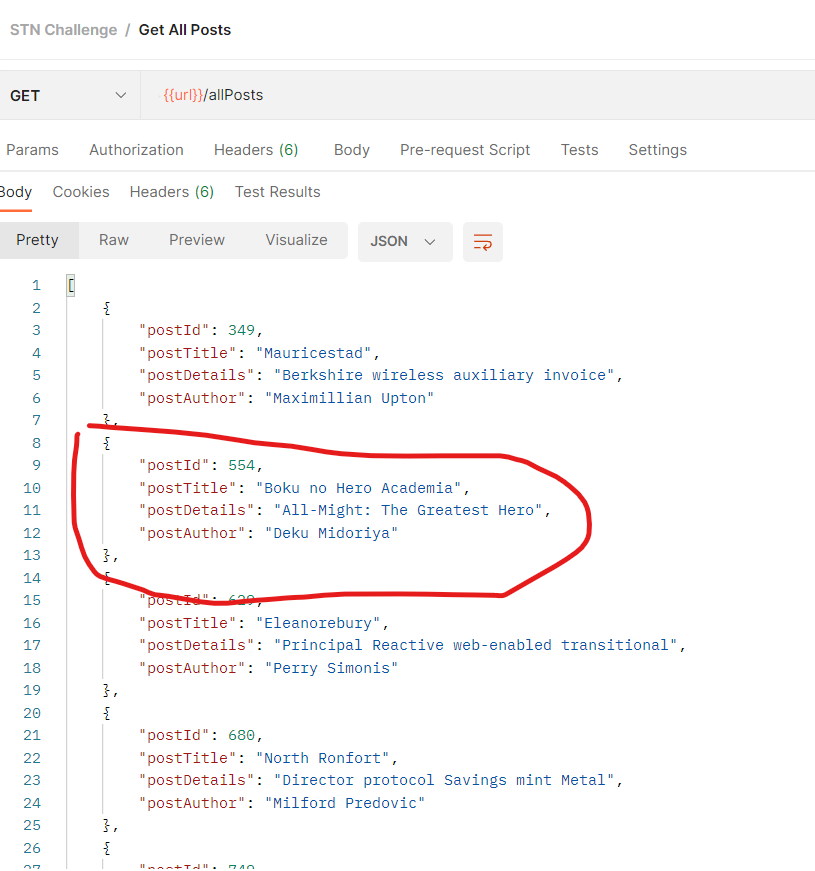
[6] Copy the post id of one of the created posts from the response in step 2. Hit on the Update Post and replace the value of the post id in the body of the request with the id you just copied and hit send. Repeat step 2 and you'll see the post has been updated with the new data.
If you look at the images below you will realise the post with the id 554 has been updated with the new values
You'll need to install java on your computer. Link to the installer (https://www.oracle.com/java/technologies/downloads/#jdk19-windows)
Import this postman collection into your postman using this link (https://drive.google.com/file/d/1DCNC85ltjqPRsWt1lHpsZ6ve7gQYZk76/view?usp=share_link).
Download this zip file and extract it (https://drive.google.com/file/d/1ypsq7Xwzu86-2kdB56ziDa4YPrvK3Ld5/view?usp=share_link)
Open command prompt in admin mode and navigate to the extracted folder.
Enter the following command WinSW.NET4.exe install. You'll receive a response with the name of the service
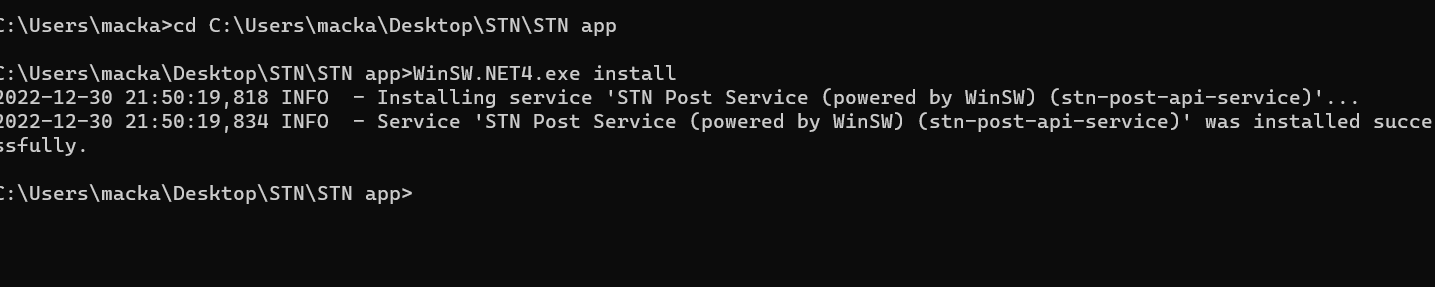
Open the Services application by searching for it from the start menu and scroll down to the service name and start the service
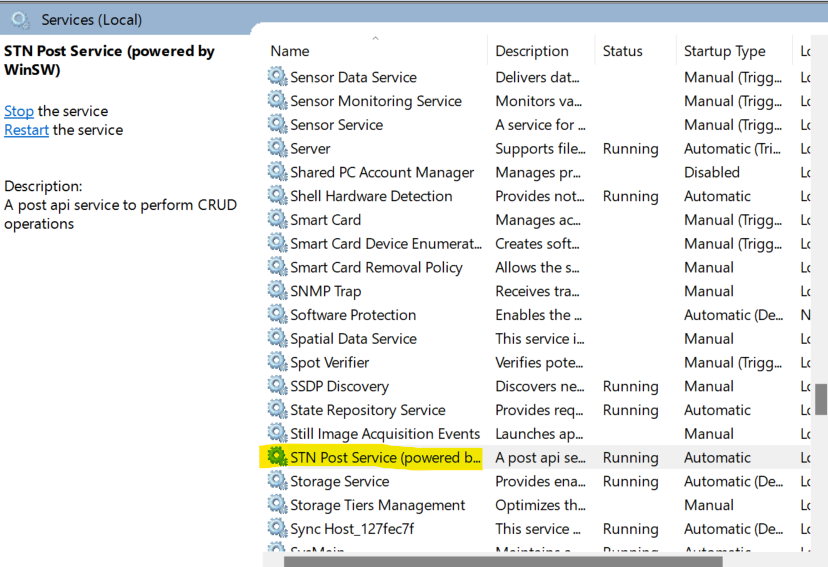
The url to access for the application locally is [http://localhost:8080/]
Then you can run tests on postman using the steps in the first tutorial