


Documentation | GitHub | PyPI
A simple, lightweight, and beautiful console-based client for ClickUp that lets you view, filter, and manage tasks directly from your command line. View tasks grouped by status, assignee, or priority, update task statuses, and auto-detect your current sprint. It features interactive mode for easy navigation and caching for fast performance.
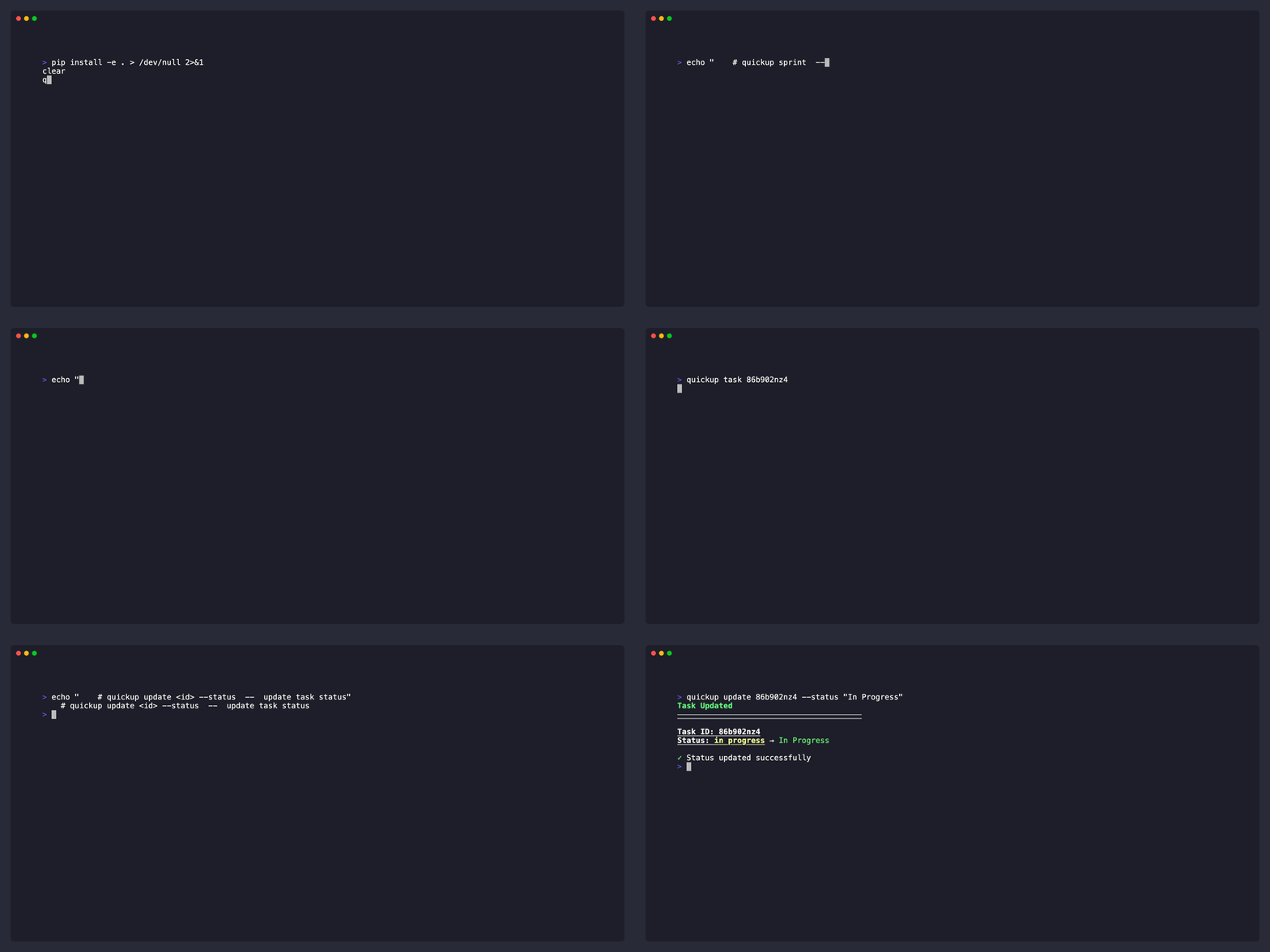
- Task Listing: View all tasks from a ClickUp list with color-coded status groups
- Filtering: Filter tasks by assignee, priority, or due date
- Grouping: Group tasks by status, assignee, or priority
- Task Details: View detailed information about a specific task
- Task Updates: Update task status with confirmation display
- Task Comments: Post comments on tasks from the CLI or via piped input
- Sprint Detection: Auto-detect current sprint/iteration lists
- Interactive Mode: Navigate through Team → Space → Project → List hierarchy with prompts
- Caching: Disk-based caching for improved performance (24h for teams/lists, 5min for tasks)
pip install quickupAuthenticate with ClickUp (recommended):
quickup loginThis opens your browser for OAuth authentication and saves your credentials to ~/.quickup/auth.json.
Alternatively, set your ClickUp API token directly (useful for CI/automation):
export CLICKUP_TOKEN=your_token_hereOr create a .env file in your project directory:
CLICKUP_TOKEN=your_token_here
List tasks from a specific list:
quickup --team <team_id> --list <list_id>Authenticate with ClickUp via OAuth. Opens your default browser and waits for the callback (up to 120 seconds).
quickup loginCredentials are saved to ~/.quickup/auth.json (permissions: 0o600).
Remove the stored OAuth token.
quickup logoutThis only removes the OAuth token — it does not affect tokens set via CLICKUP_TOKEN or .env.
List all tasks from a ClickUp list, grouped by status.
# Basic usage
quickup --team <team_id> --list <list_id>

# With filters
quickup --team <team_id> --list <list_id> --assignee john --priority high

# Group by assignee
quickup --team <team_id> --list <list_id> --group-by assignee

# Interactive mode
quickup -i

# Bypass cache
quickup --team <team_id> --list <list_id> --no-cache
Options:
--team: Team ID--space: Space ID--project: Project ID--list: List ID--assignee: Filter by assignee username (case-insensitive)--priority: Filter by priority (low, normal, high, urgent)--due-before: Filter tasks due before date (YYYY-MM-DD)--group-by: Group by status (default), assignee, or priority--closed: Include closed/done tasks--no-cache: Bypass cache and fetch from API-i, --interactive: Enable interactive mode
Auto-detects the current sprint list by searching for lists containing "sprint" or "iteration" in the name.
# List tasks from current sprint
quickup sprint --team <team_id>

# With filters
quickup sprint --team <team_id> --assignee jane --group-by priority
Options:
--team: Team ID--space: Space ID--project: Project ID--assignee: Filter by assignee username--priority: Filter by priority--due-before: Filter tasks due before date--group-by: Group by status, assignee, or priority--closed: Include closed/done tasks--no-cache: Bypass cache-i, --interactive: Enable interactive mode
Show detailed information about a specific task.
# Show task details
quickup task <task_id>

# With team specification
quickup task <task_id> --team <team_id>

# Include task comments
quickup task <task_id> --comments
Options:
task_id: ClickUp task ID--team: Team ID (required if multiple teams exist)--comments: Fetch and display task comments-i, --interactive: Enable interactive mode
Update the status of a specific task.
# Update task status
quickup update <task_id> --status "In Progress"

# With team specification
quickup update <task_id> --status "Done" --team <team_id>
Options:
task_id: ClickUp task ID--status: New status name (e.g., "To Do", "In Progress", "Done")--team: Team ID (required if multiple teams exist)-i, --interactive: Enable interactive mode
Post a comment on a specific task.
# Post a comment
quickup comment <task_id> --text "This is my comment"

# Notify all task watchers
quickup comment <task_id> --text "Attention everyone" --notify-all

# Pipe comment from stdin
echo "Piped comment" | quickup comment <task_id>
Options:
task_id: ClickUp task ID--text: Comment text to post (reads from stdin if omitted)--notify-all: Notify all task watchers
When multiple teams, spaces, projects, or lists exist, use -i flag to enable interactive selection:
quickup -iThis will prompt you to select:
- Team (if multiple teams exist)
- Space (if multiple spaces exist)
- Project (if multiple projects exist)
- List (if multiple lists exist)
Tasks are displayed with:
- Bold task name
- Blue underlined URL
- Priority badge (color-coded)
- Assignee names in parentheses
Status groups are displayed with color-coded headers matching the ClickUp status colors.
At the bottom of the output, a suggestion is shown in gray text with the command to repeat the same query:
Run again: quickup --assignee john --priority high --group-by priority
This makes it easy to re-run the same filtered/grouped view without typing the full command again.
QuickUp! uses disk-based caching to reduce API calls:
- Teams: 24 hours TTL
- Lists: 24 hours TTL
- Tasks: 5 minutes TTL
Cache location: ~/.quickup/cache/
Use --no-cache to bypass cache and fetch fresh data from the API.
| Code | Meaning |
|---|---|
| 1 | Token error or general ClickUp error |
| 2 | Team not found or ambiguous team |
| 3 | List not found |
| 4 | Network error |
| 5 | API error |
| 99 | Unexpected error |
- Python 3.10+
- ClickUp API token
- cyclopts - CLI framework
- pyclickup - ClickUp API wrapper
- colorist - Terminal colors
- inquirer - Interactive prompts
- sqlite3 - Caching layer (Python standard library)
- python-dotenv - Environment loading
Run the test suite:
hatch run test:testRun tests with coverage:
hatch run test:covCoverage reports are generated in:
coverage.json- JSON format- Terminal - Human-readable report
Run tests on a specific Python version:
hatch run +py=3.11 test:testBuild the documentation:
hatch run docs:buildServe the documentation locally:
hatch run docs:serveThen open http://localhost:8000 in your browser.
For debugging with enhanced tooling:
hatch run debug:pythonThis environment includes ipdb and line_profiler.
MIT