A simple MicroPython library for nested menus with callbacks and custom menu items.
Copy umenu.py to your board (project root or /lib). For best performance, freeze it into the firmware: place the file in ports/<board>/modules when building MicroPython, then flash as usual.
Online config generator: https://plugowski.github.io/umenu/
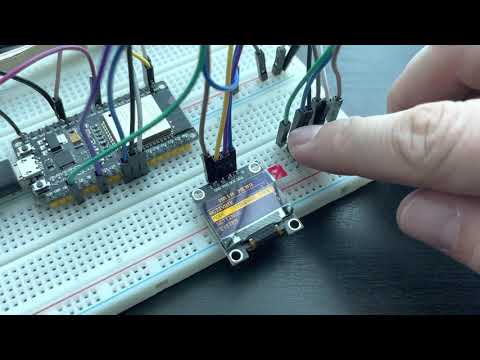
Initialize a display (any driver with framebuf; e.g. ssd1306), then create a Menu with the number of visible lines and line height. Typical values: 5 lines × 10px or 4 lines × 12px.
import ssd1306
from machine import Pin, I2C
from umenu import *

i2c = I2C(1, scl=Pin(4), sda=Pin(5))
display = ssd1306.SSD1306_I2C(128, 64, i2c)

menu = Menu(display, 5, 10)
menu.set_screen(MenuScreen('Main Menu'))
menu.draw()
This draws an empty menu titled "Main Menu". You can add nested screens and custom items with your own logic.
Use these Menu methods to navigate:
move(direction)—-1= previous,1= next itemclick()— select current item (run callback or enter submenu)reset()— go back to the main screen and clear selectiondraw()— redraw the menu
All items support optional name, decorator (right-aligned text or callable; default '>' for submenus), and visible (see Visibility).
| Item | Description |
|---|---|
| SubMenuItem | Nested submenu |
| DynamicSubMenuItem | Submenu built by a callback |
| CallbackItem | Run a callback on click |
| ToggleItem | On/off with [x] / [ ] |
| EnumItem | Pick one from a list |
| ValueItem | Numeric value, adjust with up/down |
| SliderItem | Like ValueItem with a bar |
| MultiSelectItem | Pick multiple options |
| ConfirmItem | Yes/no before running callback |
| InfoItem | Read-only label |
| SeparatorItem | Horizontal line (no action) |
| CustomItem | Your own draw/select logic |
Creates a submenu. Common args: name, decorator (default '>'), visible.
Read-only label. Common args; decorator default is empty.
Runs a callback on click, then returns to parent (unless return_parent=False).
callback— callable (see Callbacks)return_parent— whether to go back after (defaultTrue)
On/off item showing [x] or [ ]. Extends CallbackItem.
state_callback— returns current state (True/False)change_callback— called to toggle state
Pick one option from a list; callback receives the chosen value.
items— list of strings or dicts{'name': 'Label', 'value': x};nameis shown,valuepassed to callbackcallback— callable(selected_value)selected— initial index or key
Adjust a numeric value with up/down. Opens a custom screen.
value_reader— callable that returns current valuemin_v,max_v,step— range and stepcallback— callable(new_value) on each change
Same as ValueItem but draws a horizontal bar (e.g. volume, brightness). Same arguments.
Multiple selection; opens submenu of toggles. Callback gets list of selected values.
items— list of options (strings or dicts withname/value)callback— callable(list_of_selected_values)selected— initial indices (iterable or single index)
Shows a yes/no prompt before running the callback; "no" skips the callback.
question— prompt text (default"Are you sure?")answers—(yes_label, no_label)(default('yes', 'no'))
Submenu filled by a callback each time it is opened (e.g. WiFi scan results).
items_callback— callable() returning a list ofMenuIteminstances
Horizontal line; takes one slot, no action on click. Optional visible.
Override for custom screens. Implement draw() and select(); see CustomItem and ValueItem in the source.
menu.set_screen(MenuScreen('Main Menu')
    .add(SubMenuItem('WiFi')
        .add(ToggleItem('Activate', wifi.get_status, wifi.activate)))
    .add(SubMenuItem('Lights')
        .add(ToggleItem('Headlight', (config.get_status, 1), (config.toggle, 1)))
        .add(ToggleItem('Backlight', (config.get_status, 2), (config.toggle, 2)))
    .add(SubMenuItem('Main Info')
        .add(InfoItem('Status:', 'ok'))
        .add(InfoItem('Temp:', '45.1')))
)
menu.draw()
Callbacks can be a plain callable (no args) or a tuple (callable, arg) where arg is one value or a tuple of *args. Examples:
CallbackItem('Print it!', (print, 'hello there'))
# will print: hello there > like print('hello there')CallbackItem('Print it!', (print, (1, 2, 3)))
# will print: 1 2 3 > like print(*args) where *args are taken from tupleHide items with visible=False or pass a callable that returns True/False (e.g. for conditional entries).
Subclass CustomItem and implement draw() and select(). When the user clicks the item, draw() runs—you have access to self.display, so you can use the driver’s methods to draw on the OLED. select() should return self.parent to go back or self to stay.
Example usage of CustomItem, to draw some status page:
class DrawCustomScreen(CustomItem):

    def __init__(self, name):
        super().__init__(name)

    def select(self):
        return self.parent  # this is needed to go back to previous view when SET button is pushed

    def draw(self):
        self.display.fill(0)
        self.display.rect(0, 0, self.display.width, self.display.height, 1)
        self.display.text('SHOW SOME TEXT', 0, 10, 1)
        self.display.hline(0, 32, self.display.width, 1)
        self.display.show()

menu.set_screen(MenuScreen('Main Menu')
    .add(DrawCustomScreen('Text in frame'))
)
See examples/rotary_encoder_menu.py for a full example.
Copyright (C) 2021, Paweł Ługowski
This program is free software: you can redistribute it and/or modify it under the terms of the GNU General Public License as published by the Free Software Foundation, either version 3 of the License, or (at your option) any later version.