Use the flowise-railway template (https://railway.app/template/pn4G8S) if you don't need pre-configured persisted volume, postgis and private networking on Railway.
- Pre-configured persisted volume.
- Most of the Flowise configs are pre-configured.
- Uses shared Postgres/PostGIS instance (perfect for n8n + Flowise setup).
- Automatic database initialization on first deployment.
- The communication from Flowise to database is accomplished through the railway internal private network, reducing unnecessary egress fees.
- Postgres or PostGIS is already deployed to an environment on Railway (e.g., shared with n8n)
- Flowise and Postgres have to be deployed to the same environment in order to leverage the benefits of private networking on Railway.
- The PostGIS instance should have the main database (e.g.,
railway) already created - The
flowisedatabase will be automatically created on first deployment

-
Click Deploy Now
-
Change to your preferred repository name
-
Click Configure and click Save Config for both services.
-
Click Deploy.
-
Let Railway deploy all the services for you.
-
Once the process is successful, you will be able to view a deployed URL.
If you already have n8n running with PostGIS on Railway, you can add Flowise to share the same database instance:
-
Deploy this Flowise template to the same Railway environment as your PostGIS database
-
Configure the following environment variables in Railway:
DATABASE_HOST: Use${{RAILWAY_PRIVATE_DOMAIN}}from your PostGIS serviceDATABASE_NAME:flowise(will be created automatically)DATABASE_USER:${{POSTGRES_USER}}(from your PostGIS service)DATABASE_PASSWORD:${{POSTGRES_PASSWORD}}(from your PostGIS service)DATABASE_PORT:5432DATABASE_TYPE:postgresDATABASE_SSL:truePOSTGRES_DB:${{POSTGRES_DB}}(the main database, e.g.,railway)
-
The initialization script will automatically:
- Connect to your existing PostGIS instance
- Create the
flowisedatabase if it doesn't exist - Start Flowise with the new database
-
Both n8n and Flowise will use the same PostGIS instance but with separate databases
Flowise supports queue mode for handling large numbers of predictions. This allows you to separate job submission from job execution and scale workers dynamically.
- Shared Encryption Key: All Flowise instances (main and workers) must use the same encryption key
- Redis Service: Deploy Redis in the same Railway environment
- Database: All instances share the same PostgreSQL database
To avoid encryption and data corruption issues, follow this order:
- First, set up all environment variables on both main and worker services
- Generate a secure encryption key (32+ characters)
- Deploy Redis to your Railway environment
- Configure main server with all required variables INCLUDING
FLOWISE_SECRETKEY_OVERWRITE - Configure worker(s) with identical encryption key
- Deploy all services
- Only then create flows and credentials
⚠️ Critical Setup Requirements:
- Set FLOWISE_SECRETKEY_OVERWRITE on ALL instances BEFORE first deployment
- The encryption key must be IDENTICAL across main server and all workers
- Railway's private networking requires IPv6 support - use
?family=0in Redis URL
-
Add Redis to your Railway environment:
- Go to your Railway project dashboard
- Click "New Service" → "Database" → "Add Redis"
- Deploy Redis to the same environment as Flowise
- Once deployed, click on the Redis service
- Go to the "Variables" tab
- Copy the
RAILWAY_PRIVATE_DOMAINvalue (it will be something likeredis-production-xxxx.railway.internal) - Copy the
REDISPASSWORDvalue if authentication is enabled
-
Configure Flowise main server (job submission):
- In your Flowise service, go to the Variables tab
- Add these environment variables:
# MUST be set BEFORE creating any credentials or flows
FLOWISE_SECRETKEY_OVERWRITE=your-32-character-secret-key-here

# Queue configuration
MODE=queue
QUEUE_NAME=flowise-queue
REDIS_URL=${{Redis.REDIS_PRIVATE_URL}}?family=0
Important notes:
- Generate a secure 32+ character encryption key
- Set this BEFORE creating any flows or credentials
- Replace
Rediswith your actual Redis service name if different - The
?family=0parameter is required for BullMQ/ioredis IPv6 compatibility
-
Deploy Flowise worker(s):
- Deploy another instance of this Flowise template
- Set the same Redis configuration as above
- Set
MODE=workerinstead ofMODE=queue - IMPORTANT: Add the same encryption key as the main server:
FLOWISE_SECRETKEY_OVERWRITE=<your-encryption-key>
- The encryption key must be identical across all instances (main and workers)
- You can deploy multiple workers for parallel processing
Note: Workers need the same encryption key to decrypt credentials. Either:
- Set
FLOWISE_SECRETKEY_OVERWRITEwith the same value on all instances, or - Mount a shared volume (not recommended on Railway due to complexity)
"Malformed UTF-8 data" error:
- This means the worker's encryption key doesn't match the main server's
- Solution: Ensure
FLOWISE_SECRETKEY_OVERWRITEis identical on all instances - If you already have data, you'll need to either:
- Export flows/credentials, set the same key everywhere, and re-import
- Find the auto-generated key from the main server logs
"ENOTFOUND redis.railway.internal" error:
- The Redis URL needs
?family=0appended for IPv6 support - Ensure Redis is deployed in the same Railway environment
- Use
${{Redis.REDIS_PRIVATE_URL}}?family=0format
"ENOENT: no such file or directory" error:
- Worker can't find encryption key file
- Solution: Set
FLOWISE_SECRETKEY_OVERWRITEon the worker
"ZodError: nodes/edges Required" error:
- This indicates corrupted or incomplete flow data
- Often caused by encryption key mismatches corrupting the data
- Solutions:
- Clear Redis queue: Connect to Redis and run
FLUSHDB - Ensure all instances use the same encryption key
- Recreate flows after fixing encryption keys
- Check that main server and workers are running the same Flowise version
- Clear Redis queue: Connect to Redis and run
-
Update your
.envfile:MODE=queue QUEUE_NAME=flowise-queue REDIS_HOST=redis REDIS_PORT=6379 WORKER_CONCURRENCY=10000
-
Start services with docker-compose:
docker-compose up -d
-
To add a worker container, create a new service in
docker-compose.yml:flowise-worker: build: . restart: always depends_on: postgis: condition: service_healthy redis: condition: service_healthy environment: - MODE=worker - WORKER_CONCURRENCY=10000 # ... (copy other env vars from flowise service) volumes: - ~/.flowise:/root/.flowise
MODE: Set toqueuefor main server orworkerfor worker instancesQUEUE_NAME: Name of the queue (default:flowise-queue)WORKER_CONCURRENCY: Number of parallel jobs per worker (default: 10000)REMOVE_ON_AGE: Remove completed jobs after X seconds (default: 86400 = 24 hours)REMOVE_ON_COUNT: Keep maximum X completed jobs (default: 10000)ENABLE_BULLMQ_DASHBOARD: Enable BullMQ dashboard for monitoring (default: false)
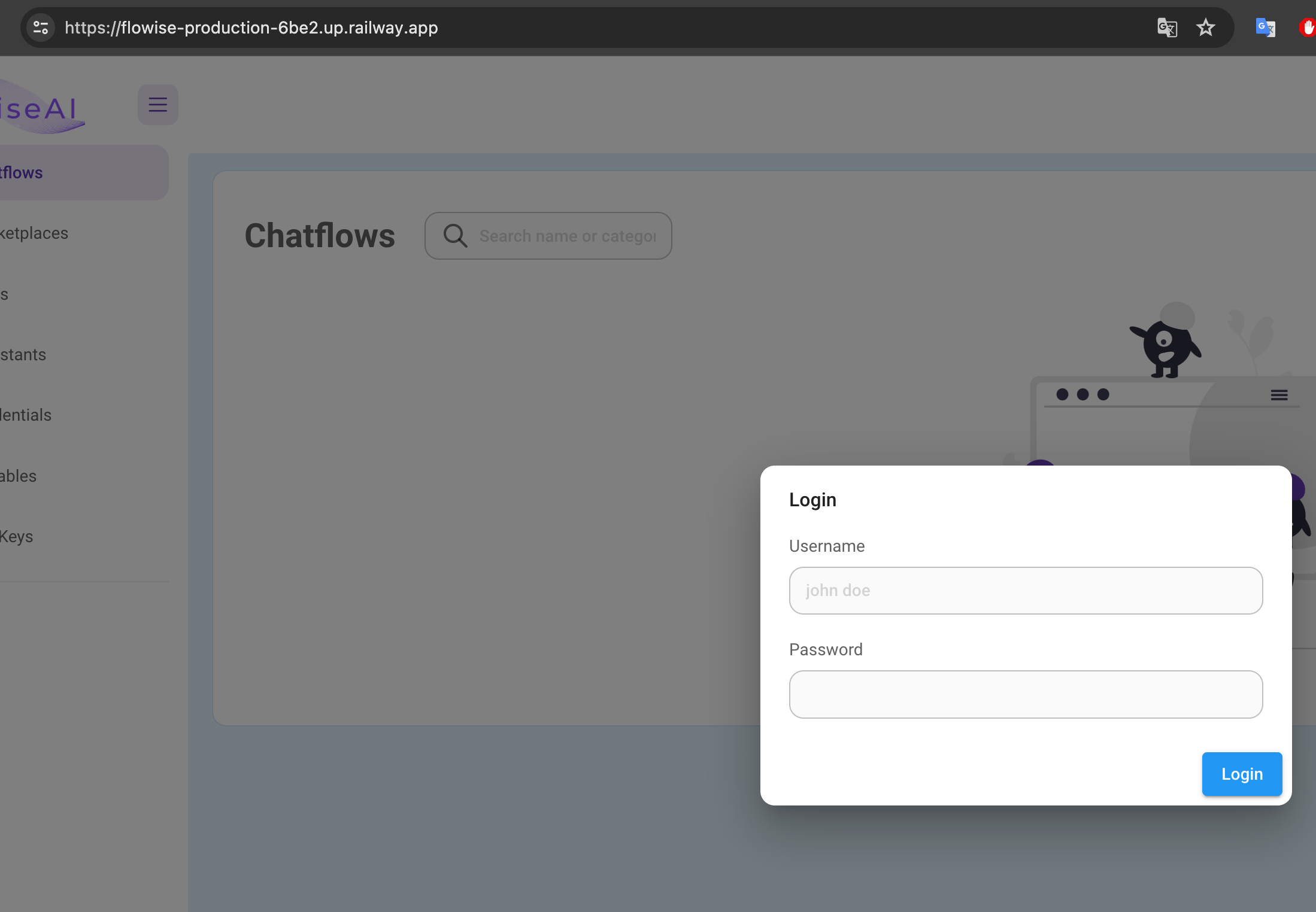
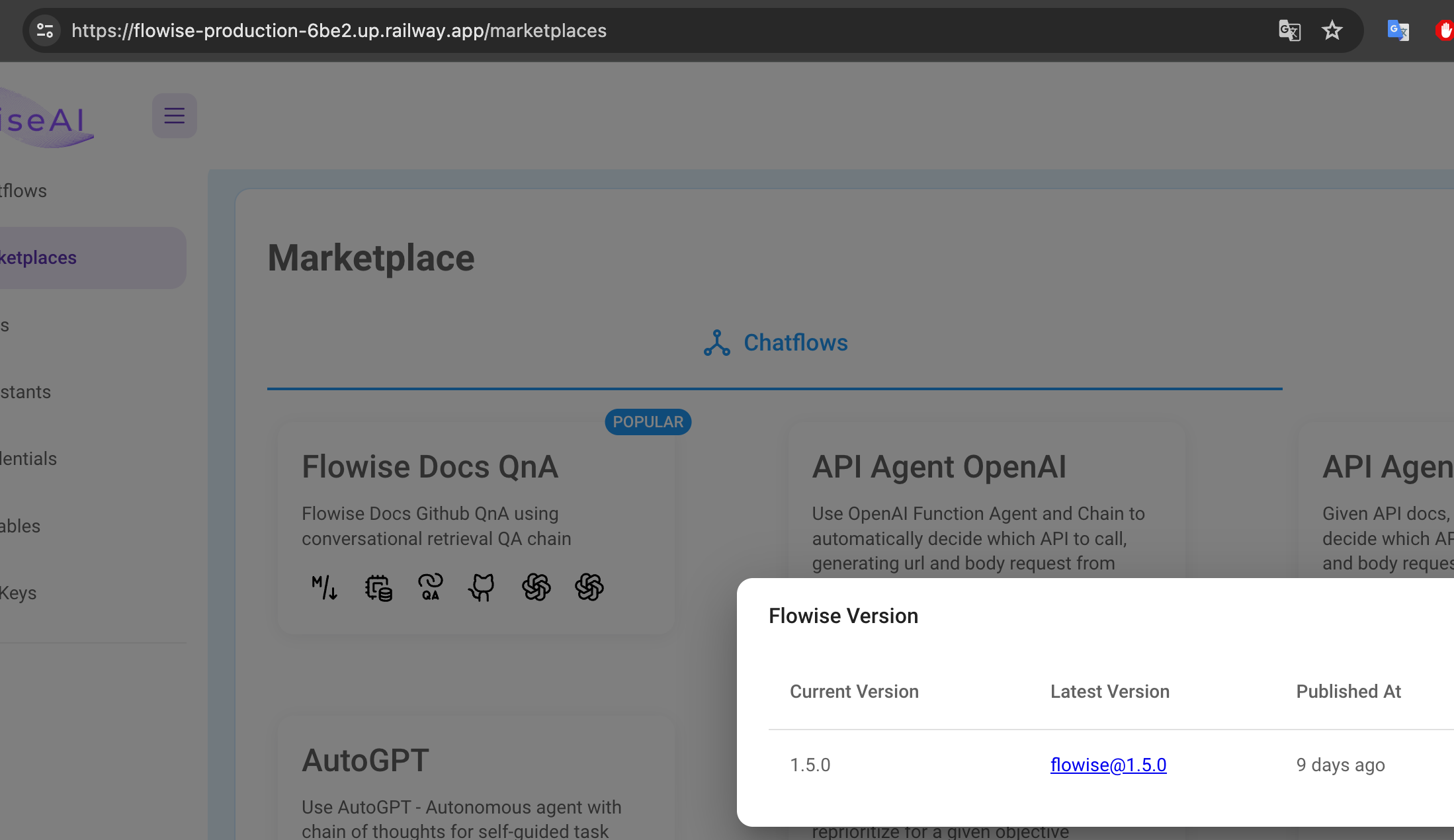
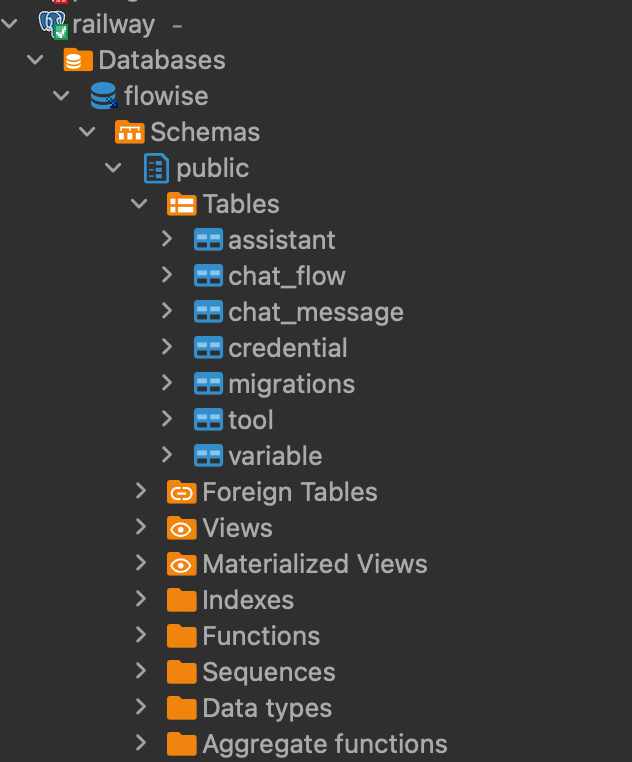
- Create
.envfile and specify thePORT(refer to.env.example) docker-compose up -d- Open http://localhost:3000
- You can bring the containers down by
docker-compose stop
- Create
.envfile and specify thePORT,FLOWISE_USERNAME, andFLOWISE_PASSWORD(refer to.env.example) - Pass
FLOWISE_USERNAMEandFLOWISE_PASSWORDto thedocker-compose.ymlfile:environment: - PORT=${PORT} - FLOWISE_USERNAME=${FLOWISE_USERNAME} - FLOWISE_PASSWORD=${FLOWISE_PASSWORD} docker-compose up -d- Open http://localhost:3000
- You can bring the containers down by
docker-compose stop
If you like to persist your data (flows, logs, apikeys, credentials), set these variables in the .env file inside docker folder:
- DATABASE_PATH=/root/.flowise
- APIKEY_PATH=/root/.flowise
- LOG_PATH=/root/.flowise/logs
- SECRETKEY_PATH=/root/.flowise
Flowise also support different environment variables to configure your instance. Read more