Import Eversource 15-minute interval smart-meter energy data into Home Assistant.
This app automatically downloads historical quarter-hour energy usage data from the Eversource customer portal and retroactively imports it into Home Assistant so that your energy sensor states and statistics remain continuous and accurate.
How it works:
-
Placeholder insertion: Every 15 minutes, the app inserts an
unknownstate for the configured energy sensor (offset a few seconds before the end of each quarter-hour bucket). These placeholders reserve the correct timestamps (with preservedstate_idorder) in the Home Assistant recorder database. -
Periodic download: On a configurable schedule, the app logs into the Eversource website (using Selenium + Chromium), navigates to the usage details export page, downloads the interval CSV for the requested date range, and appends any new rows to a user-defined, persistent local file.
-
Gap filling (optional): If any quarter-hour buckets are missing placeholders, the app can move nearby states from one or more donor sensors into those buckets and repair the state chains.
-
Database import: State values from new CSV rows are applied to the existing
unknownplaceholders, converting them into cumulative kWh values. -
Statistics tables rebuild: Short-term and long-term sum statistics are (re)calculated from the updated states table so the Energy dashboard and history graphs remain correct.
NOTE: You must enter your Eversource username and password in the app Configuration tab for the app to start.
NOTE: The target energy sensor must already exist in Home Assistant and should have the following elements:
device_class: energystate_class: total_increasing(ormeasurement)unit_of_measurement: kWh
NOTE: This app requires privileged mode and AppArmor disabled because it performs direct SQLite updates on the Home Assistant database and runs a headless Chromium instance.
NOTE: If you encounter issues, first check the GitHub issues page (open and closed). If the problem is new, please file an issue and include the full app log.

-
Click the ADD app REPOSITORY button below (or add the repository manually).
- Click Add -> Close
- or go to the app store -> : -> Repositories and add
https://github.com/puterboy/Eversource-importer
-
Find Eversource Energy Downloader and Importer in the app store, click it, and press Install.
-
Open the Configuration tab and enter at least:
- Eversource Email or Username
- Eversource Password
- Energy Sensor Entity Id
-
Press Start.

Email address or username you use to log in to your Eversource account .
Eversource account login password.
Account number. Only needed if you have more than one account and the desired account is not the default one selected after login.
Path and filename used to store the cumulative raw Eversource energy CSV
data.
If a relative path is given, it is placed under /homeassistant.
(Default: /homeassistant/eversource.csv)
Number of days ago to begin searching for new energy data to download and
import. Must be a positive integer.
(Default: 7)
Hour of the day (0-23) after local midnight when the first download attempt of the day is allowed. Note that the download actually begins 1 minute after the hour to avoid conflicts with statistics generated at the top of the hour. (Default: 1)
How often (in hours, 1-24) the app attempts to download new data, starting at the configured Download Start hour. In particular, starting at Download Start, the app attempts to download the previous day's energy data every Download Frequency hours until success. (Default: 4)
Entity ID of the energy sensor that will receive the imported data (e.g.
sensor.meter_electric).
The sensor should already exist and have device_class: energy, an
appropriate state_class, and unit kWh.
Comma-separated list of one or more entity IDs whose states may be moved into missing quarter-hour buckets for the energy sensor (at the time of new data download and import) when a prior placeholder is absent. This gap filling compensates for any state history gaps that may occur if the app was not properly inserting placeholders at the time. Typically, choose entities that update frequently but whose historical value you can afford to lose (e.g., historical uptimes or rssi's for other entities). Leave blank if you do not want gap-filling from other sensors.
Number of seconds relative to the end of each 15-minute bucket at which the
placeholder state is inserted.
Should normally be a small negative value so the timestamp falls just
inside the end of the bucket so that buckets remain uniform 15-minutes.
(Default: -15)
The app needs an existing energy sensor entity where it can record
historical states and statistics.
If you do not already have a suitable sensor, create one using one of the
two methods below before starting the app.
This is the most reliable approach when you will be importing historical data.
- Make sure the MQTT integration is installed and working.
- Add the following to your
configuration.yaml(or a package file):
mqtt:
  sensor:
    - name: "Electric Consumption"
      unique_id: eversource-electric-consumption
      state_topic: "homeassistant/sensor/eversource-electric/consumption"
      device_class: energy
      state_class: total
      unit_of_measurement: "kWh"
      value_template: "{{ value | is_defined }}"
      device:
        - identifiers: ["meter"],
        - name: "Eversource Electric",
        - manufacturer: "Eversource Electric",
        - sw_version: "1.0"
Alternatively, publish the config using mosquitto_pub from the CLI or
mqtt_publish from the GUI under Settings->Tools->Actions
mosquitto_pub -h <MQTT_BROKER_IP> -u MQTT -P <MQTT_PASSWORD> -r -t 'homeassistant/sensor/Meter-electric/config' -m '{"name":"Electric Consumption","unique_id":"eversource-electric-consumption","state_topic":"homeassistant/sensor/eversource_energy/consumption","device_class":"energy","state_class":"total","unit_of_measurement":"kWh", "value_template":"{{ value | is_defined }}", "device":{"identifiers":["meter"],"name":"Meter"}}'
- Seed the sensor with an initial value (once) -- either
0or the latest cumulative electric meter value -- using one of the following methods:- Set state directly from GUI:
Settings->Tools->States: sensor.eversource_electric_consumption - Set state via MQTT, using either
mosquitto_pubfrom the CLI ormqtt_publishfrom the GUI (underSettings->Tools->Actions)
- Set state directly from GUI:
mosquitto_pub -h <MQTT_BROKER_IP> -u MQTT -P <MQTT_PASSWORD> -r -t "homeassistant/sensor/eversource-electric/consumption" -m "<STATE_VALUE>"
- In the app Configuration set
Energy Sensor Entity Idto:sensor.eversource_electric_consumption
A simpler alternative if you prefer not to use MQTT is to create a template
sensor in your configuration.yaml file.
template:
  sensor:
    name: "Electric Consumption"
    unique_id: eversource-electric-consumption
    device_class: energy
    state_class: total
    unit_of_measurement: "kWh"
    state: "{{ 0.0 }}"
After restarting Home Assistant (or reloading template entities) the sensor
will appear as sensor.eversource_electric_consumption with a constant
value of 0. The app will then replace the history with real cumulative
readings.
| Component | Role |
|---|---|
add_placeholder_state.sh |
Background process that inserts an unknown state every 15 minutes |
eversource_scraper.py |
Headless Chromium + Selenium scraper that downloads energy data as CSV file |
insert_missing_placeholders.py |
Optionally, moves donor sensor states into missing energy state buckets |
import_electric_usage.py |
Updates unknown states with cumulative kWh values calculated from the CSV download |
redo_sum_statistics.py |
Rebuilds short-term and long-term sum statistics tables, incorporating new usage data |
run.sh |
Orchestrates the above on the configured schedule |
The main loop runs immediately on start, then sleeps until the next allowed download slot (respecting Download Start and Download Frequency). After a successful download, it performs gap-filling (if donors are configured), imports the new data, and rebuilds the statistics tables
Below is YAML code for a simple Apex Charts dashboard to navigate the last 8 days of data up until the end of yesterday (since you never will have today's data). Drag or compress/expand the shaded box under the axis to change the viewport.
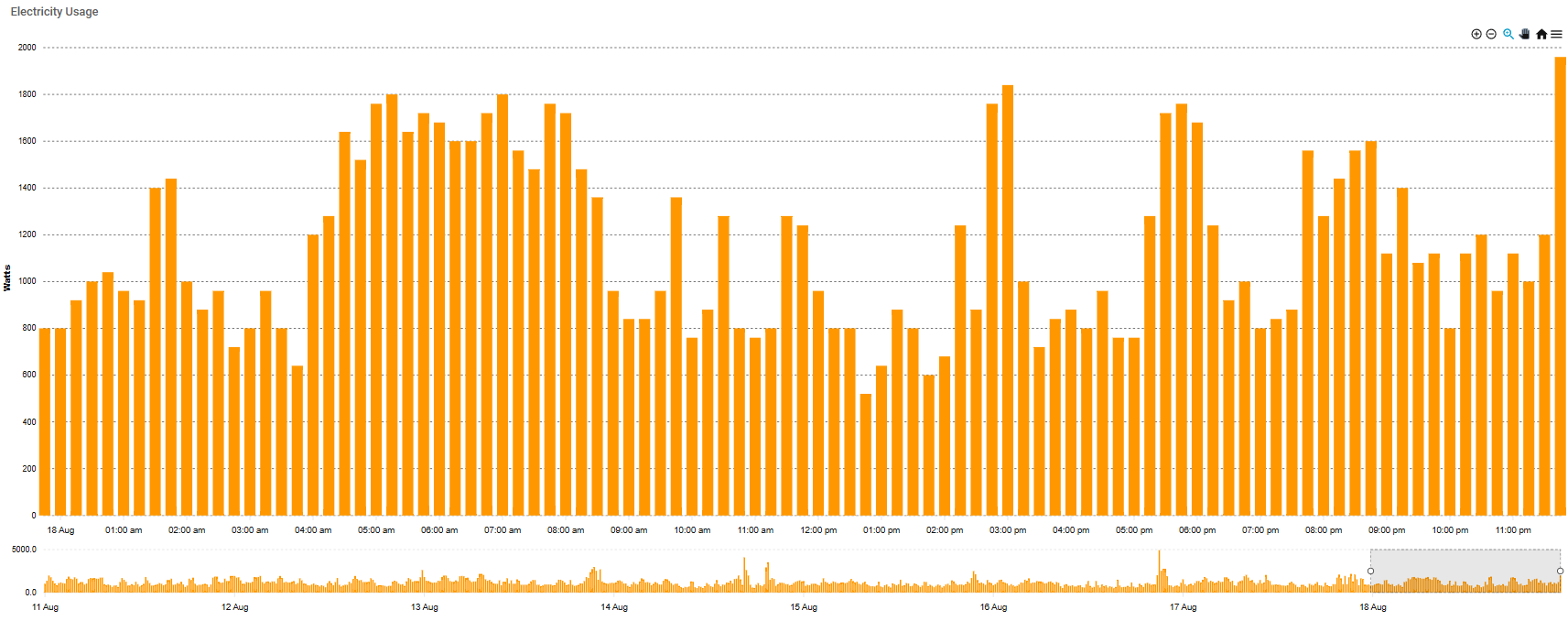
title: Electricity
type: panel
cards:
  - type: custom:apexcharts-card
    graph_span: 8d
    span:
      end: day
      offset: -1d
    update_delay: 3s
    header:
      show: true
      title: Electricity Usage
    experimental:
      brush: true
    brush:
      selection_span: 1d
    series:
      - entity: sensor.eversource_electric_consumption
        name: Watts
        unit: W
        type: column
        statistics:
          type: state
          period: 5minute
          align: start
        group_by:
          duration: 15min
          func: diff
          start_with_last: true
          fill: zero
        transform: return x * 4000;
        float_precision: 0
        show:
          in_brush: true
    apex_config:
      chart:
        height: 700
        toolbar:
          show: true
        zoom:
          enabled: true
          type: x
      grid:
        show: true
        borderColor: '#555555'
        strokeDashArray: 3
        yaxis:
          lines:
            show: true
        xaxis:
          lines:
            show: false
      xaxis:
        type: datetime
        labels:
          datetimeUTC: false
      yaxis:
        min: 0
        decimalsInFloat: 0
        title:
          text: Watts
- The scraper depends on the current structure of the Eversource / Opower web portal. Site changes can break navigation.
- Direct SQLite access to
home-assistant_v2.dbis required for placeholder attribute updates and statistics rewriting; this is why the app runs privileged with AppArmor disabled. - Only one energy sensor is supported per app instance.
- Multi-account support is limited to selecting a non-default account via the optional Account Number field.
In general, if you encounter errors, check the app logs (under the Log
tab) and any diagnostic HTML/PNG dumps and browser console logs, written to
/tmp/eversource.tmp in the app docker container.
- App fails to start - Confirm username, password, and a valid energy sensor entity ID are set.
- No new data downloaded - Check the log for scraper errors. The portal may be requiring 2FA (turn it off), the account number may be wrong, or the site layout may have changed.
- Placeholders not appearing - Verify the energy sensor already exists
- Statistics look wrong - After a successful import the app
automatically rebuilds sum statistics. You can also run
redo_sum_statistics.pymanually inside the container if needed. - Persistent notifications - Distinct errors produce unique notifications so the latest failure for each stage remains visible in the Home Assistant UI.
For further help see the GitHub issues.