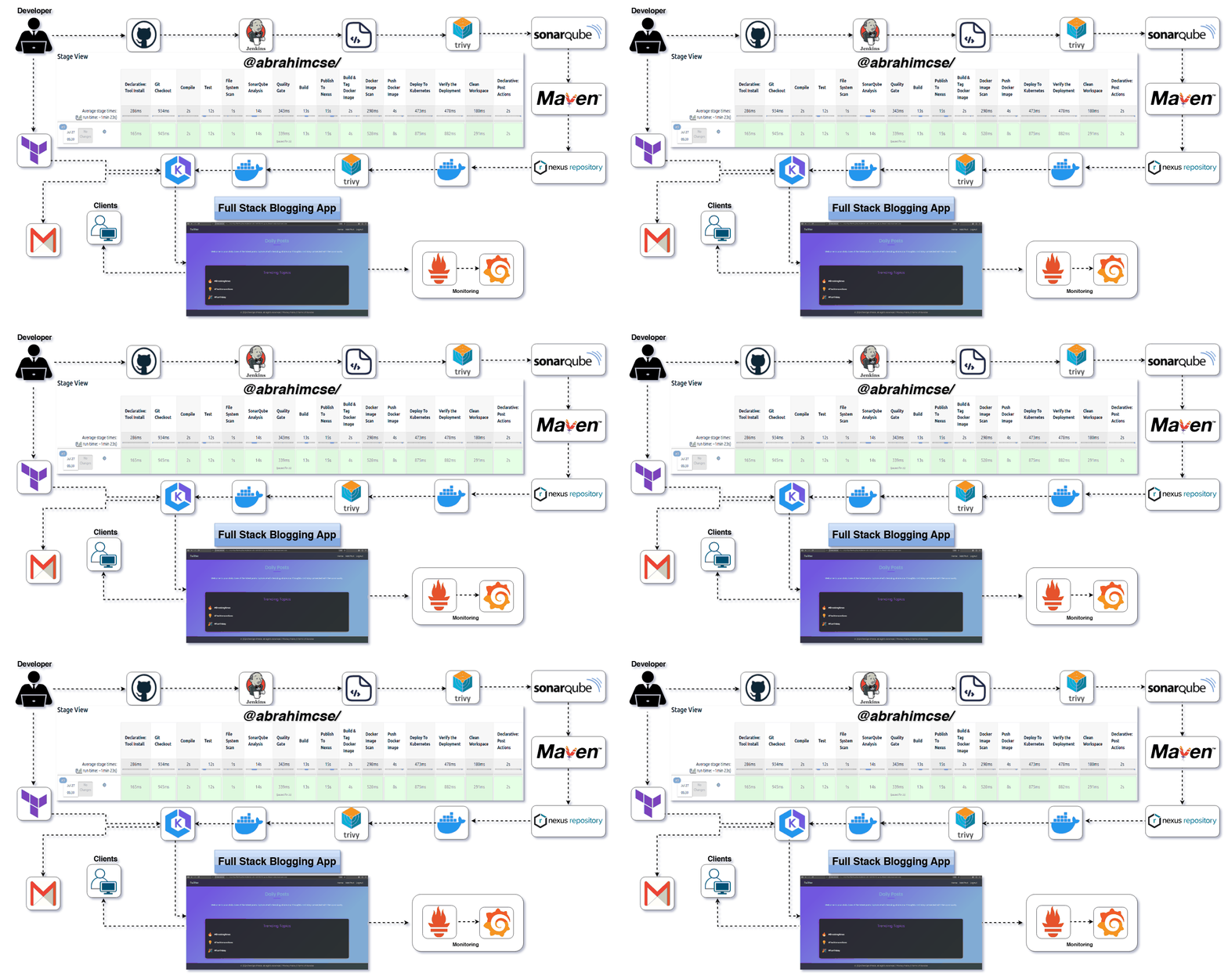
(A Spring Boot Application Deployed on AWS with EKS, Terraform, Jenkins, SonarQube, Nexus, Trivy & Prometheus/Grafana)
A production-ready Full-stack Blogging Application built with Java (Spring Boot), Docker, and Kubernetes — fully automated using modern DevOps tools. This app supports posting, editing, and managing blogs with continuous delivery and security integration.
-
Create, Edit, and Delete Blog Posts
-
RESTful API using Spring Boot (Java)
-
Static Code Analysis with SonarQube
-
Vulnerability Scanning with Trivy
-
Automated Build, Test, and Deploy Pipeline
-
Kubernetes Deployment on AWS EKS
-
Containerized using Docker
-
CI/CD with Jenkins
-
Secure Artifact Management via Nexus
-
Email Notifications on Deployment via Jenkins
Login Page
Press enter or click to view image in full size
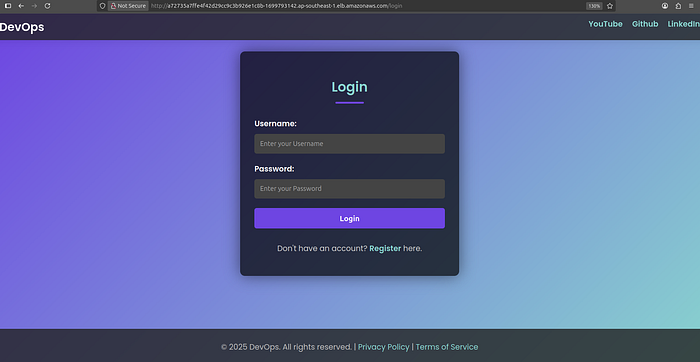
Login Page
Home Page
Press enter or click to view image in full size
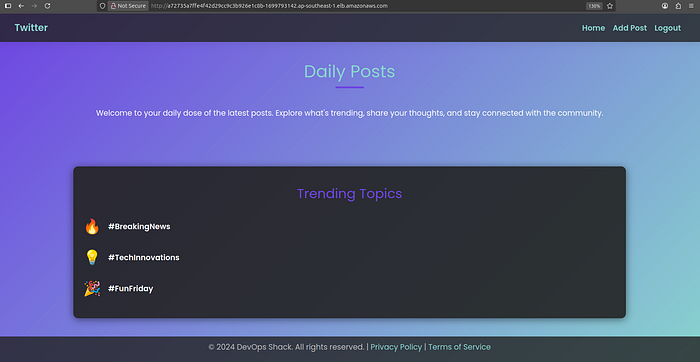
Home Page
Status Post
Press enter or click to view image in full size
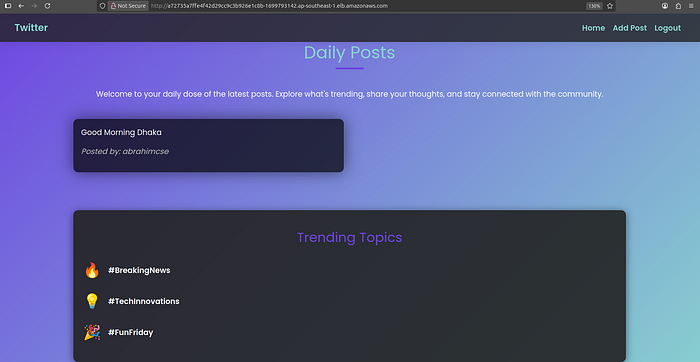
Status Post
-
Docker
-
Kubernetes
-
AWS EKS (Elastic Kubernetes Service)
-
Terraform (for Infrastructure as Code)
-
Jenkins (CI/CD pipeline)
-
Nexus (Artifact Repository)
-
SonarQube (Code Quality Check)
-
Trivy (Container Image Scanning)
-
Gmail SMTP (Jenkins Email Notification)
-
Monitoring (Prometheus,BlackBox,Node Exporter and Grafana)
-
Default vpc
-
Security Group: Default SG with port 8 open
-
Create Instancess 7 (t2.medium, 25gb)
-
Master Node
-
Slave-1
-
Slave-2
-
SonarQube
-
Nexus
-
Monitor
-
Jenkins (t2 large,30)
Press enter or click to view image in full size
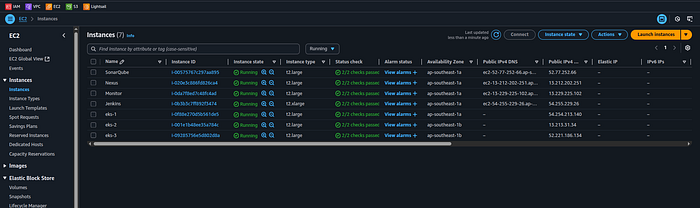
Donload and install AWS CLI for connect with aws cloud
curl "https://awscli.amazonaws.com/awscli-exe-linux-x86_64.zip" -o "awscliv2.zip"
unzip awscliv2.zip
sudo ./aws/install
aws --version
Expected output:
aws-cli/2.x.x Python/3.x.x Linux/...
You need AWS credentials to use the CLI. Run:
aws configure
Provide the following when prompted:
-
AWS Access Key ID
-
AWS Secret Access Key
-
Default region (e.g.
ap-southeast-1) -
Output format (
jsonrecommended)
Method 1: Official APT Repository (Recommended for Production)
# Install prerequisites
sudo apt install -y gnupg software-properties-common curl
# Add HashiCorp GPG key
curl -fsSL https://apt.releases.hashicorp.com/gpg | sudo gpg --dearmor -o /usr/share/keyrings/hashicorp-archive-keyring.gpg
# Add the official HashiCorp Linux repo
echo "deb [signed-by=/usr/share/keyrings/hashicorp-archive-keyring.gpg] https://apt.releases.hashicorp.com $(lsb_release -cs) main" | \
sudo tee /etc/apt/sources.list.d/hashicorp.list
# Update and install Terraform
sudo apt update
sudo apt install terraform -y
# Verify installation
terraform -version
Method 2: Snap (Quick Setup, Not Always Latest Version)
sudo snap install terraform --classic
Terraform Folder create
mkdir terra
cd terra
Terraform File Create
- Main File create
vim main.tf
Copy configure file
provider "aws" {
  region = "ap-southeast-1"
}
resource "aws_vpc" "abrahimcse_vpc" {
  cidr_block = "10.0.0.0/16"
  tags = {
    Name = "abrahimcse-vpc"
  }
}
resource "aws_subnet" "abrahimcse_subnet" {
  count = 2
  vpc_id                  = aws_vpc.abrahimcse_vpc.id
  cidr_block              = cidrsubnet(aws_vpc.abrahimcse_vpc.cidr_block, 8, count.index)
  availability_zone       = element(["ap-southeast-1a", "ap-southeast-1b"], count.index)
  map_public_ip_on_launch = true
  tags = {
    Name = "abrahimcse-subnet-${count.index}"
  }
}
resource "aws_internet_gateway" "abrahimcse_igw" {
  vpc_id = aws_vpc.abrahimcse_vpc.id
  tags = {
    Name = "abrahimcse-igw"
  }
}
resource "aws_route_table" "abrahimcse_route_table" {
  vpc_id = aws_vpc.abrahimcse_vpc.id
  route {
    cidr_block = "0.0.0.0/0"
    gateway_id = aws_internet_gateway.abrahimcse_igw.id
  }
  tags = {
    Name = "abrahimcse-route-table"
  }
}
resource "aws_route_table_association" "a" {
  count          = 2
  subnet_id      = aws_subnet.abrahimcse_subnet[count.index].id
  route_table_id = aws_route_table.abrahimcse_route_table.id
}
resource "aws_security_group" "abrahimcse_cluster_sg" {
  vpc_id = aws_vpc.abrahimcse_vpc.id
  egress {
    from_port   = 0
    to_port     = 0
    protocol    = "-1"
    cidr_blocks = ["0.0.0.0/0"]
  }
  tags = {
    Name = "abrahimcse-cluster-sg"
  }
}
resource "aws_security_group" "abrahimcse_node_sg" {
  vpc_id = aws_vpc.abrahimcse_vpc.id
  ingress {
    from_port   = 0
    to_port     = 0
    protocol    = "-1"
    cidr_blocks = ["0.0.0.0/0"]
  }
  egress {
    from_port   = 0
    to_port     = 0
    protocol    = "-1"
    cidr_blocks = ["0.0.0.0/0"]
  }
  tags = {
    Name = "abrahimcse-node-sg"
  }
}
resource "aws_eks_cluster" "abrahimcse" {
  name     = "abrahimcse-cluster"
  role_arn = aws_iam_role.abrahimcse_cluster_role.arn
  vpc_config {
    subnet_ids         = aws_subnet.abrahimcse_subnet[*].id
    security_group_ids = [aws_security_group.abrahimcse_cluster_sg.id]
  }
}
resource "aws_eks_node_group" "abrahimcse" {
  cluster_name    = aws_eks_cluster.abrahimcse.name
  node_group_name = "abrahimcse-node-group"
  node_role_arn   = aws_iam_role.abrahimcse_node_group_role.arn
  subnet_ids      = aws_subnet.abrahimcse_subnet[*].id
  scaling_config {
    desired_size = 3
    max_size     = 3
    min_size     = 3
  }
  instance_types = ["t2.large"]
  remote_access {
    ec2_ssh_key = var.ssh_key_name
    source_security_group_ids = [aws_security_group.abrahimcse_node_sg.id]
  }
}
resource "aws_iam_role" "abrahimcse_cluster_role" {
  name = "abrahimcse-cluster-role"
  assume_role_policy = <<EOF
{
  "Version": "2012-10-17",
  "Statement": [
    {
      "Effect": "Allow",
      "Principal": {
        "Service": "eks.amazonaws.com"
      },
      "Action": "sts:AssumeRole"
    }
  ]
}
EOF
}
resource "aws_iam_role_policy_attachment" "abrahimcse_cluster_role_policy" {
  role       = aws_iam_role.abrahimcse_cluster_role.name
  policy_arn = "arn:aws:iam::aws:policy/AmazonEKSClusterPolicy"
}
resource "aws_iam_role" "abrahimcse_node_group_role" {
  name = "abrahimcse-node-group-role"
  assume_role_policy = <<EOF
{
  "Version": "2012-10-17",
  "Statement": [
    {
      "Effect": "Allow",
      "Principal": {
        "Service": "ec2.amazonaws.com"
      },
      "Action": "sts:AssumeRole"
    }
  ]
}
EOF
}
resource "aws_iam_role_policy_attachment" "abrahimcse_node_group_role_policy" {
  role       = aws_iam_role.abrahimcse_node_group_role.name
  policy_arn = "arn:aws:iam::aws:policy/AmazonEKSWorkerNodePolicy"
}
resource "aws_iam_role_policy_attachment" "abrahimcse_node_group_cni_policy" {
  role       = aws_iam_role.abrahimcse_node_group_role.name
  policy_arn = "arn:aws:iam::aws:policy/AmazonEKS_CNI_Policy"
}
resource "aws_iam_role_policy_attachment" "abrahimcse_node_group_registry_policy" {
  role       = aws_iam_role.abrahimcse_node_group_role.name
  policy_arn = "arn:aws:iam::aws:policy/AmazonEC2ContainerRegistryReadOnly"
}
- Variable file create
vim variable.tf
copy and past
variable "ssh_key_name" {
  description = "The name of the SSH key pair to use for instances"
  type        = string
  default     = "hsms-stg-common"
}
- Output File Create
vim output.tf
copy and past
output "cluster_id" {
  value = aws_eks_cluster.abrahimcse.id
}
output "node_group_id" {
  value = aws_eks_node_group.abrahimcse.id
}
output "vpc_id" {
  value = aws_vpc.abrahimcse_vpc.id
}
output "subnet_ids" {
  value = aws_subnet.abrahimcse_subnet[*].id
}
- Run Terraform File for create eks
terraform init
terraform plan
terraform validate
terraform apply --auto-approve
Press enter or click to view image in full size
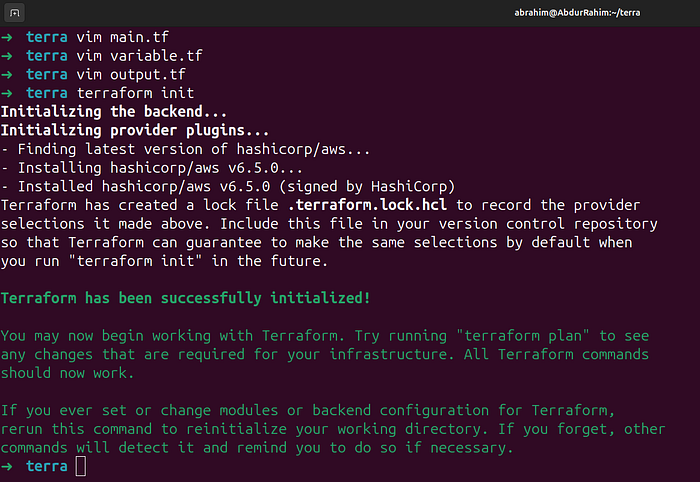
Initialized
EKS Create
Press enter or click to view image in full size
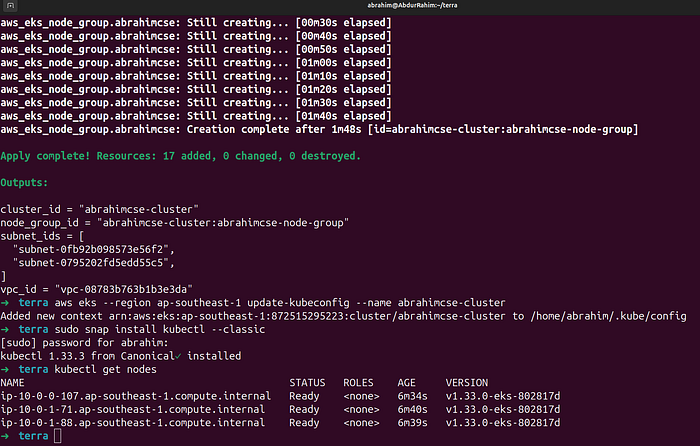
EKS Create
- Connect with EKS Cluster
aws eks --region ap-southeast-1 update-kubeconfig --name abrahimcse-cluster
- Install Kubect and check nodes
sudo snap install kubectl --classic
kubectl get nodes
AWS EKS Cluster
Press enter or click to view image in full size
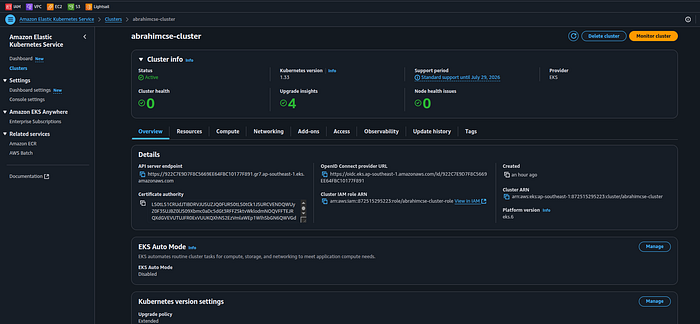
AWS EKS Cluster
Node Group
Press enter or click to view image in full size
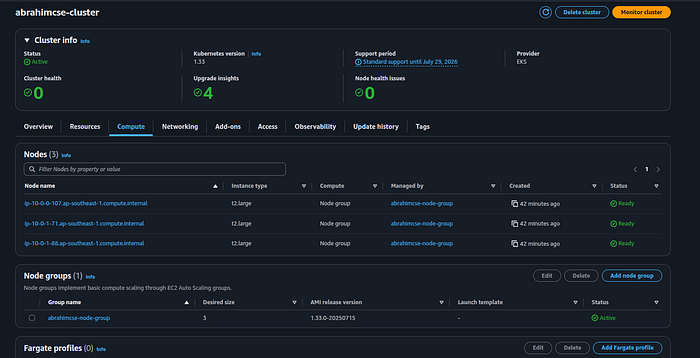
Node Group
Create cluster service account
user-1 , role-1 (cluster admin access)
user-2 , role-2 (good level of access)
user-3 , role-3 (read only access)
Create folder for RBAC
cd ..
mkdir rbac
cd rbac
Create Namespace
kubectl create ns webapps
Create Service Account
vi svc.yaml
apiVersion: v1
kind: ServiceAccount
metadata:
  name: jenkins
  namespace: webapps
kubectl apply -f svc.yaml
Create Role
vi role.yaml
apiVersion: rbac.authorization.k8s.io/v1
kind: Role
metadata:
  name: app-role
  namespace: webapps
rules:
  - apiGroups:
        - ""
        - apps
        - autoscaling
        - batch
        - extensions
        - policy
        - rbac.authorization.k8s.io
    resources:
      - pods
      - secrets
      - componentstatuses
      - configmaps
      - daemonsets
      - deployments
      - events
      - endpoints
      - horizontalpodautoscalers
      - ingress
      - jobs
      - limitranges
      - namespaces
      - nodes
      - pods
      - persistentvolumes
      - persistentvolumeclaims
      - resourcequotas
      - replicasets
      - replicationcontrollers
      - serviceaccounts
      - services
    verbs: ["get", "list", "watch", "create", "update", "patch", "delete"]
kubectl apply -f role.yaml
Bind Role to Service Account
vi bind.yaml
apiVersion: rbac.authorization.k8s.io/v1
kind: RoleBinding
metadata:
  name: app-rolebinding
  namespace: webapps
roleRef:
  apiGroup: rbac.authorization.k8s.io
  kind: Role
  name: app-role
subjects:
- namespace: webapps
  kind: ServiceAccount
  name: jenkins
kubectl apply -f bind.yaml
Create Secret to Get Service Account Token
vi sec.yaml
apiVersion: v1
kind: Secret
type: kubernetes.io/service-account-token
metadata:
  name: mysecretname
  annotations:
    kubernetes.io/service-account.name: jenkins
kubectl apply -f sec.yaml -n webapps
Collect Token and save into jenkins credential
kubectl describe secret mysecretname -n webapps
Create Secret for Docker Registry (DockerHub)
kubectl create secret docker-registry regcred \
  --docker-server=https://index.docker.io/v1/ \
  --docker-username=abrahimcse \
  --docker-password=<your_dockerhub_password> \
  --docker-email=abrahimcse@gmail.com \
  --namespace=webapps
To verify the secret:
kubectl get secret regcred --namespace=webapps --output=yaml
Check kubeconfig Info
cd ~/.kube
ls
cat config
✅ Use server: IP from this config if needed in deployment-service.yaml or Jenkins setup.
sudo apt update
curl -fsSL https://get.docker.com -o get-docker.sh
sudo sh get-docker.sh
sudo apt-get install -y uidmap
dockerd-rootless-setuptool.sh install
docker run -d --name Sonar -p 9000:9000 sonarqube:lts-community
-
Access SonarQube:
http://<server_ip>:9000/ -
Default Credentials:
-
Username:
admin -
Password:
admin
Overview
Press enter or click to view image in full size
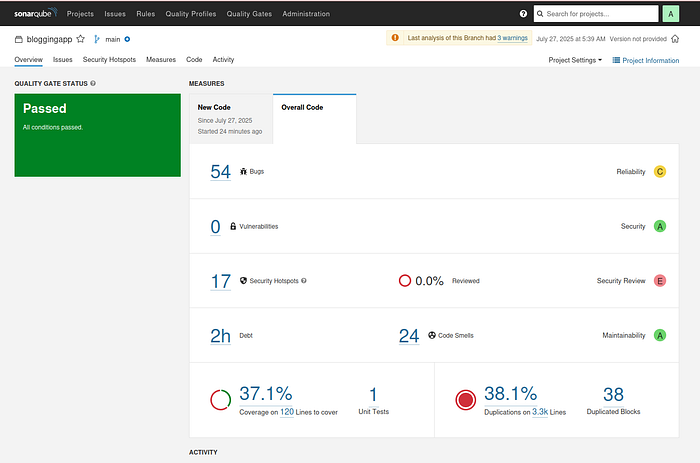
Quality Status : Overview
Issues
Press enter or click to view image in full size
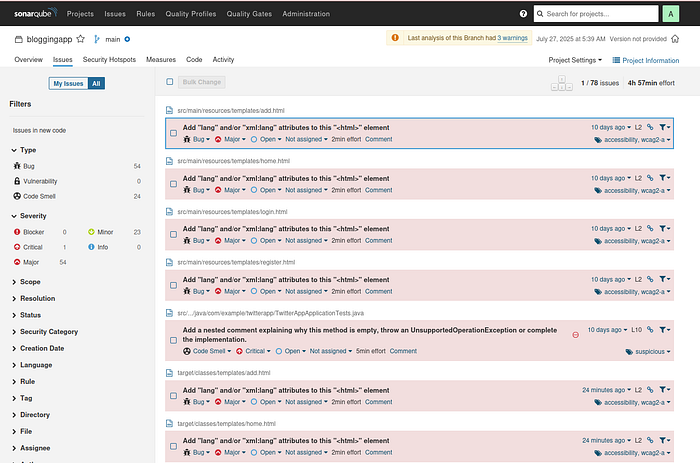
Issues
-
Go to:
**Administration > Security > Users > Tokens** -
Create a new token:
- Name:
sonar-token
3. Click Generate and copy the token
Press enter or click to view image in full size
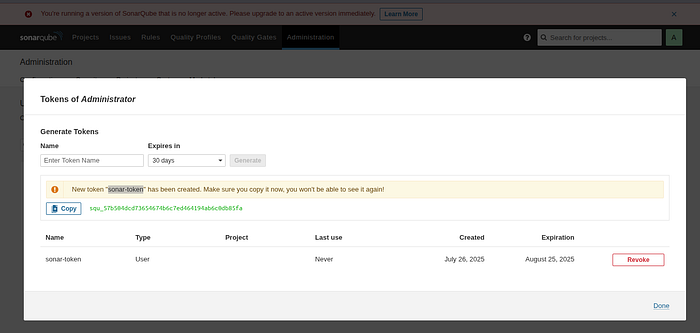
sonar-token
-
Navigate to:
**Administration > Configuration > Webhooks** -
Click Create Webhook
-
Name:
jenkins -
URL:
http://<jenkins_public_ip>:8080/sonarqube-webhook/
📌 Note: Ensure Jenkins is reachable from SonarQube server.
Press enter or click to view image in full size
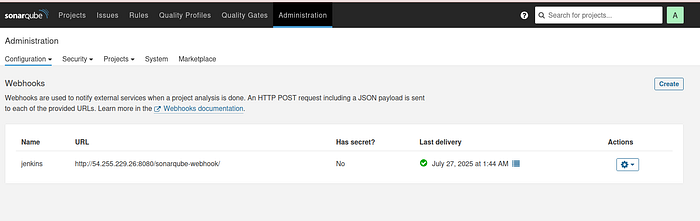
Webhook
sudo apt update
curl -fsSL https://get.docker.com -o get-docker.sh
sudo sh get-docker.sh
sudo apt-get install -y uidmap
dockerd-rootless-setuptool.sh install
docker run -d --name Nexus -p 8081:8081 sonatype/nexus3
docker ps
docker exec -it <container id> sh
cat sonatype-work/nexus3/admin.password
-
Access Nexus:
http://<server_ip>:8081/ -
Username: admin
-
Password: (copy from the file above)
***check Enable anonymous access***(if needed for testing or open read access)
Browser
-
maven-releases (copy)
-
maven-snapshots (copy)
Press enter or click to view image in full size
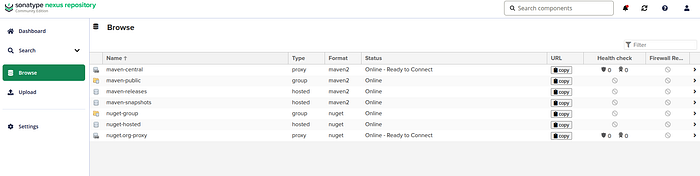
maven browse
Modify your pom.xml file with the Nexus repository endpoints:
<distributionManagement>
        <repository>
            <id>maven-releases</id>
            <url>http://13.212.202.251:8081/repository/maven-releases/</url>
        </repository>
        <snapshotRepository>
            <id>maven-snapshots</id>
            <url>http://13.212.202.251:8081/repository/maven-snapshots/</url>
        </snapshotRepository>
    </distributionManagement>
sudo apt update
curl -fsSL https://get.docker.com -o get-docker.sh
sudo sh get-docker.sh
sudo apt-get install -y uidmap
dockerd-rootless-setuptool.sh install
Verify Docker:
docker --version
vim trivy.sh
Paste into trivy.sh:
#!/bin/bash
sudo apt-get install wget gnupg
wget -qO - https://aquasecurity.github.io/trivy-repo/deb/public.key | gpg --dearmor | sudo tee /usr/share/keyrings/trivy.gpg > /dev/null
echo "deb [signed-by=/usr/share/keyrings/trivy.gpg] https://aquasecurity.github.io/trivy-repo/deb generic main" | sudo tee -a /etc/apt/sources.list.d/trivy.list
sudo apt-get update
sudo apt-get install trivy -y
Run script:
sudo chmod +x trivy.sh
./trivy.sh
trivy --version
vim jenkin.sh
Paste into jenkin.sh:
#!/bin/bash
# Install OpenJDK 17 JRE Headless
sudo apt install openjdk-17-jre-headless -y
# Download Jenkins GPG key
sudo wget -O /usr/share/keyrings/jenkins-keyring.asc \
  https://pkg.jenkins.io/debian-stable/jenkins.io-2023.key
# Add Jenkins repository to package manager sources
echo deb [signed-by=/usr/share/keyrings/jenkins-keyring.asc] \
  https://pkg.jenkins.io/debian-stable binary/ | sudo tee \
  /etc/apt/sources.list.d/jenkins.list > /dev/null
# Update package manager repositories
sudo apt-get update
# Install Jenkins
sudo apt-get install jenkins -y
Run it:
chmod +x jenkin.sh
./jenkin.sh
Access Jenkins:
-
URL:
http://<server_ip>:8080 -
Initial password:
sudo cat /var/lib/jenkins/secrets/initialAdminPassword
Press enter or click to view image in full size
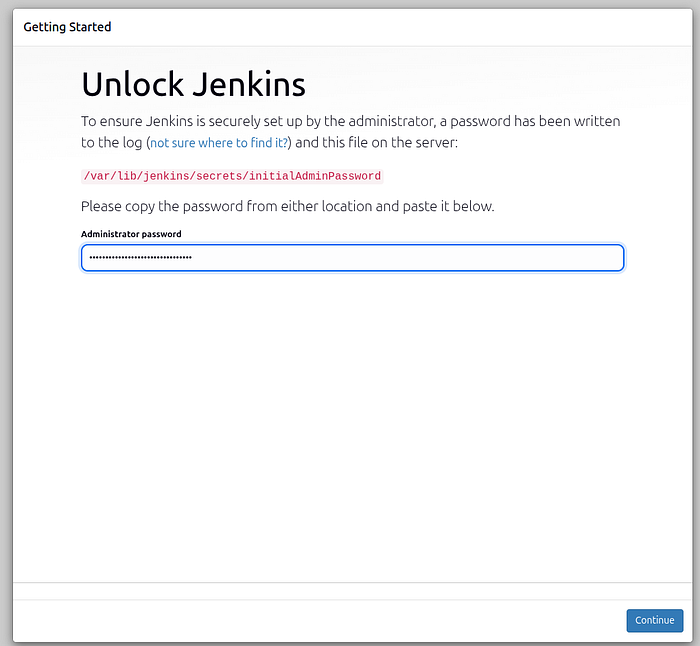
Unlock Jenkins
Press enter or click to view image in full size
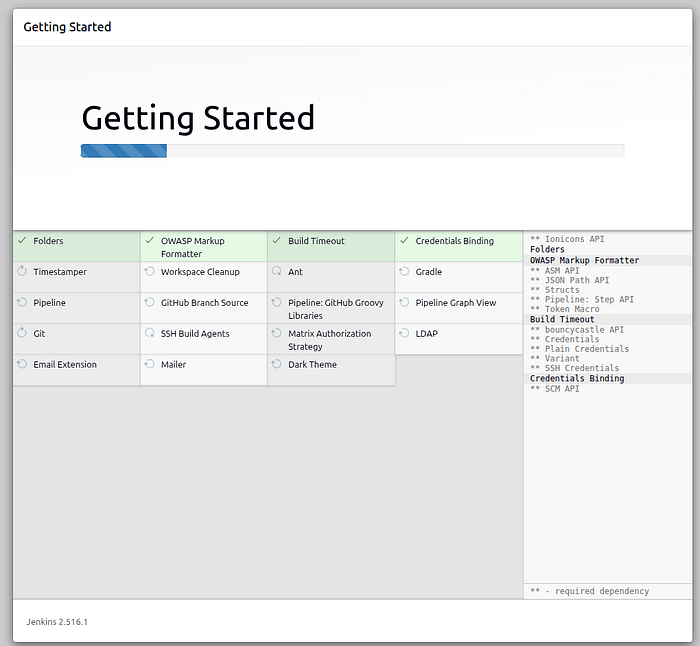
Getting Started
Press enter or click to view image in full size
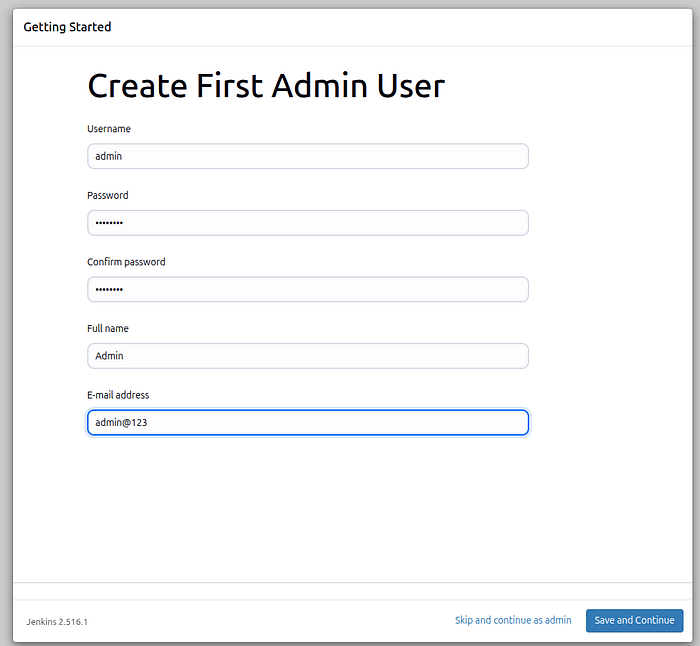
Admin User Create
Press enter or click to view image in full size
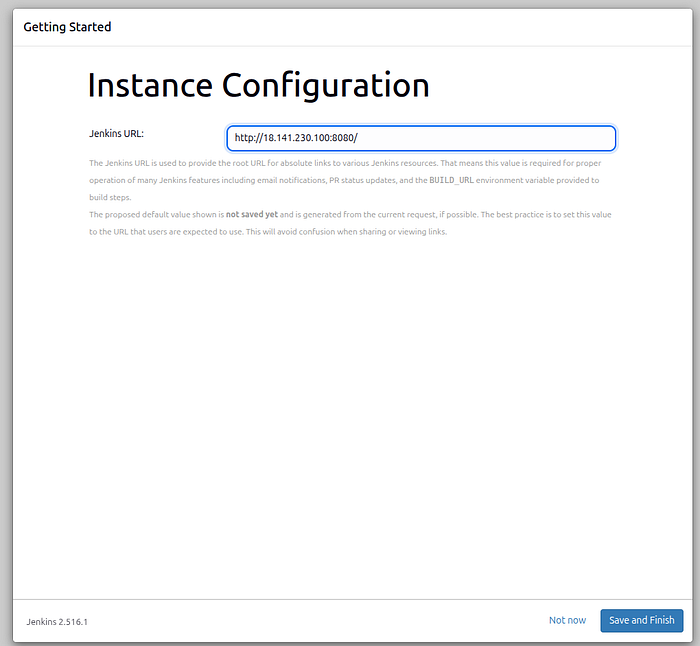
Configurations
vi kubelet.sh
Paste into kubelet.sh
#!/bin/bash
curl -o kubectl https://amazon-eks.s3.us-west-2.amazonaws.com/1.19.6/2021-01-05/bin/linux/amd64/kubectl
chmod +x ./kubectl
sudo mv ./kubectl /usr/local/bin
kubectl version --short --client
Run it:
chmod +x kubelet.sh
./kubelet.sh
sudo usermod -aG docker jenkins
sudo systemctl restart jenkins
Navigate: Dashboard > Manage Jenkins > Plugins > Available Plugins
Join Medium for free to get updates from this writer.
Subscribe
Install:
✅ Docker ✅ Docker Pipeline ✅ Kubernetes ✅ Kubernetes CLI ✅ Kubernetes Client API ✅ Kubernetes Credentials ✅ Prometheus Metrics ✅ Pipeline: Stage View ✅ Pipeline Maven Integration ✅ Maven Integration ✅ SonarQube Scanner ✅ Config File Provider ✅ Eclipse Temurin installer
📝 Restart Jenkins after plugin installation.
Press enter or click to view image in full size
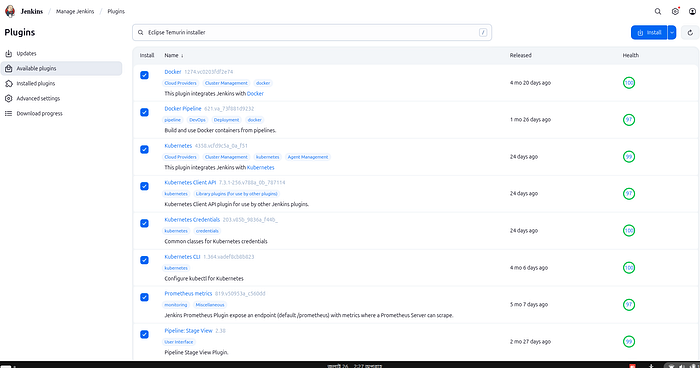
Plugins
Navigate: Dashboard > Manage Jenkins > Tools
JDK:
-
Name:
jdk17 -
Check “Install automatically”
-
Source:
Adoptium.net -
Version:
jdk-17.0.9+9

JDK
SonarQube Scanner:
-
Name:
sonar-scanner -
Version:
latest
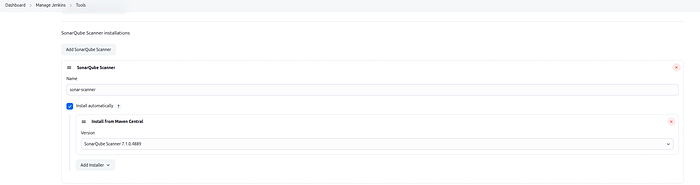
SonarQube Scanner
Maven:
-
Name:
maven3 -
Version:
3.6.1
Press enter or click to view image in full size

Maven
Docker:
-
Name:
docker -
Install Automatically
Step 8: Credentials Setup
Navigate: Manage Jenkins > Credentials > System > Global > Add Credentials
github
-
username :
guthub-username -
pass :
github-token -
ID :
git-cred -
Description :
git-cred
Sonarqube
-
Kind :
secret text -
secret:
generated token(sonar-token) -
ID :
sonar-token -
Description :
sonar-token
Docker Hub
-
username:
dockerhub_username -
pass :
dockerhub_password -
ID :
docker-cred -
Description :
docker-cred
K8s-Cluster
-
Kind :
secret text -
secret:
token(kubectl describe secret mysecretname -n webapps) -
ID :
k8-cred -
Description :
k8-cred
Gmail Notification
-
Kind : Username with password
-
Username :
example@gmail.com -
Password:
<Gmail App Password> -
ID :
mail-cred -
Description :
mail-cred
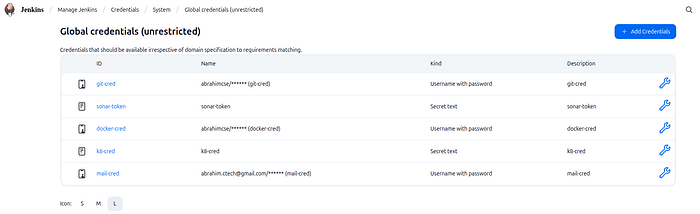
Credentials
Step 9: Add Maven Settings File (for Nexus)
Navigate: Manage Jenkins > Managed Files > Add a New Config
-
Type: Global Maven settings.xml
-
ID:
global-settings
Paste:
<settings>
  <servers>
    <server>
      <id>maven-releases</id>
      <username>nexus_username</username>
      <password>nexus_password</password>
    </server>
    <server>
      <id>maven-snapshots</id>
      <username>nexus_username</username>
      <password>nexus_password</password>
    </server>
  </servers>
</settings>
Step 10: Add SonarQube Server Info
Navigate: Manage Jenkins > System > SonarQube Servers
-
Name:
sonar -
Server URL:
http://<sonar_server_ip>:9000 -
Token:
sonar-token(from credentials)
➤ Create Job
-
Go to Jenkins Dashboard
-
Click
New Item -
Name:
BoardGame -
Type:
Pipeline -
Click
OK
➤ Basic Configuration
-
Discard Old Builds:
-
Max # of builds:
2 -
Pipeline Definition:
-
Choose:
Pipeline script
pipeline {
    agent any

    stages {
        stage('Hello') {
            steps {
                echo 'Hello World'
            }
        }
    }
}
➤ Jenkins Declarative Pipeline Syntax (GUI to Script Mapping)
-
Pipeline Syntax
-
Sample Step git : Git
-
Repository URL : github url
-
Branch : main
-
Credential : select id
git branch: 'main', credentialsId: 'git-cred', url: 'https://github.com/abrahimcse/Boardgame.git'
-
Sample Step withSonarQubeEnv: Prepare SonarQube Scanner environment
-
server token : sonar-token
withSonarQubeEnv(credentialsId: 'sonar-token') {
}
JenkinsPipeline Configuration
Here’s a quick visual stage flow from your pipeline for clarity:
-
Git Checkout →
-
Compile →
-
Unit Test →
-
Trivy Scan →
-
SonarQube Analysis →
-
Quality Gate Check →
-
Build JAR →
-
Deploy to Nexus →
-
Docker Image Build →
-
Push to DockerHub
-
Deploy to Kubernetes →
-
Verify the Deployment →
Pipeline code in
Jenkinsfilemodify on your requirments
Pipeline Stages
Press enter or click to view image in full size
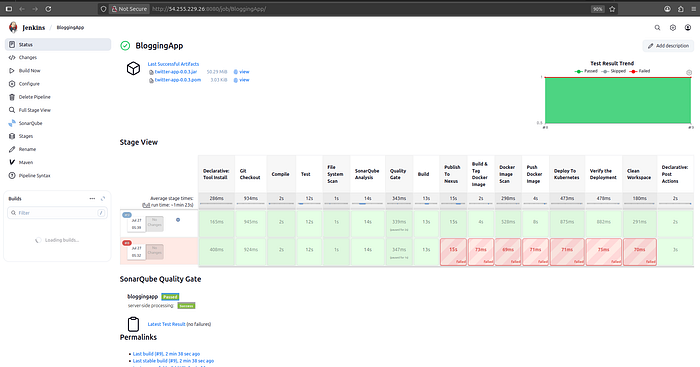
Pipeline Stages
You’ll configure Jenkins to send email notifications using Gmail’s SMTP service.
-
Navigate to:
-
Security→2-Step Verification→ Enable it (if not already) -
Scroll down to
App Passwords
3. Select:
-
App:
Mail -
Device:
Jenkins(or any name) password:
✅ Copy the generated password (you’ll use this in Jenkins configuration)
Go to Jenkins: manage jenkins > system
1. Extended E-mail Notification
-
SMTP server: smtp.gmail.com
-
SMTP POrt : 465
🔽 Click on Advanced
-
Check Use SSL
-
✅ Add Credentials:
-
Kind : Username with password
-
Username :
example@gmail.com -
Password :
<Gmail App Password> -
ID :
mail-cred -
Select the added credential :
example@gmail.com(mail-cred)
2. E-mail Notification
- SMTP Server:
smtp.gmail.com
🔽 Click Advanced
-
✅ Check Use SSL
-
SMTP Port: 465
-
✅ Check Use SMTP Authentication
-
Username:
example@gmail.com -
Password:
<Gmail App Password>
3. Test the Configuration
-
Scroll down to the Test configuration section
-
Enter your email:
example@gmail.com -
Click Test Configuration
You should receive a test email if everything is configured properly.
Press enter or click to view image in full size
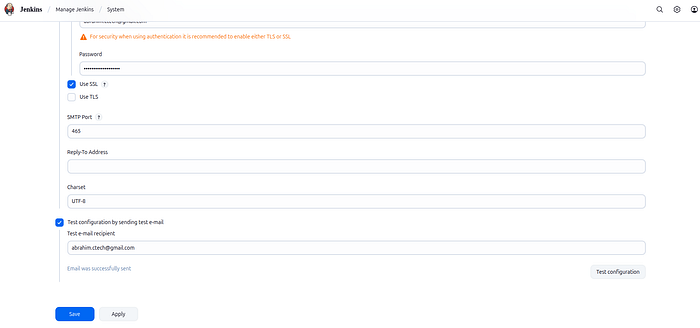
Test Configuration
Ensure your system is updated first:
sudo apt update -y
wget https://github.com/prometheus/prometheus/releases/download/v3.5.0-rc.0/prometheus-3.5.0-rc.0.linux-amd64.tar.gz

ls
tar -xvf prometheus-3.5.0-rc.0.linux-amd64.tar.gz
rm -rf prometheus-3.5.0-rc.0.linux-amd64.tar.gz
mv prometheus-3.5.0-rc.0.linux-amd64 prometheus
cd prometheus
ls
./prometheus &
🌐 Access Prometheus: http://<public_ip>:9090
sudo apt-get install -y adduser libfontconfig1 musl
wget https://dl.grafana.com/enterprise/release/grafana-enterprise_12.0.2_amd64.deb
sudo dpkg -i grafana-enterprise_12.0.2_amd64.deb

sudo systemctl start grafana-server
🌐 Access Grafana: http://<public_ip>:3000 👤 Default Login:
-
Username:
admin -
Password:
admin
Press enter or click to view image in full size
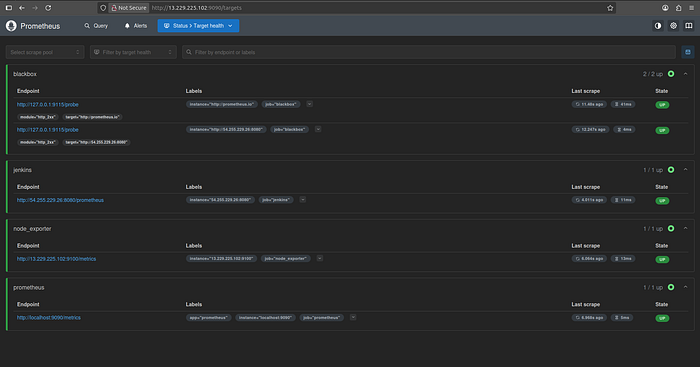
wget https://github.com/prometheus/blackbox_exporter/releases/download/v0.27.0/blackbox_exporter-0.27.0.linux-amd64.tar.gz
tar -xvf blackbox_exporter-0.27.0.linux-amd64.tar.gz
rm -rf blackbox_exporter-0.27.0.linux-amd64.tar.gz
mv blackbox_exporter-0.27.0.linux-amd64 blackbox_exporter
cd blackbox_exporter
ls ./backbox_exporter &
🌐 Access Blackbox Exporter: http://<public_ip>:9115
Configure prometheus.yml to include Blackbox:
cd ~/prometheus
vim prometheus.yml
Add the following job:
- job_name: 'blackbox'
    metrics_path: /probe
    params:
      module: [http_2xx]  # Look for a HTTP 200 response.
    static_configs:
      - targets:
        - http://prometheus.io    # Target to probe with http.
        - http://example.com:8080 # Target to probe with http on port 8080.
    relabel_configs:
      - source_labels: [__address__]
        target_label: __param_target
      - source_labels: [__param_target]
        target_label: instance
      - target_label: __address__
        replacement: 127.0.0.1:9115  # The blackbox exporter's real hostname:port.
Restart Prometheus:
pgrep prometheus
kill id
./prometheus &
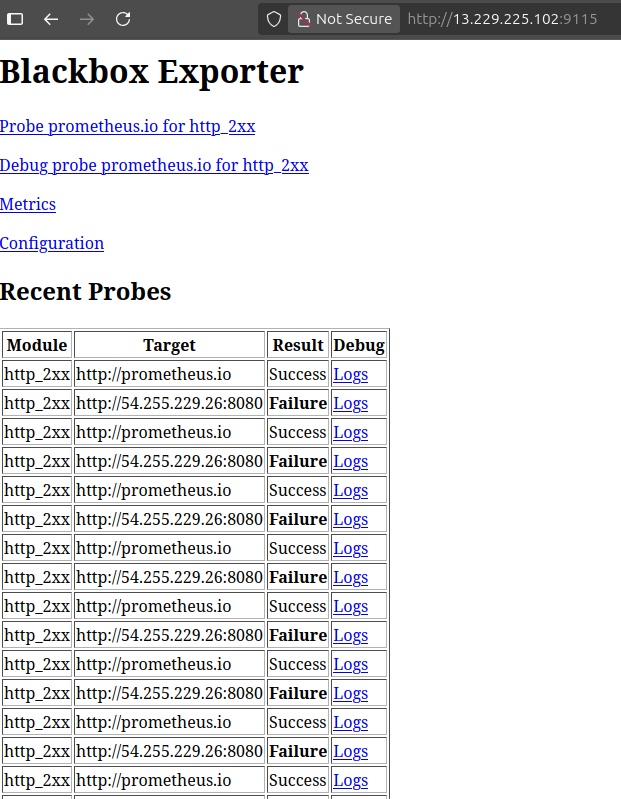
wget https://github.com/prometheus/node_exporter/releases/download/v1.9.1/node_exporter-1.9.1.linux-amd64.tar.gz
ls
tar -xvf node_exporter-1.9.1.linux-amd64.tar.gz
ls
rm rf node_exporter-1.9.1.linux-amd64.tar.gz
mv node_exporter-1.9.1.linux-amd64.tar.gz node_exporter
cd node_exporter
ls
./node_exporter &
Press enter or click to view image in full size
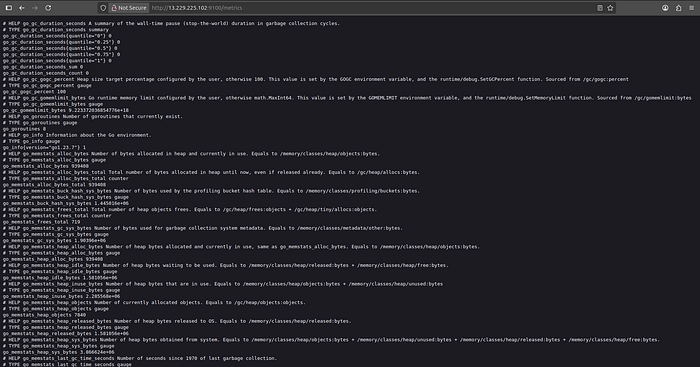
🌐 Node Exporter Port: http://<jenkins_server_ip>:9100
Add Node Exporter and Jenkins Job to prometheus.yml
cd prometheus
ls
vim prometheus.yml
- job_name: 'node_exporter'
    static_configs:
      - targets: ['<jenkins_server_ip>:9100']

- job_name: 'jenkins'
    metrics_path: /prometheus
    static_configs:
      - targets: ['<jenkins_server_ip>:8080']
Restart Prometheus:
pgrep prometheus
kill id
./prometheus &
-
Go to Grafana UI:
Grafana > Connections > Data sources > Add data source -
Select Prometheus from the list.
-
Fill in the details:
-
Name:
Prometheus(or any preferred name) -
URL:
http://<PROMETHEUS_SERVER_IP>:9090
Scroll down and click Save & Test.
You should see a message like: Data source is working.
-
Navigate to:
Dashboard > Import -
Paste one of the dashboard IDs listed below.
-
Click Load.
-
Select your Prometheus data source.
-
Click Import to finish.
Dashboard Name Dashboard ID
🔍 Blackbox Exporter
7587🖥️ Node Exporter
1860
Grafana Blackbox
Press enter or click to view image in full size
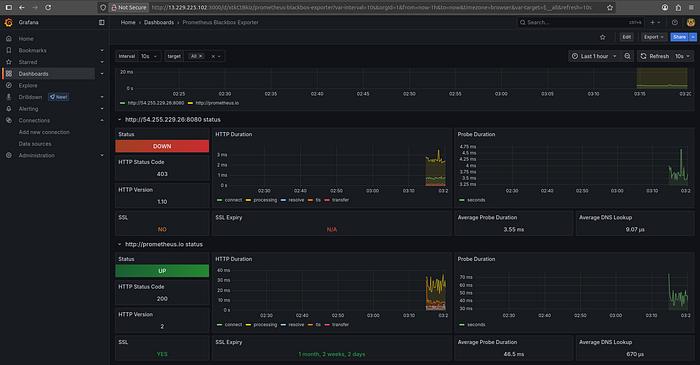
Grafana Blackbox
Grafana NodeExporter
Press enter or click to view image in full size
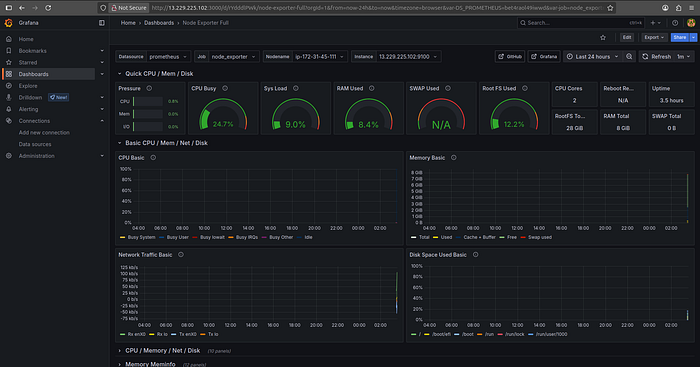
Grafana NodeExporter
📧 Connect with me:
- GitHub: @sahil-mk32
- LinkedIn: Sahil Bhoyar
This project is not just a simple CRUD FullStack Blogging Application — it’s a complete DevOps CI/CD journey packaged with real tools used in production. Ideal for portfolio, enterprise POCs, and DevOps learners who want to understand how real-world systems run.