
sc994 fork: see FORK.md for image publishing, migration, and restart verification.


If this project is useful to you, you can support my work:


Run Codex CLI against your Home Assistant configuration folder from Home Assistant.
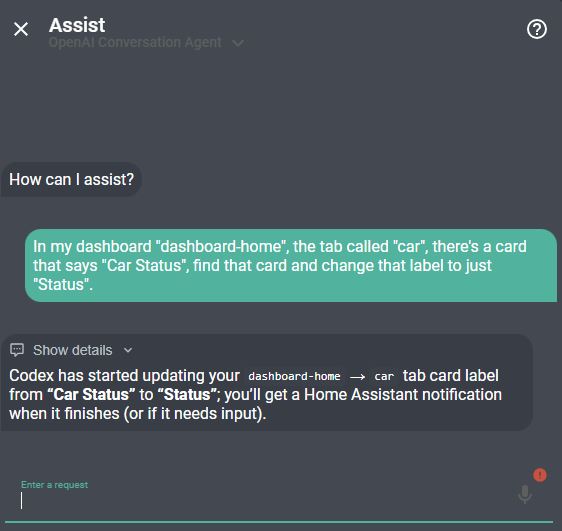
Ask Home Assistant Assist to make a configuration or dashboard change:
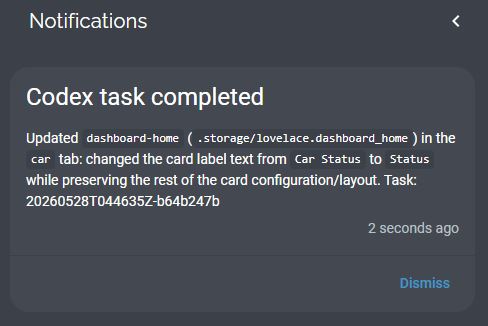
Codex runs the task and sends a Home Assistant notification when it finishes:
Open the worker web UI to browse saved chats in the left sidebar. Select a chat to read its messages and continue with the same Codex context, or choose New chat to start a separate conversation. Drag the sidebar divider to resize it, or focus it and use the arrow keys. On phones, use the menu button to open the chat list. Account sign-in and the AGENTS.md editor are under Settings.
The sidebar shows recently active chats first and includes Load older chats. Messages, responses, and per-exchange results are saved across worker restarts. Older tasks remain available, but responses overwritten before this feature was added cannot be recovered by the new history view.
The chat formats Markdown in your messages and in Codex's answers. Wrap code in triple backticks to send it as a code block, or in single backticks for inline code. Headings, bold and italic text, lists, tables, quotes, and links are formatted too.
Dashboard verification can collect additional blocked browser requests for you to approve together. Open Review blocked browser requests in the inspection result, select requests you trust, and choose Allow selected and retry. You can remember exceptions for that dashboard and revoke them in Settings > Browser permissions. Approvals retry only the capture; they do not rerun the task. See browser permission scopes and limits.
Use Copy response below an answer to copy its summary, details, and any question as original Markdown, including code blocks and YAML indentation. This also works for saved answers. If automatic copying is blocked, a dialog offers the selected text for manual copying. Images, activity logs, and separate configuration/backup/verification cards are not included.
The worker runs one task at a time. While a chat is working, you can still send messages in new chats or other saved chats: they wait under In queue at the top of the sidebar and start one after another when the running chat finishes. A waiting message can be edited or removed until it starts.
When Codex needs a decision, it can offer up to three answers as buttons under its question. Pick one, or type a different answer. With a mobile app notify service, the same buttons appear on the notification.
Screenshots use demo conversations from the local test fixture.


This repository contains two pieces:
codex-cli-worker: a Home Assistant app/add-on that runs Codex CLI with read-write access to/config.custom_components/codex_cli: a Home Assistant custom integration that exposes entities and actions for starting tasks, checking status, signing in, cancelling work, and continuing saved conversations.
- Starts Codex tasks from Home Assistant actions, scripts, automations, or Assist/LLM tools.
- Keeps saved conversations so you can return to an earlier chat and continue with its context.
- Provides a chat UI with a resizable sidebar, mobile navigation, and light/dark themes.
- Shows what Codex is doing while it works: reasoning headlines, commands, file edits, searches, and tool calls appear live under your message, with a timer from the moment you send it.
- Formats Markdown in the chat, in your messages and in Codex's answers: code blocks, inline code, headings, lists, tables, and links.
- Queues messages sent while another chat is working and starts them in order, with the option to edit or remove them first.
- Offers answers to its own questions as buttons, in the chat and on mobile app notifications, so a decision takes one tap.
- Asks Home Assistant to check the configuration after YAML edits and fails the task on errors.
- Has Codex save the previous version of each file before changing it, reports changed files that have no saved copy, and removes the copies after a number of days you choose.
- Mounts the Home Assistant config folder as
/configinside the worker app. - Runs tasks non-interactively and stores task logs/results under
/config/codex_tasks. - Supports Codex device-code sign-in through Home Assistant persistent notifications.
- Reports active task count, latest task status, auth status, and task-running state.
- Uses Home Assistant Ingress for the app UI; the worker HTTP port is not exposed to the LAN.
- Inspects dashboards in a real browser at desktop and mobile sizes, with screenshots and check results in the conversation.
- Fetches fresh entity states, checks saved dashboard configuration, and reads Core logs to help verify changes and diagnose problems.
- Keeps a local copy of the official Home Assistant documentation, refreshed after each Home Assistant update, so Codex can look things up without a web search.
Read-only MCP tools let Codex fetch Home Assistant state history and recorder statistics for sensor analysis, troubleshooting, and automation design. They work in workspace-write and read-only without shell network approval or a manually configured API token. Results are saved in private temporary JSON files so Codex can calculate over the data without large tool outputs being cut off. Queries use explicit IDs and time windows, with limits and clear missing-data/truncation results. See the tools and limits.
By toggling the option Enable built-in browser to ON, Codex can open your Home Assistant dashboards in a real browser, capture desktop and mobile screenshots, and inspect them while working on a change. It can use those images to review the layout and revise its work. Screenshots and check results appear with the conversation, including missing cards, failed resources, and browser errors.
The bundled browser signs in automatically with a temporary, local, read-only identity. No Home Assistant password or manually created token is needed.
This app is powerful by design. It gives Codex access to your Home Assistant config folder so it can edit automations, scripts, dashboards, integrations, and related files.
The packaged worker follows the current Home Assistant app security guidance:
- No published LAN port.
- Ingress enabled for the web UI.
- Exact Ingress proxy source validation.
- Token-protected worker API for non-Ingress calls.
- AppArmor enabled with a custom profile.
- Bubblewrap namespace setup is isolated in a nested AppArmor profile, and sandboxed commands start with all Linux capabilities dropped.
- No Docker API access.
- No host network.
- No host PID/UTS access.
- No
full_access. - No elevated Supervisor role.
The /config mount is intentionally read-write because editing Home Assistant configuration is the core purpose of the project.
Use this project at your own risk. Codex for Home Assistant can read and modify your Home Assistant configuration, dashboards, scripts, automations, and related files. AI-generated changes can be incomplete, incorrect, unsafe, or incompatible with your setup.
You are solely responsible for reviewing changes, keeping backups, testing safely, and deciding whether to run this tool in your environment. The maintainer is not responsible or liable for damage, data loss, service interruption, security issues, misconfiguration, broken automations, device behavior, or any other loss or claim arising from installing, configuring, or using this project.
This project is provided "as is", without warranty of any kind, express or implied. See the repository license for the full warranty and liability disclaimer.
Prebuilt app images are published for:
amd64aarch64

Use the button above to add this repository to Home Assistant's Apps store.
If you prefer to do it manually:
In Home Assistant:
- Go to Settings -> Apps.
- Select Install app.
- Open the menu in the top right.
- Choose Repositories.
- Add this repository URL:
https://github.com/moryoav/home-assistant-codex

Use the button above after adding the repository. It opens the Codex CLI Worker app page.
- Install Codex CLI Worker.
- Review the app options.
- Start the app.
The app keeps an internal worker API token in private app storage. The Codex integration provisions and rotates that token automatically through Home Assistant's Supervisor-managed app stdin, so you do not need to view, copy, or configure a token.
The app's web UI is available through Home Assistant Ingress. Do not try to open port 9123 directly; it is intentionally not exposed.
I recommend danger-full-access for working freely in Home Assistant, even though the name sounds scary. The app still offers backups, checks, and verification. workspace-write remains the default; in sandboxed modes, the chat shows Allow once and Deny buttons when a command or file change needs extra access. See sandbox modes and permission requests for the scope of approvals and the limits of these safeguards.
The app options include dropdowns for the Codex model and model reasoning effort. The default model selection lets the installed Codex CLI choose its current recommended model; the chat shows that model by name. You can also select GPT-6 Astra, GPT-6.1 Sol, GPT-6 Sol, or GPT-6 Luna, or the older GPT-5.6 Sol, Terra, or Luna explicitly. The retired GPT-5.5 choice stays in the list so that existing setups keep starting, and runs GPT-5.6 Sol. Model availability depends on your account. medium reasoning is the default balance; high and xhigh can spend more time/quota. For GPT-6 Astra, GPT-6.1 Sol, GPT-6 Sol, and GPT-6 Luna, select low, medium, high, or xhigh. minimal is not supported by the current models and runs medium. The reasoning_summary option controls whether Codex reports its reasoning in the chat's activity list: concise headlines by default, detailed, or none. The config_check option, on by default, has Home Assistant check its configuration after a task changes YAML files; a failing check fails the task and points to the saved previous version of the affected files. Codex saves a copy of each file before changing it; the backup_retention_days option, 7 by default, sets how long these copies are kept, and the full_snapshot option, off by default, also archives the whole configuration folder before every message and supplies the previous version of any file Codex did not copy. The local_docs option, on by default, keeps a local copy of the official Home Assistant documentation for Codex to search; turn it off to stop the downloads.
The app web UI can view and save /config/AGENTS.md. You can also set the masked HA_TOKEN option when Codex tasks need a Home Assistant token in their environment. Codex then also gets HA_URL, the address to use with it, from the Home Assistant API URL option (http://homeassistant:8123 by default).
Before starting sign-in, enable Enable device code authorization for Codex in ChatGPT:
- Open the ChatGPT website.
- Click your profile.
- Go to Settings -> Security.
- Turn on Enable device code authorization for Codex near the bottom of the page.
This setting is in ChatGPT, not the Codex website.
Open the app web UI and click Start login, or call the codex_cli.start_login action after the integration is installed.
The app sends a Home Assistant persistent notification with:
- A QR code.
- A sign-in link.
- The one-time device code.
Scan the QR code or open the link, then enter the device code shown in the notification.
Codex CLI sign-in uses your ChatGPT/OpenAI account. It may work with a free ChatGPT account, but ChatGPT Plus or higher is recommended for more reasonable usage limits. This project does not use OpenAI API keys for Codex tasks.

Codex is available in the default HACS catalog, so no custom repository setup is required.
- Select the button above, or open HACS and search for Codex under Integrations.
- Select Codex and choose Download.
- Restart Home Assistant.
Copy:
custom_components/codex_cli
to:
/config/custom_components/codex_cli
Then restart Home Assistant.

Use the button above after Home Assistant restarts. It opens the Codex integration setup flow.
In Home Assistant:
- Go to Settings -> Devices & services.
- Add integration Codex.
The integration auto-detects the installed worker app and provisions its internal worker API token. There is no worker URL or API token to enter.
Until the integration is installed and added, the app's web UI shows a line at the top of the chat that says so. It also says when the integration is older than the app needs.
The integration exposes these Home Assistant actions:
codex_cli.start_taskcodex_cli.start_logincodex_cli.logoutcodex_cli.get_login_statuscodex_cli.list_taskscodex_cli.get_taskcodex_cli.cancel_taskcodex_cli.reply_taskcodex_cli.continue_task
The integration also provides diagnostic sensors for auth status, active tasks, last task, and the usage windows reported by Codex /status. Depending on the account and plan, Codex may report both 5-hour and weekly limits or only a weekly limit. The existing 5-hour entities remain available for automation compatibility; when that window is omitted their state is unknown and their reported attribute is false. Reported usage sensors expose numeric percent states plus ISO datetime reset attributes when reset times are present.
When a Codex task completes, fails, or needs input, the worker fires a Home Assistant event named codex_cli_task_result in addition to the notification. Automations can listen for that event and read fields such as task_id, turn_id, status, summary, question, choices, details, attachments, and the nested response object from trigger.event.data.
Example:
action: codex_cli.start_task
data:
  prompt: Check my Home dashboard for broken cards and suggest fixes.
response_variable: codex_resultList the 10 most recently active tasks:
action: codex_cli.list_tasks
data:
  limit: 10
  order: updated_desc
  summary: true
response_variable: recent_chats
Optional filters are limit (1–500), offset (zero-based), status, order (created_asc or updated_desc), and summary. The response includes tasks, total, next_offset, and active_task_id. With no options, the action keeps returning all tasks, oldest-created first. Use codex_cli.get_task with a task_id to retrieve the full conversation in task.turns.
Continue a previous task:
action: codex_cli.continue_task
data:
  task_id: "YOUR_TASK_ID"
  message: "Apply the first suggestion from your previous answer."
response_variable: continued_chat
Completed, failed, cancelled, and waiting tasks can continue if their saved Codex session is available. The task ID stays the same. Each message adds a new exchange, and the task-level status and result describe the latest exchange. Only one task can run at a time. A missing session produces an error instead of silently starting a new conversation.
The existing codex_cli.reply_task action still answers tasks waiting for input. New tasks do not automatically inherit context from other chats.
Answer a waiting question:
action: codex_cli.reply_task
data:
  task_id: "{{ trigger.event.data.task_id }}"
  turn_id: "{{ trigger.event.data.turn_id }}"
  reply: "Don't change anything"
reply is free text. When Codex offered answers, they are in the event's choices list, and sending one of them picks it. turn_id is optional: with it, the reply is refused once that question is no longer the one waiting, so a late reply cannot answer a newer question. See Human Input.
Codex tasks return a structured response with status, summary, question, details, and choices. The first four are plain strings, and how they are displayed depends on the Home Assistant consumer or notification service that receives them. choices is a list of up to three short answers Codex offers with a question, and is empty otherwise. The worker web UI formats Markdown in them; see Formatted messages.
You can request a preferred output style through /config/AGENTS.md, which is editable from the worker app web UI. Codex treats this as guidance rather than a formatting guarantee. If you want Markdown-friendly task output, you can add this instruction:
For the final structured response, use concise Markdown in summary, question,
and details when it improves readability. Use only short lists, emphasis, inline
code, and fenced code blocks. Do not use raw HTML, images, or embedded content.See examples/scripts.yaml for a starter script you can expose to Assist or another LLM integration.
Community-created dashboard cards are maintained in their own repositories:
- Home Assistant Codex Card by Rschmidt79, a Lovelace chat card for starting and following Codex tasks from a Home Assistant dashboard.
Use the default repository URL for stable releases:
https://github.com/moryoav/home-assistant-codex
The dev branch can be used for optional worker app development and canary builds:
https://github.com/moryoav/home-assistant-codex#dev
The #dev URL applies to the worker app repository. HACS installs the
integration from the ZIP attached to a release. To test integration changes
from a development branch, use the manual installation instructions above.
The repository includes a GitHub Actions workflow that builds and publishes multi-architecture images to GitHub Container Registry:
ghcr.io/moryoav/codex-cli-worker
The app config.yaml points at that image. Home Assistant uses the app version as the image tag.
Release builds also publish the latest image tag. Manual workflow builds from development branches publish the app version and branch name tags, but do not move latest.
To prepare a release, set the same version in codex-cli-worker/config.yaml
and custom_components/codex_cli/manifest.json, and add its notes to
codex-cli-worker/CHANGELOG.md. After merging and checking CI, push a
vX.Y.Z tag for that commit. The release workflow validates the repository,
attaches codex_cli.zip, and publishes the worker images. Release packaging
rejects mismatched versions and missing changelog notes.
.
├── codex-cli-worker/
│   ├── config.yaml
│   ├── Dockerfile
│   ├── server.py
│   └── ...
├── custom_components/
│   └── codex_cli/
├── examples/
├── repository.yaml
└── hacs.json