Signup Wizard Card Wizard Signup
The CardWizard layout is a simulated multi-page layout which uses JavaScript to move a volunteer through a series of cards in order to sign them up for a volunteer role. This is a very useful way for handling large complex signups with ease.
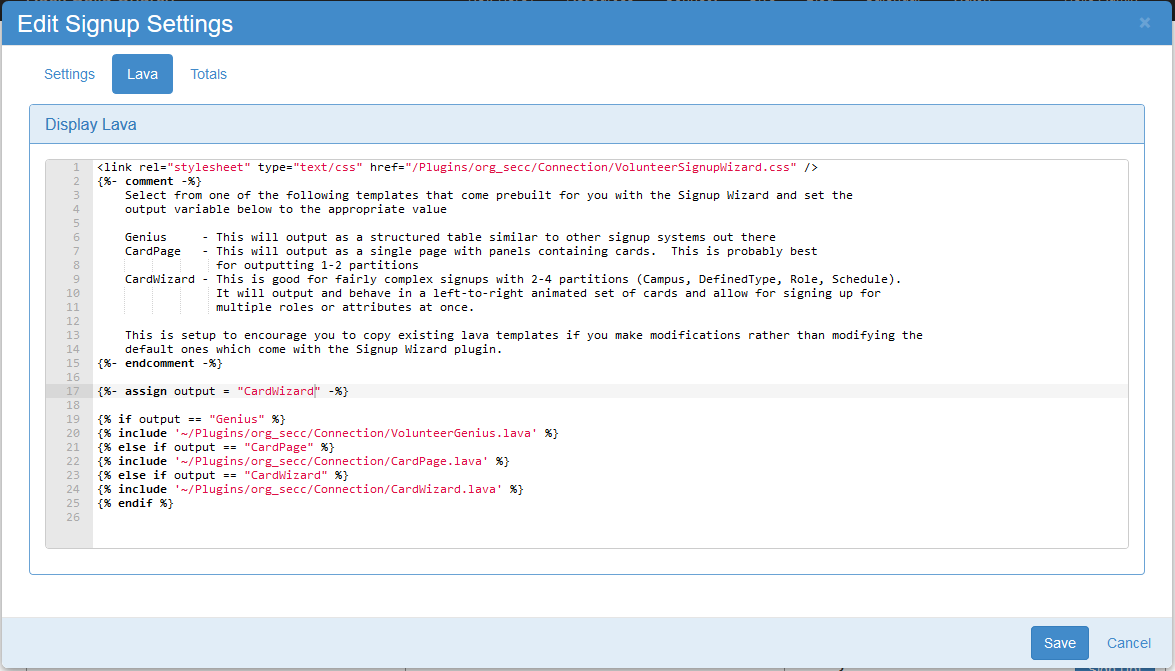
To configure this (after following all the setup instructions in previous pages of this documentation) simply change the output variable in the Lava output to "CardWizard":
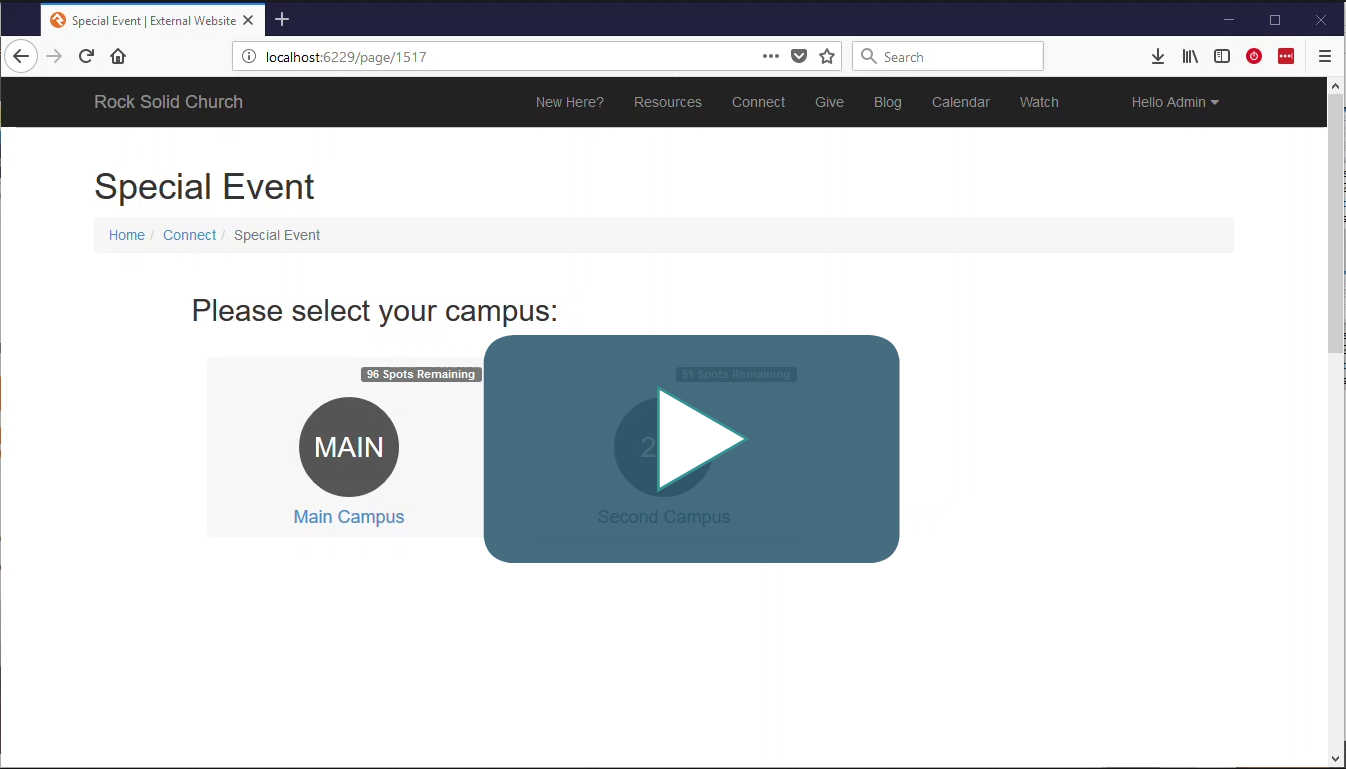
After clicking the "Save" button, you should see something like the following video:
If you review the samples, something we try to do at Southeast is configure all roles with an appropriate icon for that serving opportunity. This, unfortunately, is one of the trickier aspects for setting up the Card Wizard:
The first step is to add a new entity attribute by going to "System Settings -> Entity Attributes" in Rock and then clicking the "+" icon to add a new entity attribute. Please note, you will need the GroupTypeId of the group type that you are adding icons for in order to make this attribute apply specifically to roles within that group type. Take a look at the following screenshot for how to enter that data:

If you entered that data correctly in the previous step, when you return to edit the Group Type in Rock you should now see the attribute for the Icon:
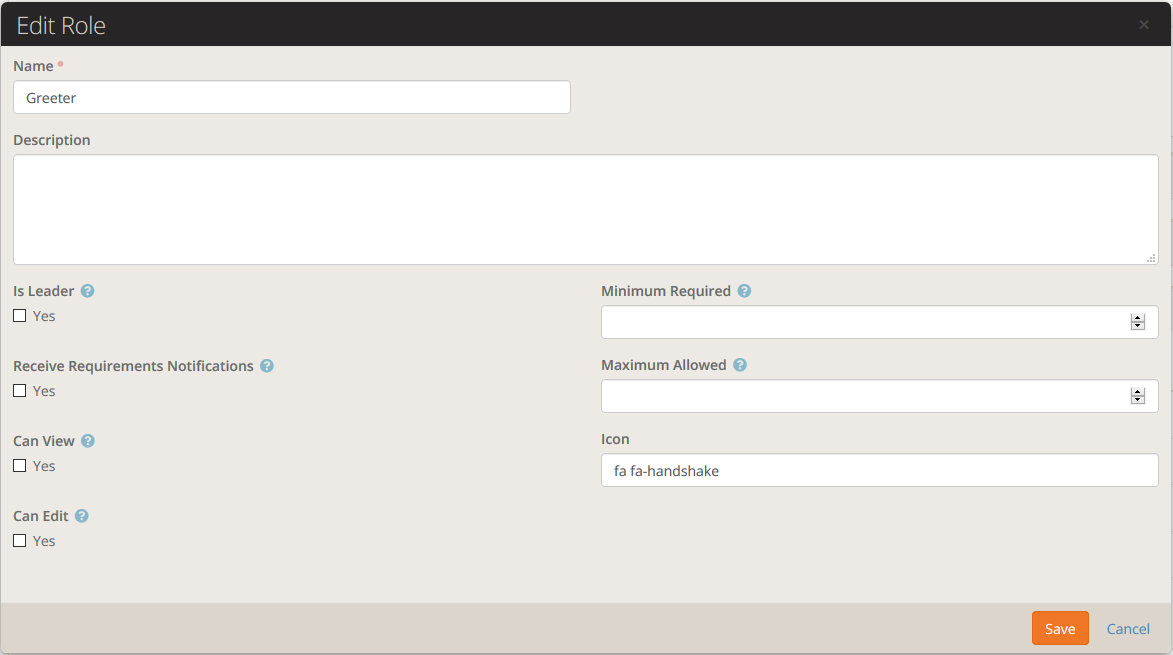
Please note, any attributes you find useful can easily be added in this same manner. You can easily reference these icons in a custom Lava template in order to output the signup wizard in any way you desire!
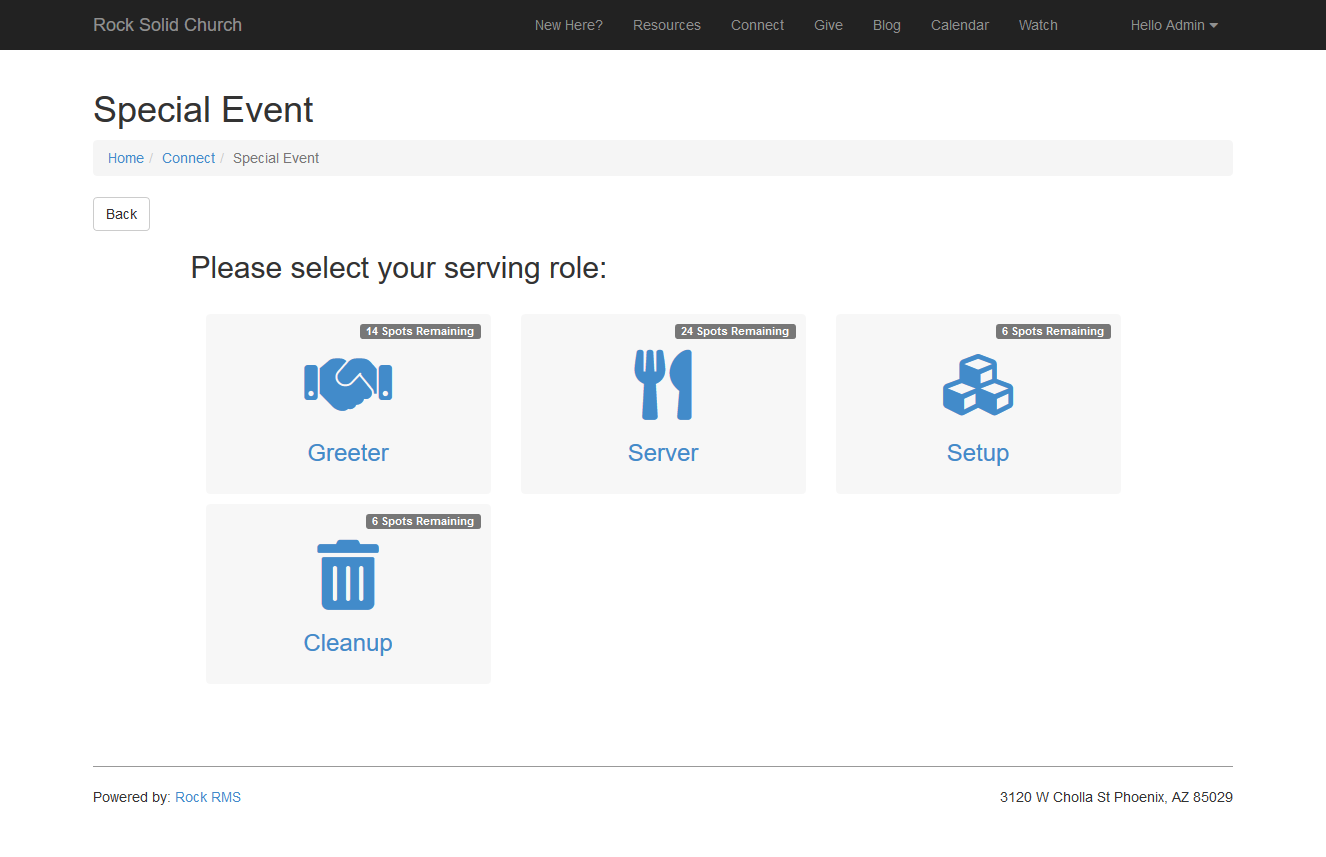
Now that icons have been set on all the roles, the Lava now outputs the role nicely in a way that makes it very easy for a volunteer to get a good feel for what the role they wish to serve in: