Dvorak keyboard layout firmware for Apple Aluminum USB Keyboard (A1243)
I’ve always wanted a hardware Dvorak keyboard, but since 2007 or so my preferred keyboard has been the Apple aluminum keyboard with numeric keypad. I came to prefer the low-profile keys and how quiet they are, despite not being as ergonomic as the various curved keyboards that I liked before. I also find that the scissor mechanisms are more reliable when you aren't hitting the keys dead-on, unlike the more recent curved keyboards from Microsoft. Another issue is that I prefer a wired keyboard for security and reliability reasons. At this point, I think the only other keyboard I would consider switching to is the Kinesis Advantage 2.
There are a bunch of reasons to prefer a hardware keyboard layout over software:
- If you want to interact with a machine before the OS loads, such as to access the BIOS or bootloader.
- Lots of apps, especially videogames, have scancodes hard-coded into them because they interact with the keyboard at a much lower level than most programs.
- When using a machine inside a VM or over a VNC connection, the remote end is often receiving raw USB events.
- I found that I would inadvertently trigger the keyboard shortcut for switching back to QWERTY because it's very close to some of the IntelliSense bindings.
- It just seems like a cool idea.
So far I’ve only tested my firmware with this hardware:
Apple wired USB keyboard with numeric keypad (space gray)
Model Number: A1243
USB Vendor ID: 0x05ac
USB Product ID: 0x024f
Version: 0.74
But I imagine it should also work with product IDs 0x220, 0x221, 0x222, or 0x228.
I created two alternate layouts based on the Dvorak software layout shipped with macOS:
Dvorak (dvorak.patch)
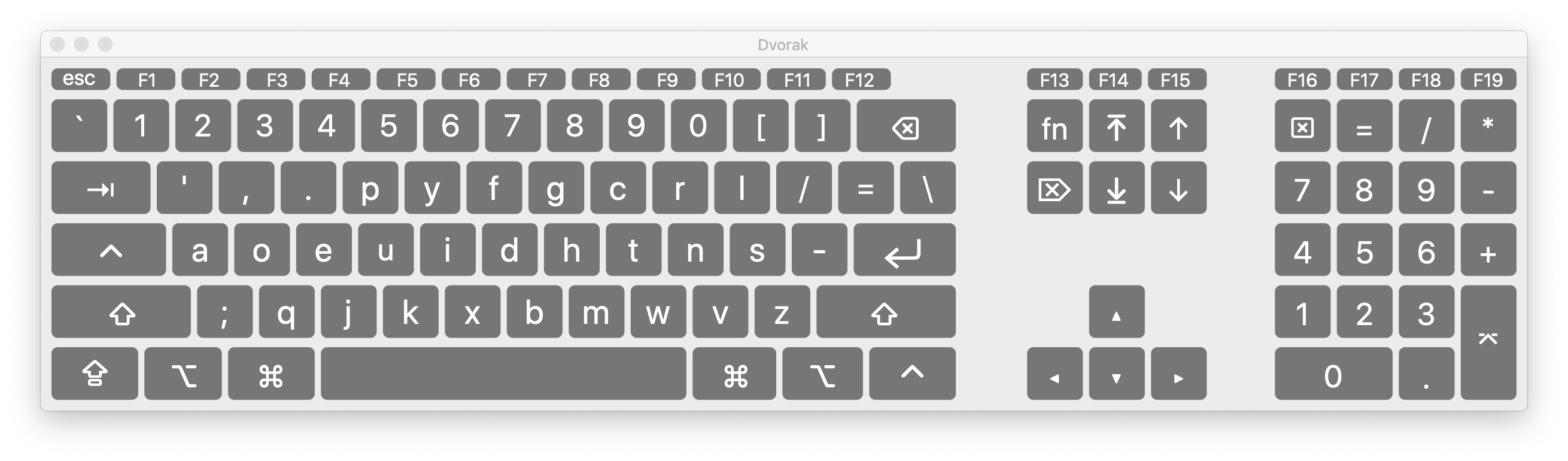 In this layout I’ve also swapped the left Ctrl key with Caps Lock. The fact that computer keyboards have dedicated such prime key real estate to a key designed to hold up a heavy type bar that computers don’t even have is somewhat maddening.
Dvorak for Windows (dvorak-win.patch)
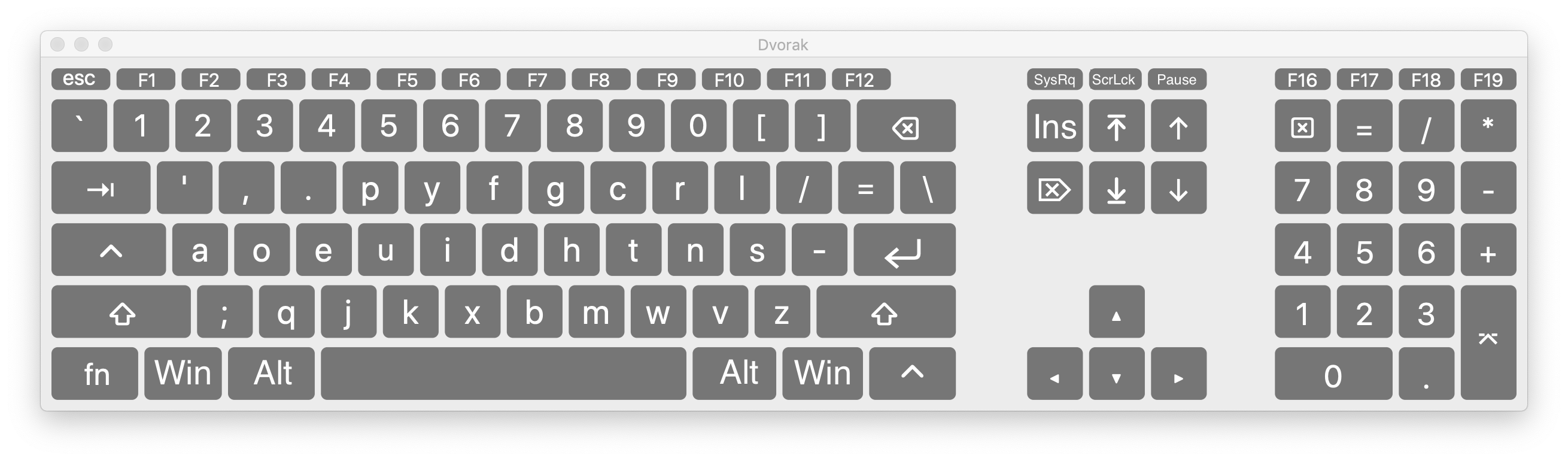 This layout is optimized for Windows, with the Alt and Meta (Win) keys where you would expect. In addition I've moved the Fn key down where Left Ctrl was, put Insert where Fn was, and brought back the SysRq, Scroll Lock, and Pause keys in place of F13-F15.
This is hackerware. You should really not try to use it unless you are comfortable working with tools like a hex editor, and are willing to permanently brick your keyboard if something goes wrong. You can usually find this model of keyboard on CraigsList for around $15. I am providing this software on a “best effort” basis and with absolutely no warranty.
The first step to installing is to determine which hardware and firmware versions your device shipped with. You can find this via the System Information app (Option + Apple Menu > System Information...), or using ioreg -lx.
IMPORTANT: my hacked firmware is based on an older version than the last one shipped with these keyboards. I have no idea what changed between versions 0.69 and 0.74, because there isn’t a way to extract the firmware from a device via software, and I have neither the skills nor equipment necessary to teardown and extract it directly from the EEPROM (if that’s even possible with the Cypress CY7C63923 SoC). So, to use an alternate keyboard layout, you’ll also be reverting the firmware to a previous revision. So far I haven’t noticed any problems with doing this, and Apple hasn't released a newer firmware update for the older model keyboards.
After you know what product ID you have, if it isn’t one of those listed above, then you should probably email me to find out whether it’s likely to work or not. You may need to modify the HIDFirmwareUpdaterTool that ships with Apple’s firmware update so that it will recognize your keyboard, since it was probably released later than the tool. See the file HIDFirmwareUpdaterTool.hacked.xxd.diff for the modifications I made.
Before you start the firmware updater tool, because it writes all diagnostic output to Apple System Log, you should run make watch_log either in another Terminal tab or in a background process.
Now you can run the hacked tool to install the firmware, either manually or via some helper targets in the Makefile.
If your firmware revision is 0x024f, you can use the command make load_dvorak_24f to load dvorak.irrxfw. You’ll get some output like this:
sudo ./HIDFirmwareUpdaterTool.hacked -progress -pid 0x24f ../../../../../Users/sethk/Projects/A1243Dvorak/dvorak.irrxfw
Password:
ProcessID: **64342**
#1##2##3##4##5##6##8#Nov  3 21:45:47 sethk-mbair HIDFirmwareUpdaterTool.hacked[64342] <Error>: File Parsing Successful
#9##11##12##13##14##15##16##18##19##22##25#Nov  3 21:45:49 sethk-mbair HIDFirmwareUpdaterTool.hacked[64342] <Error>: Bootload Mode Entered
Nov  3 21:45:49 sethk-mbair HIDFirmwareUpdaterTool.hacked[64342] <Error>: Sending Block Number: 2
Nov  3 21:45:49 sethk-mbair HIDFirmwareUpdaterTool.hacked[64342] <Error>: Sending Block Number: 3
Nov  3 21:45:49 sethk-mbair HIDFirmwareUpdaterTool.hacked[64342] <Error>: Sending Block Number: 4
#29##32##36#Nov  3 21:45:49 sethk-mbair HIDFirmwareUpdaterTool.hacked[64342] <Error>: Sending Block Number: 5
Nov  3 21:45:49 sethk-mbair HIDFirmwareUpdaterTool.hacked[64342] <Error>: Sending Block Number: 6
Nov  3 21:45:50 sethk-mbair HIDFirmwareUpdaterTool.hacked[64342] <Error>: Sending Block Number: 7
...
...
...
#270##273##277#Nov  3 21:46:03 sethk-mbair HIDFirmwareUpdaterTool.hacked[64342] <Error>: Sending Block Number: 74
Nov  3 21:46:03 sethk-mbair HIDFirmwareUpdaterTool.hacked[64342] <Error>: Sending Block Number: 75
Nov  3 21:46:03 sethk-mbair HIDFirmwareUpdaterTool.hacked[64342] <Error>: Sending Block Number: 127
#274##275##276##279##280#sethk-mbair{sethk}1130% Nov  3 21:46:03 sethk-mbair HIDFirmwareUpdaterTool.hacked[64342] <Error>: SendCmdVerifyFlash
Nov  3 21:46:03 sethk-mbair HIDFirmwareUpdaterTool.hacked[64342] <Error>: Flash Image Verification Succeeded...
Nov  3 21:46:03 sethk-mbair HIDFirmwareUpdaterTool.hacked[64342] <Error>: SendCmdExitBootLoader
Nov  3 21:46:03 sethk-mbair HIDFirmwareUpdaterTool.hacked[64342] <Error>: Bootload Success...
If there was an error, such as an unmatched USB vendor/product ID, the output will stop before showing the last progress marker ##280, and hopefully something informative will be written to the log.
If you were successful, your keyboard will now identify itself as product ID 0x220 and version 0.69.
If you want to revert the firmware to the last unmodified firmware update provided by Apple, you can use make load_default. Note that this may be an older version of the firmware than what your device started with, as mentioned above.
I ran across this paper that talks about some of the steps towards reverse-engineering the firmware for the A1243 keyboard. Since having a hardware Dvorak version of this exact keyboard has been a fantasy of mine, the information in this paper put it within the realm of possibility for me.
I used some of the information in the paper to un-obsfucate the firmware image (see Codec.cc), then was able to disassemble it using this tool. Gradually I added a bunch of chip-specific info to the disassembler, made some bug fixes, and managed to figure out where in the image the table of USB scancodes existed (see FindKeys.cc).
Then I made a tool (see Patch.cc) to replace the scancode table with a new layout and pad the data until the checksum matches what Apple’s firmware upgrade utility expects.