A Dataset with Speech, Gesture, Logic, and Demonstration for Robot Learning in Natural Human-Robot Interaction
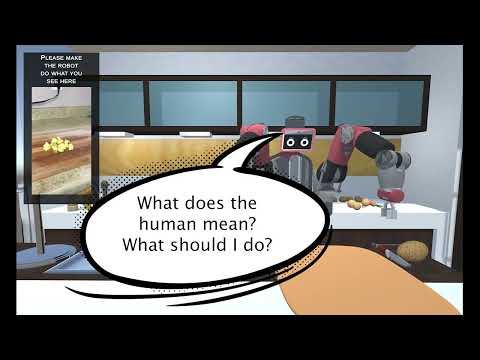
Recent advances in multimodal Human-Robot Interaction (HRI) datasets emphasize the integration of speech and gestures, allowing robots to absorb explicit knowledge and tacit understanding. However, existing datasets primarily focus on elementary tasks like object pointing and pushing, limiting their applicability to complex domains. They prioritize simpler human command data but place less emphasis on training robots to correctly interpret tasks and respond appropriately. To address these gaps, we present the NatSGLD dataset, which was collected using a Wizard of Oz (WoZ) method, where participants interacted with a robot they believed to be autonomous. NatSGLD records humans' multimodal commands (speech and gestures), each paired with a demonstration trajectory and a Linear Temporal Logic (LTL) formula that provides a ground-truth interpretation of the commanded tasks. This dataset serves as a foundational resource for research at the intersection of HRI and machine learning. By providing multimodal inputs and detailed annotations, NatSGLD enables exploration in areas such as multimodal instruction following, plan recognition, and human-advisable reinforcement learning from demonstrations. We release the dataset, simulator, and code under the MIT License at NatSGLD website to support future HRI research.

Overview Video Download
Speech, Gesture, and LTL Video Download
-
Metadata (.csv):
The metadata, stored as a CSV file, serves as the primary database. Each record corresponds to a command issued by participants, identified by a unique global record number (DBSN) and participant ID (PID). The sequence number of commands within a session is recorded as SSN. The onset (start time, ST) and offset (end time, ET) of each command are provided in milliseconds from the start of the experiment, and the presence of speech or gestures is indicated by a boolean value (1 for presence, 0 for absence).
-
Videos (.mp4):
Each video file names are named by participant ID (PID) (e.g., P41, P45, P50 etc.), two digit session sequence ID (SID) (eg. 01, 02, 03 etc.), and four digit overall database serial number (DBSN) (eg. 0001, 0099, 1234, etc.). An example filename of a video with
PID 40,SID 20, andDBSN 21would beP40-20-0021.mp4. The videos contain the following:- Participants View: Audio at 44kHz and video at 30fps
- Experiments View: Video at 30fps
- Multicam Room View: Video at 30fps
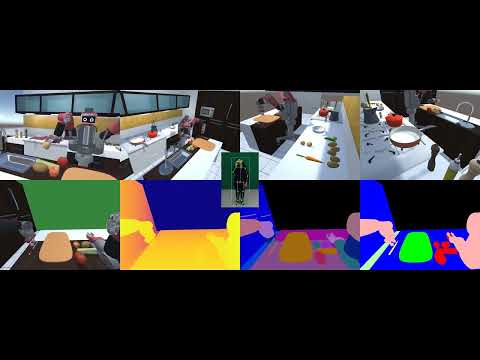
- Robot's First-Person (Ego) View: Video at 30fps, including RGB and depth images, instance segmentation maps (e.g., Onion1, Knife), and category segmentation maps (e.g., food, utensils, robot)
-
Events (.dat): Events refer to key activities during the experiments, including participant speech (transcribed as text), human gesture videos, tasks or subtasks, object state changes (e.g., object grabbed, cut), and robot actions (tasks or subtasks performed). All events were annotated using FEVA and stored in
.datformat, following a JSON structure. Each event is identified by a unique 16-character alphanumeric UUID (annotation ID), with start and end times in milliseconds and annotation text. Robot actions can involve task performance or social interactions. -
States (.npz):
State data is stored as compressed numpy files, with PID as the primary key and DBSN as the secondary key. The states include robot and object data. Robot states capture location (orientation and translation), joint states (single angle for the head, 7 angles for each arm in radians), and 2D bounding boxes of objects in the robot's ego-view (object ID, starting x and y coordinates, width, and height in pixels). Object states are one-hot encoded for objects whose state has changed, with detailed descriptions available in the events
.datfile. -
Features (.npz):
Features are stored as compressed numpy files, comprising embeddings and annotations, with PID as the primary key and DBSN as the secondary key. Each speech command includes GloVe and BART embeddings, while gestures use OpenPose's 25 keypoints. Gaze data use L2CS-Net format, see Gaze README for more details. Tasks are represented in text as LTL formulas.
Description
If you look in load_data_sample.py, it is pretty simple to load the data using numpy data = np.load... then data[0] is your first command, robot response, etc. Then data[1] is your next data and so on.
The fields you will care about are: Speech: Text of the speech Gesture: Array of human 2d pose sequence of the gestures HasSpeech: 1 or 0 if this command has speech or not HasGesture: has gesture or not Start_Frame: Image name of the what the robot sees when the command was given Stop_Frame: Image name of what the robot sees when the task was completed BaxterState: Robot motor angle sequences for each task completed BBox_One_Hot_Encoding: one hot encoding of the objects that the command referred to and the robot interacted with BBoxes: Bounding boxes of all the objects visible (format object instance there are total of 17 objects, and x1,y1,x2,y2)
Code
import numpy as np
dataset = np.load('data/states_and_features/natsgld_states_and_features_v1.0_sample.npz', allow_pickle=True)['NatComm'].item()

# Pariticipants
print(dataset.keys())

OUTPUT >> dict_keys([40, 45, 49, 51, 52, 53, 54, 55, 56, 57, 58, 59, 60, 61, 62, 63, 64, 70])

p40 = dataset[40]

# Show all keys
print(p40.keys())
OUTPUT >> dict_keys(['tdUEHP6Z8TATRsvicJS7cy2JhUJpIeCe', 'tznNogt30s9RhnohZmbjuDqliNAvSoMQ', ... ])

# See a sample data
print(p40['tdUEHP6Z8TATRsvicJS7cy2JhUJpIeCe'])

# OUTPUT FORMAT: [ DBSN, SID, Start Time, End Time, Sudo Speech, Has Speech, Has Gesture, Action, Object, { Speech UID: [ Start time, End time, Speech, [ Glove Embedding for each word ] ]}, { 'gesture_keypoints' : [ OpenPose keypoints ] }, { 'gesture_info': [...] } ]
OUTPUT >> [1129, 27, 416300, 418749, 'turn back', 1, 1, 'on', 'gas', {'Lq9pA5GDkCvZjOts1YaP7pAlvOoiblUV': [416700, 417800, 'so turn back', [array([ ...], dtype=float32), array([ ... ], dtype=float32), array([ ...], dtype=float32)]]}, {'gesture_keypoints': array([[..., [653, 245, 680, ..., 604, 671, 596]]]), 'gesture_info': [1.0, 1.0, 'RH|', 0.0, nan, 0.0, nan]}]import numpy as np
dataset = np.load('data/states_and_features/natsgld_LTL_v1.0_sample.npz', allow_pickle=True)
print(dataset.files)
OUTPUT >> ['data', 'fields']
print(dataset['fields'])
OUTPUT >> array(['DBSN', 'PID', 'SID', 'Speech', 'Gestures', 'Gestures_len', 'LTL', 'GTA', 'GTO'], dtype='<U12')
# load data
data = dataset['data']
# print sample data shape
print(data.shape)
OUTPUT >> (734, 9)
# See a sample data
print(data[0])
# OUTPUT FORMAT:
# [
# DBSN, # Database Sequence Number
# PID, # Participant ID
# SID, # Session ID
# Speech, # Text of the speech
# Gesutrues, # Array of human 2d pose sequence of the gestures
# Gestures_len, # Length of gestures (frames)
# LTL, # Linear Temporal Logic
# GTA, # Ground Truth Action
# GTO # Ground Truth Object
# ]
OUTPUT >> array([1, 40, 0, 'turn on the burner under the water',
tensor([[0.4857, 0.5485, 0.7624, ..., 0.6309, 0.5376, 0.8944],
[0.4857, 0.5457, 0.7569, ..., 0.6310, 0.5376, 0.8997],
[0.4857, 0.5484, 0.7587, ..., 0.6355, 0.5376, 0.9033],
...,
[0.4808, 0.5512, 0.7859, ..., 0.6115, 0.5350, 0.8691],
[0.4808, 0.5511, 0.7738, ..., 0.6116, 0.5350, 0.8658],
[0.4808, 0.5512, 0.7821, ..., 0.6163, 0.5375, 0.8570]]),
94,
'X ( F ( C_StovePot U StovePot ) & G ( C_StovePotKnob U StovePotKnob ) & F ( StovePotKnob U Stove_On ) )',
'on', 'gas'], dtype=object)NATSGLD Simulator is located in the natsgld-simulator folder. The simulator works on Windows, Mac, or Linux.
- Download and Install Blender (v2.79a) https://download.blender.org/release/Blender2.79/
-
Install the latest UnityHub https://unity.com/download
-
Download and install Unity 2019.3.0a5 https://unity.com/releases/editor/alpha/2019.3.0a5
- Windows https://download.unity3d.com/download_unity/9aff892fb75b/Windows64EditorInstaller/UnitySetup64-2019.3.0a5.exe
- Mac https://download.unity3d.com/download_unity/9aff892fb75b/MacEditorInstaller/Unity-2019.3.0a5.pkg
- Linux https://download.unity3d.com/download_unity/9aff892fb75b/LinuxEditorInstaller/Unity-2019.3.0a5.tar.xz
Validated on Linux Only. We also validated with Windows WSL Ubuntu. But there are firewall configuration you might have to make changes to allow socket communications.
- Install ROS version (ROS 1 Noetic) http://wiki.ros.org/noetic
- Install ROS Bridge Package http://wiki.ros.org/rosbridge_suite
- Clone ROS# (pronounced ROS-Sharp) from https://github.com/siemens/ros-sharp
- Copy
unity_simulation_scenefolder fromros-sharp/ROS/unity_simulation_sceneinto ROS workspacesrcfolder - Copy
ng.launchfromnatsgld-simulator/PreReq/into ROSunity_simulation_scenepackagelaunchfolder. - Build ROS using
catkin_make
BioIK is a biologically-inspired evolutionary algorithm for solving inverse kinematics problems. There are two ways to use it:
In our work, we purchased BioIK from the Unity3D store, so if you wish to use the simulator without any modifications, please purchase BioIK and copy the package into the Assets folder or follow the latest BioIK installation instructions.
For consistency and speed, you can save and load IK solutions from previous iterations. If you wish to save evolutionarily generated IK solutions or load the saved solutions, you will need to make a few modifications to the code. Please add the following changes to the BioIK.cs code once you import the BioIK asset.
BioIK.cs
public class BioIK : MonoBehaviour {
    ...
    [SerializeField] public bool EnableAutoIK = true;
    public bool OptimalSolutionExists = false;
    public double[] OptimalSolution = null;
    ...
    void LateUpdate() {
        ...
        if (EnableAutoIK) {
            if (OptimalSolutionExists) {
                /* Load Optmial Solution */
                Solution = OptimalSolution;

                /* Uncomment this if you want to re-optimize everytime */
                // Solution = Evolution.Optimise(Generations, Solution);
            }
            else {
                Solution = new double[Evolution.GetModel().MotionPtrs.Length];
                for (int _i = 0; _i < Evolution.GetModel().MotionPtrs.Length; _i++) {
                    Solution[_i] = Evolution.GetModel().MotionPtrs[_i].Motion.GetTargetValue(true);
                }
                Solution = Evolution.Optimise(Generations, Solution);
            }

            for (int _i=0; _i< Solution.Length; _i++) {
                BioJoint.Motion motion = Evolution.GetModel().MotionPtrs[_i].Motion;
                motion.SetTargetValue(Solution[_i], true);
                ...
            }
        }
        ...
    }
}We use and modify Image Synthesis Unity3D asset distributed under MIT/X11 license to generate RGB, Depth, and Segmentation images.
- From UnityHub click the
Openbutton and browse tonatsgld-simulatorfolder to open the project - After the HRI simulator is open, go to the
Hierarchytab, click on theOneSceneAnimation > ROS > RosConnector. Then under the inspector tab, in ROS Connector, you will seeROS Bridge Server URLfield with a value ofws://ip_address:port_numbersuch asws://192.168.1.61:9090. This is used to communicate with the ROS core via ROS Bridge. - For ROS connectivity, you will need to find the IP address where the ROS core will be running. It can run on the same machine, virtual machine, or another computer within the same network. Change the IP address in the server URL to this IP Address. Keep the port 9090 unless you explicitly change this port number.
- You might get a prompt for
TextMesh Pro. This is used for text overlay at run time. Go to theProjecttab, right clickPackagesand selectView Package Manager. In the package manager tab, installTextMesh Proversion2.0.1. Download any dependencies this package might prompt you for.
Please cite our work if you find our research, paper, code, or any part of our work useful in your research or, if you use our dataset.
@inproceedings{shrestha2025natsgld,
  title     = {{NatSGLD}: A Dataset with {S}peech, {G}estures, {L}ogic, and Demonstrations for Robot Learning in {Nat}ural Human-Robot Interaction},
  author    = {Snehesh Shrestha, Yantian Zha, Saketh Banagiri, Ge Gao, Yiannis Aloimonos, Cornelia Fermüller},
  year      = {2025},
  booktitle={2025 20th ACM/IEEE International Conference on Human-Robot Interaction (HRI)}
}