Run mobile UI tests by describing them in plain language.
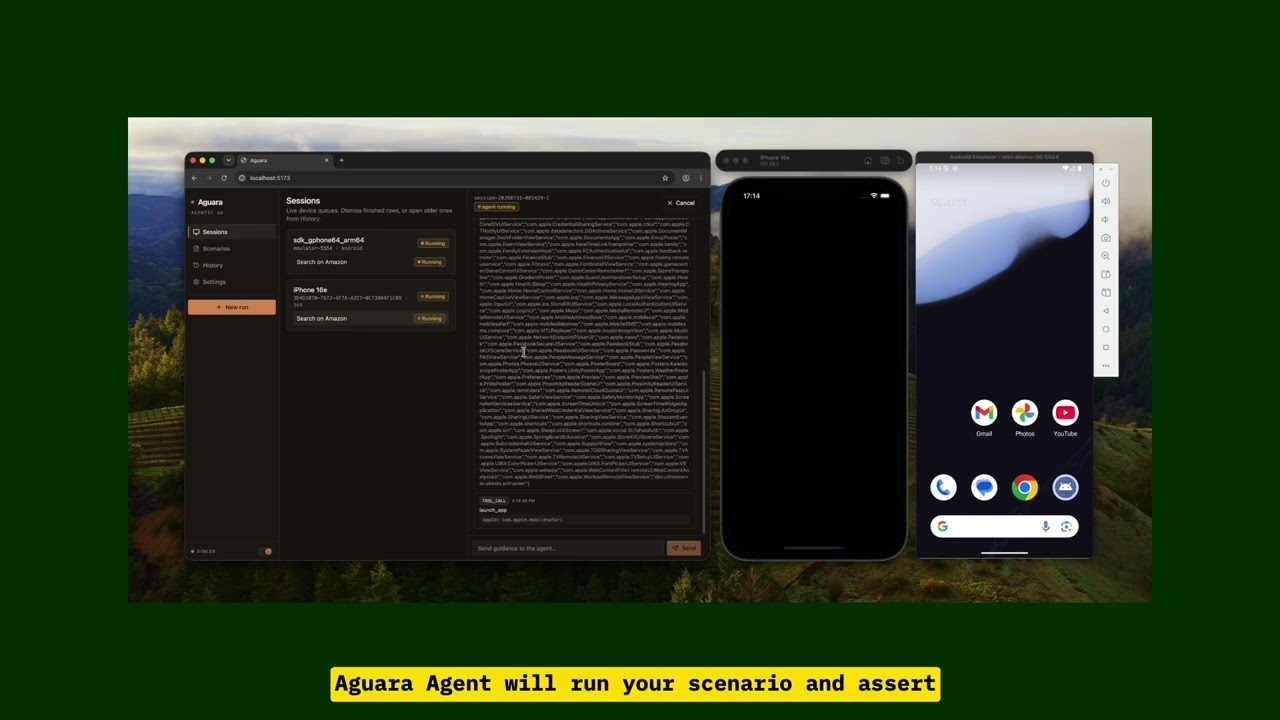
Write what the app should do. Pick a phone. Aguara drives the screen, takes screenshots, and tells you what passed or failed.
Works with iOS and Android.
- Node.js 20+ and npm 10+
- An LLM API key (OpenAI-compatible; OpenRouter works out of the box)
- A connected iOS or Android device with the app already installed
- Host tools for mobile-device-mcp (Aguara starts this provider automatically; it drives the device on your machine):
- Android: Android SDK with
adbon your PATH - iOS: Xcode (
xcrun/simctlfor simulators; real devices also needxcodebuild,devicectl, andiproxyfrom libimobiledevice)
- Android: Android SDK with
git clone https://github.com/srmorete/aguara.git
cd aguara
npm install
npm run dev
Open http://localhost:5173.
- Settings → LLM — paste your API key and pick a model.
- Settings → Apps — add the app under test.
- Give it a name you will recognize.
- Set the Android package id or iOS bundle id under
launchId. - On Android,
launchIdis required so Aguara can clear app data before each run.
- Sessions — confirm your device shows up. Refresh if it does not.
Finish Set up once first. You need an app in Settings and a visible device before a run can start.
-
Open Scenarios and create one. Example:
# Login smoke test

1. Open the app.
2. Log in with email qa@example.com and password secret.
3. Verify the home screen appears.
“The app” is the one you registered in Settings and will pick on the next step.
-
Click New run in the sidebar.
-
Choose that app, a device, and the scenario. Start the run.
-
Watch live progress on Sessions.
-
Open History when it finishes for steps, screenshots, and the final result.
Open History. Each run shows a badge and counts (passed / failed / cancelled / blocked).
Select a run to open the detail panel:
- One card per scenario execution: status, duration, step counts, cost, and any error text.
- Expand a card to read each step (action, expected, actual) and open screenshots.
- View session jumps to Sessions and loads that execution’s live transcript.
- Continue queues unfinished work again (pending, failed, blocked, cancelled). Passed scenarios stay as they are. Old attempts remain for comparison.
- Rename or delete a run from the detail header. You can multi-select runs or clear all finished ones from the list. A run still executing cannot be deleted.
Badge meanings on a finished run: Completed (all passed), Failed, Blocked, or Cancelled — worst outcome wins.
- Put credentials and test data in the scenario body. The agent only knows what you write.
- Turn on human-in-the-loop (HITL) on a run if you want to answer the agent when it gets stuck.
- Each device runs one test at a time. Queue several on the same device, or use different devices in parallel.
- On Android, Aguara clears app data before every test. On iOS, automatic reset is not available yet — state may carry over.
- If you restart Aguara mid-queue, pending tests stay saved but do not auto-start. Resume them from Sessions, or use Continue on History.
- Config, scenarios, run history, and the local WebSocket auth token live under
~/.aguaraon this machine. The token is created automatically on firstnpm run dev. The browser never sees it: the Vite dev proxy adds it when forwarding/wsto the backend.
- Desktop app package
- Web browser testing
- Automatic iOS app reset between tests
- Auto-redact secrets in local logs and screenshots
Aguara is named after the aguará-guazú (Chrysocyon brachyurus), a long-legged South American canid — also called the maned wolf.
MIT